
Browse the manual
Users and roles
Invite people, assign roles, transfer ownership and manage access from People in your Pepper installation.
On this page
For: owners managing team access.
Where: Work > People. The former address /settings/users opens People.
People and accounts
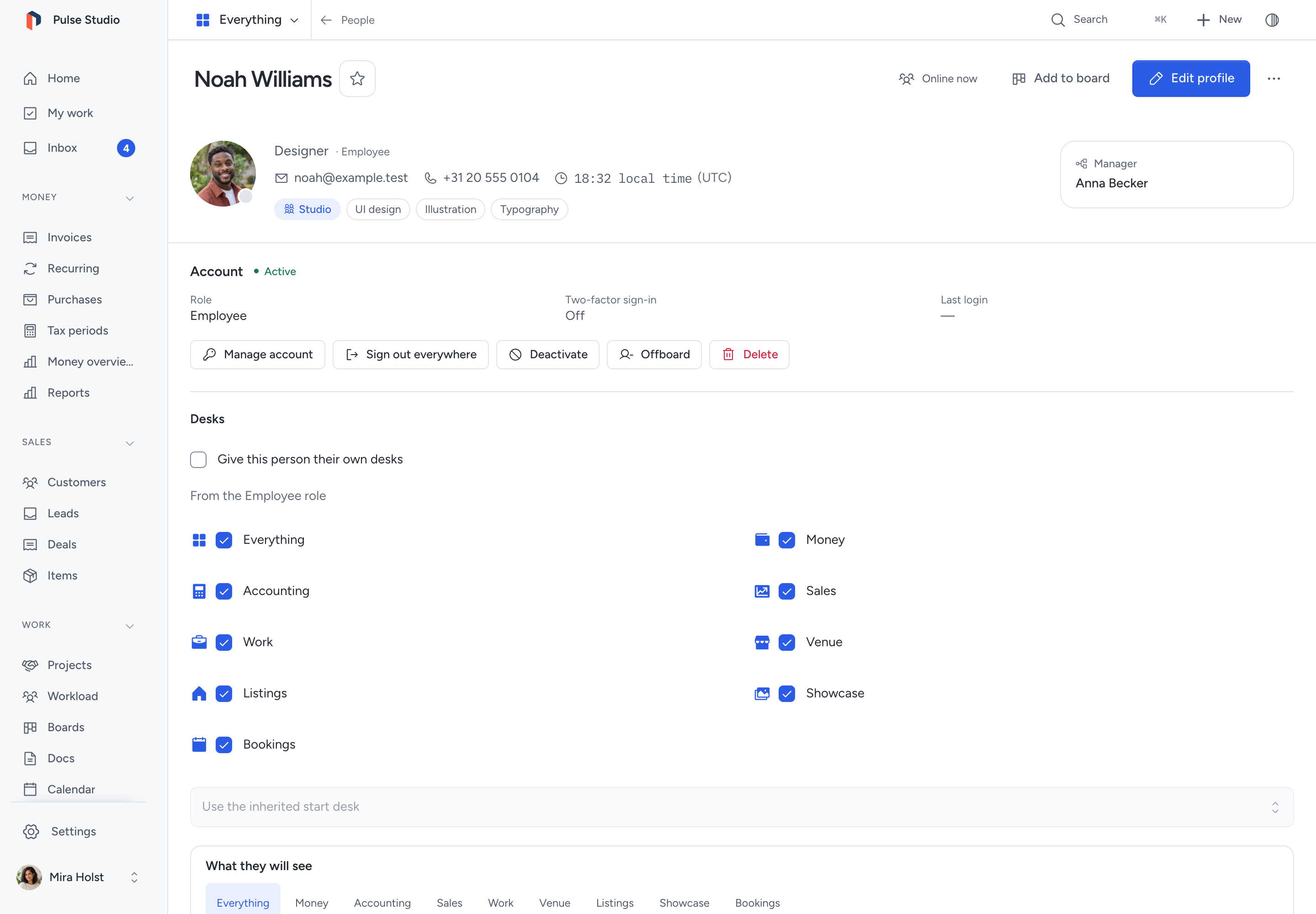
People lists everyone with their name, job title, teams, email and local time. Owners and admins also see the Guests, Deactivated and Invited tabs. A person's page shows an Account panel with their role, two-factor sign-in, last login and the account actions.
Inviting a user
In People, click Invite a person to open the invitation form. Review the address, role and any guest limits before sending.
| Field | Required | Description |
|---|---|---|
| Yes | The email address to invite | |
| Role | Yes | Choose Admin, Employee, Accountant or a custom role |
The invited person receives an email with a link to set their password and activate their account. Invitation emails send during the request. They need no queue worker. See Add users and assign roles.
Pending invitations
Invitations that people have not accepted appear on the Invited tab of People with:
- Email address
- Assigned role, and Guest for a guest invitation
- Who sent it and when it expires
- Resend (send the invitation again) or Revoke (cancel the invitation after you confirm), in the … menu
Editing a user
Owners and admins can edit non-owner accounts. Open the person in People and click Manage account. Use Your profile in the account menu to change your own name, email or password. Admins cannot edit the owner. You cannot change your own role on an account page.
For a non-owner account, you can edit:
- Name
- Role assignment
Roles
The table lists role permissions. Below Admin, assigned desks also limit which modules someone can open. Everything removes the desk limit; it does not grant a missing permission.
| Role | Access level |
|---|---|
| Owner | Full access to documents, settings, users, backups, updates and the audit log. Only the owner can transfer ownership. Only one user can have this role |
| Admin | Manage operational settings, non-owner accounts, backups, updates and the audit log. Cannot use owner-only security, module, provider or connection controls |
| Employee | Can create and edit their own documents and shared customers and items. Customer history and search show their own documents. Cannot see settings, reports, customer financial summaries or exports |
| Accountant | Read-only access to all financial data. Can view and export invoices, customers, and reports. Cannot edit |
See Roles and permissions for the detailed permission matrix.
Choose desks for people
Open Settings > Roles to set a role's desks and start desk, including for Employee and Accountant. Invitations inherit those choices. The preview shows the permitted pages and included modules.
For a personal choice, open the person's Account panel and select Give this person their own desks. This replaces the role's desks and start choice. Clear it to inherit from the role again. Owners and admins always have every desk.
Changing a desk list or its entries signs affected people out and stops their agent connections. Changing only a start desk keeps their sessions. Follow Choose and arrange your desks.
Deactivating a user
Choose Deactivate on the person's page or in their … menu. Deactivated users cannot log in. Pepper keeps their data and audit history. You can reactivate them later. Their previous sessions and remembered logins remain invalid; they must sign in again. You cannot deactivate yourself or the owner.
For a departure with open work, use Offboard on the user's account. Review the successor and record counts before you confirm. Follow People and teams for the handover steps and access safeguards.
Deleting a user
Delete a non-owner user to remove their account and revoke access. You cannot delete yourself or the owner. Pepper keeps their audit log entries (deleting a user does not cascade to the audit log).
Transferring ownership
The owner can transfer the owner role to an active admin: open the admin's page in People and choose Transfer ownership in the … menu. The former owner becomes an admin. Both people must sign in again. This requires confirmation. Only one user can be the owner at a time.
Session expiry
Changing a password, resetting a password or changing a role expires the affected user’s other sessions and remembered logins. A password change from Profile keeps the current session. A password reset does not reactivate an inactive account.
Permissions
Only the Owner and Admin roles see the account panel, the account page and the account actions in People. Employees and accountants cannot manage accounts. They see the parts of People their role allows.
Related pages
Custom roles and guests
Open Settings > Roles to create a custom role. Choose a unique name and at least one permitted action. Built-in role permissions cannot be edited. Their desks and start desk can change.
Custom roles cannot grant installation settings or account administration. Changing a role signs out its holders and stops their existing external credentials. Delete a custom role only after its users and pending invitations have another role.
An invitation can enable Invite as a guest. Guests use an Accountant, Employee or custom role, with a separate scope. They cannot become Owner or Admin.
Choose permitted modules. To restrict records, also choose named customers or projects. Without named records, the selected modules are available within the role's normal permissions. A guest flag alone does not limit access to one customer.
See Roles and permissions before granting access.
Need help with the product?
Contact support