
Browse the manual
Updates
Install a new Pepper release from Settings > Update. Upload the release ZIP, check it, then install it with an automatic backup and rollback.
On this page
For: owners and admins.
Where: Settings > Update, or /update.
What you need: the release ZIP from your purchase or support channel, and a Pepper database that holds no tables of other applications.
Install a new release from the Update page. You do not need the command line. Pepper checks the package, makes a backup, replaces the application files and updates the database. If a step fails, it puts back the previous version and its data.
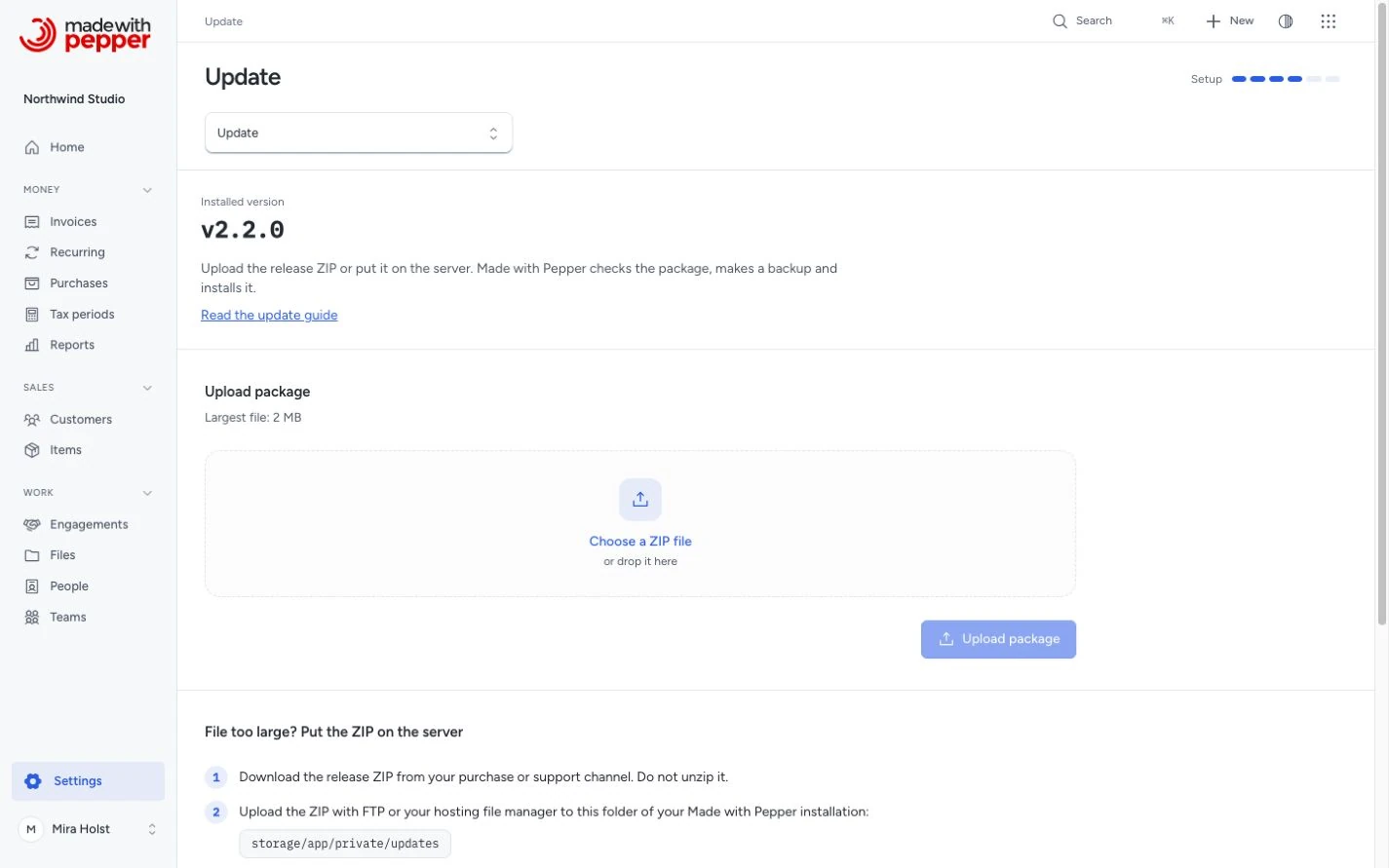
Add the ZIP through this page or upload it with SFTP. Both methods finish with Check package and Install update here.
| Stage | What happens |
|---|---|
| Add the package | Upload the release ZIP or place it in the private update folder |
| Check the package | A failed check changes nothing. Passing all checks permits Install update |
| Confirm installation | The site enters maintenance mode. Pepper makes a backup before replacing files and updating the database |
| Update succeeds | The new version goes online |
| Update fails | Pepper restores the previous files and database. If recovery fails, the site stays in maintenance mode |
Complete the backup and server checks before starting.
1. Add the release ZIP
Download the release ZIP from your purchase or support channel. Do not unzip it. Then add it in one of two ways.
Upload it in the browser. On Settings > Update, click Choose a ZIP file, or drop the file on the upload area. Click Upload package. The page shows the largest file that your server accepts. Your hosting provider sets this limit with the PHP settings upload_max_filesize and post_max_size. On a VPS you can raise them yourself.
Upload it with SFTP. Use this way when the file is larger than the limit.
- Open Settings > Update to create the update folder.
- Connect to your server with SFTP, or open your hosting file manager.
- Upload the ZIP to this folder of your Pepper installation:
storage/app/private/updates. - On Settings > Update, click Refresh list.
Opening the Update page creates the folder if it does not exist. Keep the downloaded file name. Names with letters, numbers, dots, dashes, underscores, spaces and brackets show in the list. The folder is private. Visitors cannot download files from it.
2. Check the package
- Open Settings > Update. The ZIP shows under Uploaded packages.
- Click Check package next to it.
Pepper reads the package. The checks change nothing. Each check shows a green or a red mark:
| Check | What it means |
|---|---|
| The package files are complete and unchanged | Every file matches the size and SHA-256 hash in the package manifest. Test packages are refused |
| The installed files match your version | Your application files are unchanged. A customized installation is refused |
| The package is newer than the installed version | The same version or an older version is refused |
| The package can update your version | The package lists your version and its database structure as a supported starting point |
| PHP and database support | PHP 8.4+ and a supported SQLite, MySQL or MariaDB version. SQLite requires a package that declares its SQLite minimum |
| The database holds only Pepper tables | A failed update restores the whole database from its backup. Tables of another application in the same database are refused, so the restore cannot change them. Give Pepper its own database |
| The server can make a database backup | Every supported database uses a portable snapshot. PHP needs ZIP, BC Math and proc_open(); no database dump command is needed |
| The application files can be replaced | The web server can write to the installation folder |
| The work folder is on the same disk | The update moves folders without copying them |
| There is enough free disk space | There is room for the new files and the backup |
| No other update is running | Only one update runs at a time |
The page also shows the number of database changes in the package.
If a check fails, fix the cause and click Check package again. Ask your hosting provider when a check needs a server setting.
3. Install the update
- Click Install update.
- Read the confirmation.
- Click Install update to confirm.
- Keep the page open until it shows the result.
The page shows each step: maintenance mode, backup, checking the new files, replacing the application files, updating the database and finishing.
During the update, the site is in maintenance mode. Other users see a maintenance page. Scheduled tasks and the email queue wait. Your browser can open only the Update page until the update ends. Other pages show the maintenance page, also in other tabs, so no record changes after the backup.
If the connection drops, reload the page. The update continues from its last finished step, or it undoes the unfinished step.
The result
| Message | What happened |
|---|---|
| Updated from version A to B | The new version is installed and the site is online |
| The update stopped before any change | A step before the file replacement failed. Nothing changed |
| The update failed and was undone | Pepper put back the previous files and the database from the backup that it made at the start. The site is online with the previous version |
| The update could not be undone | The site stays in maintenance mode. The message names the backup file. Restore it with the backup recovery procedure, or contact support |
The audit log records each installed update and each failed update.
If the site stays in maintenance mode
Open the Update page in the same browser that started the update. Other browsers and devices see only the maintenance page.
If the Update page does not open, do not delete anything. Cleared cookies or a server interruption during file replacement can cause this. Contact support, or restore the site yourself:
- Find the backup from the start of the update in
storage/backups. Its name starts withbackup_and the date of the update. - Find the previous application files in
storage/updates. Each update has its own folder with apreviousfolder inside. - Follow the backup recovery procedure with that backup, the original
.envand the previous release ZIP.
What the update keeps
- Your
.envfile and your application key. - Everything under
storage: the SQLite database file, uploaded logos, issued originals, private files, logs and backups. - The public media link
public/storage. - All records in the database. The update only adds the database changes of the new release.
The update replaces the application code, including vendor and public/build. Changes that you made to the code are lost. Keep custom code in version control and apply it again after the update.
The backup from the start of the update shows in Backups and follows its retention setting. The previous application files stay in storage/updates until the next update starts. Pepper deletes the ZIP after a successful update. To delete a package yourself, click the trash icon next to it.
Update access
Your first year includes access to the release ZIPs on Gumroad. Your licence does not expire when download access ends. You can keep using your installed copy.
Your updates membership renews each year unless you cancel. You can cancel right after buying through your Gumroad receipt or Library. You keep your full paid year of downloads, updates and product support.
After access ends, you can return at any time for the latest version and a new year of updates and support. You do not pay for skipped years. Open Manage membership from your Gumroad receipt or Library to restart, or buy another year from the product page. Check the charge and access dates before confirming. See current prices and update terms.
Update access does not change the checks. A package that fails a check is not installed.
Other ways to update
Use replacement recovery when the Update page is unavailable. Fresh browser setup can import an older backup into a newer release that supports its starting version. The import applies updates and verifies the result before activation. If the host lacks required update tools or permissions, ask the host to provide them. The package must list your installed version as a supported starting point. An installation with an Update page can use it when all checks pass.
Release downloads use your purchase or support channel. Compare the ZIP's SHA-256 with the value in the changelog before you upload it. The file checks find damaged or changed files. They do not prove who supplied the package.
Related pages
Need help with the product?
Contact support