
Browse the manual
People and teams
Find colleagues, keep profiles and working hours, record time off and rates, and hand over open work.
On this page
For: colleagues using the directory, and people who manage profiles, teams or account handovers. Where: Work > People and Work > Teams. On a phone, open More first.
People describes the people with accounts in your installation. Customer contacts stay on customer records. The Employee role controls application access. Changing a job title, manager or team does not change that role. Owners and admins invite people and manage accounts in People too: on the Invited tab and on each person's page. Custom roles stay under Settings > Roles. See Invite people and manage accounts.
Publish your business card
Open your profile and use Business card to choose which contact fields visitors may see. New cards start closed.
Only you can publish your card. A people manager can close it. Deactivation and offboarding close it in every channel.
A published card offers a vCard download and a message form. Each message reaches you as its own request, even when another colleague owns the lead.
A people manager can publish a team page of the cards their owners have published. Read Publish a widget.
Choose what someone opens
Owners and admins can choose desks in a person's Account panel, or set them for a role in Settings > Roles. A personal list replaces the role's choices. The preview shows the pages and modules the person may open. Below Admin, these desks also limit access through saved links and AI clients. Read desks and access.
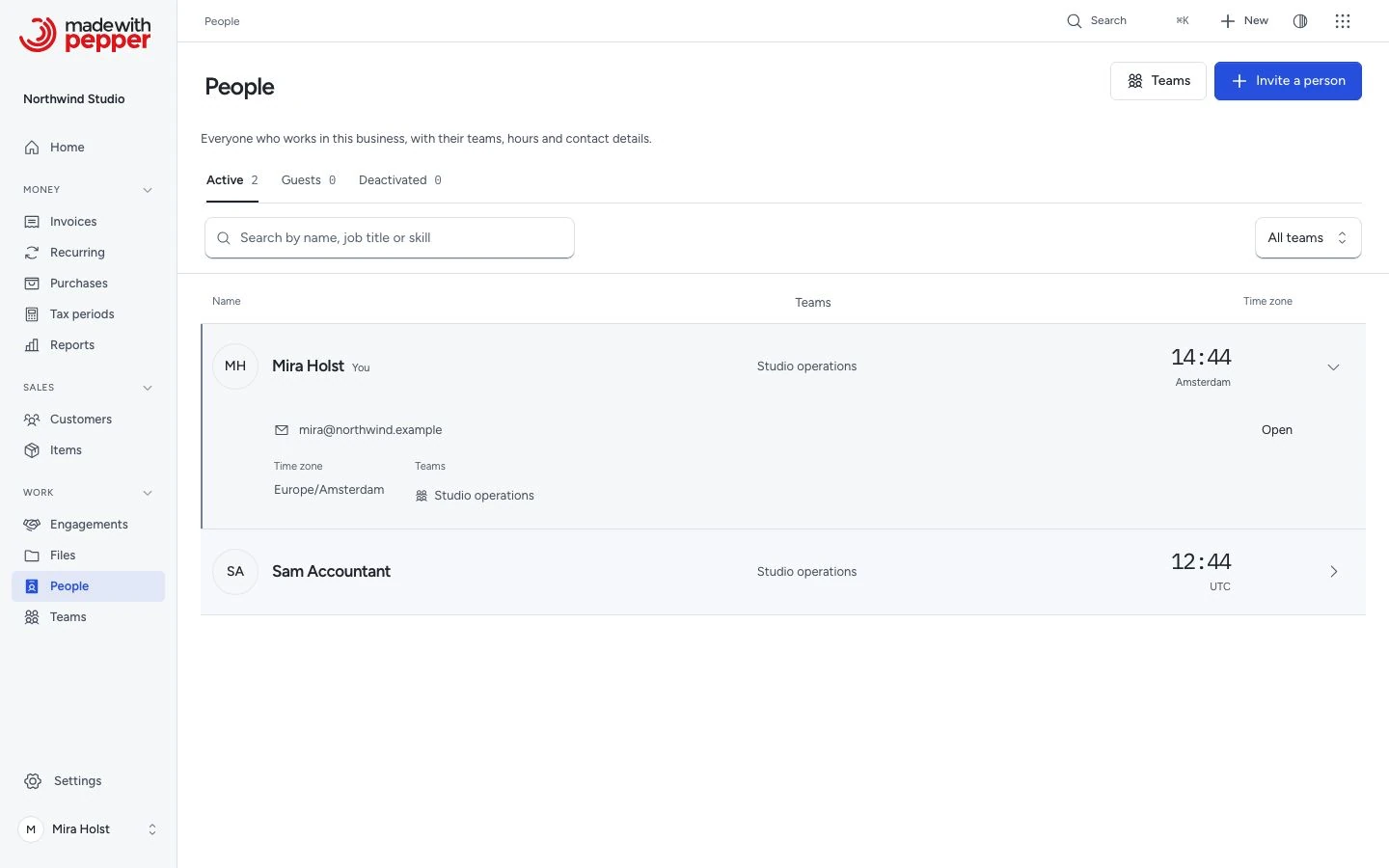
Find a colleague
- Open People.
- Search by name, job title or skill.
- Choose a team, or keep All teams.
- Click a person's name to open their profile.
Each row shows the name and job title, teams, skills, email and local time, like the Teams table. Click a row to open the profile. Move the pointer over a row, or right-click it, to open its … menu. The profile shows teams, manager, direct reports, skills, local time and weekly hours. Away today means a recorded absence covers today in that person's time zone. A local clock does not show whether someone is online.
Owners, admins and permitted custom roles also see the Active, Guests and Deactivated views. Owners and admins also see Invited. If no rows match, change the search or team filter. Clear filters removes both.
Access and private details
The four built-in roles can read active colleagues who are not guests. Owners and admins can manage the directory. A custom role can grant directory reading or management too. Guests see their own profile unless their access also includes the People module. If your role permits only your own profile, People shows that profile. Team names link to a team only when you can open it.
| Detail or action | Who can use it |
|---|---|
| Read a colleague's name, email, job title, teams, manager, skills, time zone and hours | People with directory access |
| Read time-off dates and Kind | People who may read that profile |
| Read Phone, time-off Note and hourly rates | The person and people with directory management permission |
| Edit your own photo, job title, phone, skills, time zone and hours | You |
| Edit another profile | People with directory management permission; only the owner edits the owner's profile |
| Set a manager or hourly rate; create, edit or archive teams | People with directory management permission |
| Add or remove time off | The person and people with directory management permission |
| Invite, change account roles or offboard a person | Owner or Admin |
Accountants do not gain access to colleagues' private rates through their financial role. Team membership and Lead do not grant access to business records. The person's Timeline shows only activity and linked records that you may read. Use Older activity for earlier events. Private directory fields never appear in agent directory tools.
Edit a profile
- Open your profile from People.
- Click Edit profile.
- Enter your Job title, Phone and Time zone.
- Add each Skill, then press Enter.
- Set your working hours.
- Click Save profile.
Use Your profile in the account menu to change your account name, email or password. Owners and admins can open Account and role on another non-owner's profile for account administration.
Job title accepts 120 characters; Phone accepts 40. You can save 20 skills, with up to 40 characters each. Choose the time zone where the person works. The local clock and hours use that zone.
A directory manager can choose Manager, or No manager. The manager must be another active colleague who is not a guest. Pepper refuses a reporting loop, including a loop through several managers.
Photo
Click Upload a photo and choose a JPEG, PNG or WebP image of up to 2 MB. Remove photo removes it. These actions save the photo change at once. Click Save profile to save other profile edits. Only permitted directory readers can open the photo.
Working hours
- In Edit profile, find Working hours.
- Click Add hours beside a weekday.
- Set From and To.
- Add another interval if the day includes a break.
- Click Save profile.
Each weekday accepts up to 3 intervals in the person's time zone. For example, set Monday to 09:00–12:00 and 13:00–17:00. Each interval must start before it ends. Intervals on the same day cannot overlap. Remove an interval with its remove button. A day without intervals shows Off.
If the whole week is empty, the profile shows No working hours set. That means no hours are known. It does not mean the person is available all day. Hours keep their local times across daylight-saving changes.
Record time off
Colleagues can see the dates and Kind. Put private details in Note.
- Open the person's profile.
- Under Time off, click Add time off.
- Choose First day and Last day.
- Choose Leave, Sick or Other under Kind.
- Enter an optional Note, up to 500 characters.
- Click Add time off.
Time off covers whole days in the person's time zone, including both dates. For one day, choose the same date twice. The last day cannot precede the first or be more than 366 days later. This records an absence. It does not request approval or calculate a leave balance.
The profile shows up to 20 current or upcoming absences. Past absences stay stored but leave this list. To correct an entry, click its Remove button and confirm Remove, then add the corrected dates. Removal keeps an audit event.
Set dated hourly rates
Only people with directory management permission can set rates. The person can read their own rates. Each rate has a currency and a start date.
| Kind | Meaning |
|---|---|
| Cost rate | Internal cost per hour |
| Billable rate | Amount charged per hour |
- Open the person's profile.
- Under Rates, click Set a rate.
- Choose Kind and Currency.
- Enter Amount per hour in your interface's number format.
- Choose Starts on.
- Click Set a rate.
Cancel discards the unsaved rate. After you save a rate, the next entry starts with a blank amount.
The amount must be zero or more and fit the currency's decimal precision. Pepper stores the exact amount, without floating-point rounding. For EUR, 45.50 means 4,550 cents. For USD, 95.00 means 9,500 cents. The two currencies stay separate; setting a rate does not convert money.
A new row keeps the earlier rates. To correct a rate, add a new row with the required start date. For each kind, the latest start date on or before the relevant day applies. If rows share a start date, the last saved row applies. The profile's current rates use today in the person's time zone.
For example, enter a EUR cost rate of 45.50 from 1 September, then 48.00 from 1 November. On 8 October, the current cost rate is 45.50. From 1 November, it is 48.00. A USD billable rate of 95.00 remains a separate rate of that kind.
Open Rate history to see up to 20 rows, ordered by start date. Earlier rows stay stored. Saving a rate does not generate invoices, process payroll or change issued documents and their originals.
Create and maintain teams
- Open Teams.
- Click New team.
- Enter a unique Name and optional Description.
- Select the Members.
- Choose a Lead, or keep No lead.
- Click Save.
A team name accepts 80 characters; its description accepts 500. You can select up to 500 members. They must be active people who are not guests. The lead must be a selected member. The member search matches names.
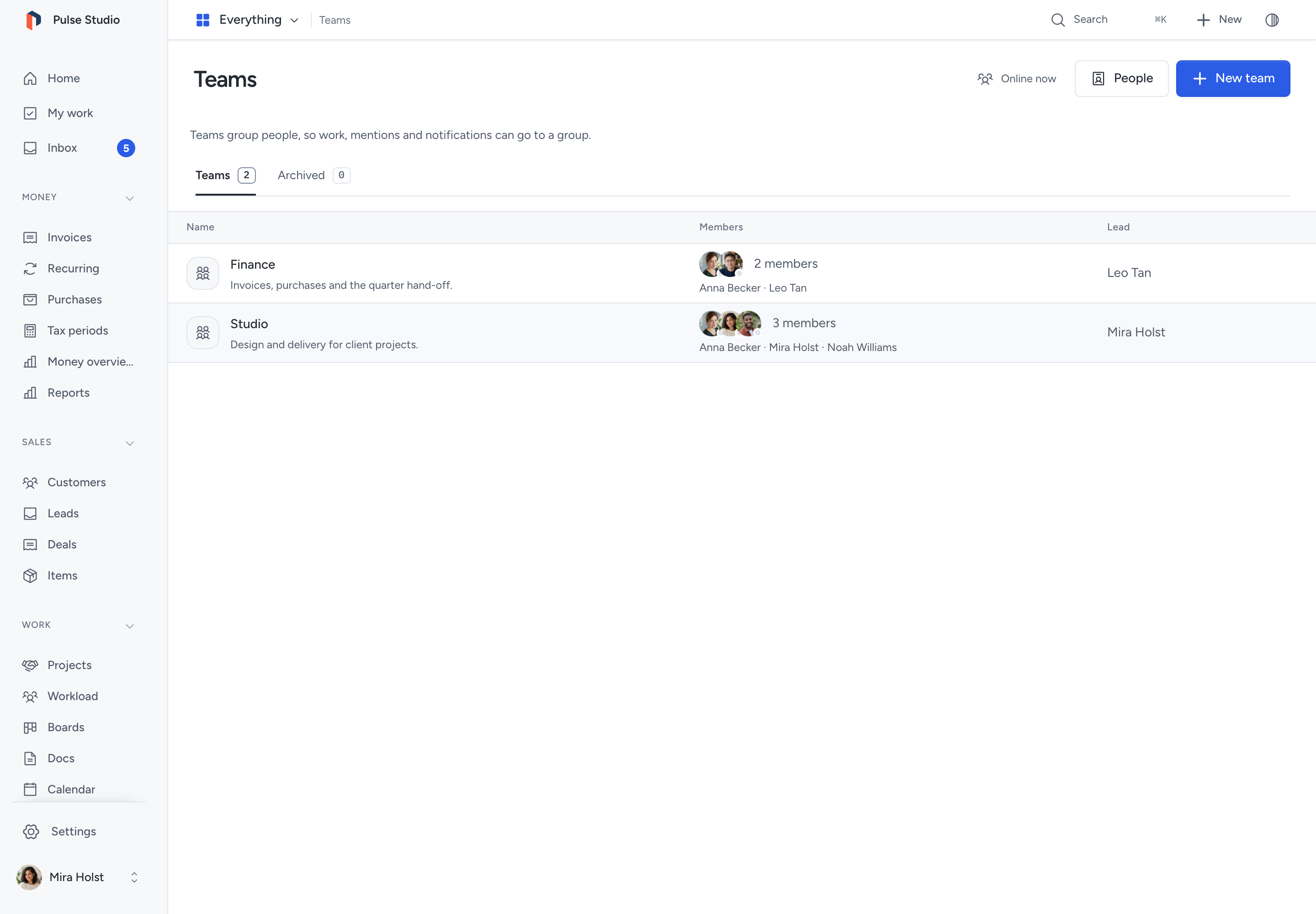
The Teams table shows each team's name, members and lead. Click a row to open the team. Use Edit team to change its members or lead.
 If you remove the lead from the members, choose another lead or keep No lead before saving.
Archive or restore a team
Click Archive team, then confirm. The team leaves active pickers; its history stays. Directory managers can find it under Archived and click Restore team. Restore needs no second confirmation. If another active team now has its name, rename the archived team through Edit team, then restore it.
Hand over work when someone leaves
Only the owner or an admin can offboard another non-owner account. Offboarding stops access and hands open records to a successor in one confirmed operation. Use ordinary deactivation if you need to stop access without this handover.
Choose the successor and review What moves before opening the confirmation.
| Result | Account and records |
|---|---|
| Cancel the confirmation | Nothing changes. You can return to the handover review |
| Confirm Offboard successfully | The account becomes inactive. Its eligible open records move to the successor in the same transaction |
| Any part fails | The account and records stay unchanged. Correct the error. Review the handover before retrying |
Before you confirm, check that the successor can open and continue the affected work. Their role still controls record access after the handover.
- Open the person in People.
- Choose Offboard in the Account panel or the … menu. The account page opens at Offboard.
- Choose Give open records to.
- Review What moves and its counts.
- Click Offboard.
- Check the person's name in the confirmation dialog.
- Confirm Offboard.
Choose an active colleague with an account role who is not a guest or the person leaving. You must choose a successor even when the preview shows No open records.
| Preview label | What moves |
|---|---|
| Draft documents | The person's draft invoices, quotes, pro-formas and credit notes |
| Active recurring schedules | The person's active recurring invoice schedules |
| Open projects | The person's project records that have not been closed |
| Open tasks | Open tasks assigned to the person, plus unassigned open tasks they created |
| Shared calendars | Active shared calendars they own; the successor needs both Calendar permissions. Personal calendars stay private |
| Owned automation rules | Their rules, stopped and inactive. The successor needs permission to read owned automation rules |
Pepper deactivates the account and ends its sessions, remembered logins and delegated agent connections. It revokes file share links that the person created. It permanently revokes their private Calendar feeds. A successor can create a new feed from their own permitted view. Read Calendar handover. Automation handover cancels pending work and approvals. Earlier runs keep their original actor; the successor gains no access to that history. Webhook endpoints do not transfer. The successor needs management permission to review, clear the stop and activate a rule. Read rule handover. Issued documents, payments and history keep their creator. Issued originals stay unchanged. The audit log records the handover and its result.
If the successor becomes ineligible or any part fails, the operation leaves the account and records unchanged. Correct the displayed error, review the handover again, then retry. Reactivating an account later does not restore its revoked credentials or transfer the records back.
Related pages
- Add users and assign roles
- Users and roles
- Roles and permissions
- Product areas and access
- Sign-in security
Use hours and rates for projects
Working hours and time off supply the available hours in workload and the timesheet. Tasks due in the selected week supply planned hours through their estimates. A team task contributes to each team member; unknown working hours remain unknown.
Dated billable rates provide the fallback when an entry, task and project have no override. A cost rate on the entry date supplies time costs for project margin. Rates must use the project currency. Saving a later rate does not rewrite earlier entries.
Offboarding hands open assigned tasks and unassigned open tasks created by the departing person to the selected successor. It stops their timer. Earlier time entries retain their original author.
Need help with the product?
Contact support