
Browse the manual
Set up recurring invoices
Create a recurring schedule in Pepper to generate invoices on a fixed cadence, with auto-send and catch-up behavior.
On this page
A recurring schedule generates invoices for the same customer at regular intervals. You define the cadence and template lines. Choose whether Pepper sends each invoice or holds it as a draft for your review.
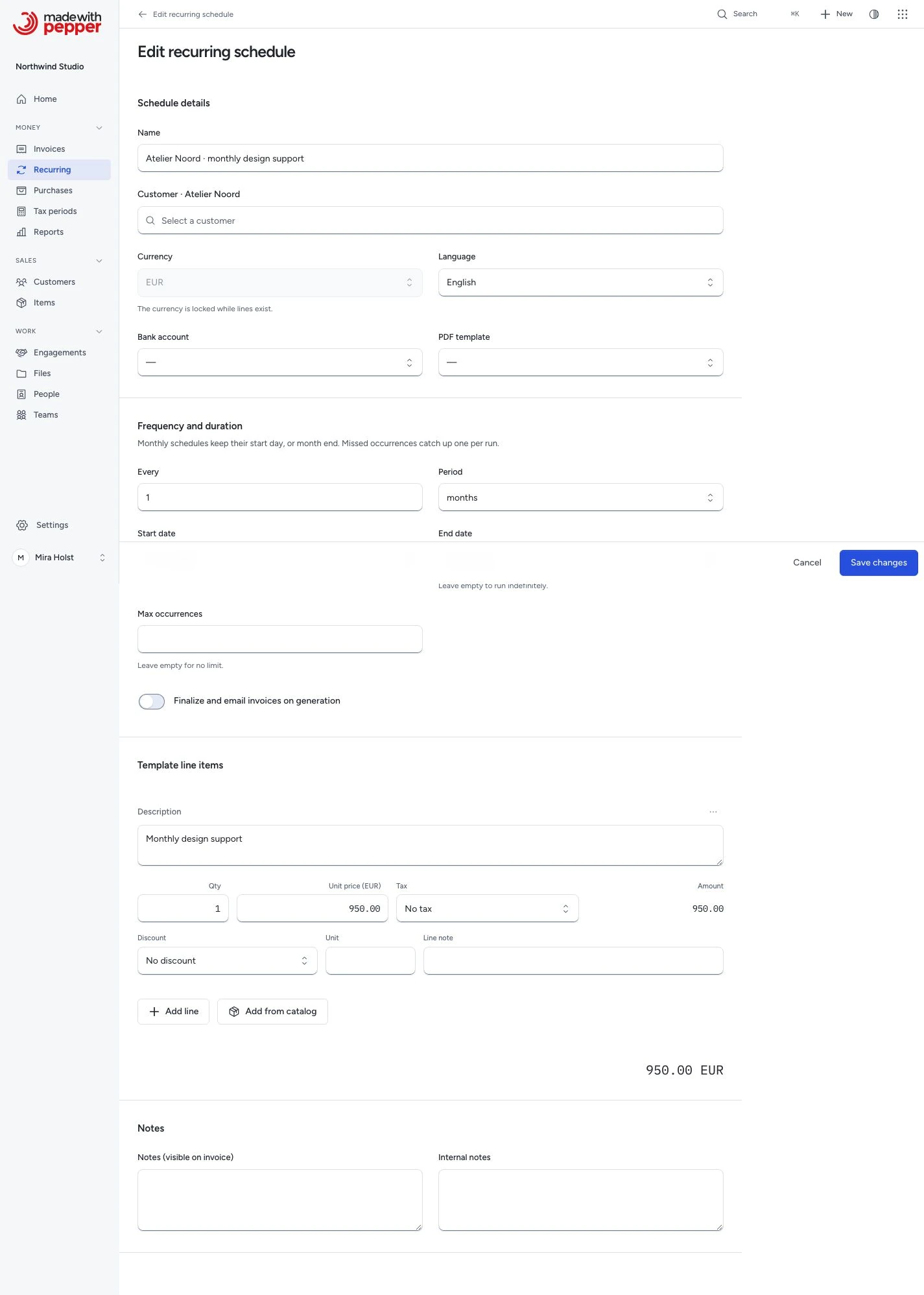
Create a schedule
Owners, admins and employees can create schedules.
- Click Recurring in the navigation.
- Click New schedule.
- Enter a name, for example "Monthly hosting: Northwind Studio".
- Select an active customer.
- Select the currency.
- Check the bank account and PDF template.
- Optional: select a Language.
- Under Frequency and duration, set Every and Period.
- Set the Start date.
- Optional: set an End date or Max occurrences.
- Optional: turn on Finalize and email invoices on generation.
- Add one or more template line items.
- Click Create schedule.
New schedules use the company defaults. Customer's language uses the customer's Document language. Choose the currency before adding lines; the currency field locks while lines exist.
Pepper generates the first invoice on the Start date. Leave End date and Max occurrences empty to run without limit. Auto-send finalizes and emails each invoice without manual review.
The frequency follows these rules:
- Every 1 month keeps the start day, or month end. A 31 January start produces 28 February and 31 March in 2026. A 30 January start returns to 30 March after February.
- Every 2 weeks generates every 14 days.
- Every 7 days creates an invoice each week.
Pepper copies the template lines to each new invoice. Each line needs a description, quantity and unit price. Enter prices in your number format, as on the invoice form. For example, enter 50.00 for EUR or 16500 for JPY when your format uses a decimal point.
Open Tax on each line to choose Without tax or Includes tax. Select a manual rate, No tax or Use configured rules. Check Tax matching inputs, then click Review tax selection before saving a new choice. See Choose the price basis and tax.
Newly saved selections freeze the rate and rule evidence for later invoices. Editing a description, quantity, price or discount keeps that selection. Click Select again from current settings to review a replacement. Changing only the basis keeps an existing frozen selection.
Older schedules can have lines with a current rate instead of frozen evidence. Their tax dialog says Current selected rate · price without tax. An ordinary edit keeps that behavior. Changing their price basis or tax selection requires a new review. A retired rate needs an active replacement before you can review it.
Select an active bank account for a new schedule. If an account becomes inactive before you save, the form shows an error. Choose an active account or leave the bank account empty.
If required e-invoice details are missing
Required e-invoice readiness also applies to recurring invoices. A refused occurrence stays as one draft. Pepper assigns no invoice number and queues no email. The schedule advances once. The schedule owner gets an Inbox notice through the usual notification rules.
Open the draft, fix each listed input, then review and issue it. Retrying that occurrence returns the same draft.
Example: Northwind Studio monthly retainer
Northwind Studio pays a EUR 1,200.00 monthly retainer for design services.
| Field | Value |
|---|---|
| Name | Monthly retainer: Northwind Studio |
| Customer | Northwind Studio |
| Currency | EUR |
| Frequency | Every 1 month |
| Start date | 2026-06-01 |
| End date | (empty) |
| Auto-send | Yes |
| Line: Description | Design retainer, June 2026 |
| Line: Qty | 1 |
| Line: Unit price | 1,200.00 |
| Line: Tax | BTW 21% |
On June 1, Pepper generates a draft invoice with those line items and finalizes it with the next invoice number. It then queues an email to every active contact of Northwind Studio with Receives invoices. If no contact has Receives invoices, the email goes to the customer's email address. The primary billing contact is not a fallback.
The email uses the Invoice send template in the invoice language and attaches the issued original PDF. The invoice page shows the mail server result on its Delivery tab.
If nobody can receive the email, the invoice stays issued. Its Email history shows "Not sent: no recipient accepts this email." Fix the contacts, then click Send invoice on the invoice. See Who receives emails.
A schedule in USD works the same way. For example, a $950.00 monthly hosting fee for Pine Street Bakery in Portland goes to its contacts with Receives invoices.
Pause and resume
If a customer suspends their contract, you can pause the schedule:
- Click Recurring in the navigation.
- Open the schedule.
- Click Pause. Pepper stops creating invoices until you click Resume.
Pausing preserves the schedule and all invoices Pepper created before the pause.
When you click Resume, the schedule continues from its stored next invoice date. If that date passed during the pause, Pepper catches up. It creates one missed invoice per daily run, dated on its scheduled date, until the schedule is current. With auto-send, a date earlier than the latest invoice in the sequence moves to that date. See What happens when the server misses a run.
Edit the template
To change line items, pricing, or notes for future invoices:
- Open the schedule.
- Click Edit.
- Update the fields.
- Click Save changes.
Changes apply to invoices Pepper creates after you save. Existing invoices stay the same.
If another person changes the schedule, Pepper keeps your unsaved values and asks you to reload. Reload saved record replaces those values after confirmation. Check the current lines before entering your changes again.
You can keep the schedule's saved bank account after it becomes inactive. To replace it, select an active account or leave the bank account empty. Generated invoices keep the bank account saved on the schedule.
Manual generation
You can generate an invoice outside the normal schedule:
Generate now appears when the next invoice date is today or earlier.
- Open the schedule detail page.
- Click Generate now.
- Review the confirmation.
- Click Generate now to confirm.
Pepper creates the next due invoice and advances the schedule. Auto-send also issues the invoice and queues its email.
What happens when the server misses a run
Pepper runs the recurring invoice generator once per day at 06:00 in the Business timezone via php artisan schedule:run. If the server was offline and missed one or more scheduled dates, Pepper generates one invoice per run until it catches up. It creates one missed invoice per schedule in each run. An authorized person can use Generate now to catch up sooner.
For example: if the server was down from June 1 to June 4 and a schedule was due June 1, 2, and 3:
| Run date | Invoice generated | Next due date |
|---|---|---|
| June 4 (first run back) | June 1 invoice | June 2 |
| June 5 | June 2 invoice | June 3 |
| June 6 | June 3 invoice | June 4 |
| June 7 | June 4 invoice | June 5 |
Invoice numbers follow issue dates. You can finalize a later invoice by hand in the meantime. An auto-sent invoice then takes that later issue date and shows its scheduled date as Scheduled for. See Auto-send.
Schedule completion
Pepper stops creating invoices for a schedule when either condition applies:
- Max occurrences reached: the schedule generated the configured number of invoices.
- End date passed: the next invoice date is after the configured end date.
The schedule status changes to Completed. You can still view it and its invoices. Pepper creates no further invoices for the schedule.
Generated invoices
Each invoice created by a recurring schedule links back to its source schedule. The Summary tab of the invoice shows From schedule with a link to the schedule. Deleting a schedule does not delete the invoices it produced.
Generated invoices keep the schedule creator as their owner. Employees can open invoices from their own schedules. The Generated invoices list shows the invoices each person may open. Older invoices that have no creator stay unchanged.
Need help with the product?
Contact support