
Browse the manual
Why invoice numbers must be sequential
Why tax authorities require sequential invoice numbers, what happens when you skip a number, and how Pepper handles numbering.
On this page
For: business owners and bookkeepers who need to understand the rules around invoice numbering.
The rule
EU VAT invoices use a sequential number from one or more series that identifies the invoice. UK VAT invoices have the same sequential-number requirement. Keep a record of cancellations and explain gaps; do not reuse an issued number.
See EU VAT invoicing rules and the UK VAT guide, section 16. Local rules and simplified invoices can differ.
How Pepper handles it
Pepper assigns document numbers when you issue them. While an invoice is a draft, it has a temporary code (like DRAFT-007) and no permanent number. Draft codes count up in their own sequence, padded to at least three digits. A deleted draft therefore uses no document number.
The draft sheet shows the expected number under the number stamp, for example "Expected NW-2026-0003". The dialog Review and issue opens shows it again. This is a preview of the next number in the sequence. You cannot type or change it.
When you click Issue invoice in that dialog:
- Pepper locks the draft and checks that nobody changed it after you opened the page.
- It checks the issue date against the rules below.
- It takes the next counter from your numbering sequence and formats it with your pattern.
- It writes the number to the document and advances the counter by one.
- It shows the number it assigned, for example "Issued as NW-2026-0003."
If a colleague issued another document first, your document gets the next free number. The message then also says "The expected number was taken by another document."
Pepper does all steps as one change. If a check refuses the document, nothing is numbered and the counter does not move. If you click Issue invoice twice, or the browser sends the form again, Pepper numbers the document once and shows "Already recorded."
The number is permanent from this point. You cannot change it, and you cannot reassign it to another document.
Issue dates
Pepper keeps numbers in the order of their issue dates. Issue refuses an issue date in these cases:
- The date is later than today. Today is the date in the time zone of your company settings.
- The date is earlier than the latest issue date already used in the same sequence. This applies across years, with or without year reset.
- The sequence has year reset on and the date is in an earlier year than the sequence.
The error names the date you can use. Change the issue date on the draft, then issue again.
Example: the latest invoice in your sequence is dated 5 January 2027. A draft dated 30 December 2026 is refused. A draft dated 5 January 2027 or later gets the next number.
What about cancelled invoices?
Cancelling an invoice does not free its number. Invoice NW-2026-0003 stays NW-2026-0003 even after cancellation. The next invoice gets NW-2026-0004. Your audit trail shows a cancelled invoice at position 3, which is a legitimate business event.
If your accountant asks "what happened to NW-2026-0003?", the audit log shows who cancelled it and when.
Worked example
Mira Holst at Northwind Studio creates three invoices this month:
- NW-2026-0001, issued, emailed and paid
- NW-2026-0002, cancelled (customer backed out before delivery)
- NW-2026-0003, issued and emailed, awaiting payment
Her accountant sees all three in sequence. Pepper marks the invoice as cancelled and keeps its original totals. The cancelled invoice keeps its place in the sequence.
Continue numbering from another system
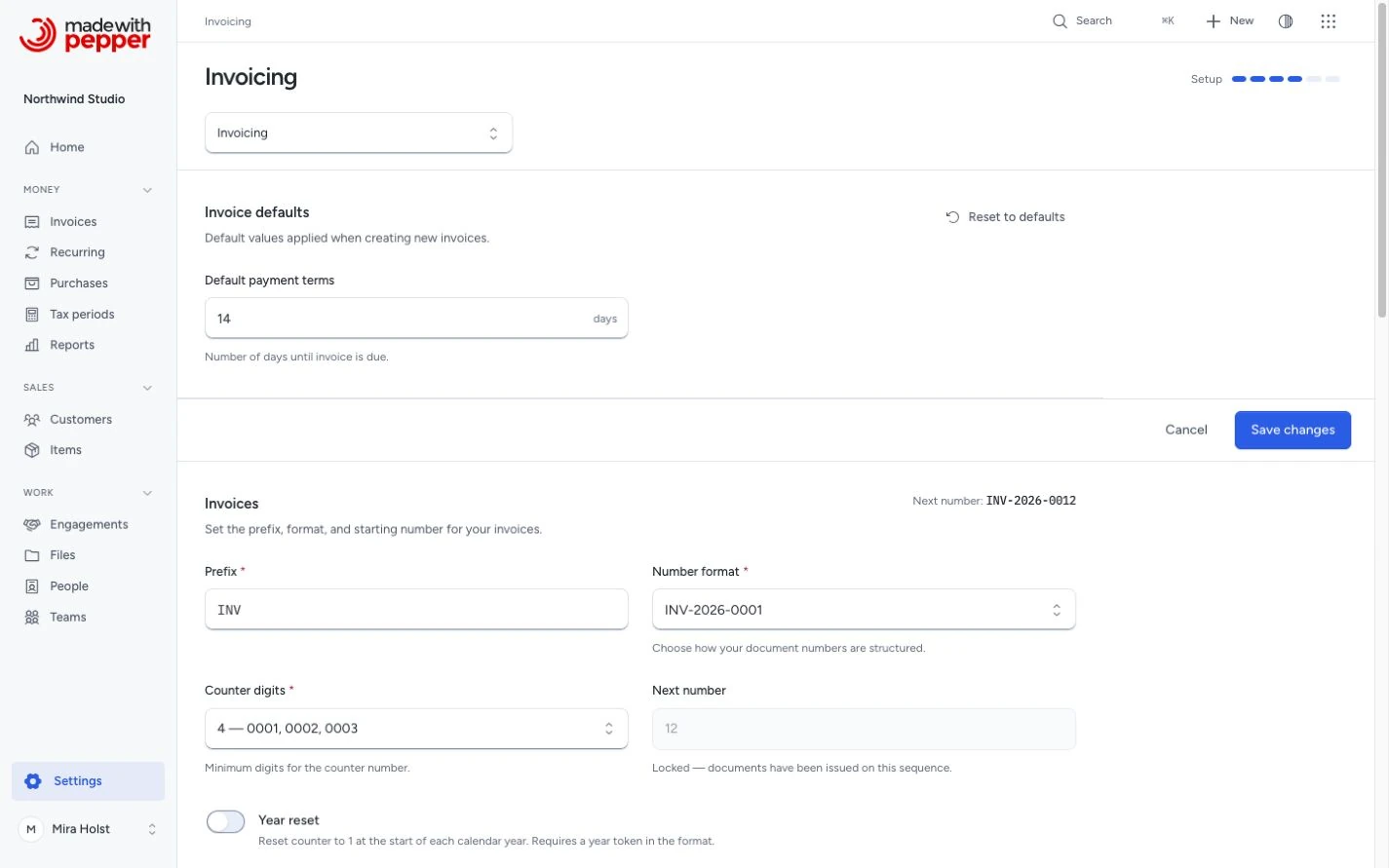
You cannot choose a number for one document. To continue from another tool, set the starting number in Settings > Invoicing before you issue the first document in that sequence. For example, if your last invoice was 247, set the starting number to 248. See Configure document numbering.
Related pages
Need help with the product?
Contact support