
Browse the manual
Document communication
Email documents, follow the mail server result, record deliveries made another way, and add notes to each document.
On this page
For: business owners who email invoices and keep notes on them. Covers: the send dialog, the delivery state, email templates, notes, and customer contacts.
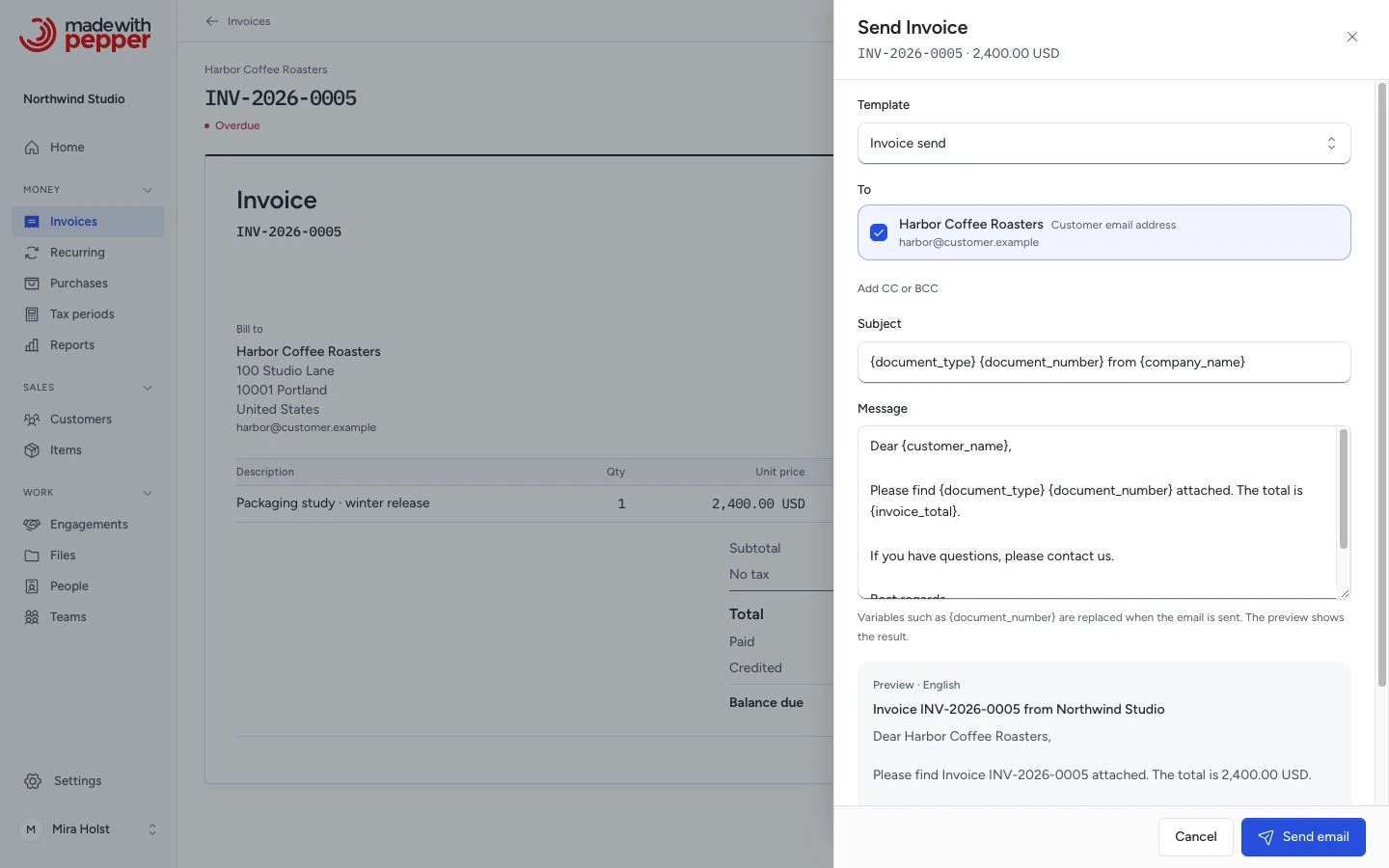
Sending a document by email
Open an issued document and click Send invoice, Send quote, Send pro-forma or Send credit note. The button sits in the panel on the right and under More actions. The dialog opens at the side with these fields:
- Template: the email template to start from
- To: the customer's active contacts with Receives invoices. When no contact has it, the customer's own email address
- CC and BCC: optional, up to 5 addresses each, separated by commas. Click Add CC or BCC to show them
- Subject and Message: prefilled from the template. Variables stay in the text until Pepper sends it
- Preview: the text in the document language, with a list of unknown variables
Click Send email. Pepper attaches the issued original PDF. It never attaches a regenerated copy. If the original PDF is missing or changed, the email fails with "The issued original PDF is missing or changed."
Create and send an invoice has the full steps, the recipient rules and the messages.
Delivery tab and email history
Each issued document has a Delivery tab in its inspector. It shows the latest state: Not emailed, Email queued, Emailed with the date, Delivered with the date, Email failed or Email result unknown.
Emailed means that the mail server accepted the email. Pepper does not know whether the customer received, opened or read it.
The Email history lists each email and each recorded delivery. It shows the kind (Document email, Reminder or Recorded delivery), the status, the time, the recipients, the number of attempts and the reason.
Use Send again after a failed email or an unknown result. Use Record delivery when the customer got the document by post, by hand or another way. See Track the delivery.
Email templates
Pepper has four templates in each of the 14 language variants, including European and Brazilian Portuguese:
| Template type | Use |
|---|---|
| Invoice send | The send dialog and recurring auto-send |
| Payment reminder | Reminders before and on the due date |
| Overdue notice | Reminders after the due date |
| Payment receipt | Stored and editable. Pepper does not send payment receipts, and the send dialog does not offer it |
Edit them in Settings > Email templates. Email templates lists the variables and the language rules.
Activity thread
Messages on the Activity tab of each document lists, from old to new:
- Emails: the subject and message of each email. The label Emailed shows after the mail server accepted it
- Notes: notes your team adds with Add note. A note shows the label Internal. Pepper does not email notes
The thread has no customer replies. Pepper does not read your mailbox.
Use internal notes to record context: "Customer asked for 14 more days" or "Scope changed on the call of 3 September".
Customer contacts
Customer contacts control who receives emails. Each customer can have multiple contacts with these flags:
| Flag | Effect |
|---|---|
| Receives invoices | Offered under To in the send dialog. Recurring auto-send emails every such contact |
| Receives reminders | Gets payment reminders |
| Primary billing contact | Marks the main billing contact. It is not a fallback recipient |
If no active contact has the flag, Pepper uses the customer's email address. It skips that address when an active contact with the same address turned the flag off. See Who receives emails.
Manage contacts from the customer form.
Email configuration
Pepper sends email through your configured mail provider (SMTP or Resend API). Set it up during installation or update the .env file. Set the sender in Settings > Email. The scheduler sends queued emails every minute, so the cron job must run.
For local development with Mailpit: SMTP on port 1025, web UI at http://localhost:8025.
Related pages
Need help with the product?
Contact support