
Browse the manual
Item catalog
Save item prices with their currency and tax basis, choose a class or default rate, and import or export the catalog.
On this page
For: business owners building a catalog of products and services.
Where: Items in the navigation, or go to /items.
Item list
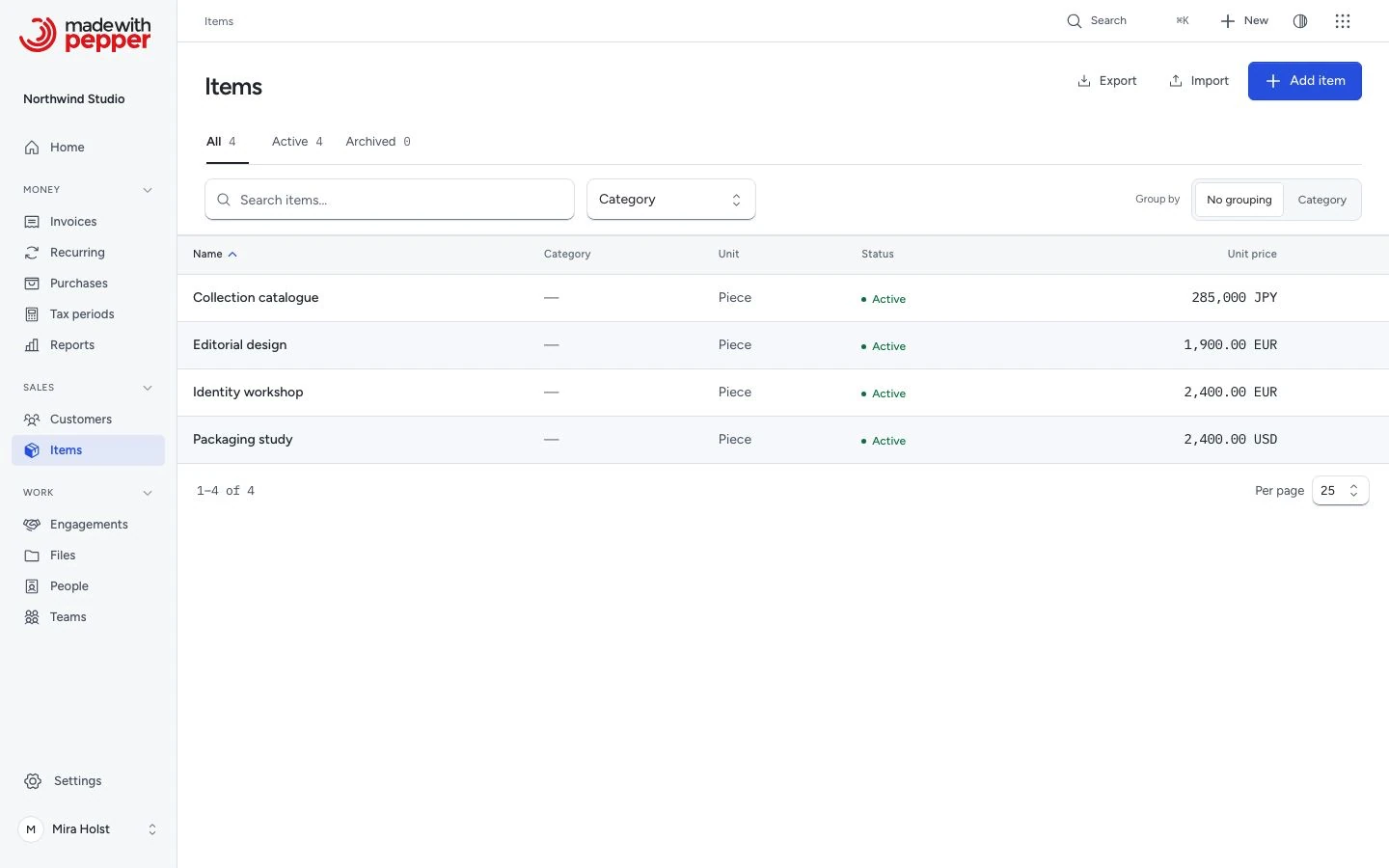
The item list shows the name with its SKU, category, unit, price and status. Each price shows its currency and Without tax or Includes tax basis.
- Use the All, Active and Archived tabs above the list at every screen width. Their counts cover the catalog before search and category filters.
- Choose a Category below the tabs. Changing a status tab keeps that category and your search. The selected category follows its dropdown; click it to remove only that filter.
- Each row keeps its own price and currency. Prices in different currencies are never added together.
- Search items filters by name or SKU. Pepper searches on the server, so a long catalog stays fast.
- Click a column heading to sort. The sort, the view, the page and the page size stay in the address, so you can bookmark a view.
- Group by groups the rows by category.
- Below 640 px, each item becomes a compact row with its name, price, state and actions.
If a search or category has no matches, Clear filters removes those criteria and keeps the status tab, sorting and grouping.
Actions on the list page:
- Add item: create a new catalog item.
- Import: upload a CSV file to import items in bulk.
- Export: download the full item list as a CSV file.
- Edit and Delete in each row. Delete asks "Delete name?" first. The item leaves your catalog. Documents that already use it keep their lines.
Creating an item
Click Add item to open the item form. The form has four sections: Item details, Pricing & units, Classification and Status.
| Field | Required | Description |
|---|---|---|
| Name | Yes | Product or service name, shown in autocomplete when adding line items |
| SKU | No | Stock keeping unit or internal reference code |
| Description | No | Default description used when adding this item to an invoice |
| Price currency | Yes | Defaults to your company currency. Saved with the price. A later change to the company currency does not change it |
| Unit price | Yes | Enter the default price in its saved currency. Use your number format and that currency's decimals: none for JPY, 3 for BHD |
| Entered price | Yes | Choose Without tax or Includes tax. The default is Without tax |
| Unit type | No | Unit of measurement: Hour, Piece, Day, Kg, or Custom |
| Default tax rate | No | Applied when you add this item to an invoice. Select an active rate. Manage tax rates opens the settings |
| Tax class | No | Suggest a class for new sales lines. A class does not enable configured rules by itself |
| Category | No | Optional grouping. Select an active category. Manage categories opens the settings |
| Active | Yes | Active items appear in the catalog picker on invoice forms. Archive items you no longer sell |
Click Create item to create the record. If a field is not valid, Pepper keeps what you typed. It lists the errors above the form and at each affected field.
Pepper refuses an archived tax rate or category. An item that already has one keeps it when you save other changes.
Changing Entered price keeps the entered digits. It changes what those digits mean; Pepper does not convert the amount.
Create classes under Settings > Tax classes. Read the tax calculation guide before choosing a price basis.
Editing an item
Click Edit in the item's row to open its form. Fields are the same as the create form, except the price currency: it is fixed once saved. To sell the same item in another currency, create a separate item. Click Save changes to save. If you leave the form with unsaved changes, Pepper asks you first.
Using items on invoices
When you write an invoice, click Add from catalog. Search for an item by name.
Selecting it copies the name, unit, entered price, price basis, tax class and default rate. You can change them for that invoice.
The price is copied only when the item is priced in the invoice currency. An item in another currency shows its currency next to its unit in the picker. Selecting it fills the name, unit and tax rate. The price stays empty, with a note such as "The catalog price is in JPY. Enter the EUR price". The line is not linked to the item. Pepper never converts a price between currencies.
A different-currency selection also leaves the basis at Without tax and copies no tax class. Choose the intended basis and class yourself.
Items are templates. Editing a catalog item does not change line items on existing invoices.
Publish a price list
An item manager can publish chosen active items as a price-list widget.
Visitors can view the list at its own address or inside your website. They choose quantities and request a quote in one currency.
The request keeps the shown prices. Preparing the deal's quote uses current catalogue prices. It creates a draft and sends nothing.
The widget's Include tax setting chooses whether visitors see a net or total price. It does not change the item's entered-price basis.
The widget uses the item's fixed manual rate. It does not run configured jurisdiction rules. A later quote uses the current item's class suggestion.
If prices or tax choices change, visitors must review the current list before submitting an old selection.
Use items in menus and estimators
Menus and catering share each item's business-entered allergens, dietary marks, availability, language variants and optional Files photo.
Open Menu details from a menu editor to change those details and read their author and time history. Changes apply across menus.
An estimator maps typed answers to catalogue quantities. Both services calculate estimates on the server and retain sent requests with their shown prices.
Catalogue changes affect new estimates. Saved requests and existing document lines keep their snapshots.
Item categories
Manage categories in Settings > Item categories.
- Create categories with a name and optional description
- Assign items to one category on the item form
- Categories that have items assigned show the item count
- Delete a category to remove the grouping (the items remain)
Active and archived
Toggle the Active switch on the item form to archive or reactivate items. Archived items do not appear in the catalog picker when adding line items to invoices but remain in the system for reporting.
CSV import
Click Import on the item list, or go to /items/import. The import has three stages: upload, column mapping and results.
- Choose a
.csvor.txtfile of up to 5 MB. - Click Upload and preview.
- For each file column, choose its Pepper field in Maps to. Map each field once.
- Click Import items.
Data preview shows the first rows as Pepper reads them. The result shows imported and skipped counts. It lists each skipped row with its reason.
Write prices with digits and a dot for decimals, without grouping: 1234.56, 500, 1.234. A price uses at most the decimals of its currency. Pepper does not guess the format: 99,95 and 1.234,56 are refused with a row error, as is a price above the storable maximum.
Map the currency column to Price currency to save each row's price in that currency. The file may name it currency, currency_code or price_currency. A row with an unsupported code gets a row error. Rows with an empty currency, or a file without a currency column, use your company currency.
Map price_mode or price_basis to Entered price. Use exactly exclusive for Without tax or inclusive for Includes tax.
A file without that column uses exclusive. An empty or unknown value in a mapped basis column is refused.
Map tax_class to Tax class. Use the exported id:name reference or the name of one active class.
An empty class means No class. A missing, ambiguous or inactive class produces a row error. Create the required classes before importing.
Each accepted row uses the same checks as Create item. A known inactive tax rate is refused.
Map an Active column to import archived items. Pepper reads the value without regard to case or surrounding spaces:
| Value | Result |
|---|---|
yes, true, 1, active, or the words for yes and Active in your interface language |
Active |
no, false, 0, inactive, archived, or the words for no and Archived in your interface language |
Archived |
| Empty cell | Active |
| Any other value | The row is skipped with the message "“value” is not an accepted value" and the accepted words |
The mapping step lists the accepted values. Without an Active column, all items are active.
A row with an error is skipped and reported by row number with the reason. Rows without errors are imported. If you leave the upload for too long, Pepper asks you to upload the file again.
CSV export
Click Export on the item list page. Each price uses its currency's decimals; currency_code names that currency.
The final columns are price_mode and tax_class. They keep the entered-price basis and stable class reference.
Importing that file preserves the price, currency, basis and class. Existing name-and-SKU pairs are skipped; import does not overwrite them.
A text cell that starts with =, +, -, @, a tab or a line break gets a leading apostrophe ('). A spreadsheet then shows the text and does not run it as a formula. Numbers stay as they are. The import removes the apostrophe again.
Permissions
These are built-in role defaults. Custom roles use their assigned permissions. Guest access also follows the permitted modules and record scope.
- Owner and Admin: all item actions, including import and export
- Employee: create, edit, delete and import items; no export
- Accountant: view the list and export it; no changes
Related pages
Need help with the product?
Contact support