
Browse the manual
Record a payment
How to record a full or partial payment on an invoice, and how to reverse a payment recorded by mistake.
On this page
For: business owners tracking incoming payments. What you need: an issued invoice with a balance due (status: issued or partially paid), and permission to manage invoices.
1. Open the invoice
Click Invoices in the navigation. Open the invoice you received payment for.
2. Click Record payment
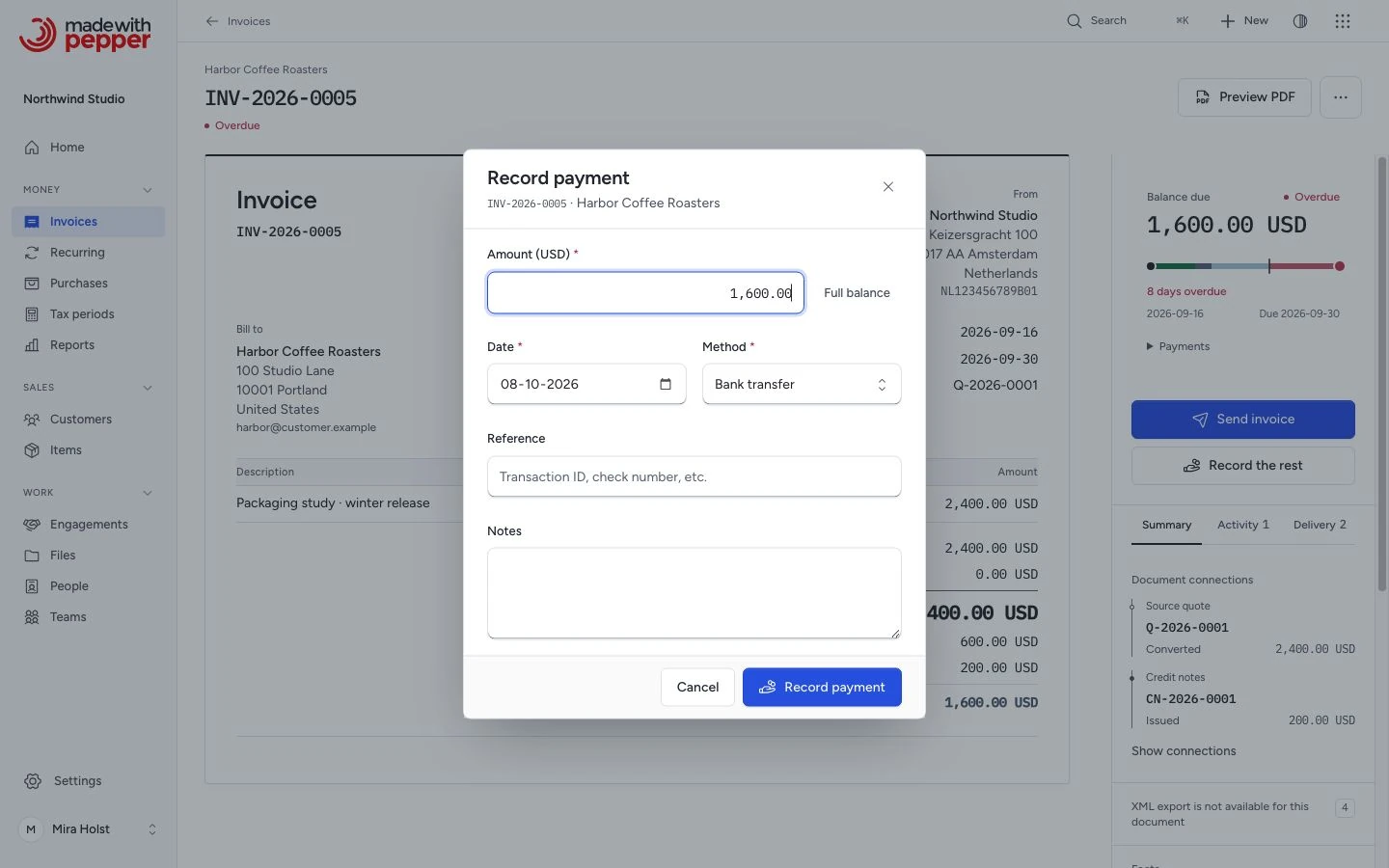
Click Record payment in the panel on the right. After a partial payment, the button reads Record the rest. The dialog opens with the balance due filled in. The button shows only while an amount is due.
3. Fill in the payment details
- Amount: the amount received, in the invoice currency, typed in your number format. The field uses that currency's decimals: none for JPY, two for EUR, three for BHD. The smallest amount is one unit of the last decimal, for example 0,01 EUR or 1 JPY. The largest amount is the balance due. For full payment, keep the prefilled balance; Full balance fills it in again. For partial payment, enter the amount received.
- Date: when you received the payment. Defaults to today in the company time zone.
- Method: bank transfer, cash, card, or other.
- Reference: optional. A bank transfer reference or transaction ID, up to 100 characters.
- Notes: optional. Any context about this payment, up to 500 characters.
4. Save
Click Record payment. The invoice status updates:
- If the payments and the credit notes cover the full total, the status changes to paid.
- If they cover less, the status changes to partially paid.
The sheet, the current copy of the PDF and the invoice email then show Paid and Balance due under Total. When nothing is due, the panel says Paid in full and the sheet gets a stamp. If the invoice has a credit note, they also show Credited. See Issue a credit note. The issued original PDF does not change. To get a PDF with the new rows, click Download current copy.
If a EUR invoice has a selected bank account with an IBAN, the current copy carries an EPC QR code for the new balance due. A fully paid invoice has no QR code on its current copy. See EPC QR codes. Recording a payment sends no email to the customer.
Pepper records one payment for one submitted form. If you click Record payment twice, or your browser sends the form again, Pepper keeps the first payment and shows Already recorded.
Recording multiple partial payments
You can record as many partial payments as needed. Each payment appears under Payments on the Activity tab of the inspector. The status changes to Paid when the balance due reaches zero after payments, credit notes and refunds.
Two people can record payments on the same invoice at the same time. Pepper handles them one after the other. The second payment must fit the balance that is left after the first.
Reverse a payment recorded by mistake
Pepper never deletes a payment. If you recorded a payment by mistake, reverse it:
- Open the invoice.
- Open the Activity tab.
- Find the payment under Payments.
- Click Reverse in that row.
- Optional: type a reason, for example "Recorded on the wrong invoice". The limit is 500 characters.
- Click Reverse payment in the dialog.
The payment stays in the history with the label Reversed, the date, the person who reversed it and the reason. Its amount is struck through and counts in no balance. On Home, Paid this month and the customer statement show the reversal on the day you record it, as the opposite amount.
Pepper recalculates Total − Paid − Credited + Refunded. The reversal lowers any Credit owed first, then increases Balance due. It updates the status to Issued, Partially paid or Paid. The audit log records the reversal.
You cannot undo a reversal. If you reversed the wrong payment, record that payment again.
What can go wrong
- The amount is more than the balance due. Pepper refuses the payment and stores nothing. The message names the limit, for example "The amount is more than the balance due (USD 450.00). Enter USD 450.00 or less." The dialog stays open with everything you typed. Pepper does not reduce the amount for you, and it does not keep an overpayment as credit.
- Nothing is due. A paid invoice has no Record payment button. If a payment on it was recorded by mistake, reverse that payment first.
- Recording on a draft or a cancelled invoice. You can record payments only on issued invoices that are not cancelled.
- Recording on a credit note, quote or pro-forma. Only invoices accept payments. Quotes and pro-formas create no application receivable. A credit note does not accept a payment. To pay money back to the customer, record a refund on the credit note.
- Too many decimals or the wrong format. Pepper rejects amounts with more decimals than the invoice currency allows, for example
10.5on a JPY invoice. It also rejects another number format:10,50is invalid when your format is 1,234.56. The dialog stays open with what you typed and the reason. - The invoice changed after you opened it. Another person recorded or reversed a payment first, or a credit note or a refund changed the invoice. Pepper refuses your reversal with "This document changed after you opened it. Review the changes, then try again." The dialog opens again with your reason. Check the history, then click Reverse payment again.
Related pages
Need help with the product?
Contact support