
Browse the manual
Payment reminders
Automatic and manual payment reminders with four fixed stages, per-customer overrides, and send caps.
On this page
For: business owners following up on unpaid invoices. Where: configure in Settings > Reminders. Send individual reminders from the invoice sheet or from Home.
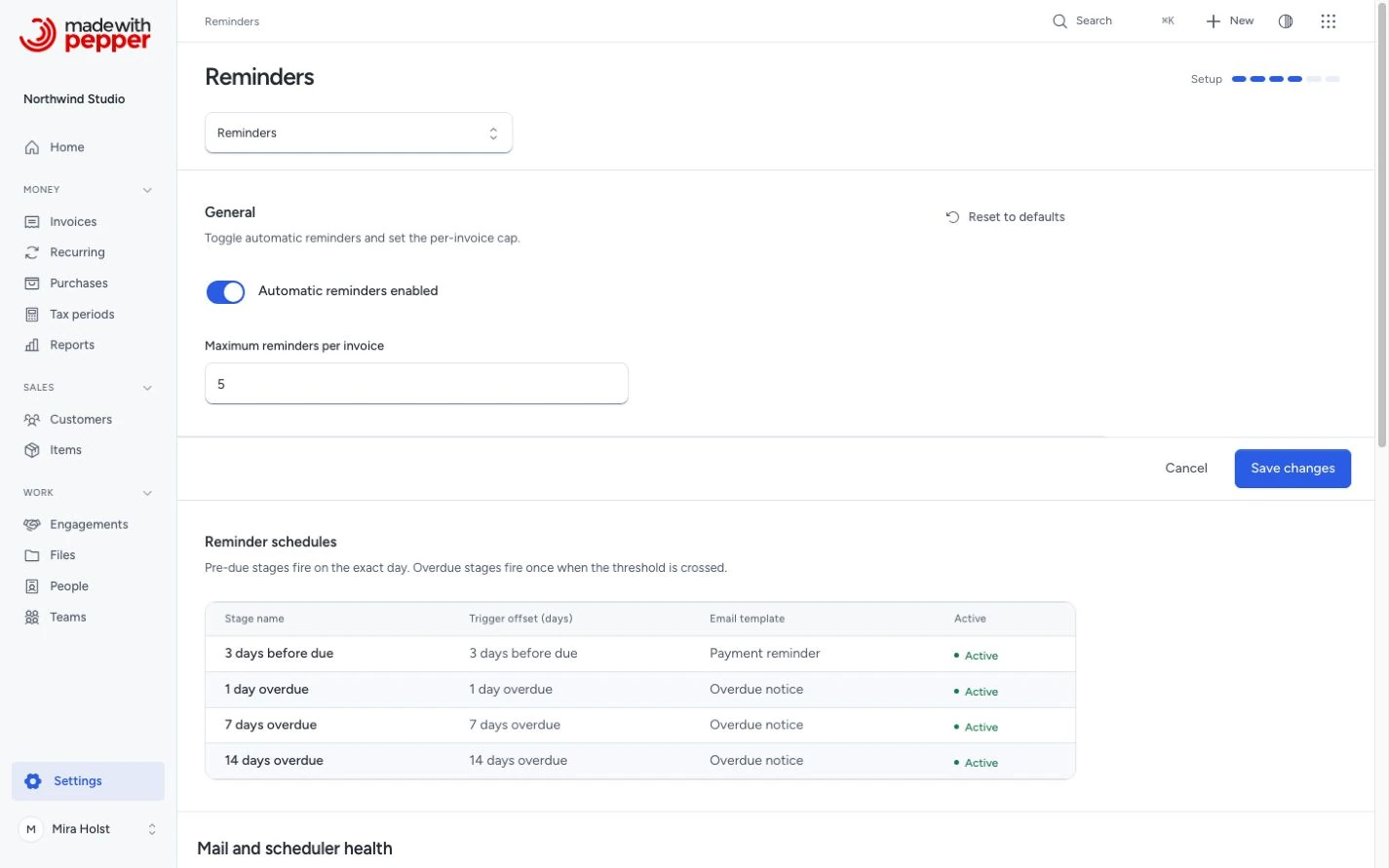
Default reminder stages
Pepper ships with four reminder stages:
| Stage | Timing | Default |
|---|---|---|
| Stage 1 | 3 days before due date | Active |
| Stage 2 | 1 day after due date (overdue) | Active |
| Stage 3 | 7 days after due date | Active |
| Stage 4 | 14 days after due date | Active |
Pepper sends pre-due reminders on the exact day. It sends overdue reminders once per stage after the invoice crosses the threshold.
If your server was offline and missed several stages, the first run after recovery queues only the latest due stage that the customer allows. A 15-day overdue invoice gets +14, with no later catch-up for +1 or +7. Each invoice can queue one automatic reminder per business date. Pending or unknown results block later stages. A delayed reminder accepted today also uses today’s limit.
Pepper sends each automatic stage at most once per invoice, also when two runs overlap. The per-invoice cap (default: 5) limits the automatic reminders.
Each daily run uses the business timezone. It selects the latest due stage that the customer allows.
| Check | Result |
|---|---|
| The invoice is not eligible | No reminder is queued |
| No allowed stage is due | No reminder is queued |
| A reminder is pending, its result is unknown, or today's limit is used | No additional automatic reminder is queued |
| The invoice and stage pass all checks | One automatic reminder is queued |
Before sending, Pepper checks the current balance and recipients again.
Configuring reminders
Owners and admins open Settings > Reminders. The General section has two settings:
- Automatic reminders enabled: turns all automatic reminders on or off. The default is on.
- Maximum reminders per invoice: caps the automatic reminders for one invoice. Manual reminders do not use up the cap. The default is 5. Enter a whole number from 1 to 50.
Click Save changes to apply. If a value is out of range, the form shows a validation error and saves nothing.
The cap counts the automatic reminders that the mail server accepted, and the automatic reminders that still wait. When an invoice reaches the cap, Pepper pauses automatic reminders for that invoice. Manual reminders stay available.
Open the invoice’s Activity tab and click Resume after raising the cap. Resume preserves the count and earlier stages. It only permits a later eligible stage. You can also click Pause to stop automatic reminders yourself.
The Reminder schedules section lists the four stages with their timing, email template and status. You cannot edit the stages on this page.
How automatic reminders work
Automatic reminders require a cron job running php artisan schedule:run every minute on your server.
When the scheduler runs, Pepper queues an automatic reminder for an invoice when all of these are true:
- The invoice is issued, not cancelled, and has a balance due above zero. A partially paid invoice gets reminders too.
- The customer exists.
- Someone emailed the invoice, or recorded a delivery with Record delivery. An invoice that shows Not emailed gets no automatic reminders.
- Reminders for the invoice are not paused, and the invoice is under the cap.
- The customer allows the stage, and the invoice has no automatic reminder for that stage yet.
- A recipient exists. See Reminder recipients.
The stages compare the due date with today's date in the Business timezone of Settings > Company. The overdue stages select invoices with the same overdue rule as Home. See Overdue is not a status.
Reminders stop when the current balance due reaches zero after payments, credit notes and refunds. Before each attempt, Pepper checks the invoice again. If nothing is due any more, it sends nothing. The Email history then shows "Not sent: nothing is due any more." That reminder does not count.
A cancelled invoice gets no reminders. If you turn off Automatic reminders enabled, Pepper sends no automatic reminders.
Manual reminders
An issued, uncancelled invoice with a balance due accepts a manual reminder.
- Click Send reminder in the right panel or under Reminders on the Activity tab.
- Check the invoice, customer, current reminder recipients and balance due in the review.
- Click Send reminder to confirm.
On Home, Send reminder under Needs attention opens the same review. Cancel sends nothing. Pepper tries to send the reminder at once, outside the automatic schedule.
If nobody emailed the invoice yet, the dialog adds "This invoice was never emailed. The reminder also attaches the invoice." A manual reminder does not need an earlier email.
While a request runs, its review actions stay disabled. A refusal keeps the review open with the reason, so you can correct the problem or cancel. If no contact accepts reminders, the review explains that and disables sending. A successful server response closes the review and shows result feedback. Queued or mail-server-accepted feedback does not prove that the recipient received the message. Recipient eligibility and the balance are checked again before delivery.
Amount and attachment
A reminder asks for the balance due at the moment Pepper sends it. The {amount_due} variable holds that amount, after payments, credit notes and refunds. The default Payment reminder and Overdue notice texts use it. {invoice_total} stays the invoice total.
| Invoice | {amount_due} in the reminder |
|---|---|
| Total €100.00, nothing paid | €100.00 |
| Total €100.00, €60.00 paid | €40.00 |
| Total €100.00, €20.00 credited | €80.00 |
| Total €100.00, €90.00 paid and €20.00 credited | Nothing is due. No reminder |
| Total $2,598.00, $324.75 credited | $2,273.25 |
When nothing is paid or credited, the reminder attaches the issued original PDF. Otherwise it attaches a current copy, so the amount and the EPC QR code match the reminder. The reminder uses the document language of the invoice.
Per-customer overrides
Customize or disable reminder stages for specific customers from the customer edit page. Override settings take precedence over the global configuration.
Reminder recipients
Pepper sends reminders to the customer's active contacts with Receives reminders. If no contact has it, it uses the customer's email address. It skips that address when an active contact with the same address turned Receives reminders off. The primary billing contact is not a fallback.
If nobody can receive a reminder, Pepper queues nothing. The invoice page says "No reminder recipient. Turn on Receives reminders for a contact, or add an email address to the customer." It links to the customer. Pepper then refuses a manual reminder with "No contact receives reminders for this customer."
Reminder log
The Reminder log on the invoice page lists each reminder that the mail server accepted. It shows the date and time in the company format, the stage, the recipients, and Auto or Manual. The Email history on the Delivery tab also shows reminders that wait, failed or were not sent.
The reminder count on the Send reminder button counts accepted reminders, manual and automatic.
Permissions
You need access to the invoice and permission to manage invoices to send manual reminders.
Requirements
Automatic reminders require cron. The same cron job sends queued emails every minute. Without cron, Pepper queues no automatic reminders, and a reminder that failed its first attempt waits.
Related pages
Need help with the product?
Contact support