
Browse the manual
Roles and permissions
Every role in Pepper and the permissions each role grants.
On this page
For: owners and admins who manage team access.
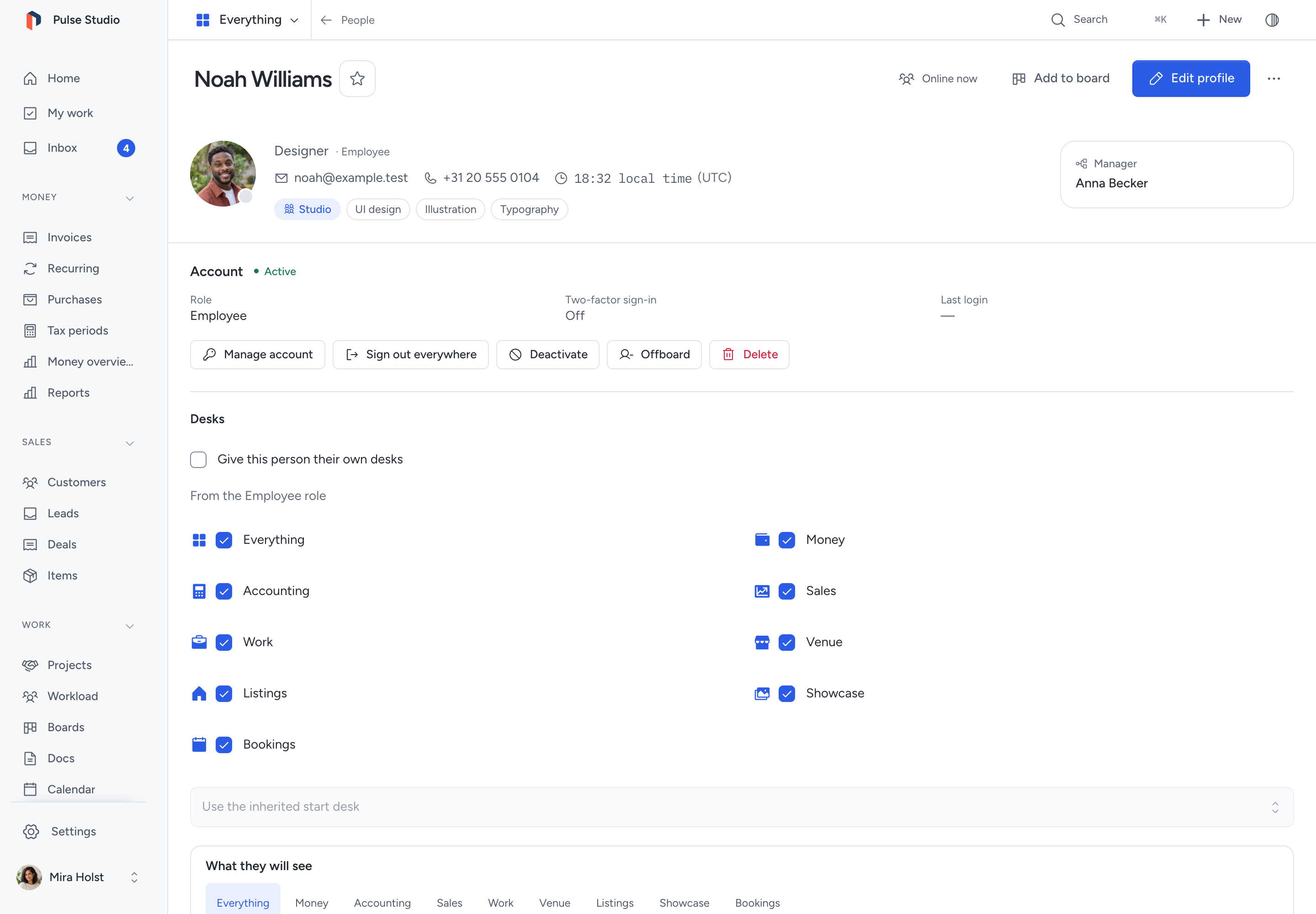
Pepper has four built-in roles and supports custom roles. Each installation has one owner. Below Admin, assigned desks limit the available modules. Guest scopes can restrict access further.
Role summary
| Role | Purpose |
|---|---|
| Owner | Installation control. Private boards still require board access. |
| Admin | Operational and account administration. Owner-only installation controls remain unavailable. |
| Accountant | Read-only financial access. Can view documents, customers, items, and export data. Cannot create or modify documents. |
| Employee | Operational access. Can create and manage invoices, customers, and items. Cannot see aggregate financial data or access settings. |
Permission matrix
| Permission | Owner | Admin | Accountant | Employee |
|---|---|---|---|---|
| Documents | ||||
| View all documents | ✓ | ✓ | ✓ | ✗ |
| View own documents | ✓ | ✓ | ✗ | ✓ |
| Create documents | ✓ | ✓ | ✗ | ✓ |
| Edit all documents | ✓ | ✓ | ✗ | ✗ |
| Edit own documents | ✓ | ✓ | ✗ | ✓ |
| Delete own drafts | ✓ | ✓ | ✗ | ✓ |
| Delete any draft | ✓ | ✓ | ✗ | ✗ |
| Issue documents | ✓ | ✓ | ✗ | ✓ |
| Email documents, send reminders and record deliveries (employee: own documents) | ✓ | ✓ | ✗ | ✓ |
| Settle, cancel and duplicate all documents | ✓ | ✓ | ✗ | ✗ |
| Settle, cancel and duplicate own documents | ✓ | ✓ | ✗ | ✓ |
| Customers | ||||
| View customers | ✓ | ✓ | ✓ | ✓ |
| Manage customers | ✓ | ✓ | ✗ | ✓ |
| Items | ||||
| View items | ✓ | ✓ | ✓ | ✓ |
| Manage items | ✓ | ✓ | ✗ | ✓ |
| Purchases | ||||
| View all purchases and their files | ✓ | ✓ | ✓ | ✗ |
| Record, change and void own purchases | ✓ | ✓ | ✗ | ✓ |
| Change and void all purchases | ✓ | ✓ | ✗ | ✗ |
| Open tax periods and download them (needs the financial summary and export permissions) | ✓ | ✓ | ✓ | ✗ |
| Manage purchase categories | ✓ | ✓ | ✗ | ✗ |
| Financial | ||||
| View financial summary | ✓ | ✓ | ✓ | ✗ |
| Settings | ||||
| Manage settings | ✓ | ✓ | ✗ | ✗ |
| Users | ||||
| Manage users | ✓ | ✓ | ✗ | ✗ |
| Transfer ownership | ✓ | ✗ | ✗ | ✗ |
| Recurring schedules | ||||
| Manage recurring schedules | ✓ | ✓ | ✗ | ✓ |
| Data | ||||
| Export data | ✓ | ✓ | ✓ | ✗ |
| Audit log | ||||
| View full audit log | ✓ | ✓ | ✗ | ✗ |
| View own audit log | ✓ | ✓ | ✓ | ✗ |
"Settle" means: record and reverse payments, issue credit notes, and record and reverse refunds. Pepper checks these rights again when it saves, so a role change takes effect at once.
Forms and custom fields
| Permission | Owner | Admin | Accountant | Employee |
|---|---|---|---|---|
| Use internal forms | ✓ | ✓ | ✓ | ✓ |
| Manage forms and custom definitions | ✓ | ✓ | ✗ | ✗ |
Guests cannot use internal forms. They can read a response routed to a board they may open. A form target also requires its ordinary record permission. Custom values follow that record’s read and write rules.
Form managers also configure, enable, publish and close website widgets. Internal widget use requires Use internal forms; guests cannot connect.
See Forms and custom fields for publication, consent, file access and stale-value recovery.
Boards
| Permission | Owner | Admin | Accountant | Employee |
|---|---|---|---|---|
| Use boards | ✓ | ✓ | ✓ | ✓ |
| Recover and manage boards | ✓ | ✓ | ✗ | ✗ |
Use boards permits creating a board and opening boards within your access. A private board requires membership. Team and Workspace visibility give access only to eligible internal people. Each board then assigns an Admin, Member or Observer role. Observers can read, comment, react and vote; members can also change cards.
Recover and manage boards exposes the Board access tab. It lists board names and admins, including private and archived boards. It does not reveal private cards. To recover access, confirm Join as admin. The action enters activity and notifies board admins.
A guest needs the boards module and explicit membership of a private board. Guests can be members or observers. Board access never grants access to a linked invoice or other business record. See sharing a board.
Sales
| Permission | Owner | Admin | Accountant | Employee |
|---|---|---|---|---|
| Work leads and deals | ✓ | ✓ | ✗ | ✓ |
| Manage stages, reasons, imports and reassignment | ✓ | ✓ | ✗ | ✗ |
Work leads and deals permits reading and working the leads and deals assigned to you or your teams, plus the unassigned leads. It permits adding leads and deals, qualifying a lead and assigning to yourself or your teams. Preparing a quote from a deal also needs Manage invoices. Lane totals, the weighted pipeline and the overview amounts need View financial summaries; a deal's own value is visible to everyone who can open the deal.
Manage stages, reasons, imports and reassignment permits reading every lead and deal, Settings > Sales, the CSV import of leads, reassignment to anyone and archiving. A guest with the Sales module in their scope sees the leads and deals of their named customers only. See Leads and Deals and the pipeline.
Notes
Owner vs. admin. Both roles manage operational settings. Security policy, optional-provider settings and external connections have owner-only boundaries. Admins cannot edit the owner. Neither role may delete or deactivate themselves, or change their own role through ordinary user editing.
Only the owner can transfer ownership, and the target must be an active admin. Invitations cannot assign the owner role. Only one user can be the owner at a time.
Employee visibility. Employees can view and manage their own documents. They cannot see aggregate financial data, including Home's money figures, receivables, overdue totals and credit owed. The money pipeline, largest-debtor table, issued-invoice analysis and six-month figures are hidden too. They can see customer records and the item catalog. Document lists, customer history, search results, tag suggestions and linked-document panels show only documents the employee created. A shared customer record does not grant access to another person's documents.
Customer financial summaries, payment counts, payment timing and last invoice date are hidden from employees. Employees can still see amounts and payments on their own documents. The built-in Employee role cannot export CSV, XML or reports, including its own documents. Export actions need data.export and record access. A custom role can include that permission.
Accountant access. Accountants have read-only access to all financial data. They can view documents, customers, and items, and export data (CSV, XML). They cannot create, edit, or send documents.
Accountant audit log. The accountant opens Settings > Audit log from Your profile and sees only their own events. The page names no other person and has no Actor filter.
Audit controls. Full audit permission allows verification, signed exports and data-request reports. Current source access still applies, including private boards. Only the owner can lengthen retention periods or confirm personal-field erasure. Audit events and installation checks have no editable custom fields.
Purchases. Employees see, change and void only the purchases they recorded, and cannot open tax periods. Accountants read every purchase and file, open tax periods and download them, and change nothing. See Record purchases.
Recurring schedules. Only roles with invoices.manage permission (owner, admin, employee) can access recurring invoice schedules. Accountants cannot view or manage recurring schedules. Employees see and manage only the schedules they created. Generated invoices keep the schedule creator as their owner. Employees can open invoices from their own schedules.
Related pages
Files, people, comments and custom permissions
| Action | Owner | Admin | Accountant | Employee |
|---|---|---|---|---|
| Read permitted files and people | Yes | Yes | Yes | Yes |
| Manage files | Yes | Yes | No | Yes |
| Share files | Yes | Yes | No | No |
| Manage people and teams | Yes | Yes | No | No |
| Comment, mention and use the inbox | Yes | Yes | Yes | Yes |
| Remove another person's comment | Yes | Yes | No | No |
| Manage custom roles | Yes | Yes | No | No |
| Change security policy | Yes | No | No | No |
| Grant external connections or configure optional suggestions | Yes | No | No | No |
The table describes built-in roles. Record scope still applies to each action. File access does not grant access to a linked financial record.
Only the owner can enable or grant external client connections. Active staff with built-in or custom roles can be delegates. Their current permissions still apply. Approval tools need invoices.finalize; client issuance also checks invoices.manage and invoice access. See Agent connections.
Custom roles
Owners and admins use Settings > Roles to select permitted actions. Custom roles cannot grant settings.manage or users.manage. Built-in role permissions cannot be edited. Their desks and start desk can change. A custom role needs a unique name and at least one permission.
Changing a role signs out its holders and stops their existing external credentials. A role cannot be deleted while users or pending invitations use it.
Guest scope
A guest uses Accountant, Employee or a custom role. Owner and Admin cannot be guests. Select permitted modules, then named customers or projects when needed.
Named records narrow access. Without named records, the selected modules expose the records allowed by the role. A scope never grants a missing permission. Guests cannot hold agent connections. Changing the scope signs out the guest.
Booking access
| Permission | Owner | Admin | Accountant | Employee |
|---|---|---|---|---|
| Configure and manage bookings | Yes | Yes | No | No |
| Follow up assigned bookings | Yes | Yes | No | Yes |
| Connect outside calendars | Yes | No | No | No |
Booking access does not grant access to related financial records. An invoice draft also requires invoice permission and access to its customer.
A customer-workspace owner needs the matching booking feature to configure services, and contacts access to read accepted bookings. Counter staff cannot manage them.
Platform roles do not grant access to customer workspaces. See booking setup.
Need help with the product?
Contact support