
Browse the manual
Generate reports
Analyze business money, run tax and aging reports, create customer statements and export invoice data.
On this page
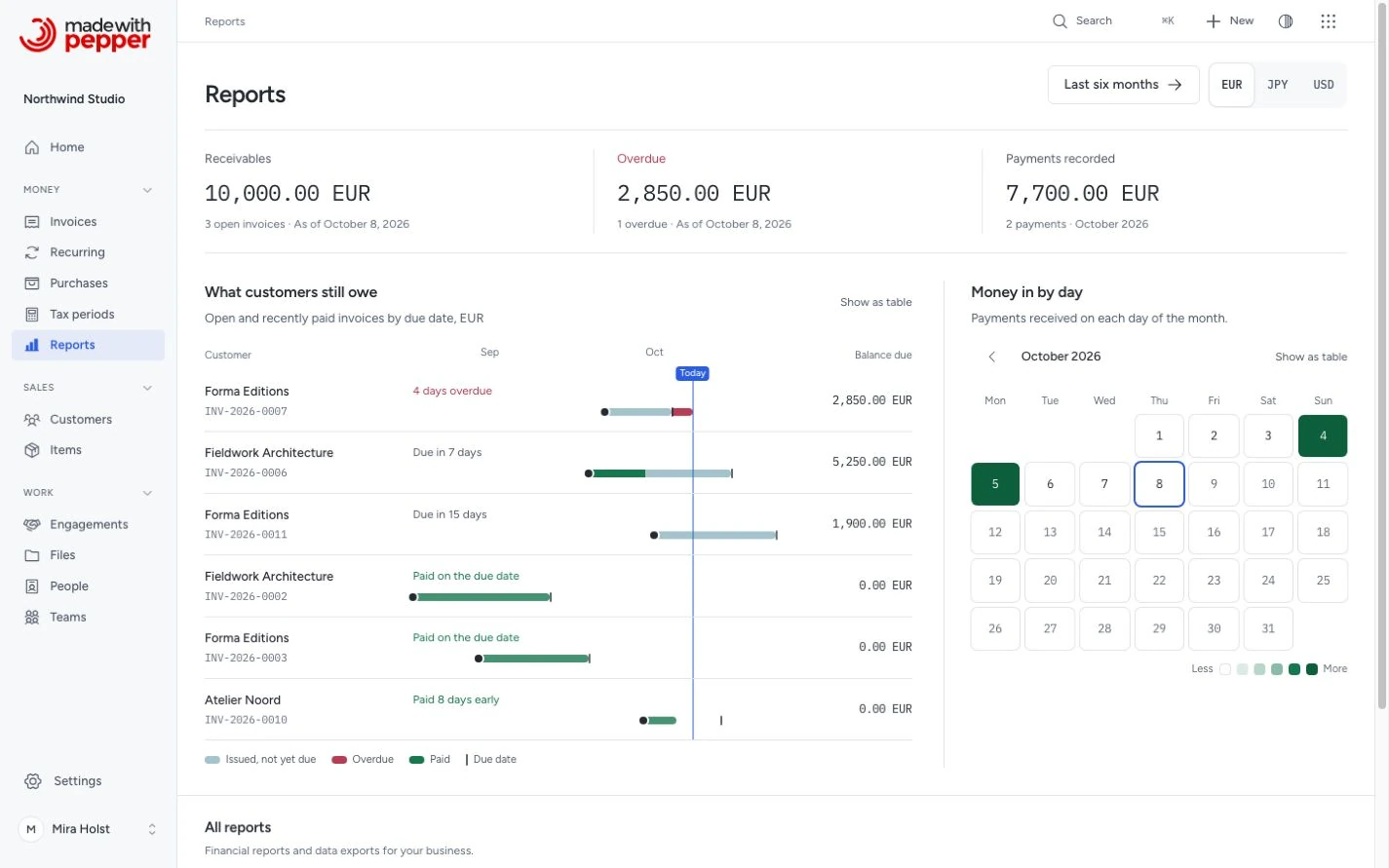
For: owners, admins and accountants reviewing business money. Where: Reports in the navigation.
Reports combines business analysis with tax reports, aging reports, customer statements and invoice CSV export. Each analysis or report keeps its own currency and date meaning.
Money overview
The new Money overview compares revenue, selected purchase costs, result and recorded cash with the previous month, quarter or year. Each amount opens its source records. Choose issue or payment dates for revenue and costs, keep currencies separate and download the same figures as CSV.
One currency per report
The reports overview, business analysis, tax report, aging report and customer statement show one currency at a time. They show your company currency until you click another code under Currency. The codes are your company currency and the currency of every finalized invoice and credit note you can see. The report opens in that currency at once and keeps its period. Pepper never adds amounts in different currencies and does not convert them.
If the report has records in other currencies, a note above the table names them, for example: "This report shows EUR only. Records in other currencies: JPY USD". Click a currency code to open the same report in that currency.
The page subtitle names the currency. The CSV files of these three reports have a Currency column and the currency code in their file names.
Dates
Periods and "today" are dates in the Business timezone of Settings > Company. This month starts on the first day of the month and ends today. Last month is the full previous calendar month. On 31 March, Last month is February.
To set your own period, click Custom range. Set the Start date and End date. Click Apply. If the end date precedes the start date, Pepper keeps your input and shows a message under the dates. Correct the date. Click Apply again.
Open the reports overview
Click Reports in the rail. Below 1024 px, Reports is in the tab bar at the bottom of the screen.
The overview starts with three figures in the chosen currency:
| Figure | Meaning |
|---|---|
| Receivables | The current unpaid balance, with the open invoice count and business date |
| Overdue | The current overdue balance, with the overdue invoice count and business date |
| Payments recorded | The payment amount and count for the month shown in the calendar |
Changing the calendar month changes Payments recorded. Receivables and Overdue keep their current business date.
Below the figures:
- What customers still owe lists open and recently paid invoices by due date. Choose Overdue, Not yet due or All at the top of the panel; each shows its count. The panel opens on Overdue when an invoice is overdue. A recently paid invoice appears under All. Each row shows the customer, invoice number, payment or due state, and exact Balance due. A paid invoice has a zero balance. The timeline shows issue, due and payment dates. Red marks overdue time. Early payments say Paid 8 days early, for example. The list stops at 40 invoices; a link opens further records in the aging report. Click a row to open its invoice.
- Money in by day shows the month's recorded payments. A day's shade and count describe its payments. Point at a payment day to read its amount. The Tab key moves between days with payments. Empty days do not take keyboard focus. Use the arrows to change the month.
- Last six months: opens Business analysis, including current balances, stages, aging and issued analysis.
- All reports: Tax report, Aging report, Customer statement and Invoice export (Download all invoices CSV).
Each chart has a table view with the same numbers for screen readers and for copying. Select Show as table at the bottom of the panel to open it, and Show as chart to go back. On phones, invoice rows retain their words and balances; the timeline axis is hidden.
Business analysis
- Open Reports.
- Click Last six months.
- Choose the currency above the analysis.
The six-month comparison uses invoice issue dates and recorded payment dates. Current balances, stages and aging use today's business date. The issued-period control affects only Issued invoices. No view predicts payment, combines currencies or substitutes a bank balance.
Money pipeline
The pipeline follows money from quote to cash in the selected currency. Each stage shows its document count and exact amount. Click a stage to open its list.
| Stage | What it counts |
|---|---|
| Quotes out | Sent quotes that wait for an answer |
| Accepted | Accepted quotes without an invoice |
| Drafts | Invoice drafts |
| Not yet due | The unpaid balance of invoices due today or later |
| Overdue | The unpaid balance of invoices due before today |
| Collected | Cash recorded this month |
The stages are separate facts. The analysis shows no conversion rate or forecast between them. A draft amount is its current draft total, not an issued amount.
Cash flow
The column chart compares Issued and Collected amounts for six business months in the selected currency. Point to a month, or select the chart and use the arrow keys, to see both amounts. The exact amounts of every month also show under the chart.
Issued uses invoice issue dates. Collected uses recorded payment dates and includes refunds and payment reversals. These columns measure different events. They are not profit or a bank balance. The issued-period control does not change this chart.
How old is what I am owed?
The ring groups the current unpaid balance of the selected currency by age. Its groups are Not yet due, 1–30 days, 31–60 days, 61–90 days and Over 90 days. The center shows the total. Point to a part of the ring or a row to see its amount and share.
Each row shows its amount, invoice count and share. Open a row to view open or overdue invoices. The invoice list does not filter to that exact age bucket.
Who owes you most
This table lists up to five customers with the largest unpaid balance in the selected currency. Each row shows the customer, the number of open invoices, the open balance, its share of all open invoices and the oldest due date. The oldest due date shows the days overdue, Due today or the days until it is due.
Click a customer name to open the customer, when your role may view customers. Invoices without a customer do not appear in this table.
Issued invoices
Use This month, This quarter or This year to choose the invoice issue-date period. This control changes only this section.
Three rings show shares of the issued total. The outer ring is Paid, the middle ring is Credited and the inner ring is Open, split into Not yet due and Overdue. The center shows the number of invoices. A ring stops at a full circle. The exact share is in the rows.
| Row | What it means |
|---|---|
| Issued | The total of invoices issued in the selected period, with their count |
| Paid | Recorded payments on those invoices |
| Credited | Credit notes applied to those invoices |
| Open | Their remaining unpaid balance |
| Not yet due | The part of the open balance whose due date is today or later |
| Overdue | The part of the open balance whose due date is before today |
The last two rows are parts of Open. Do not add them to it. Refunds affect the open balance separately from recorded payments. Shares use the issued total as their denominator. A share can exceed 100% when payments and credit create credit owed.
With no issued total, the amounts remain visible and the shares show a dash. The status links open invoice-list views. They do not apply the selected issue-date period to that list.
Collected this month and days to pay
The ring of Collected this month measures invoices whose due dates fall between the start of this month and today. It shows collected money against their total after credits, plus their count. This due-date cohort differs from this month's recorded cash. With no invoices due yet this month, the section says Nothing fell due this month.
Days to pay is the average time from issue to the last payment for invoices paid during the last 90 days. Its comparison uses the preceding 90 days. Without a sample, it shows a dash.
Upcoming due dates
The columns show Past due and five weeks of unpaid invoices by their actual due dates. Each column has a total, or Nothing due. These dates are obligations, not predictions of when customers will pay.
Invoice rows stay visible below the columns, even when many invoices share a due date. Each row names the customer, invoice number, date or overdue duration, and unpaid balance. Open a row to view the invoice.
Past due lists up to 12 overdue invoices. If more exist, the remaining count links to the overdue invoice list. The future list includes unpaid invoices due during the next 35 days.
Tax report
The tax report totals tax from finalized invoices and credit notes in a date range. Pepper groups the rows by tax rate name, rate and tax category. Each row shows the tax rate name, the rate, the category, the taxable base, the tax amount and the total. The category is the UBL tax category stored on the line, for example S for standard rate or AE for reverse charge. Two rates with the same name and rate but a different category show as two rows.
Lines without a tax rate appear in a row named No tax, with an empty category. The No tax row comes first. The other rows follow from the lowest rate to the highest. Credit notes subtract from the totals.
- Click Tax report on the overview.
- Click a period (This month, Last month, This quarter, This year, Last year), or set a Custom range.
- To see another currency than your company currency, click its code under Currency.
- The Tax per rate table shows the per-rate totals. The Summary row at the bottom shows the grand totals.
- Click Download CSV to export the data. The CSV has the same columns as the page, plus a Currency column after Category. Its name has the currency and the period, for example
tax-report-USD-2026-01-01_2026-03-31.csv.
What counts: Only finalized (non-draft, non-cancelled) invoices and credit notes in the chosen currency, with an issue date inside the selected period. The report excludes draft and cancelled documents.
Worked example
Northwind Studio runs the tax report for Q1 2026 (1 Jan to 31 Mar). Three invoices finalized in the period use two rates, and one invoice has a line without a tax rate:
| Tax rate | Rate | Category | Taxable base | Tax amount | Total |
|---|---|---|---|---|---|
| No tax | 0% | 600.00 EUR | 0.00 EUR | 600.00 EUR | |
| VAT 9% | 9% | S | 3,200.00 EUR | 288.00 EUR | 3,488.00 EUR |
| VAT 21% | 21% | S | 8,500.00 EUR | 1,785.00 EUR | 10,285.00 EUR |
| Summary | 12,300.00 EUR | 2,073.00 EUR | 14,373.00 EUR |
Northwind also invoiced a US customer in dollars in Q1. The note above the table names USD. Click USD to see the dollar invoices in their own report.
Aging report
The aging report shows the balance due on each customer's invoices, grouped by days past the due date. Use it to check how much each customer owes and how late their payments are.
- Click Aging report on the overview.
- To see another currency than your company currency, click its code under Currency.
- The report shows the balances as of today. It has no period filter. The chart What customers still owe is above the table.
Buckets:
| Bucket | Meaning |
|---|---|
| Current | The due date is today or later |
| 1-30 days | 1 to 30 days past due |
| 31-60 days | 31 to 60 days past due |
| 61-90 days | 61 to 90 days past due |
| 90+ days | More than 90 days past due |
Each row shows a customer name (linked to their detail page), amounts in each bucket, and the total outstanding. The customer with the largest total is first. The table shows 100 customers on a page. To show 25 or 50, change Per page below the table. The summary row and the chart How old is what I am owed? always show the totals across all customers.
What counts: Finalized invoices in the chosen currency that are not cancelled and have a balance due above zero. Partially paid invoices are included. The balance shown is the balance due: grand_total − amount_paid − amount_credited + amount_refunded. A credit note lowers the balance of its invoice and has no row of its own. The invoices in 1-30 days and later are the overdue invoices, the same invoices as in Home’s Overdue balance.
Credit owed to customers
When credit notes and payments on an invoice are more than its total plus the refunds, you owe the customer money. The report lists these customers under Credit owed to customers, below the buckets. Credit owed is not in any bucket or in Total outstanding. This list shows as many customers on a page as the table above it, and has its own page numbers when it is longer.
The CSV has one row for each customer with a balance due or credit owed, not only the customers on the page. Its columns are: Customer, Currency, Current, 1-30 days, 31-60 days, 61-90 days, 90+ days, Total and Credit owed. A customer with credit owed and no balance due has zero in the bucket columns. The file name has the currency and the date, for example aging-report-EUR-2026-09-30.csv.
Customer statement
The customer statement shows one customer's invoices, credit notes, payments and refunds in one currency for a period.
You can also click Statement on a customer record. The statement then opens for that customer in your company currency.
- Click Customer statement on the overview.
- Type in Select customer.
- Choose a customer from the matches. Inactive customers are in the list too.
- To change from your company currency, click another code under Currency.
- Click a period, or set a Custom range.
The page shows:
- Summary cards: Opening balance, Invoiced less credits, Paid less refunds and Closing balance
- Balance over the period: a line chart of the running balance of the rows on the page
- Transaction table: an Opening balance row, then every row in date order with a running balance
The table shows 100 rows on a page. To show 25 or 50, change Per page below the table. The Opening balance row is on the first page. Each page continues the running balance of the page before it. The summary cards and the CSV always cover the full period.
| Row | Column | Effect on the balance |
|---|---|---|
| Invoice | Debit | Adds its total |
| Credit note | Credit | Subtracts its total |
| Payment | Credit | Subtracts its amount |
| Refund | Debit | Adds its amount. A refund is money you paid back on a credit note |
| Payment reversed | Debit | Adds the amount of the reversed payment again |
| Refund reversed | Credit | Subtracts the amount of the reversed refund again |
A reversed payment or refund keeps its row on its payment date. The reversal is a separate row on the day you reversed it. Drafts and cancelled documents do not appear, and their payments do not appear either.
The opening balance is the sum of all rows before the first day of the period. The closing balance is the opening balance, plus Invoiced less credits, minus Paid less refunds. When the period ends today, the closing balance is what the customer owes you, less any credit you owe them.
The note about other currencies names each currency in which this customer has finalized invoices or credit notes, up to the end of the period.
The CSV starts with an Opening balance row. Its columns are Date, Document, Type, Currency, Debit, Credit and Balance. The file name has the customer, the currency and the period.
Worked example
Northwind Studio pulls the October 2026 statement in USD for Cascade Coffee Co. The customer owed $500.00 at the end of September.
| Date | Document | Type | Debit | Credit | Balance |
|---|---|---|---|---|---|
| Opening balance | 500.00 USD | ||||
| 2026-10-03 | NW-2026-0047 | Invoice | 1,200.00 USD | 1,700.00 USD | |
| 2026-10-10 | NW-2026-0047 | Payment | 500.00 USD | 1,200.00 USD | |
| 2026-10-14 | NW-2026-0047 | Payment reversed | 500.00 USD | 1,700.00 USD | |
| 2026-10-18 | CN-2026-0003 | Credit note | 200.00 USD | 1,500.00 USD |
On 14 October the bank returned the payment of 10 October, so Mira reversed it. Invoiced less credits is 1,000.00 USD. Paid less refunds is 0.00 USD: the payment and its reversal cancel out.
Closing balance: 1,500.00 USD
Invoice CSV export
Click Download all invoices CSV on the overview to download all finalized invoices as a CSV file. The file lists invoices in every currency. Each row names its currency in currency_code. The file has these columns, in this order:
document_number, status, customer_name, issue_date, due_date, currency_code, subtotal_before_discount, discount_total, net_total, tax_total, grand_total, amount_paid, amount_credited, amount_refunded, amount_due, reference, notes, price_basis, line_pricing_json
The amounts reconcile on every row:
subtotal_before_discountminusdiscount_totalequalsnet_total.net_totalplustax_totalequalsgrand_total.amount_dueisgrand_totalminusamount_paidminusamount_creditedplusamount_refunded, and never below zero. A cancelled invoice has anamount_dueof zero.amount_creditedis the total of the invoice's credit notes that are finalized and not cancelled.amount_refundedis the refunds on those credit notes.
The final columns are price_basis and line_pricing_json. Earlier column positions stay the same.
price_basis is exclusive for Without tax, inclusive for Includes tax, or mixed when the invoice uses both. line_pricing_json contains the ordered lines with their description, quantity, unit price and basis. It also includes each entered discount, net discount, net amount, tax and total. Amounts remain exact decimal strings in the invoice currency. Parse the JSON when your accounting import needs to distinguish gross discounts from net discounts.
The CSV uses UTF-8 encoding with a BOM for Excel compatibility. A text cell starting with =, +, -, @, a tab or a line break gets a leading apostrophe ('). This prevents a spreadsheet from running it as a formula. Numbers stay as they are. Money amounts are decimal numbers with the document's own number of decimals: 5000 in JPY, 125.50 in EUR, 12.345 in BHD.
To filter by period, append period parameters to the URL:
/reports/invoices/csv?period=this_year
Permissions
Reports requires the data.export permission. Owners, admins and accountants have it by default. A custom role can also have it. Employees do not have it by default. Pepper hides the destination and refuses requests without permission.
Last six months also requires financial_summary.view. Without that permission, the reports overview hides the link and refuses the analysis request.
Need help with the product?
Contact support