
Browse the manual
Email templates
Customize the subject and body of document, reminder and overdue emails in each language, with merge variables.
On this page
For: owners and admins who customize the emails to customers.
Where: Settings > Email templates, or go to /settings/email-templates.
Available templates
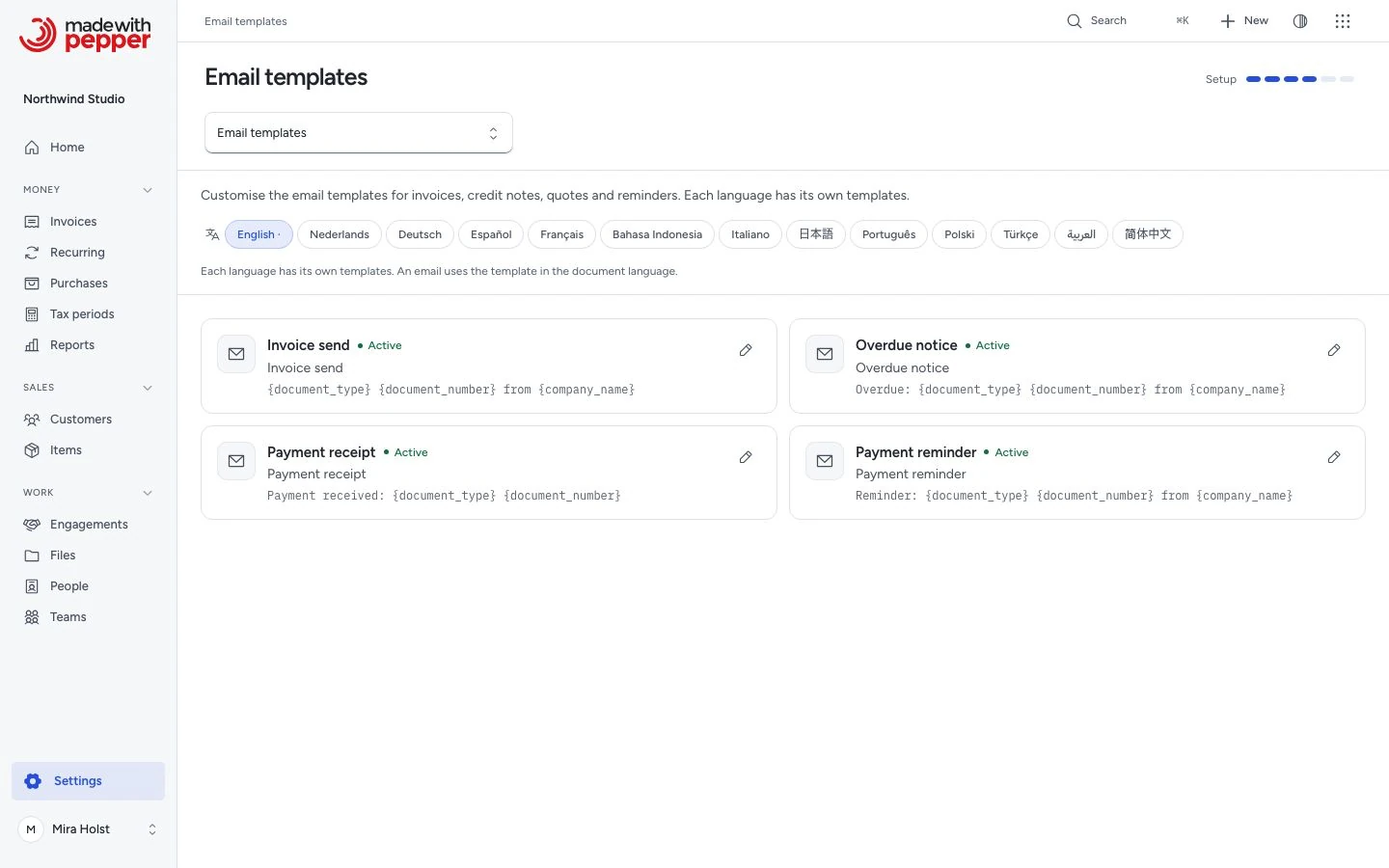
A fresh installation creates four email templates in each of the 14 language variants, including European and Brazilian Portuguese. The same templates exist when you leave demo data off:
| Template type | When Pepper uses it |
|---|---|
| Invoice send | The send dialog of every document type, and recurring auto-send |
| Payment reminder | Automatic and manual reminders on or before the due date |
| Overdue notice | Automatic and manual reminders after the due date |
| Payment receipt | Never. You can edit it, but Pepper does not send payment receipts. The send dialog does not offer it |
Templates per language
Each language variant has its own four templates. The page shows one language at a time:
- Go to Settings > Email templates.
- Select a Language. The list shows the templates of that language.
- Click Edit next to a template.
A change to one language does not change the others.
An email uses the template in the document language. When that template is missing or inactive, Pepper uses the template of the company language. The send dialog and the Email history then say "No template in {language}. The {language} template is used." When neither exists, Pepper uses its built-in default text in the document language.
The company language comes from Language and region in Settings > Localization. The document language comes from the customer's Document language or the Language on the draft. See Localization.
Editing a template
| Field | Description |
|---|---|
| Name | Editable template name |
| Subject | Email subject line. Supports merge variables |
| Body | Email body text in plain text. Supports merge variables |
| Active | Pepper does not use an inactive template. Emails in its language use the template of the company language, or the built-in default text |
Available variables lists the merge variables as buttons. Click one to insert it at the cursor of the field you used last, Subject or Body. Preview shows the text with each variable marked.
Click Save template. The editor refuses a word in braces that is not a variable. It shows "Unknown variable: {x}. Use only the variables listed on this page." Fix the typo and save again.
Merge variables
Use these placeholders in the subject and body. Pepper replaces them when it sends the email.
| Variable | Replaced with |
|---|---|
{customer_name} |
Customer's name |
{document_type} |
The document type in the document language, for example Invoice or Quote |
{document_number} |
Document number, for example INV-2026-0001 |
{invoice_number} |
The same as {document_number} |
{invoice_total} |
The document total with its currency |
{amount_due} |
The balance due when Pepper sends the email, after payments, credit notes and refunds |
{due_date} |
Due date |
{payment_link} |
Payment link URL, if the document has one |
{company_name} |
Your company name as saved on the document |
Pepper formats money and dates with the number and date formats saved on the document at issue.
Example: invoice NW-2026-0021 has a total of €1,210.00. The customer paid €400.00. A reminder shows {invoice_total} as €1,210.00 and {amount_due} as €810.00. For a $2,598.00 invoice with $324.75 credited, {amount_due} is $2,273.25.
The default subjects are "{document_type} {document_number} from {company_name}", "Reminder: {document_type} {document_number} from {company_name}" and "Overdue: {document_type} {document_number} from {company_name}". The French defaults write "– {company_name}" in place of "de {company_name}", so no elision is needed. The default reminder texts use {amount_due}.
To go back to the default text of a template, click Reset to defaults on its editor. Pepper asks first. Your changes to that template are lost.
What every email contains
Every email has an HTML part and a plain-text part with the same content. The email loads no remote images. Below your text, a summary shows:
- The document number, the Date and the Due date, with the same labels as the PDF. Date is the issue date. A quote shows Valid until in place of the due date
- The Total
- Paid, Credited and Balance due, when a payment or a credit exists
A credit note email shows its total only and no payment link.
Resetting to defaults
Click Reset to defaults to restore the subject and body of one template in one language. Pepper uses the default text of that language and sets the template to active. This replaces your changes.
Storage
Pepper stores templates in the database. It does not store them in files. Default seeding adds missing templates and keeps existing text, names and active settings. To replace a template's text yourself, use Reset to defaults.
If you retry an interrupted fresh installation, Pepper keeps any template text already stored by that setup attempt. It does not replace customized templates during the retry.
What is not included
- HTML body editing: you write the body as plain text. Pepper builds the HTML part from it.
- Preview: the editor marks variables in the template text. The send dialog previews the email with the selected document data.
- Payment receipts: Pepper does not send an email when you record a payment.
Related pages
Need help with the product?
Contact support