
Browse the manual
Manage tax rates and rules
Set up tax rates, name tax classes, and choose how your configured rules match an explicit sales context.
On this page
Choose a rate yourself, or ask Pepper to use rules you configured. Rules apply only when you select Use configured rules on a sales line.
For: owners who maintain tax settings for their business. What you need: permission to manage settings, normally the Owner or Admin role. Know which tax treatment you want to apply.
Pepper uses your choices. It does not decide where tax legally applies, check tax registers or file returns.
Create a tax rate
- Open Settings > Tax rates.
- Click Add tax rate.
- Enter a Name that you recognize on documents.
- Enter the Rate as a percentage.
- Optional: select a Country to organize the rate.
- Choose the UBL code.
- If the category needs one, enter an exemption code or reason.
- Optional: turn on Default rate for this country.
- Leave Active on for new selections.
- Click Create tax rate.
Type 21 for 21%. For 5.5%, use the decimal separator from your number format: 5.5 or 5,5.
The rate accepts 0 to 100%, with at most 2 decimal places.
One rate per country can be the default. Rates without a country have their own default. A default does not enable configured rules.
The category and rate must agree:
| UBL code | Rate | Exemption code or reason |
|---|---|---|
| S · Standard rate | Above 0% | Leave empty |
| Z · Zero rate | 0% | Leave empty |
| E · Exempt | 0% | Enter a code, a reason, or both |
| AE · Reverse charge | 0% | Enter a code, a reason, or both. The only code is VATEX-EU-AE |
These are Pepper's input checks. You choose whether a category applies to your transaction. XML export has its own supported profiles and checks.
Create a tax class
A tax class is your name for a category of goods or services. For example, Northwind Studio names one Design services.
- Open Settings > Tax classes.
- Click Add tax class.
- Enter the Name.
- Leave Active on.
- Click Add tax class.
A class does not assign a legal classification or a rate. An item can suggest a class for new sales lines. You still choose whether a line uses configured rules.
Create a rule
Each rule chooses one active rate or No tax. It matches the conditions you enter and leaves other conditions open.
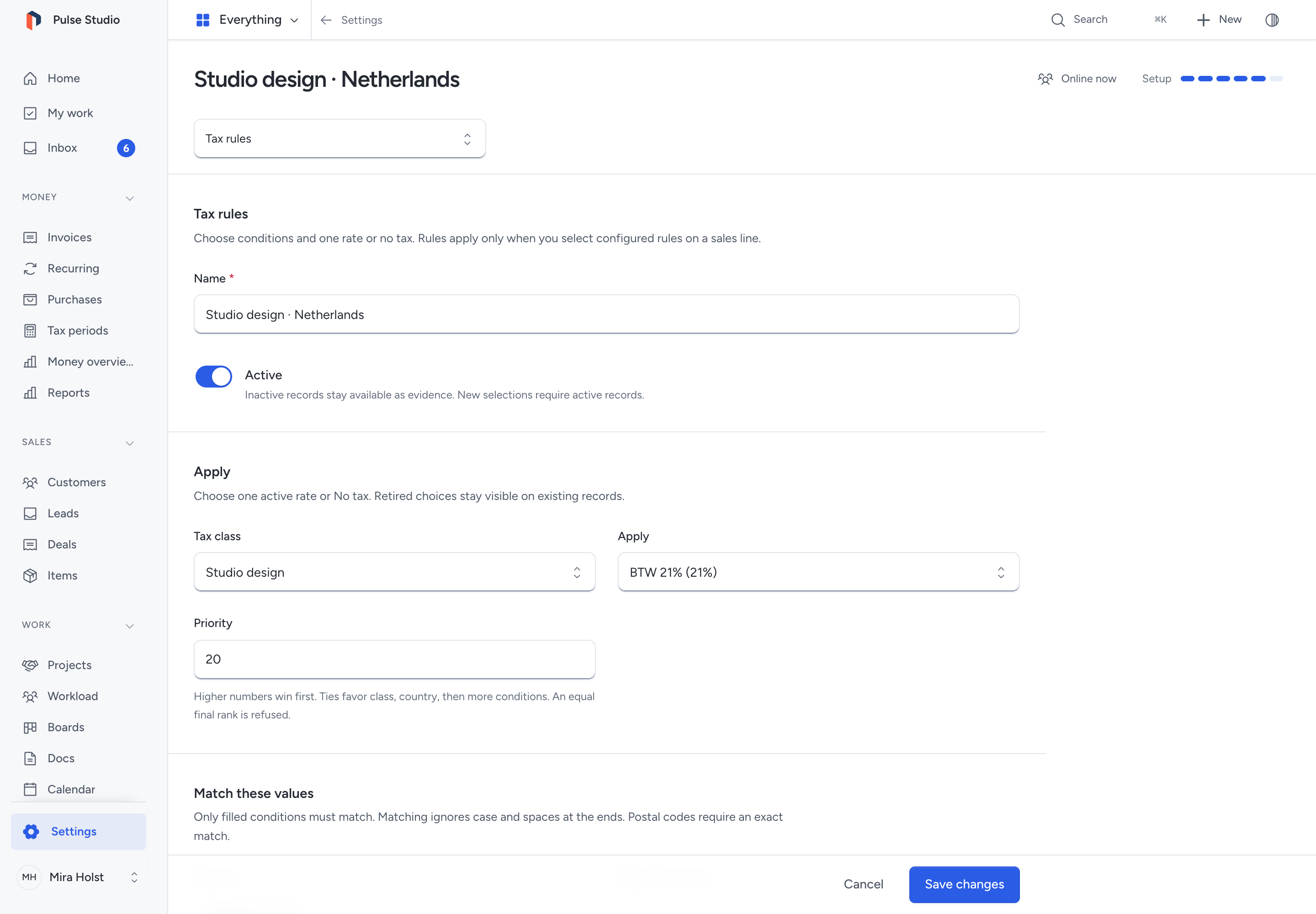
Names accept 100 characters. Matching text accepts 255 characters per condition. Priority starts at 0 and accepts whole numbers from −2,147,483,648 to 2,147,483,647.
- Open Settings > Tax rules.
- Click Add tax rule.
- Enter the Name.
- Leave Active on.
- Choose Tax class, or leave Any class.
- Under Apply, choose a rate or No tax.
- Enter the Priority. Higher numbers take precedence.
- Under Match these values, enter the conditions the rule requires.
- Click Add tax rule.
| Condition | What Pepper compares |
|---|---|
| Country | The explicitly selected country, or Any country |
| State or province | The region text in the document's tax matching inputs |
| County | The separately entered county text |
| City | The entered city text |
| Postal code | The complete entered postal code |
All filled conditions must match. Pepper ignores case and spaces at the start and end. Spaces within a value remain part of it.
Postal codes use an exact match. A value of 02108 does not mean every code starting with 021. Pepper keeps its leading zero.
A rule with no conditions can provide a fallback. Add that fallback yourself only when you want its outcome for otherwise unmatched lines.
Choose between matching rules
Pepper compares matching active rules in this order:
- Higher Priority.
- A specific tax class before Any class.
- A specific country before Any country.
- More matched region, county, city or postal-code conditions.
If the final rank is equal, Pepper refuses the selection and names the tied rules. A record's age or ID never chooses the winner.
For example, Northwind Studio configures Boston design services with priority 10, class Design services, country United States, region MA, and postal code 02108.
The rule applies only when those entered values match and someone selects configured rules. Its outcome is the owner's selected rate, not a tax-law determination.
Select tax on a sales line
Check the document's Tax matching inputs first. They start from the customer's billing address. County remains a separate optional input.
The document shares these matching inputs across its lines. Each line keeps its own class, price basis and tax choice.
- Click the value under Tax on the line.
- In Tax selection, choose how the line selects tax.
- Set Entered price to Without tax or Includes tax.
- For Choose a rate, select the manual rate.
- For Use configured rules, choose the line's Tax class, or No class.
- Click Review tax selection.
- Check the resulting rate, category and reason.
- Click Close to return to the document.
- Save the draft after all lines are valid.
| Choice | What happens |
|---|---|
| Choose a rate | You select the manual rate |
| No tax | The line has no selected tax rate |
| Use configured rules | Pepper matches your chosen class and tax matching inputs against the active rules |
The price basis does not come from the country, currency or tax class. Documents and recurring schedules use the same selection choices.
When you edit an existing line, its saved tax choice takes precedence. Changing description, quantity, price or discount keeps that choice.
To use current settings, click Select again from current settings, choose the intended tax treatment, then click Review tax selection.
Changing only Entered price keeps a frozen line's saved rate and tax choice. It changes the price's meaning, so check the recalculated amounts.
Older recurring lines can use a live rate without a frozen choice. Changing their basis requires selecting and reviewing current settings.
If that live rate becomes unavailable, the preview stays incomplete. Choose an active rate and review it before saving.
Read What Pepper calculates and what you set up for exact calculations and discounts.
Correct a refused selection
| Message | What to do |
|---|---|
| No configured rule matches | Check the matching inputs and class. Correct a rule or choose a manual rate. Add an explicit fallback if needed |
| More than one rule has the highest priority | Read the named rules. Change their priority or conditions so one wins, then review the selection again |
| Select an active class or rate | Choose an active record. A settings manager can edit the record and turn Active on |
| Tax setup, matching inputs or permissions changed | Check the current inputs and access, then click Review tax selection again |
| Saved lines changed | Reload the document to review its current lines before entering your edits again |
If you cannot open tax settings, ask someone who manages them. An available manual rate remains a separate choice.
Edit or retire a setting
Open a class, rule or rate by its name. Change its fields, then click Save changes.
If another person saved it first, Pepper refuses the old version. Your typed values stay in the form.
Click Reload saved record to review the saved values. Reloading replaces your unsaved input after you confirm leaving the form. Enter your intended changes again.
Use the row's action menu to retire a class or rule. The record becomes inactive and stays available as evidence. New selections cannot use it.
For a tax rate, choose Remove. Pepper asks first. It deletes an unused rate and retires a referenced rate.
A retired rate loses its default mark. Its row remains inactive, and the confirmation message says the rate was retired.
To use a retired record again, open it, turn Active on, and save. A rule also needs active referenced classes and rates.
Editing or retiring settings keeps saved document choices, totals and originals unchanged. Reselect tax on a draft when you want current settings.
Related pages
Need help with the product?
Contact support