
Browse the manual
Payments
Record full and partial payments on invoices, reverse a payment recorded by mistake, and track payment history and status transitions.
On this page
For: business owners tracking incoming payments. Where: the invoice sheet, Record payment in the panel on the right.
Record what came in, when and how. Pepper settles the invoice from the recorded payments and credit notes, so the balance and the status follow the records. A payment recorded by mistake is reversed and kept, never deleted.
Recording a payment
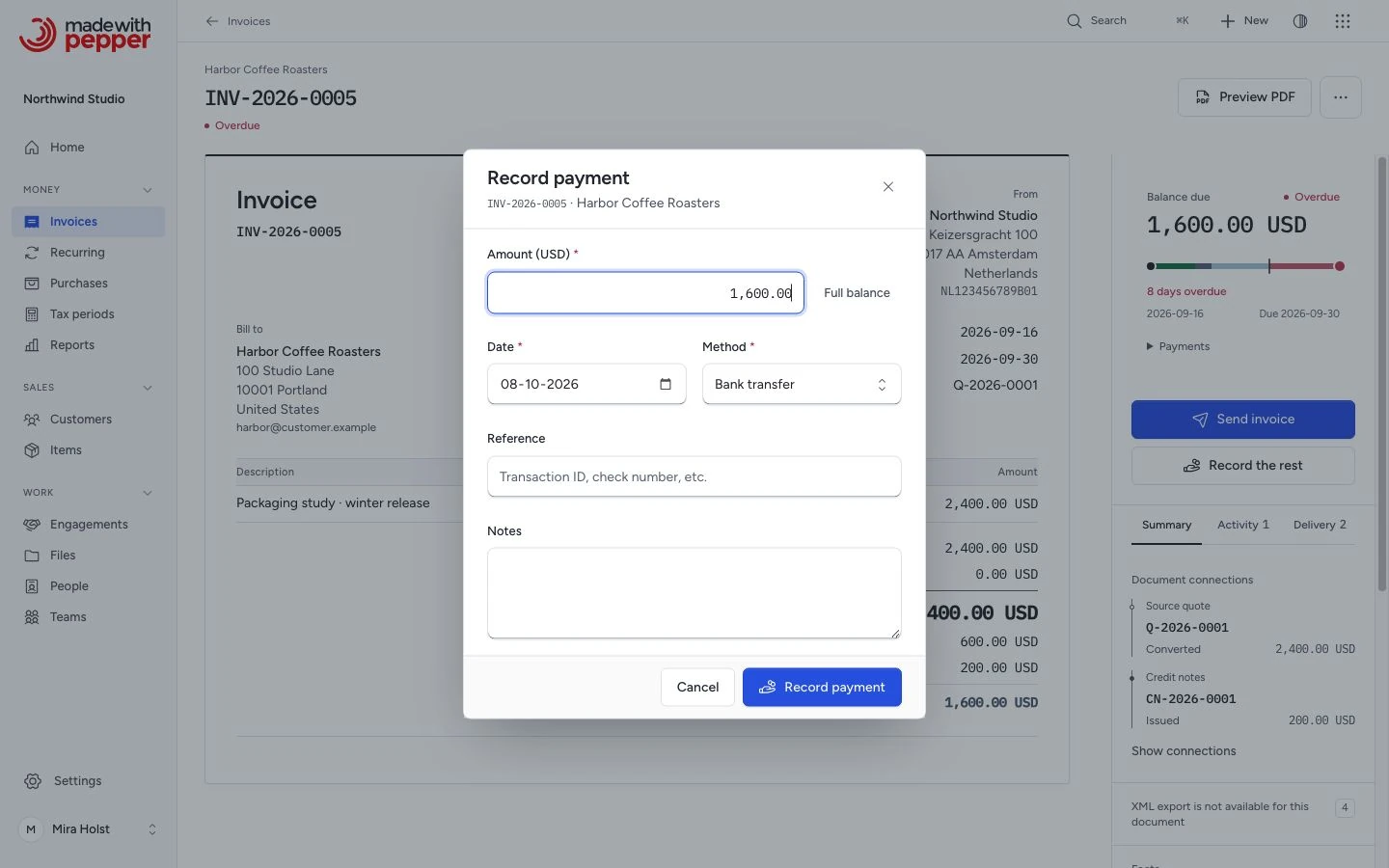
Open an issued invoice that has a balance due. Click Record payment, or Record the rest after a partial payment. The dialog opens.
| Field | Required | Description |
|---|---|---|
| Amount | Yes | Payment amount. Pre-filled with the balance due, after payments and credit notes. Adjust for partial payments. The balance due is the limit |
| Date | Yes | Date you received the payment. Defaults to today in the company time zone |
| Method | Yes | Payment method: Bank transfer, Cash, Card, or Other |
| Reference | No | Transaction reference or payment ID for your records, up to 100 characters |
| Notes | No | Internal note about this payment, up to 500 characters |
Click Record payment to save. Pepper updates the invoice status.
Pepper refuses an amount above the balance due and stores nothing. The message names the limit, for example "The amount is more than the balance due (EUR 50.00). Enter EUR 50.00 or less." The dialog keeps what you typed. If the same form arrives twice, Pepper records one payment and shows Already recorded.
Payment status transitions
| Transition | When |
|---|---|
| Issued → Partially paid | First payment recorded, but balance remains |
| Partially paid → Paid | The payments and credit notes cover the invoice total |
| Issued → Paid | A single payment covers the full amount |
| Paid → Partially paid or Issued | You reverse a payment. With credit owed on the invoice, the reversal lowers the credit owed first, and the invoice can stay Paid |
| Partially paid → Issued | You reverse the last payment that counts, and no credit note counts or refunds equal the credit notes |
| Issued → Partially paid or Paid | You issue a credit note for part or all of the balance |
| Paid or Partially paid → Partially paid or Issued | You cancel a credit note and part of the total is then due. On a Paid invoice with credit owed, the cancellation lowers the credit owed first |
Partial payments
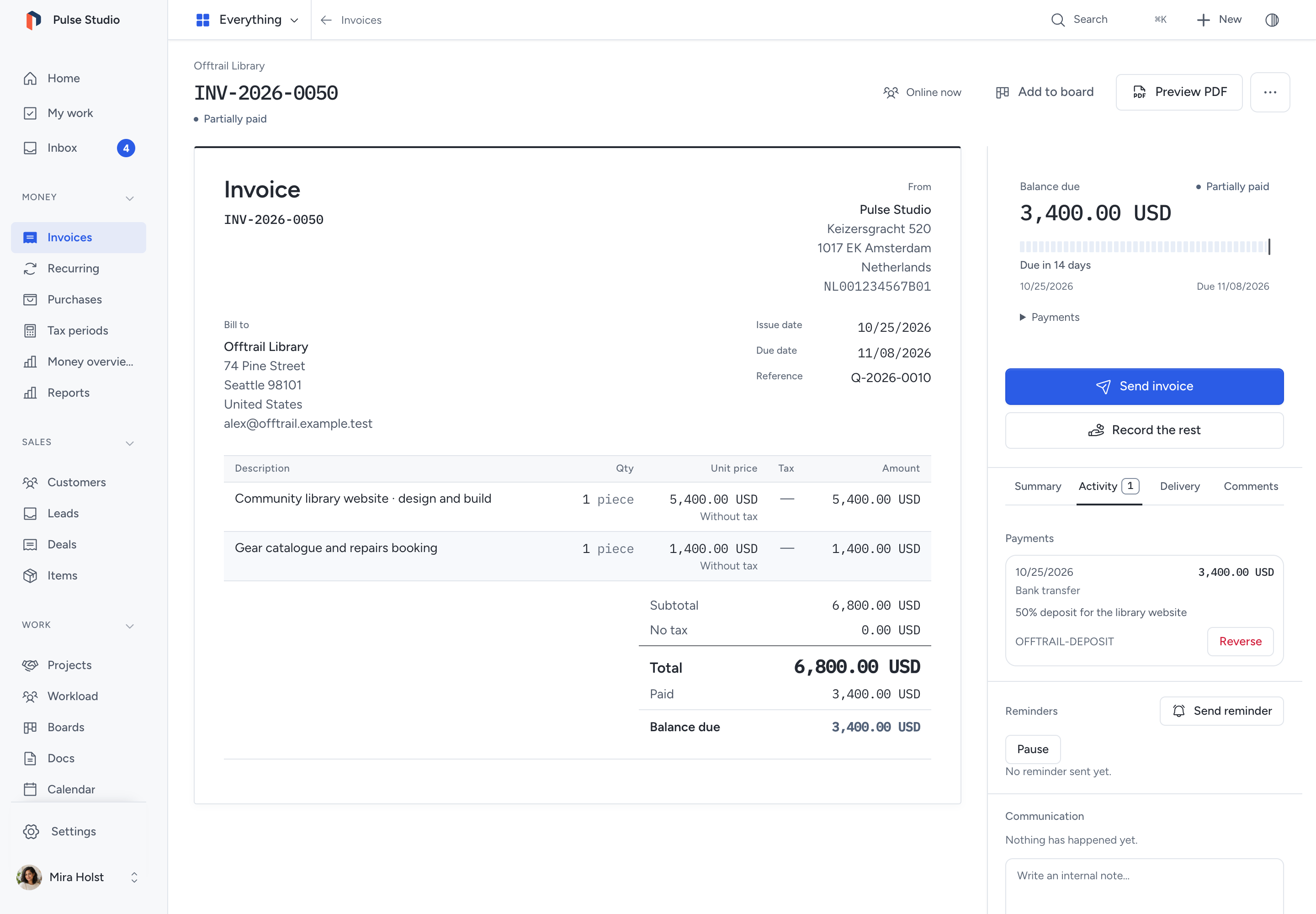
You can record multiple payments against the same invoice. The context shows the remaining balance and the next action. Expand Payments for payment details. On a phone, open Details. The document totals explain:
- Total: the invoice grand total
- Paid: sum of the payments that are not reversed
- Credited: the total of the invoice's credit notes that count, when there is one
- Refunded: the refunds on those credit notes, when there is one
- Balance due: Total − Paid − Credited + Refunded, never below zero. An overdue balance uses the overdue state; a balance that is not late keeps a neutral presentation
- Credit owed: the money you owe the customer, when Paid + Credited is more than Total + Refunded
The sheet, the current copy of the PDF and the email of an invoice show the same rows under Total. They show when the invoice is issued, not cancelled, and has a payment or a credit note. The issued original PDF keeps the rows it had at issue. The EPC QR code on the current copy of a EUR invoice holds the balance due. On the original it holds the total. A credit note has its own summary strip: its total, its refunds and the credit owed on its invoice.
Each payment appears under Payments on the Activity tab, with its date, method, amount, reference and notes.
Resize a context panel
On a desktop, drag the panel edge facing the record to change its width. The browser keeps the width for other record panels. The Inbox reading pane keeps its own width.
Focus the edge to use the keyboard:
- Press Left or Right to change the width.
- Hold Shift for a larger step.
- Press Home for the narrowest width, or End for the widest.
- Double-click the edge to restore its starting width.
On a phone or tablet, open Details to use the panel as a sheet.
Reversing a payment
Pepper never deletes a payment. To correct a payment recorded by mistake:
- Open Payments on the Activity tab.
- Click Reverse on the payment's row.
- If needed, type a reason.
- Click Reverse payment.
The payment stays in the history with the label Reversed, the date, the person who reversed it and the reason. Its amount counts in no balance. Paid this month and the customer statement show the reversal on the day you record it. Pepper lowers any credit owed first and adds the rest to the balance due, then updates the status. For example, reversing a payment on a Paid invoice without credit notes returns it to Partially paid or Issued.
Pepper logs each reversal in the audit trail. A reversal cannot be undone; record the payment again if you reversed the wrong one. The steps are in Record a payment.
Which documents accept payments
| Document type | Accepts payments |
|---|---|
| Invoice | Yes |
| Credit note | No. It takes refunds, the money you pay back. See Issue a credit note |
| Quote | No. Proposed work; not an application receivable |
| Pro-forma | No. Preliminary document; not an application receivable |
Permissions
You need access to the invoice and permission to manage invoices to record or reverse payments. Owners and admins can do this on every invoice. Employees can do it on invoices they created. Accountants can see payments but cannot record or reverse them.
Online collection
Record outside payments by hand. Stripe payment links and refunds add collection after staff issue an invoice. The guide covers setup, exact amounts, pending results, fees and recovery. Mollie and PayPal are not integrated.
To add a payment link, paste your payment provider's URL in Payment link under More fields on the sheet. The invoice email then shows a View & Pay Invoice link. The plain-text part shows the URL. Email templates can also insert the link with the {payment_link} merge field. This manually entered link is separate from the Stripe connection. Issued PDFs can retain Pepper's own payment link; older originals stay unchanged.
Related pages
Provider-confirmed records
In the Stripe workflow, confirmed transactions have no Reverse action. Use an issued credit note and Refund through Stripe to return money. Pending provider refunds reserve their amount against available credit. See online refunds.
Need help with the product?
Contact support