
Browse the manual
Customers
Create, edit, import, and manage customer records with contacts, addresses, VAT numbers, and document history.
On this page
For: business owners managing their customer list.
Where: Customers in the navigation, or go to /customers.
One record per customer holds its contacts, addresses, tax number, tags and every document and payment with it. Add a customer by hand, import a list from CSV, or let a qualified lead create one. A supplier is the same kind of record with the supplier role.
Role descriptions below refer to built-in roles. Custom roles use their assigned permissions. Guests also follow their permitted modules and any named-record limits. See Roles and permissions.
Customer list
The Customers and Suppliers tabs choose the contact role. Their counts cover all contacts in each role. A contact can have both roles. Changing role clears the other filters.
| Column | What it shows |
|---|---|
| Name | The customer name, the contact person and the tags |
| The customer's email address. It sits under the name on narrower screens | |
| Type | Business or Individual. Shown from 768 px wide |
| Status | Active or Inactive |
| Payment rhythm | Owners, admins and accountants only. Shown from 1100 px wide and on stacked phone rows. See Payment rhythm |
| Balance due | Owners, admins and accountants only. The balance due on the customer's invoices, one line per currency |
Pepper never adds amounts in different currencies. A customer with open invoices in euros and US dollars shows two lines, for example €1,250.00 and $480.00.
Below 640 px, each customer is a stacked row. The name and the balance due come first. The status, type, email and payment rhythm follow, then the Edit and Delete icons.
Click a customer row to open the customer record. Return through Customers above the record to keep your filters and focus the same customer.
Views, search and sorting
Use View below the tabs to choose All, Active, Inactive, Business or Individual. Choose one view at a time. Its counts cover the selected contact role before search and tags.
Use Tags, or click a tag on a customer row or record, to narrow that view. The selected tag appears after the dropdown. Click it to remove only the tag filter. The tabs and filters stay available on phones.
- Type in the Search customers... field to search the name, the email and the contact person. The list updates as you type.
- Click the Name or the Type column heading to sort by that column. Click it again to reverse the order.
- Group by has No grouping and Type. Type shows the business customers first and the individual customers after them, each under a heading with its count.
- Per page shows 25, 50 or 100 customers.
The page address keeps the view, tag, search, sorting, grouping and page. A bookmark or the browser's Back button returns to the same list. If no customer matches, the list says "Nothing matches these filters". Click Clear filters to clear the contact view, search and tags within the selected Customer or Supplier role. Sorting and grouping stay in place.
Payment rhythm
Owners, admins and accountants see up to 12 small squares for each customer. Each square is one of the customer's last 12 issued invoices, oldest first. Drafts and cancelled invoices are not included.
| Square | Label | Meaning |
|---|---|---|
| Green | Paid on time | The last payment came on or before the due date |
| Gray | Paid up to 7 days late | The last payment came 1 to 7 days after the due date |
| Red | Paid more than 7 days late | The last payment came 8 or more days after the due date |
| Red with a ring | Overdue | A balance is due and the due date has passed |
| Outline | Open, not yet due | A balance is due and the due date has not passed |
| Blue-gray | Settled by credit | Credit notes settled the invoice without a payment |
A legend under the list shows these labels. Point at a square to see the invoice number. Latest names the most recent issued invoice's state. It does not rate the customer or predict a payment. An overdue invoice with a partial payment stays Overdue until settled.
List actions
These buttons sit at the top of the page:
| Button | Who sees it | What it does |
|---|---|---|
| Export | Owners, admins and accountants | Downloads the customer list as a CSV file |
| Import | Owners, admins and employees | Opens the CSV import |
| Add customer | Owners, admins and employees | Opens the customer form |
Below 1280 px, Export and Import are in a menu. Click the button with three dots (More) in the page header to open it.
Owners, admins and employees also see an Edit icon and a Delete icon at the end of each row. From 1024 px wide, the icons show when you point at the row or move the keyboard focus into it. On narrower screens, they always show.
Creating a customer
Click Add customer to open the customer form. You can also create a customer while you write a document: click New customer under Bill to on the sheet. Enter the name and type in that dialog. Email, language and Billing address are optional. Open Billing address for both address lines, city, region, postal code and country. See Choose the customer. The customer form has these sections:
- Customer identity: type, name, contact person, email, phone, VAT number and electronic address
- Billing address: address lines, city, state or province, postal code and country code
- Shipping address: the same fields. Click Show shipping address when the delivery address differs from billing
- Internal notes: private notes, tags, the Document language and the Active switch
- Reminder schedule: the per-customer reminder override
| Field | Required | Description |
|---|---|---|
| Type | Yes | Business or Individual |
| Name | Yes | Company or individual name as it appears on invoices. Up to 255 characters |
| Contact person | No | Primary contact at this company |
| No | The customer's email address. Pepper uses it for invoices or reminders when no active contact receives them. Must be a valid email address when you enter one. A customer who receives documents by post or through a contact needs none; without one, the send dialog offers only the contacts that receive email | |
| Phone | No | Phone number |
| VAT number | No | Tax identification number. Start it with the two-letter country code. A VAT number that starts with NL must have the format NL123456789B01 |
| Electronic address scheme | No | The identifier type the customer receives structured invoices under, for example 0106 for a Dutch KvK number or 0208 for a Belgian enterprise number |
| Electronic address | No | The customer's identifier in that scheme. Pepper removes spaces when it saves |
| Country code | No | Two-letter ISO 3166-1 code, for example NL. The form refuses a code that is not on the country list |
| Notes | No | Private notes not visible on invoices or to customers |
| Document language | No | The language of new documents, recurring schedules and their emails. Empty uses the Company language |
| Active | No | On by default. Inactive customers stay out of the invoice, quote, pro-forma and recurring schedule customer selectors. An existing recurring schedule cannot generate until its customer is active |
Choose the address's country first. Changing it rearranges the fields and keeps every entered value, including postal codes with leading zeros. Billing and shipping can use different countries. Read Enter country addresses for field limits, quick-entry recovery and issued addresses.
Enter both the electronic address scheme and the electronic address, or leave both empty. The form checks the format and the check digits for several schemes. You cannot use an email address. Use the identifier under which the customer is registered to receive invoices. If you are not sure, ask the customer.
The UBL XML export needs the customer name, country code and electronic address. A reverse-charge line also needs the customer VAT number. If both you and the customer are in the Netherlands, it also needs the street address, city and postal code. If both parties are in Germany, it needs the city and postal code. A change to the customer applies to documents you finalize after the change.
A new draft or recurring schedule takes the customer's Document language. You can change Language on the draft or the schedule. When you issue a document, Pepper freezes its language. A later change to the customer does not change it.
Click Create customer to save the record and open it. If a required field is empty or invalid, Pepper saves nothing and keeps what you typed. Errors appear above the form and at each affected field. If you leave the form with unsaved changes, Pepper asks you first.
The Contacts section appears after you create the customer. Open Edit to add contacts.
Editing a customer
Click Edit on the customer record, or the Edit icon in the customer's row on the list. The form is the same as the create form with the current values filled in. Click Save changes to save and return to the record.
Customer record
Click a customer on the list to open the record at /customers/{id}.
Header
The header shows the customer name and Active or Inactive on wider screens. Customers above it returns to the source list. The available actions are:
- Statement opens the customer statement for this customer. Owners, admins and accountants see it. Below 1280 px, it is in the menu behind the button with three dots (More).
- New project opens work for this customer when your role can create projects. Below 1280 px, it is under More.
- New deal starts a deal on this customer when your role works leads and deals. Below 1280 px, it is under More.
- Edit opens the customer form. Owners, admins and employees see it.
Under the header, the record shows the type, the contact person, the email address and the phone number.
Payment rhythm on the record
Owners, admins and accountants see the last 12 issued invoices as payment marks, as on the list. A line under them reads, for example, "83% on time · 18 days to pay on average". The line appears when the customer has at least one paid invoice with a payment. The exact balances follow under Figures.
Figures
Owners, admins and accountants see three figures, with one amount per currency:
| Figure | What it shows |
|---|---|
| Total billed | The total of the customer's issued invoices that are not cancelled |
| Outstanding | The balance due on those invoices after payments, credit notes and refunds. When you owe the customer money, the figure also shows Credit owed. Pepper never subtracts it from Outstanding |
| Overdue | The balance due on the customer's overdue invoices. See Overdue is not a status |
A credit note adds nothing to these figures itself. It lowers the balance of its invoice.
Sales
When your role works leads and deals, the record shows a Sales section between the figures and the documents. Open deals lists each open deal with its stage path and its value. Won and lost lists the closed deals with their outcome and reason. Came from names the source tag and the lead this customer came from, when there is one. Click a deal to open it, or click New deal. You see only the deals in your Sales access. Read Deals and the pipeline.
Documents
The Documents table lists the customer's invoices, quotes, credit notes and pro-formas that you can open, newest issue date first, 25 per page.
| Column | What it shows |
|---|---|
| Number | The document number, with the type and the issue date under it |
| Status | The status. An overdue invoice shows Overdue |
| Due date | The due date |
| Total | The document total |
| Balance due | The balance due of an issued invoice that is not cancelled |
Below 1024 px, the table omits the due date column. Below 768 px, each document is a stacked row. The number, type and amount come first. The status and lifeline follow when the document has one.
Filter the table with All, Invoices, Quotes, Credit notes and Pro-forma. Each filter shows its count. The filters stay above the table; on narrow screens, scroll their row to find another type.
Only an issued invoice that is not cancelled has a lifeline. It shows where the invoice is in its payment term as a row of cells. Each cell is an equal part of the time from the issue date to the due date, or to today when today is later. Cells up to today, or up to the day the invoice was settled, are lit. They are dark gray while the term runs and coral for the days after the due date. They turn green when the invoice is settled. A notch marks the due date. Payments and credits appear in words and in the document's figures, not in the cells. Words next to the lifeline give the state:
| Words | When |
|---|---|
| "Due in 5 days", "Due today" | A balance is due and the due date has not passed |
| "12 days overdue" | A balance is due and the due date has passed |
| "Paid 3 days early", "Paid on the due date", "Paid 2 days late" | The invoice is settled. Pepper compares the last payment date with the due date |
| "Settled" | Credit notes settled the invoice without a payment |
| "Not issued" | The document is a draft. It shows faint empty cells in place of a lifeline |
An issued quote, credit note or pro-forma and a cancelled invoice have no lifeline. Their lifeline cell is empty.
Details
From 1280 px wide, Details is a column at the side of the record. Below that width, it follows the documents. It shows:
- Type, Customer since, VAT number and Electronic address
- For owners, admins and accountants: Last invoice, Payments, Average days to pay and On-time rate, with the payment rhythm legend. Payments does not count refunds or reversed payments
- Billing address and Shipping address
- Contacts, each with the name, role and email. Billing contact marks the primary billing contact. Receives invoices and Receives reminders are crossed out when the setting is off
- Internal notes
- Tags. Click a tag to show the customer list with that tag
Average days to pay and On-time rate use paid invoices with at least one payment. Average days to pay counts the days from the issue date to the last payment. On-time rate is the share of those invoices whose last payment came by the due date. An invoice that credit notes settled without a payment is not included.
What each role sees
Customer contact details require permission to view customers. People using the built-in Employee role see only documents they created, including totals and balances. They cannot see payment rhythm, aggregate figures or payment facts under Details. Without permission to view financial summaries, settled lifelines say "Settled" instead of paid early or late. Search, document counts and links follow the same document access rules.
Suppliers
A contact can be a customer, a supplier or both. You choose suppliers when you record purchases. A company you sell to and also buy from is one contact with both roles, so its name and tax number are kept once.
- In the contact form, under Internal notes, turn on Customer, Supplier or both. At least one is required.
- Use the Customers and Suppliers tabs above the list. The same tabs stay available on a phone.
- In the Suppliers view, click Add supplier to open the form with the supplier role on.
- In a new purchase, click New supplier. Enter the name and optional tax number. Open Billing address for the address fields.
Invoices, quotes, projects and recurring schedules accept customers only. Pepper refuses a supplier-only contact there, whatever screen or connection sends it. Purchases accept suppliers only. The customer CSV export contains customers only. Supplier contacts follow the same permissions as customers.
Customer contacts
Each customer can have multiple contact persons. Contacts control who receives invoice emails and payment reminders.
To manage contacts, edit the customer. Each change in the Contacts section saves at once, on its own:
- Add contact opens a dialog: Name and Email (required), Role and Phone
- Edit contact opens the same dialog for a contact. It also has Active
- Primary billing contact: mark the main billing contact. One contact can have it; marking another one removes it from the first. It gets emails only when it has Receives invoices or Receives reminders
- Receives invoices: choose whether this contact receives invoice emails
- Receives reminders: choose whether this contact receives payment reminder emails
- Delete: remove a contact. Pepper asks first
Owners, admins and employees manage contacts. Each change appears in the audit log as a customer update.
Who receives emails
The same rule applies to the send dialog, recurring auto-send and reminders:
| Recipients | When no active contact has the flag | |
|---|---|---|
| Document email (send dialog) | You choose from the active contacts with Receives invoices | The dialog offers Customer email address as the one choice |
| Recurring auto-send | Every active contact with Receives invoices | The customer's email address |
| Payment reminder | Every active contact with Receives reminders | The customer's email address |
Pepper does not use the customer's email address when an active contact with the same address turned the flag off. There is no other fallback. The Primary billing contact does not get the email unless it has the flag.
Example: Pine Street Bakery in Portland has billing@pinestreet.example as its customer email. Its only contact, Dana, has Receives invoices on and Receives reminders off. Invoices go to Dana. Reminders go to billing@pinestreet.example, unless Dana uses that same address.
If nobody can receive a document email, the send dialog says "No contact receives invoices. Turn on Receives invoices for a contact, or add an email address to the customer." If nobody can receive a reminder, the invoice page says "No reminder recipient. Turn on Receives reminders for a contact, or add an email address to the customer." Pepper then refuses a manual reminder with "No contact receives reminders for this customer."
Deleting a customer
Only owners, admins and employees can delete customers. The Delete icon is on the customer list, at every screen width.
- On the customer list, click the Delete icon in the customer's row.
- The dialog asks "Delete Pine Street Bakery?" and says "Pine Street Bakery leaves your customer list. Documents already issued to them stay unchanged."
- Click Delete.
Pepper soft-deletes the customer. The record stays in the database, and existing documents keep their data.
CSV import
Click Import on the customer list, or go to /customers/import.
- Upload a CSV or TXT file of up to 5 MB.
- Click Upload and preview.
- Map CSV columns to Pepper fields.
- Check the preview of the first 5 rows.
- Click Confirm import to create customer records.
Each row needs a name. An email address is optional. Pepper skips duplicate email addresses and reports invalid rows with error messages. See Import customers from CSV.
CSV export
Click Export on the customer list page to download all customers as a CSV file. The export includes all fields: name, email, type, address, VAT number, and status.
A text cell that starts with =, +, -, @, a tab or a line break gets a leading apostrophe ('). A spreadsheet then shows the text and does not run it as a formula. The import removes the apostrophe again.
Permissions
- Owner and Admin: full access to all customer operations
- Employee: can create and edit shared customers and see their own documents. Cannot export customer data
- Accountant: can view customers but cannot edit
What is not included
- Customer merge: combining two customer records into one is not available
- Customer portal: customers do not have login access. They interact through signed URLs for quote acceptance and emailed PDFs
Related pages
Read a customer record
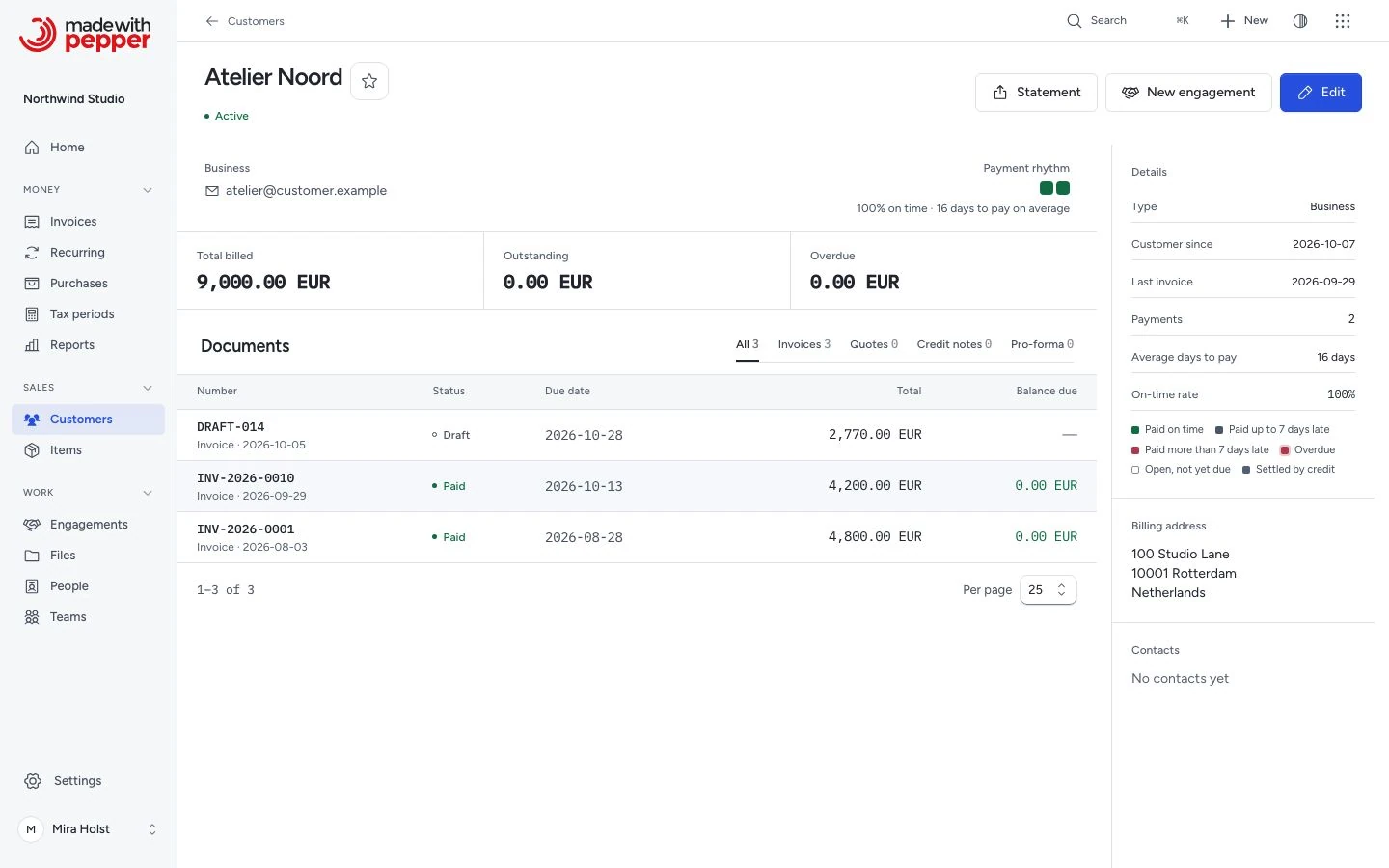
Open the customer name from the register. The record keeps the customer's identity above actions and related work. On a phone, use the available actions and expand context when needed.
The access descriptions above cover built-in roles. Custom roles and guest scopes can narrow the visible records. See Roles and permissions.
Need help with the product?
Contact support