
Browse the manual
Set up email delivery
How to configure email delivery in Pepper using SMTP or Resend API, and how the outbox sends, retries and reports each email.
On this page
For: business owners setting up Pepper for the first time. What you need: SMTP credentials from your email provider, or a Resend API key from resend.com.
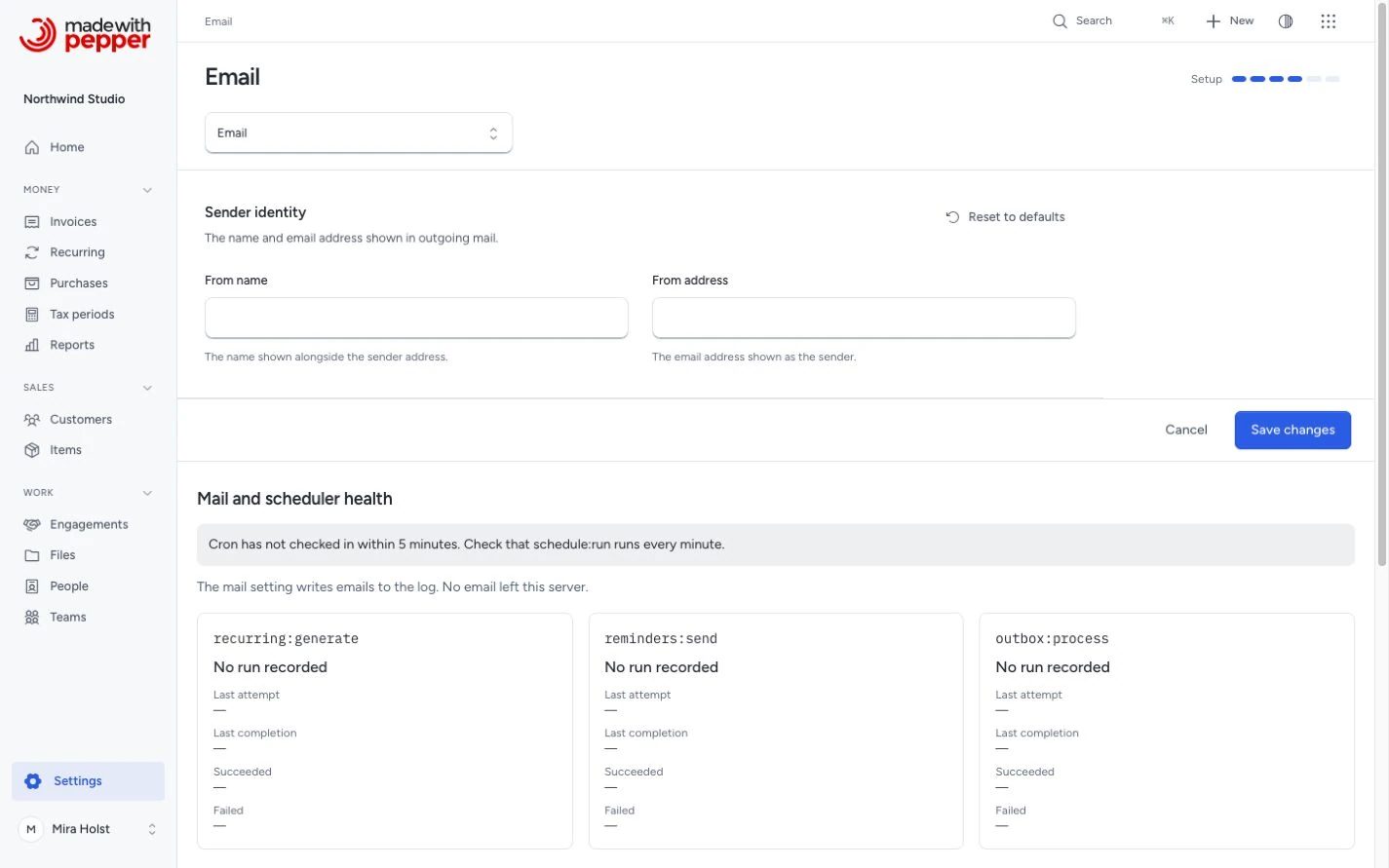
How email delivery is configured
Pepper supports two email delivery methods: SMTP and the Resend API. You choose the method during installation. The installer writes the connection details (SMTP host/port/credentials or Resend API key) to the .env file.
To change the delivery method after installation, edit the .env file. Use Settings > Email in the application to change the sender identity (From name and From address). This page does not change the delivery method or connection details.
Visitor-email widgets can set a separate display name and Reply-To under Email sender. Their From address still comes from these installation settings. A widget cannot change the SMTP connection, API key or sending domain.
Option a: SMTP
During installation, select SMTP and enter your server details:
- Host: your mail server (for example,
smtp.gmail.comormail.yourdomain.com) - Port: 587 for TLS, 465 for SSL
- Encryption: TLS, SSL or None. Choose None to avoid the
.envcorrection below; port 587 still negotiates TLS with the mail server - Username: your email address or SMTP username
- Password: your email password or app-specific password
Check
.envafter installation. The installer writes the encryption choice asMAIL_SCHEME=tlsorMAIL_SCHEME=ssl. The mailer does not accept those values, and every email fails with anUnsupportedSchemeExceptioninstorage/logs/laravel.log. Open.envand setMAIL_SCHEME=smtpfor port 587 (TLS is negotiated automatically) orMAIL_SCHEME=smtpsfor port 465. If you chose None,.envhasMAIL_SCHEME=with nothing after it. That works and needs no change.
User invitation emails send during the request, after the invitation is saved. Invitations and Resend need no queue worker.
To change SMTP settings after installation, edit these values in your .env file:
MAIL_MAILER=smtp
MAIL_HOST=smtp.example.com
MAIL_PORT=587
MAIL_USERNAME=your-username
MAIL_PASSWORD=your-password
MAIL_SCHEME=smtp
Common SMTP providers
| Provider | Host | Port | MAIL_SCHEME |
|---|---|---|---|
| Gmail | smtp.gmail.com | 587 | smtp |
| Outlook / Microsoft 365 | smtp.office365.com | 587 | smtp |
| Amazon SES | email-smtp.{region}.amazonaws.com | 587 | smtp |
| Mailgun | smtp.mailgun.org | 587 | smtp |
For Gmail, you need an app-specific password. Regular passwords do not work with SMTP.
Option b: Resend API
Resend delivers email through its API. You need an API key, with no SMTP server details.
1. Get a Resend API key
Sign up at resend.com, verify your sending domain, and create an API key.
2. Set the API key
During installation, select Resend as the mail delivery method and enter your API key.
To switch to Resend after installation, update your .env file:
MAIL_MAILER=resend
RESEND_API_KEY=re_your_api_key_here
Sender identity
The sender identity is the name and email address shown on outgoing emails. You can edit it in Settings > Email, under Sender identity:
- From name: the name that appears in the "From" field (for example, "Northwind Studio")
- From address: the email address used as the sender
If both fields are empty, Pepper uses the sender from the mail configuration in .env.
Retries and results
Pepper does not send a document email from the page itself. Send email puts the email in an outbox in the database and makes a first attempt at once. The php artisan outbox:process command handles the rest. The scheduler runs it every minute through the cron job that Pepper already needs. You do not need a queue worker for document emails and reminders.
| What the mail server does | What Pepper does | State on the document |
|---|---|---|
| Accepts the email | Records the time and the recipients | Emailed |
| Gives a temporary failure: a 4xx reply, or no connection. A rendering failure before anything leaves counts too | Tries again after 1, 5, 30, 120 and 360 minutes | Email queued, with "Next try at {time}." |
| Fails 6 attempts in a row | Stops with "The mail server did not accept the email after 6 attempts." | Email failed |
| Refuses the email with a 5xx reply | Stops at once | Email failed |
| Times out, drops the connection after Pepper sent the data, or gives another error | Stops and never tries again by itself | Email result unknown |
With the Resend API, a 429 or 5xx answer is a temporary failure. Another 4xx answer is a refusal.
The delivery process starts with Send email, which adds an outbox entry and makes the first attempt.
- An accepted attempt sets Emailed.
- A temporary failure waits 1, 5, 30, 120 or 360 minutes before attempts 2 through 6.
- A refusal, or six failed attempts, sets Email failed.
- A timeout after sending data sets Email result unknown. Pepper does not retry it automatically.
For a failed email, Send again opens a new send review. For an unknown result, check the provider's sent log first. Confirming the new review adds a new outbox entry.
Emailed means that the mail server accepted the email. Pepper cannot see whether the customer received, opened or read it.
An unknown result is not a failure. The mail server can still have sent the email. Check the sent log of your mail provider before you click Send again. Otherwise the customer can get the email twice.
Before each attempt, Pepper checks the email again:
- If the document is cancelled, it sends nothing.
- If the customer is deleted, it sends nothing.
- If a contact no longer has Receives invoices, it removes that contact from the recipients.
- If no recipient is left, it sends nothing. The Email history says "Not sent: no recipient accepts this email."
SMTP attempts stop after 30 seconds. Change this with MAIL_TIMEOUT in .env.
Log mode
With MAIL_MAILER=log (the installer's Log mode), Pepper writes each email to the log file. No email leaves the server. The document keeps the state Not emailed, and its Delivery tab says "The mail setting writes emails to the log. No email left this server." Automatic reminders do not start for that document.
Check the scheduler
Settings > Email and Settings > Reminders show Mail and scheduler health. Each job shows its last attempt, completion, success and failure. An unknown job has no recorded run. A running job without a completion may have stopped unexpectedly. The page warns when the outbox has not checked in for five minutes. Check the cron entry.
The same view shows delivery counts and the ten most recently changed deliveries. Open an invoice to inspect attempts. Queued mail retries through cron; review unknown results before sending again. The log transport records email locally and proves no external delivery. When an email waits more than 15 minutes past its time, the document page says "The scheduler has not run since {time}. Check the cron job." See Cron setup.
Verify delivery
After setting up email delivery, add yourself as a contact of a test customer with Receives invoices. Send an issued invoice to that contact. The Delivery tab shows Emailed when your mail server accepts it. Check your inbox to see the email.
Local development
For local development with Mailpit, select Mailpit in the installer. This configures SMTP on 127.0.0.1:1025 with no authentication. Mailpit captures all outgoing email at http://localhost:8025.
What can go wrong
- Connection refused. Pepper tries again later. Check that your host and port are correct, and that your firewall allows outbound connections on that port. For Resend, verify that your server can reach the Resend API over HTTPS.
- Authentication failed. The document shows Email failed or Email queued, with the reason. Verify your username and password. Some providers require app-specific passwords. For Resend, verify your API key is valid and not revoked.
- Email result unknown. The connection stopped after Pepper sent the data. Check the sent log of your mail provider before you click Send again.
- Emails wait in the queue. The cron job does not run. Check Settings > Email for the time of the last scheduler run.
- Emails go to spam. Set up SPF, DKIM, and DMARC records for your sending domain. Resend provides domain verification and DNS setup guidance, but you still need to add the required DNS records for your domain.
Related pages
Need help with the product?
Contact support