
Browse the manual
Record purchases
Record purchases with suppliers, exact amounts and tax, categories and attached receipts.
On this page
For: owners and staff who pay suppliers and keep the receipts for their accountant. What you need: permission to record purchases. The tax rates you use must exist in tax rates.
Record what you bought, with the exact amounts and tax from the supplier's document, and attach that document. Your tax periods and reports then rest on records your accountant can check.
A purchase is a supplier invoice or receipt that you paid or must pay. Northwind Studio records its hosting bill, office supplies and train tickets as purchases. At the end of each month, quarter or year, the owner opens tax periods and downloads one package for the accountant.
Pepper records what the supplier document says. It does not read the file, suggest a category, post to a ledger or decide whether a cost is deductible. You type every value. Supplier credits, bills with due dates, payment runs, bank matching and mileage claims are not included.
- Keep the supplier's invoice or receipt.
- Record its amounts as a purchase.
- Attach the supplier file.
- Open Tax periods when your role permits it.
- Check the figures and their source records.
- Click Download for accountant when your role permits downloads.
1. Record a purchase
On a small screen, open More first.
- Open Purchases in the navigation.
- Click New purchase.
- Under Supplier and date, search for the Supplier.
- Choose the supplier from the results.
- Check the Date. It starts with today.
- Type the Supplier reference, for example the number on their invoice.
- Choose the Currency. You cannot change it after you save.
- Under Lines, complete one line for each tax rate on the document. The next section explains the fields.
- Optional: under Payment, turn on Paid.
- If Paid is on, set Paid on.
- If Paid is on, choose a Method.
- Optional: choose an Project.
- Optional: add Notes.
- Optional: under Files, drop the receipt or click Choose files.
- Click Record purchase.
If the supplier does not exist yet, click New supplier under the search results. Enter the name and optional tax number. Open Billing address for the country, both address lines, city, region and postal code. Click Add supplier. Pepper adds the supplier to your contacts and selects it in the form.
If an address field fails validation, click its link in the error summary. Pepper opens Billing address and focuses that field. Your other input stays in the dialog. See Enter country addresses.
If saving fails, the error summary names each field. Activate a name to move to its field. Your typed input stays in the form.
Lines and exact amounts
Each line has a Tax rate or No tax, an optional Category and Description, and one amount. Choose what the amount includes:
| Choice | You type | Pepper calculates |
|---|---|---|
| Tax included | The amount with tax, as printed | Net = gross × 100 ÷ (100 + rate), rounded half up to the smallest unit. Tax = gross − net |
| Tax excluded | The amount without tax | Tax = net × rate ÷ 100, rounded half up. Gross = net + tax |
The form shows the net, tax and gross of each line and the totals while you type. The server calculates the same values again and saves them. Amounts are exact in the scale of the currency: no decimals for JPY, two for EUR and USD, three for BHD.
A supplier can round the tax on the document total. Then the tax on your line can differ by a unit. Select Type the tax as printed and type the tax from the document. Pepper keeps your value, marks the line Tax typed by hand, and lists the purchase in the tax period checks.
Worked examples:
| Line | Rate | Net | Tax | Gross |
|---|---|---|---|---|
| Hosting, tax included, 24.20 EUR | 21% | 20.00 EUR | 4.20 EUR | 24.20 EUR |
| Coffee, tax included, 13.08 EUR | 9% | 12.00 EUR | 1.08 EUR | 13.08 EUR |
| Icon set, no tax, 49.00 USD | No tax | 49.00 USD | 0.00 USD | 49.00 USD |
| Font licence, tax included, 12,100 JPY | 21% | 10,000 JPY | 2,100 JPY | 12,100 JPY |
A purchase has 1 to 100 lines. Pepper refuses negative amounts and fractions smaller than the currency allows. It also refuses typed tax above gross and totals beyond its storage limit. A purchase never adds amounts of different currencies.
A line keeps the tax rate it was saved with. If you change the rate in settings later, the saved line does not change. If you choose the rate again on an edit, the line takes the current rate.
Attach files
Attach the supplier invoice, the receipt or a scan. The rules:
- PDF, JPEG, PNG or WebP. Pepper checks the file content, not the name.
- Up to 10 MB for each file.
- Up to 10 current files for each purchase.
On the purchase record, click a file name to open it, or click Download. To correct a wrong file, click Replace and choose the right one. Pepper keeps the old file under replaced files. No screen deletes a stored file.
Each file has a fingerprint. If the stored file no longer matches it, Pepper refuses to open it and writes an audit log entry. Restore the file from a backup. Backups include purchase files.
The purchase register
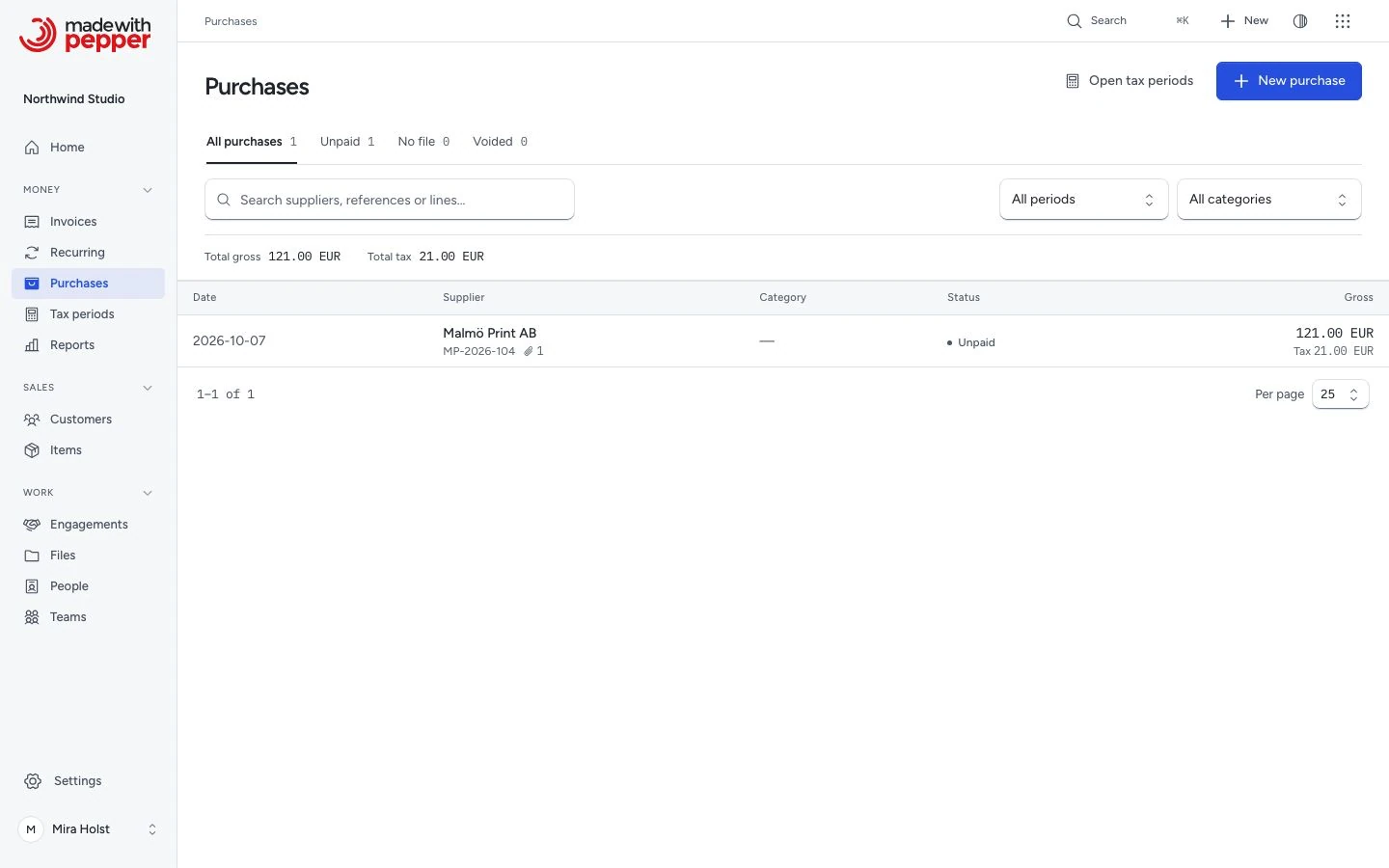
Purchases is a table. Each row shows the date, the supplier and their reference, the category, the status and the gross amount with its tax. A paper clip shows the number of files.
Use the tabs above the list at every screen width. Their counts follow the search, period, supplier and category filters:
| View | Shows |
|---|---|
| All purchases | Every recorded purchase |
| Unpaid | Recorded purchases without a paid date |
| No file | Recorded purchases without a current file |
| Voided | Voided purchases |
Filter by month, quarter, year or category. Search matches the supplier name, the reference, the notes and the line descriptions. Owners, admins and accountants also see a compact gross and tax summary below the filters, one line per currency. These totals cover every matching purchase in the current view, including other pages. Open tax periods sits beside New purchase in the page header. Clear filters clears search, period, category and supplier while keeping the selected purchase tab.
Click the supplier in a row to open the purchase. Return through Purchases above the record to keep your filters and focus the same purchase.
The purchase record shows Total gross, followed by its payment state, date and supplier reference. Total net and Total tax explain the gross below the lines. Under Supplier, click the name to open the connected contact. Files and history follow the purchase facts.
Change or void a purchase
- Open the purchase.
- Click Edit.
- Change the fields.
- Click Save.
The supplier, the date, the lines, the payment, the project and the notes can change. The currency cannot. If someone else saved the purchase after you opened it, Pepper refuses the save. Reload the page and make the change again.
To remove a purchase from the figures, void it:
Caution: a void cannot be undone. Record the purchase again if you void it by mistake.
- Open the purchase.
- Under Void this purchase, type the Reason.
- Click Void purchase.
- Review the confirmation.
- Click Void purchase to confirm.
A voided purchase keeps its lines, files and history, and stays in the Voided view. It is no longer in the tax period figures. The History section of each purchase lists who recorded, changed and voided it, and when. A change keeps the previous amounts in the audit log.
Categories
Owners and admins keep the category list in Settings > Purchase categories. A new installation starts with Office, Software and subscriptions, Equipment, Travel, Professional services, Marketing and Other, in the installation language.
Click Add category to add one, or click the pencil to rename it. Turn off In use to take a category out of use. It stays on old purchases but you cannot choose it again. Categories cannot be deleted. A category groups purchases for your accountant. It says nothing about tax deduction.
Project costs
Link a purchase to an open project to see what the work cost. The project shows its linked purchases. A closed project takes no new links. A link does not bill the cost to the customer.
Who can do what
These defaults describe built-in roles. Custom roles use their assigned permissions. Guests also follow their permitted modules and any named-record limits.
| Role | Purchases | Tax periods and download |
|---|---|---|
| Owner, Admin | Record, change and void all purchases | Yes |
| Employee | Record, change and void their own purchases | No |
| Accountant | Read all purchases and files | Yes |
Owners and admins manage categories. Staff who may manage customers can add a supplier from the purchase form. See roles and permissions.
Related pages
Need help with the product?
Contact support