
Browse the manual
Work with files and attachments
Browse folders, move and upload files, view images, edit text files and keep versions in Pepper.
On this page
For: people who keep business files beside their work. Where: Work > Files. On a phone, open More first. What you need: file access. Your role and the records you may open determine which files appear.
Every upload lives in a folder, keeps its versions and can be attached to the record it belongs to: a customer, a project, a purchase or a card. A file attached to a card shows on that card, and a board member sees it there. Issued invoice originals stay on the invoice; Files keeps everything else.
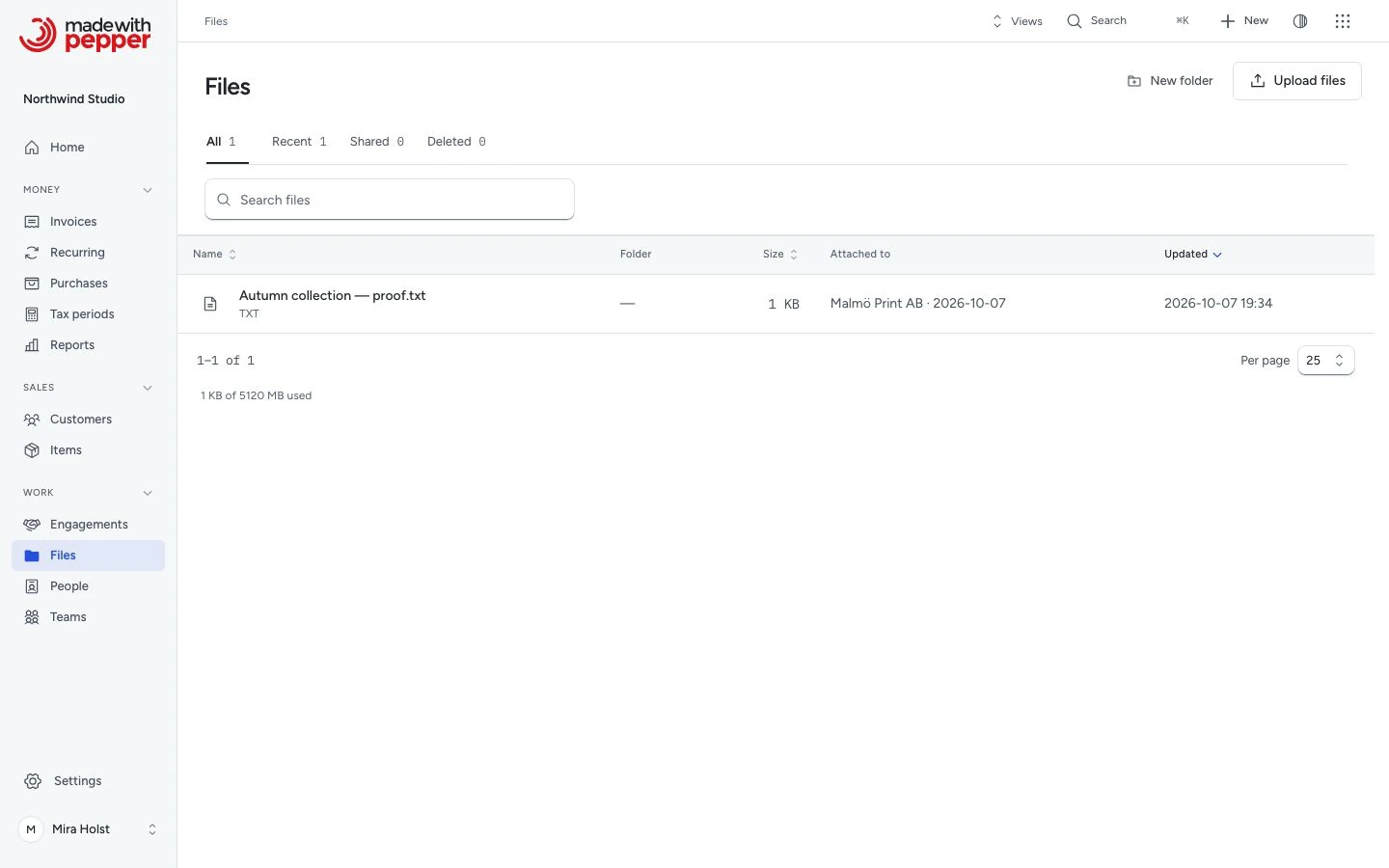
Browse folders
A file link from another record opens the file’s current folder and its details together. Close the details to browse that folder. Opening a file while you browse Files keeps your current folder, view or search.
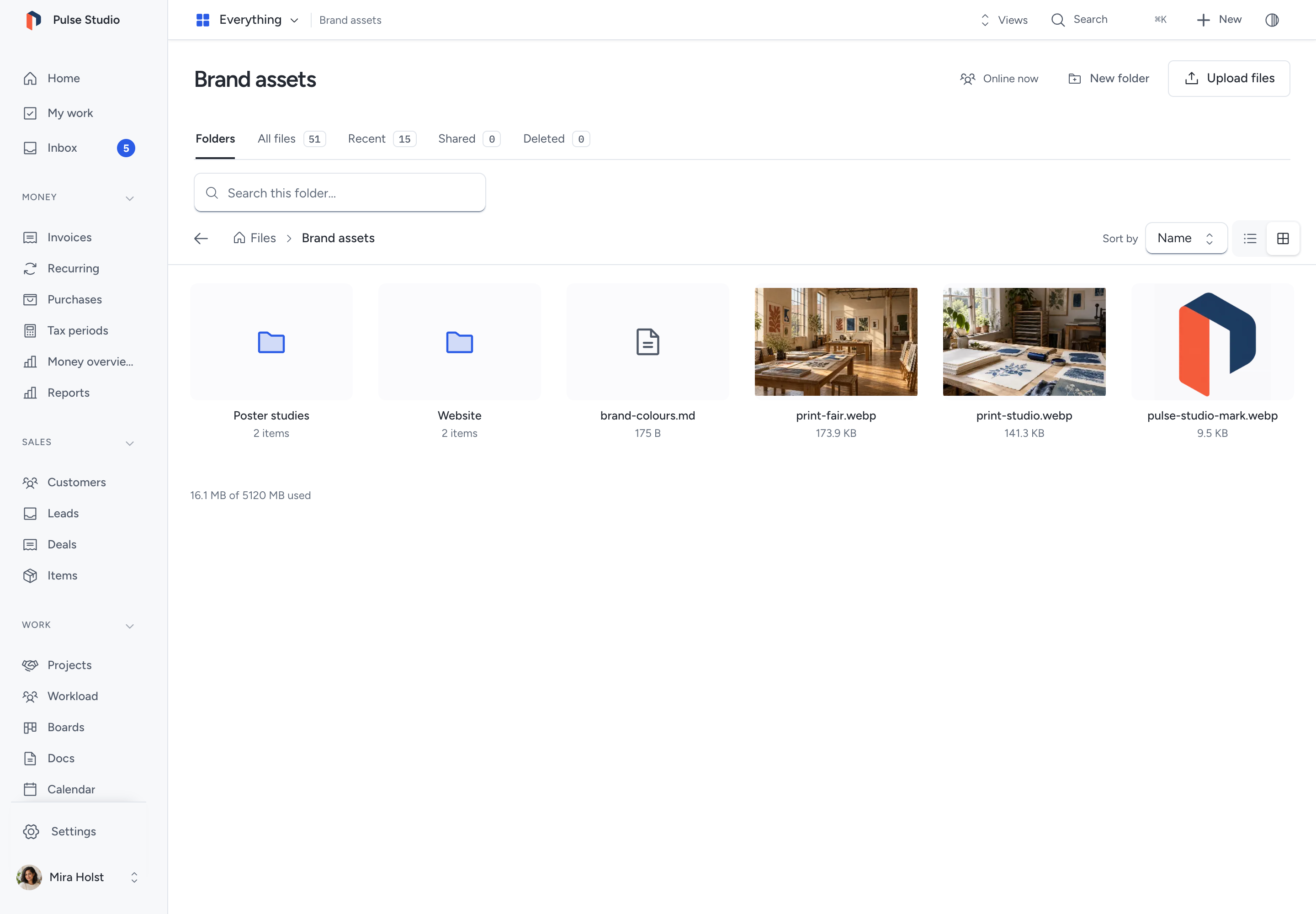
A folder shows its subfolders first, then its files, in one list. The path above the list shows where you are. Back returns to the folder you came from.
- To open a folder or a file, double-click it, or select it and press Enter. On a touch screen, tap it once.
- To go up one folder, click a folder in the path, or press ⌘↑ on a Mac or Ctrl+↑ on another computer.
- To change the layout, choose List or Grid. Pepper keeps your choice in this browser.
The list shows Name, Size, Modified and Type. Click a column heading to sort by it. The grid shows a preview of each JPEG, PNG, WebP and GIF image and an icon for other types. In the grid, use Sort by.
A preview that exceeds the server’s available memory or cannot load shows the file type icon. You can still open or download the original. Pepper does not change the original to make a preview.
Use the Folders, All files, Recent, Shared and Deleted tabs above the list. Recent covers the last 14 days. Shared contains files with an active share link. Search this folder… matches names and updates as you type.
A folder shows its first 5,000 items. Search to find the others.
Select files and folders
| Action | Mouse or keyboard |
|---|---|
| Select one item | Click it |
| Select a range | Shift+click, or Shift with an arrow key |
| Add or remove one item | ⌘+click on a Mac, Ctrl+click on another computer |
| Select everything in the folder | ⌘A or Ctrl+A |
| Move between items | Arrow keys, Home and End |
| Find an item by name | Type the first letters of its name |
| Clear the selection | Escape |
On a touch screen, tap Select, then tap each item.
When you select 2 or more items, the selection bar appears. Use it to Move, Delete or add the items to a board. One action takes up to 500 items.
Upload files
- Click Upload files.
- Click Choose files, or drop files on the dialog.
- Select your files.
- Click Upload files to save them.
You can also drag files from your computer onto the list. Drop them on a folder to upload them into that folder.
The dialog shows the per-file limit. The default is 25 MB. The default storage limit is 5120 MB. Every stored version counts, including deleted files. Owners and admins can change these limits in Settings > Files. PHP upload limits can impose a smaller limit.
Supported types are PDF, JPEG, PNG, WebP, GIF, SVG, text, CSV, Markdown, HTML, CSS, JavaScript, JSON, XML, YAML, Office, OpenDocument and ZIP. Pepper checks the content. Renaming an unsupported file does not make it acceptable. The form shows a refused file at its field and keeps the other selected files.
Move, rename and create folders
- Drag a file, a folder or a selection onto a folder, a folder in the path, or a folder in the tree. Dragging needs a mouse, trackpad or pen. On a touch screen, use Move to….
- Move to… opens a folder list with a search field. Choose the destination folder.
- Rename: select the item and press F2, or choose Rename in its menu. Type the name, then press Enter. Escape keeps the old name.
- New folder adds a folder in the current folder. Type its name, then press Enter.
A folder cannot move into itself or into one of its own folders. If Pepper refuses a move, the item stays where it was and the message names it.
Menus on files and folders
Every file and folder has a … button. A right-click, the menu key or Shift+F10 opens the same menu at the item. On a touch screen, press and hold the item. With a selection, the menu acts on all selected items. Opening a menu changes nothing.
Read file context
Select a file to see its details: the current version, attached records, earlier versions and permitted actions. Press ⌘I or Ctrl+I to show the details of the item in focus. On a wide screen, the details sit beside the list. On a smaller screen, they open over the list. Close them to return to the same folder, search and sort.
Open shows an image in the image viewer, a PDF in your browser and a text file in the editor. Other types download. Download saves the file. Each earlier version has its own Download action. If stored bytes no longer match their fingerprint, Pepper refuses the download. Restore the file from a trusted backup.
View images
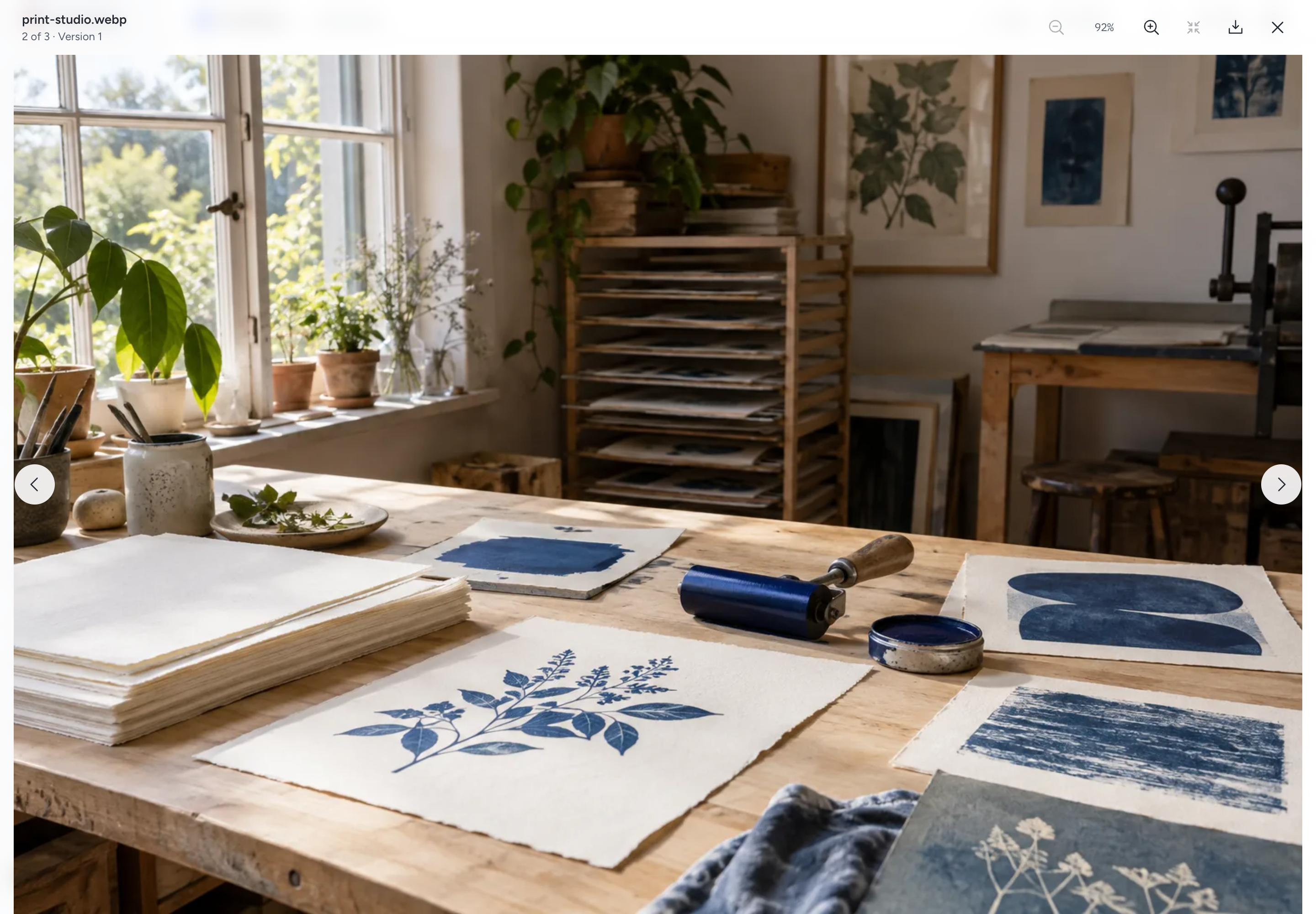
The image viewer opens images from Files, board card covers and attachments, purchase files, form uploads and record attachments. It shows the name, its place (for example 2 of 7) and the other images in the same folder or record.
| To | Do this |
|---|---|
| Go to the next or previous image | Click the arrow at the side, press → or ←, or swipe |
| Zoom | Use the mouse wheel, pinch, double-click, or press + and − |
| Fit the image again | Press 0, or double-click |
| Move a zoomed image | Drag it |
| Save the image | Click Download |
| Close the viewer | Press Escape, or click Close |
When you close the viewer, focus returns to the image you opened it from. With reduced motion turned on in your system, the viewer opens and changes images without animation. If an image cannot load, the viewer says so and offers Download.
Edit text files
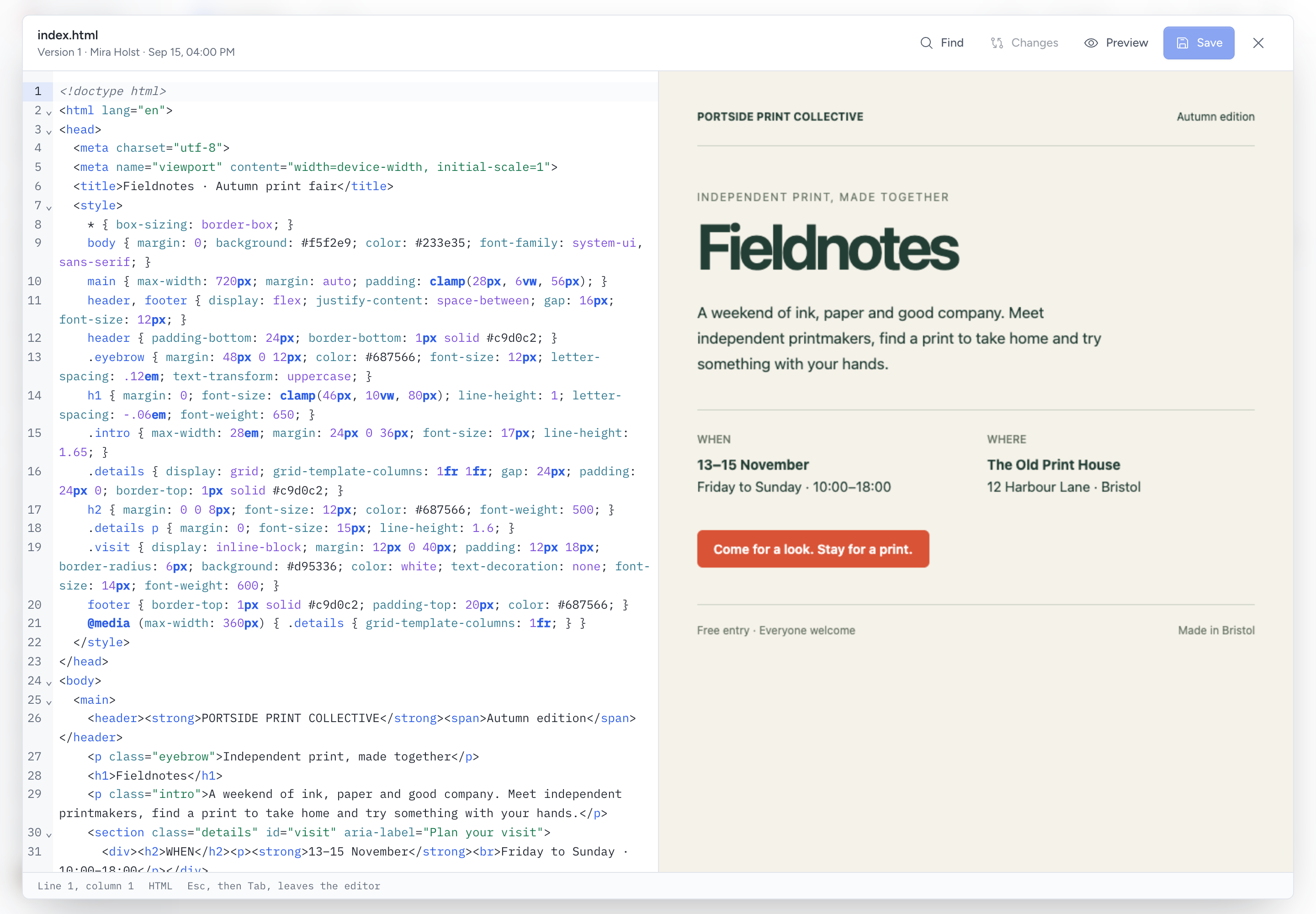
You can edit plain text, CSV, Markdown, HTML, CSS, JavaScript, JSON, XML and YAML files up to 1 MB. A larger file downloads. Edit it in another program, then upload it as a new version.
Fresh sample data includes two print-project photographs in Brand assets. Its Website folder contains a styled HTML page. Use these examples in a disposable installation.
- Open the file. The editor opens with the file name, version, author and time.
- Change the text.
- Click Save, or press ⌘S or Ctrl+S.
Pepper saves the text as a new version, for example Saved as version 3. The earlier versions stay.
- Find searches the text and replaces matches.
- Changes compares your text with the saved version.
- Preview shows an HTML file next to its text. The preview runs without scripts.
Pepper checks JSON, XML, YAML, HTML, CSS and JavaScript before it saves them. For example, it refuses invalid JSON and names the problem. Your text stays in the editor.
Caution: If you close the editor with unsaved changes, Pepper asks first. Click Discard changes only if you do not need them.
If someone saved a newer version after you opened the file, Pepper refuses your save. It names who saved, and your text stays. Click Review version to compare their text with yours. Accept or reject each change, then save again on top of their version. Pepper never overwrites a version.
People who may read files but not change them see the text as Read only.
These text types always download as files. Pepper never runs them in your installation.
Versions
The details list every version with its number, size, date and author.
- Compare with current shows a text version beside the current one. Compare versions compares two earlier versions. On a phone, the comparison shows one column.
- Restore copies an earlier version as a new current version. Pepper deletes no version.
- New version uploads a file as the new current version.
Connect and update files
- Attach to a record searches records you may open. Select a record to connect the file to it.
- Detach removes a connection. It keeps the file and its versions.
- Delete moves the file to Deleted. Restore makes it available again.
A file attached only to records outside your access is absent from lists, search and downloads. An unattached file is visible to people with file access.
Share with a link
Anyone with the link can download the current version until it expires or is revoked. If you add a password, the recipient needs it too. The same link serves a new current version after you upload one.
- Select the file.
- Click Share by link.
- Choose Valid for. The default is 7 days; choices range from 1 hour to 365 days.
- Set an optional Password and internal Note.
- Click Create link.
- Copy the link. Pepper shows the full address only once.
The context lists each link's state, expiry and download count. Revoke stops access immediately and asks for confirmation first. An expired or revoked link, or a deleted file, cannot be downloaded through that link.
File permissions
| Built-in role | Read accessible files | Upload, move, edit and change accessible files | Create share links |
|---|---|---|---|
| Owner, Admin | Yes | Yes | Yes |
| Employee | Yes | Yes | No |
| Accountant | Yes | No | No |
Custom roles use their file permissions. Attachment access still follows the connected records.
Files and agents
A connected AI client can list folders and files, read a file's details, read a text file and download a file through a single-use link. It sees only what the person it acts for may open. With prepare access it can upload files and versions, rename, move, attach, detach, delete and restore files, and work with folders, as that person. Deleted items go to the bin. It can create a share link only after the person approves it, and a share-link password is set in Pepper only. It can prepare a new text version, but it cannot save it: the person opens the proposal in the editor, reviews the changes and saves it, or closes it without saving. See Agent API.
Issued documents
An issued invoice keeps its original details and PDF. Later changes to company settings or PDF branding apply to new documents. Use Download current copy when you need a PDF that includes the current payments and credits. It does not replace the issued original.
Follow Create and send an invoice for the document controls. PDF branding explains the templates. For structured files, read Export a UBL XML file.
Purchase attachments
Attach a supplier invoice, receipt or scan when you record a purchase. A purchase accepts PDF, JPEG, PNG or WebP files, up to 10 MB each and 10 current attachments.
Open the purchase, then click a file name or Download. To correct a wrong file, use Replace. The earlier file stays with the purchase under replaced files. Access follows the purchase permissions.
The purchase guide covers uploads, replacements and integrity checks.
Accountant handoff
Choose a month, quarter or year in Tax periods. Check the figures. Click Download for accountant. The package includes the records and files for that period. It does not submit a tax return.
Read Prepare a tax period for your accountant for the checks and download contents.
Backups and recovery
Backups protect database records and their stored files. A backup archive alone is not a complete recovery set: retain the trusted application package, original .env file and application key too.
Use Backups and Manage backups to set up protection and rehearse recovery.
Need help with the product?
Contact support