
Browse the manual
Home
Read cash in and what you are owed in one money band, see one line of figures for the modules you use, and act on the work that needs you.
On this page
For: business owners deciding what needs them next. Where: Home on the Everything desk. Sign-in opens your chosen start desk.
Each desk has its own Home and page order. This guide covers Everything, which keeps the full grouped navigation.
Home shows a money band with Cash in, Owed to you, Quotes out and Unbilled time, one line of figures for the other modules you use, then Needs attention and Recent work. Every figure opens the records behind it.
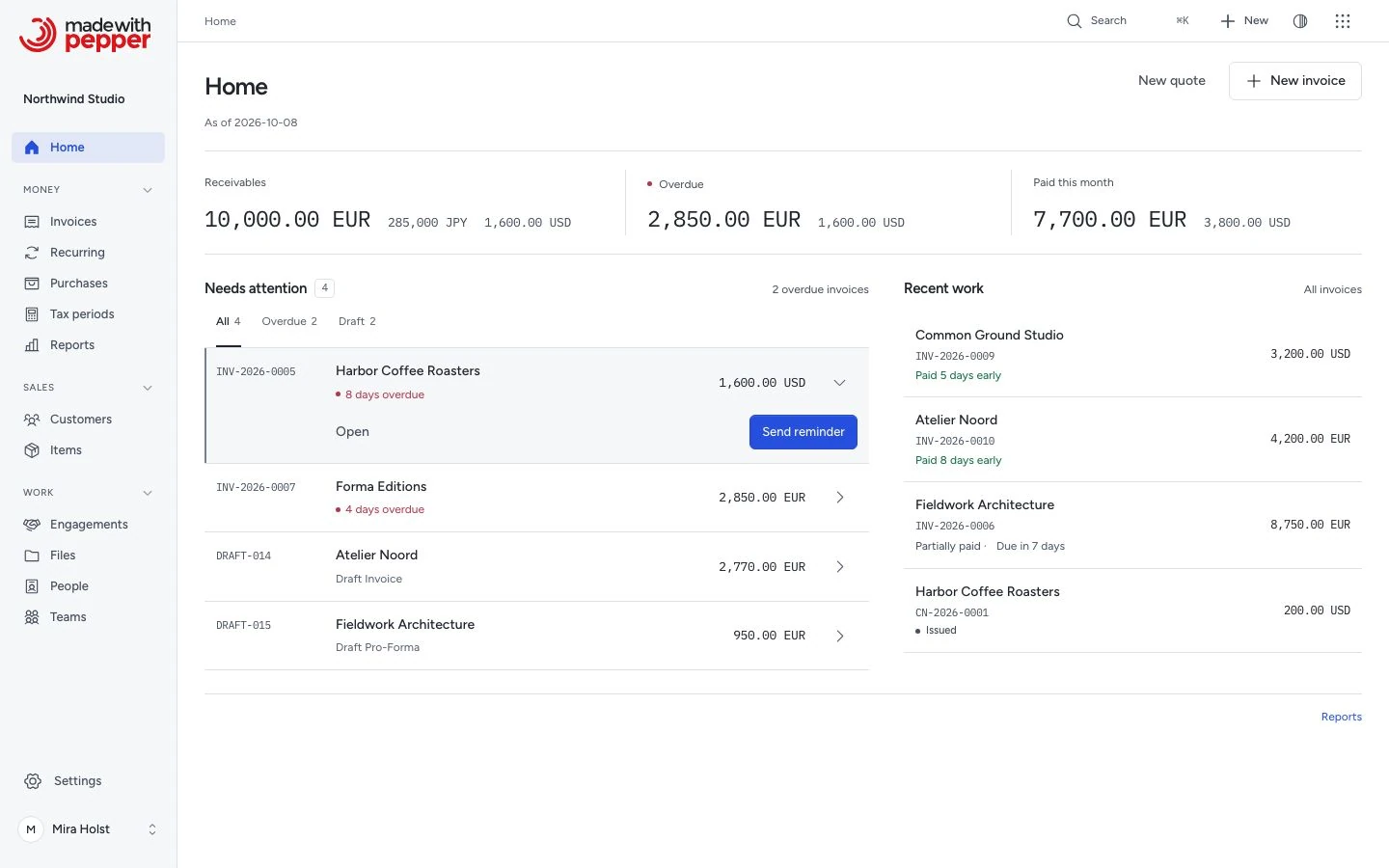
The money band is one row of equal columns between two rules. Each column has the same four lines: its name and date basis, the figure, one small chart and one sentence. On a tablet the band has two columns; on a phone the columns stack. Needs attention and Recent work follow as two panels side by side, or one below the other on a phone. Deeper financial analysis lives in Reports.
Navigation
Navigation shows only the places your role may open. Everything groups its pages in this order: Money, Sales, Work and Customer services. Personal pages stay above the groups. From 1280 px, the rail shows icons and labels. From 1024 to 1279 px, it uses compact labeled entries. Arabic places the rail on the right.
| Group | Entry | Opens |
|---|---|---|
| Personal | Home | This screen |
| Personal | My work | Your assigned tasks, board cards and weekly work |
| Personal | Inbox | Mentions, replies and assignments |
| Personal | Favorites | Your pinned records, when you have readable pins |
| Money | Invoices | Invoices, quotes, credit notes and pro-formas |
| Money | Recurring | Recurring schedules |
| Money | Purchases | Recorded purchases |
| Money | Tax periods | Tax periods and accountant exports |
| Money | Money overview | Financial balances and their source records |
| Money | Reports | Analysis, reports and invoice export |
| Sales | Customers | Customer records |
| Sales | Leads | New enquiries and their next steps |
| Sales | Deals | The sales pipeline and agreed next steps |
| Sales | Items | The item catalog |
| Work | Projects | Customer work and milestone billing |
| Work | Workload | Available, planned and logged team time |
| Work | Boards | Boards and their cards |
| Work | Docs | Proposals, procedures, versions and editions |
| Work | Calendar | Events and dates from permitted work |
| Work | Automations | Rules, run history and required reviews |
| Work | Files | Files and their linked records |
| Work | People and Teams | People, their accounts and teams |
| Customer services | Scan | Check saved codes and serve offers |
| Customer services | Bookings | Appointments, resources and events |
| Customer services | Analytics | Permitted widget results and source activity |
| Customer services | Forms | Forms and their responses |
| Customer services | Widgets | Published services and their settings |
| Settings | Settings | Business and installation settings, for owners and admins |
Click an app heading to fold its rail entries. The current destination stays visible. The desk name in the top bar opens the desk menu. New lists the records you may create.
The compact top bar stays visible as you scroll. The page title scrolls with the content. On a document screen, open the document type control in the top bar. Choose Invoices, Quotes, Credit notes or Pro-forma. Views opens that screen's available list views.
Below 1024 px, the bottom bar replaces the rail. Its first four destinations follow your available modules. More opens the other destinations and the account controls.
The account menu has Your profile and Sign out. Owners and admins also see Update. Your uploaded business logo appears beside the business name. Without a logo, the navigation shows the business name alone.
Search and theme
- Click Search, or press ⌘K on a Mac or Ctrl+K on another computer.
- Type a destination, action or record name.
- Use the arrow keys to highlight a result.
- Press Enter to open it.
With no search text, the panel offers recently opened records and available commands. Record searches start at 2 characters. Results are grouped by record type, with at most 8 records per type. Your permissions limit every result. Document and customer searches also match tags.
Escape closes the panel. A failed lookup offers Retry.
Use the theme control to choose light or dark. Blue identifies interaction, green identifies confirmed success, and coral identifies an exception. State words accompany colors. Your document brand color affects customer output; it does not recolor the application.
Keyboard shortcuts
Shortcuts do not fire while you type in a field or work inside a dialog or menu. A destination's shortcut exists only when you may open it.
| Keys | Action |
|---|---|
/ |
Opens Search |
D |
Opens the desk menu, when more than one desk is available |
N |
Opens a new invoice, when permitted |
G then H |
Home |
G then I |
Invoices |
G then C |
Customers |
G then E |
Projects |
G then P |
Purchases |
G then T |
Tax periods |
G then R |
Reports |
G then K |
Items |
G then U |
Recurring |
G then F |
Files |
G then W |
People |
G then V |
Favorites, when available |
G then S |
Settings, when permitted |
? |
Opens Keyboard shortcuts |
Press the second key of G within 1.5 seconds. The list is also available from the search panel.
Action messages
Separate action results stay visible together, including repeated demo refusals. Up to three messages appear at once. A count shows how many are waiting. Dismiss a message to make room, or let it close after five seconds.
The timer pauses while your pointer or keyboard focus is in the message area. Undo or Try again applies to that result only. A waiting message gets its full display time when it appears.
Cash in and Owed to you
The money band appears when your role has the financial summary. With more than one currency, choose a currency beside the business date. Every money figure then shows that currency. Pepper never adds currencies together or converts them.
Cash in shows the money collected this month: recorded incoming payments minus refunds and reversals during this business month. A payment counts in the month it was paid, even if you reverse it later. The reversal counts in the month you reverse it. The sentence below compares it with last month, for example 1.2 % up on September. The line chart shows the money collected in each of the last 6 months.
To read a month on the chart, move the pointer over it or tap it. With the keyboard, move focus to the chart and press the arrow keys. The sentence below the chart shows the month and its amount. Escape clears it. Click Cash in to open paid invoices.
Owed to you shows the open balance: the unpaid balances of issued invoices after payments, credit notes and refunds. The sentence gives how many open invoices are overdue. A bar divides the balance by age into up to 5 parts:
| Part | Invoices in it |
|---|---|
| Not yet due | The due date is today or later |
| 1–30 days | 1 to 30 days past the due date |
| 31–60 days | 31 to 60 days past the due date |
| 61–90 days | 61 to 90 days past the due date |
| Over 90 days | More than 90 days past the due date |
Each part is as wide as its share of the balance. Overdue parts are coral, darker as they age. Point at a part to see its name and amount, or move to it with the Tab key. Click a part to open those invoices. A part with no money is not drawn. Quotes, pro-formas, drafts and cancelled invoices add nothing to these figures.
Credit owed to customers
Credit owed to customers appears at the bottom of Home when a balance exists. It is money you owe back, separate from receivables. Payments and credit notes can exceed an invoice's total plus refunds. Record a refund on the credit note to return that money.
See Credit owed to the customer.
Overdue invoices
An overdue invoice is issued, uncancelled, has an unpaid balance and has a due date before today. A partly paid invoice can be overdue. A paid or fully credited invoice cannot. Overdue is a calculation; the invoice keeps its issued or partly paid status.
Quotes out, Unbilled time and module figures
Quotes out joins the money band when your role has the financial summary. It shows the total of quotes that wait for an answer. Its green bar is the share won of quotes decided in the last 90 days. A won quote is accepted or converted. A lost quote is declined, expired or cancelled. Unbilled time shows billable time that waits for an invoice.
Below the band, one line gives a figure for each other module you use, for example 1/4 My cards · 6 Open deals · 3 Form responses · 5 Inbox · unread · 4 Projects:
| Figure | What it counts |
|---|---|
| My cards | Your cards due this week that are done, out of all your cards due this week |
| Open deals | Open deals in your Sales access. Point at it to see the weighted pipeline, for roles that view financial summaries |
| Form responses | Responses in the last 7 days. Point at it to compare with the 7 days before |
| Inbox · unread | Unread items in your Inbox |
| Projects | Open projects |
A zero is shown in grey. Click a figure to open its records. A person who uses only forms, for example, sees Form responses, Inbox and their cards.
Needs attention
Use All or a reason tab to narrow the work. The badge counts the server's bounded attention set. Home shows 4 records at a time. Use Previous or Next for the other records in that set. The overdue invoice link opens the full overdue invoice view.
| Reason | Record | Available next step |
|---|---|---|
| My cards | A board card assigned to you that needs work | Open the card |
| Overdue | An invoice with unpaid money past its due date | Send reminder, when permitted and no reminder was sent today |
| Draft | A draft document | Finish draft |
| Accepted quote | An accepted quote without an invoice | Create invoice |
| A failed or unknown delivery result | Send again from the document | |
| Follow up | A lead or deal with a due next step, no next step, an idle stage or a declined or expired quote | Add next step, Move to or Prepare quote, when permitted |
Rows start closed. To see a record's next step:
- Click Review beside the record. Its step appears below the reference, reason and amount.
- Choose the permitted next step, or click Open to open the record.
- To close the row, click Review again.
Click the record identity to open the record directly. When you return from that record, its row opens again.
A Follow up row names the customer, the reason and the current next step. Its action opens the lead or deal with that step ready. Each lead or deal appears once, with its first matching reason. Read Keep one next step.
Opening a row changes no record and sends no message. Send reminder opens the invoice and its reminder review. Check the recipients and remaining balance, then choose Send reminder or Cancel. The invoice keeps a return link to Home.
A pending reminder disables the review actions. A refused reminder keeps the review open and shows its reason. Other refused Home actions keep the row open. Result feedback appears only after the server responds; a mail-log result says that no email left the server.
Done today
The last tab, Done today, appears when the server reports events today: payments, reminder results and issued documents. It shows them 4 at a time, in the same rows as the work above.
A payment row shows the payment amount. An issued row shows the document total. Reminders have no amount. Transport acceptance does not prove recipient receipt.
Recent work
Recent work shows up to 4 recently updated records from the modules you use: invoices, quotes, credit notes and pro-formas, purchases, leads, deals, cards and projects. It is independent of Needs attention. A record that needs you and that you updated recently appears in both columns. Filtering or paging one column never changes the other.
When your recent records come from more than one app, the tabs All, Money, Sales and Work follow the order of the navigation. A tab appears only when it has records. The tab changes only this list. Money keeps the link to all invoices.
Each row gives the name, the reference and the state of the record. A document row shows the customer, the number and the exact total. Issued invoices include useful time context, such as Paid 5 days early or Due in 8 days. Partly paid invoices retain their payment state. A deal shows its stage and its value. A purchase shows its supplier, its date and whether it is paid. A card shows its board and its list. Leads, cards and projects carry no amount.
Click the record identity to continue. A document, lead, deal, purchase or project opens its own page; use its back link to return to Home. A card opens on its board; close the card to return to Home with the same tab selected. Drafts retain their draft identity and do not imply an issue. You only see records your role may open.
Analysis in Reports
Home keeps only the figures above. The rest of the analysis is in Business analysis:
- The money pipeline, from quote to cash.
- Cash flow: issued invoices and recorded cash over 6 months.
- How old is what I am owed?, with the Aging report for customer rows and CSV export.
- Who owes you most.
- Issued invoices and their settlement shares.
- Collected this month and days to pay.
- Upcoming due dates.
Currency and business dates
Home shows one currency at a time. With more than one currency, choose it beside the business date. Reports has the same choice.
Today, overdue dates, weeks and months use Business timezone in Settings > Company. Your personal timezone does not change these dates.
First use
A fresh installation shows your business name and 4 setup steps:
- Add your business details.
- Add your first customer.
- Add a product or service, which is optional.
- Write your first invoice.
A step shows Done when its record exists. Business details need the business name and first address line. Each link appears only when your role may use its form. Otherwise the step asks an administrator. The steps remain until the first document exists. Home invents no revenue, progress or payment history.
Who sees what
Employees see attention and recent work within their own scope: their own documents, their Sales inbox, their boards, their tasks and the projects in their work scope. Recent rows retain the totals of the records they may open. Attention hides its financial amounts. Employees get no Cash in, Owed to you or Quotes out card.
Accountants can read the money band and permitted documents. They cannot send reminders, edit drafts or convert quotes from Home. Owners and admins can use the actions their permissions allow.
A guest, or a person whose role cannot read documents, still has a Home. It shows their cards, Inbox and module figures within their access, and Recent work lists the records they may open, such as their cards. It shows no document, customer or money figure. A guest never sees the first-use steps.
Related pages
Tasks, time and project warnings
Needs attention includes tasks due today and overdue tasks you can open. Project managers also see budget warnings at 80% and 100%, and billable time older than 30 days. Open the row to inspect the work before changing it.
Businesses with hourly projects can see an Unbilled card when the viewer has financial-summary permission. It opens the unbilled report; currencies stay separate. My work brings together your tasks, running timer, week's time and My cards. The timer stays in the global bar while you move between pages.
Need help with the product?
Contact support