
Browse the manual
Bill agreed milestones
Agreed scope, fixed-price milestones, invoice drafts and collection for an engagement.
On this page
For: owners and staff who bill fixed-price work for a customer. What you need: an active customer, agreed work and permission to manage invoices. Complete company settings before issuing an invoice.
An engagement connects agreed scope, milestones and their invoices. Northwind Studio uses it to bill Acme Hardware for website design. Each milestone has one fixed price. Time tracking, partial milestone billing and customer portal approvals are not included.
1. Create an engagement
On a small screen, open More first.
- Open Engagements in the navigation.
- Click New engagement.
- Under The work, enter a Title.
- Under Customer and currency, choose the Customer.
- Choose the Currency.
- Click Create engagement.
You can also start from a customer record. Click New engagement there to begin with that customer selected.
The customer must already exist and be active. The picker shows the first 1,000 active customers in name order. A customer outside that list cannot be chosen. Create and invoice an ordinary document separately if this limit prevents selection.
The currency starts with your company currency. The customer and currency stay fixed after creation. Create another engagement if either was wrong. An empty unused engagement may be closed; its record stays available.
If saving fails, activate a named field in the error summary to focus its control. Your typed input stays in the form.
The engagement register
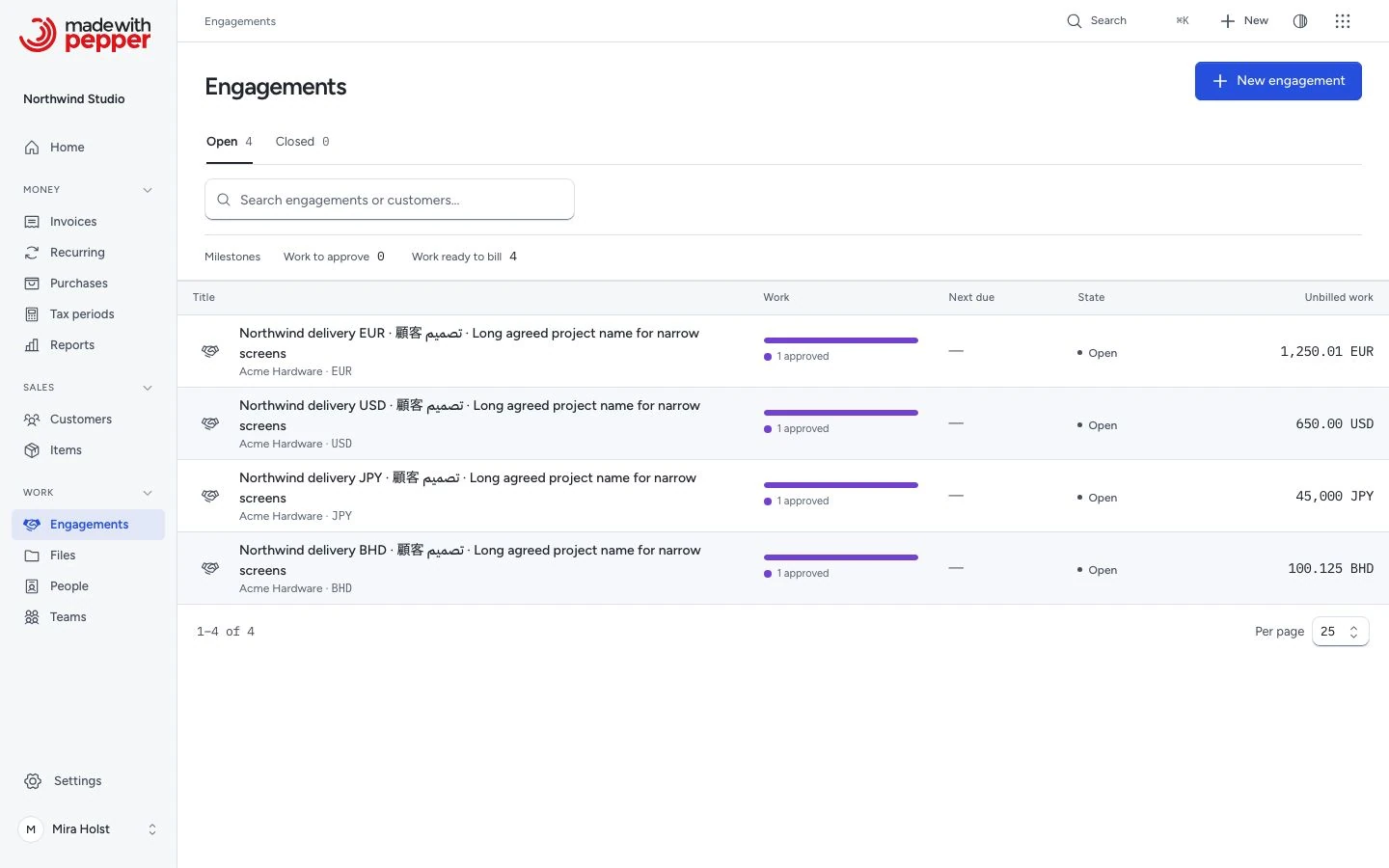
Engagements is a table. Each row shows the title, customer, state and next due date of unbilled work. A work bar counts billed, approved, completed and planned milestones. Owners, admins and accountants also see the Unbilled work amount of each engagement in its own currency. Withdrawn milestones are not counted.
The Open and Closed tabs show engagement counts across your permitted records. On Open, before you search, a small Milestones row shows completed milestones to approve and approved milestones ready to bill. Those are milestone counts across open engagements, not engagement counts or money.
Search matches the engagement title and the customer name. Use the Open or Closed tab above the search field. Both stay visible at every screen width. Clear filters removes an empty search and keeps the selected Open or Closed tab. Choose 25, 50 or 100 rows per page at the bottom of the table.
Before you create the first engagement, the page explains the three steps and offers New engagement when your role allows it.
Click an engagement title to open its record. Return through Engagements above the record to keep your filters and focus the same engagement.
Read the engagement record
The header names the engagement, customer, status, currency and the latest agreed scope version. The summary counts active milestones, completed work and approved work. Approved counts include work already allocated to invoices. Under the counts, the same work bar as in the register shows billed, approved, completed and planned milestones.
Each milestone shows an icon for its state, its scope version, its due date and its price. Billed work shows Billing recorded and, when you may open it, its invoice number.
Unbilled work shows the combined approved, unallocated amount when your role allows it. Employees can review their permitted work without this combined amount.
Next step explains a recorded condition and opens its relevant section or permitted invoice. It does not approve work, prepare a draft or record payment.
Made with Pepper checks access first. For open records you can manage, it then uses the first matching work condition.
| Condition | Destination |
|---|---|
| Closed engagement | Invoices and collection |
| Read-only access | A visible draft or outstanding invoice, otherwise Invoices and collection |
| No agreed scope | Record agreed scope |
| No milestones, or all withdrawn | Add milestone |
| Completed, unallocated work | The milestone section for Approve for billing |
| Approved, unallocated work | Unbilled work for Review invoice draft |
| A linked draft or outstanding invoice | That invoice |
| Planned, unallocated work | Milestones |
| Recorded history remains | Invoices and collection |
The scope and milestone destinations open their entry form and focus its first field. Review the recorded facts before taking a write action.
Use the section links to reach Milestones, Unbilled work, Invoices and collection, or Agreed scope. Their counts describe the records in your view. The milestone section includes withdrawn records; the active summary excludes them.
Agreed scope follows billing and collection. Its earlier versions remain visible. Read-only and closed records offer their permitted sections and history.
2. Record the agreement
- Open Record agreed scope.
- Enter Scope text.
- Enter a Customer approval reference, such as “Acme email, 4 October 2026”.
- Select I confirm the customer agreed to this version outside Made with Pepper.
- Click Record agreed scope.
This records your confirmation. It does not ask the customer to sign or approve inside Made with Pepper. Keep the agreement evidence outside the app. The reference can contain up to 500 characters; the scope can contain up to 20,000.
Record a new version when the agreement changes. Earlier text stays in the history. Existing milestones retain their original scope version. A later agreement does not change their prices.
3. Add and approve the work
- Open Add milestone.
- Enter its Title.
- Choose its Agreed scope version.
- Enter Price excluding tax in your number format.
- Choose a tax rate, or leave No tax.
- Optional: set a Due date for the work. It is separate from the invoice due date.
- Click Add milestone.
- When you finish the work, click Mark completed.
- Click Approve for billing.
- Review the confirmation.
- Click Approve for billing to confirm.
The milestone starts as Planned. Approval is a staff decision that the completed work can be billed. It does not create an invoice.
Each milestone freezes its price and tax rate when you add it. Later tax-setting changes do not change that work. The invoice uses quantity 1 for each selected milestone.
| Example without tax | Price | Invoice total |
|---|---|---|
| Northwind design for Globex GmbH | 1,250.01 EUR | 1,250.01 EUR |
| Northwind design for Acme Hardware | 650.00 USD | 650.00 USD |
| Design in Japanese yen | 45,000 JPY | 45,000 JPY |
| Design in Bahraini dinars | 100.125 BHD | 100.125 BHD |
Use at most the currency's decimal places: 2 for EUR and USD, 0 for JPY, and 3 for BHD. The app calculates and saves exact totals. It does not convert currencies or combine their balances.
Milestone state and invoice state are separate. The billing sequence is:
| Stage | Next step |
|---|---|
| Planned work | Mark completed records that the work is finished |
| Completed work | Staff confirm Approve for billing |
| Approved work | Review the selected work. Prepare invoice draft saves a draft and reserves its milestones |
| Invoice draft | Review and issue the invoice |
| Issued invoice | Record received payments. Resolve credits and refunds on the invoice when needed |
| Completed or approved work, not allocated | Return to planned returns the milestone to Planned |
Correct a milestone
Before billing, use Return to planned to correct its completion or approval state. Use Withdraw milestone for a wrong price, tax rate or scope. Confirm the withdrawal, then add a corrected milestone. The old record stays visible.
An allocated milestone cannot change state or be withdrawn. Delete its unissued draft first to release it. A withdrawn milestone cannot be restored.
4. Review and prepare the invoice
- Under Unbilled work, select the approved milestones you want to bill.
- Check Issue date and Due date. They start with today and your default payment terms.
- Click Review invoice draft.
- Check each selected line, the total and the currency.
- Click Prepare invoice draft.
The draft reserves the selected milestones. This diagram shows when that reservation can be released.
flowchart TD
    accTitle: Reserving milestones for an invoice
    accDescr: Preparing a draft reserves approved work. Deleting the unissued draft releases the work. Issuing keeps it allocated. Later credits and cancellation do not release it for another invoice.
    work["Approved, unallocated work"] -->|Prepare invoice draft| draft["Draft; work reserved"]
    draft -->|Delete unissued draft| work
    draft -->|Issue invoice| issued["Issued; work stays allocated"]
After issue, credits and cancellation do not release the work for another invoice.
Preparation opens a saved invoice draft. It reserves the selected work once. It does not issue the invoice, send email or record a payment. The draft retains its scope version and source amounts.
Source-linked drafts cannot be edited or duplicated. For different dates or selected work, use More actions > Delete draft on the unissued invoice. Return to the engagement and prepare a new draft. The earlier allocation stays in the history; the deleted draft releases the work.
A single invoice can contain up to 1,000 selected milestones. If the combined amount exceeds the supported total, prepare fewer milestones. Every invoice from an engagement uses that engagement's customer and currency.
5. Issue and collect
Review the prepared invoice, then use the invoice procedure to issue it. Send it separately if needed. Use Record payment only after receiving money.
Return to the engagement for Invoices and collection. Each permitted invoice shows its status, total, paid, credited, refunded and balance due amounts. Open the invoice for payment, delivery, cancellation or credit-note corrections.
Issuing consumes the milestone allocation. Crediting or cancelling the invoice does not release it for another invoice. There is no replacement-billing procedure. Resolve the financial correction on the existing invoice; do not create a duplicate charge for the work.
Costs
When a purchase names this engagement, Costs lists it with its supplier, date, category and gross amount. You see only purchases you may read. Owners, admins and accountants also see the total gross per currency. A cost is not billed to the customer and does not change the invoices of the engagement.
6. Close or reopen
Click Close engagement after finishing the work and collecting every linked invoice. Every milestone must be withdrawn or approved and allocated. Every active linked invoice must have Paid status. A draft, cancelled invoice or unpaid invoice prevents closure.
Closing prevents new scope versions, work changes and invoice preparation. It does not prevent later financial corrections on an invoice. Click Reopen engagement to continue work; the history stays intact.
Access and recovery
These defaults describe built-in roles. Custom roles use their assigned permissions. Guests also follow their permitted modules and any named-record limits.
| Role | Engagement access |
|---|---|
| Owner or admin | Read and manage all engagements |
| Employee | Read and manage engagements they created |
| Accountant | Read all engagements; cannot change work or prepare invoices |
Customer access is required. Each linked invoice follows its own invoice permissions. An employee may see Billing recorded without a link when another user prepared the invoice. Employees do not receive the combined unbilled amount.
Field errors link to their controls. State and version errors remain plain messages. Your typed input stays available after a refusal.
| Message or problem | What to do |
|---|---|
| Missing or invalid field | Correct the named field. Your typed input stays in the form |
| The record changed | Review the current record before retrying. Another person may have changed it |
| Work already allocated | Open its invoice. Do not prepare another draft for the same work |
| Request failed | Keep your input and try again. Check the record before repeating a preparation |
| Engagement closed | Click Reopen engagement before changing work |
| Closure refused | Finish or withdraw remaining work and settle every linked invoice |
| Access denied | Ask your owner to check your current role and record access |
Engagements add work records without converting earlier invoices or their issued originals. Follow the update procedure for your installation. Check the server requirements before installing an update. No external model or classification service is required.
Need help with the product?
Contact support