
Browse the manual
Set up bank accounts
How to configure bank accounts in Pepper for payment instructions on your invoices.
On this page
For: business owners who want payment instructions on their invoices. What you need: your bank details: an IBAN, or a local account number with the routing code your bank uses, and the account holder name.
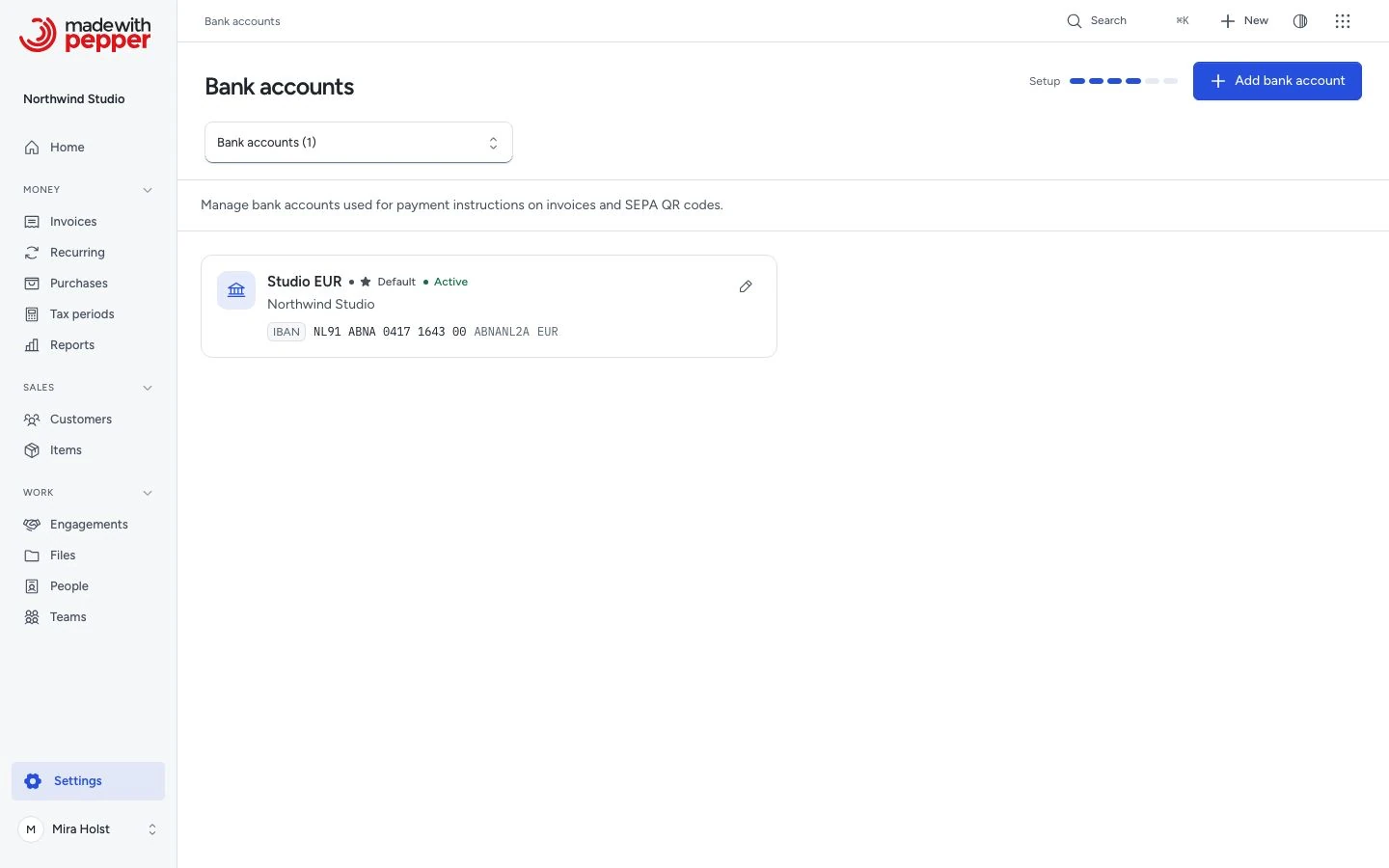
1. Go to bank account settings
Go to Settings > Bank accounts.
2. Add a bank account
Click Add bank account. Fill in the Account section:
- Name: a label for internal use (for example, "Business account")
- Account holder: the name on the bank account
- Bank: the name of your bank, as it appears on your bank statement
- Currency: the currency of this account (EUR, USD, GBP, etc.)
Under Payment details, choose how customers pay into the account:
| Choice | Fields | Use it for |
|---|---|---|
| IBAN | IBAN and BIC | An account with an IBAN, for example in Europe. Pepper removes spaces and checks the IBAN check digits. If the check digits are wrong, the form shows an error and saves nothing. A EUR invoice can carry an EPC QR code |
| Account number | Account number and Routing code | An account without an IBAN, for example in the United States, the United Kingdom, Australia or India. The routing code is the ABA routing number, sort code, BSB or IFSC. Leave it empty if your bank does not use one |
Enter an IBAN or an account number. Without either, the form shows "Enter an IBAN or an account number." and saves nothing.
Click Create bank account. Active is on by default. An inactive account is not offered on new documents. A draft that already uses it keeps it.
3. Set a default account
Turn on Default account to mark your main account in the list. It does not select the account on new documents. A new invoice, quote, pro-forma or credit note starts with no bank account. Select the account on each document to print its payment details.
A PDF prints the IBAN and the BIC of an IBAN account. For an account-number account, it prints the Account number and the Routing code.
4. EPC QR codes
Pepper adds an EPC QR code to the PDF of a finalized, not cancelled invoice in EUR. The invoice must use a selected bank account with an IBAN. An account-number account never gets a QR code. The amount must be from €0.01 to €999,999,999.99. Pepper checks the invoice currency, not the account currency. Drafts, quotes, pro-formas and credit notes never get a QR code.
The issued original asks for the total. A current copy asks for the balance due, and a fully paid invoice has no QR code on its current copy.
Without a selected account, the PDF shows no bank details and no QR code. The code carries the account holder as the beneficiary name. If the Account holder field is empty, Pepper uses your company name. If that name is longer than 70 characters, the PDF has no QR code.
Customers scan the code with their banking app to fill in a SEPA transfer. Support depends on the payer's banking app. EPC QR codes lists what the code contains.
Changes after issue
When you finalize a document, Pepper saves the selected account's details. These include the IBAN or account number and routing code, BIC, account holder and bank name. The PDF, the EPC QR code and the XML file of that document use these saved details. A later change to the account does not change an issued document. It applies to documents you finalize after the change.
Bank accounts and the XML export
The UBL XML export uses the bank details saved when the document was finalized. It writes the selected account's IBAN or account number, account holder and BIC. A EUR document with an IBAN account uses payment means code 58 (SEPA credit transfer). Every other document uses code 30 (credit transfer). An invoice from a Dutch company with a total above zero needs a bank account selected. If both your company and the customer are in Germany, every document needs a bank account selected.
Multiple accounts
You can add multiple bank accounts for different currencies or purposes. When creating an invoice, select the bank account from the dropdown. The payment instructions on the PDF use the selected account's details as saved at issue. For example, select a EUR account for a customer in Utrecht and a USD account for a customer in Portland.
Related pages
Need help with the product?
Contact support