
Browse the manual
Prepare a tax period for your accountant
Tax periods by month, quarter or year, the year overview, checks and drill-down, and the accountant download with a PDF summary.
On this page
For: owners and accountants who prepare a tax return, or send a period to an accountant, every month, quarter or year.
What you need: financial_summary.view to open periods and data.export to download them. Owners, admins and accountants have both by default. Record your purchases and issue your invoices first.
Tax periods puts the invoices you issued and the purchases you recorded side by side. Choose a Month, a Quarter or the full Year, whichever your business files. The year overview shows all three at once. Then you download one package for your accountant, or a PDF to copy the figures into a tax authority's website.
Caution: a tax period is not a tax return. Pepper applies no country rules, files nothing and does not say what you owe. Your accountant or the tax authority's own forms decide the amounts.
1. Open tax periods
On a small screen, open More first. Tax periods starts with the current quarter.
- Open Tax periods in the navigation.
- Click Month, Quarter or Year at the top right to change the period length.
- Click the arrows beside the year to move to another year.
A period uses the date on each record: the issue date of an invoice or credit note, and the date of a purchase. Months, quarters and years follow the calendar. A fiscal year that starts in another month is not supported. Custom date ranges are not supported.
2. Read the year at a glance
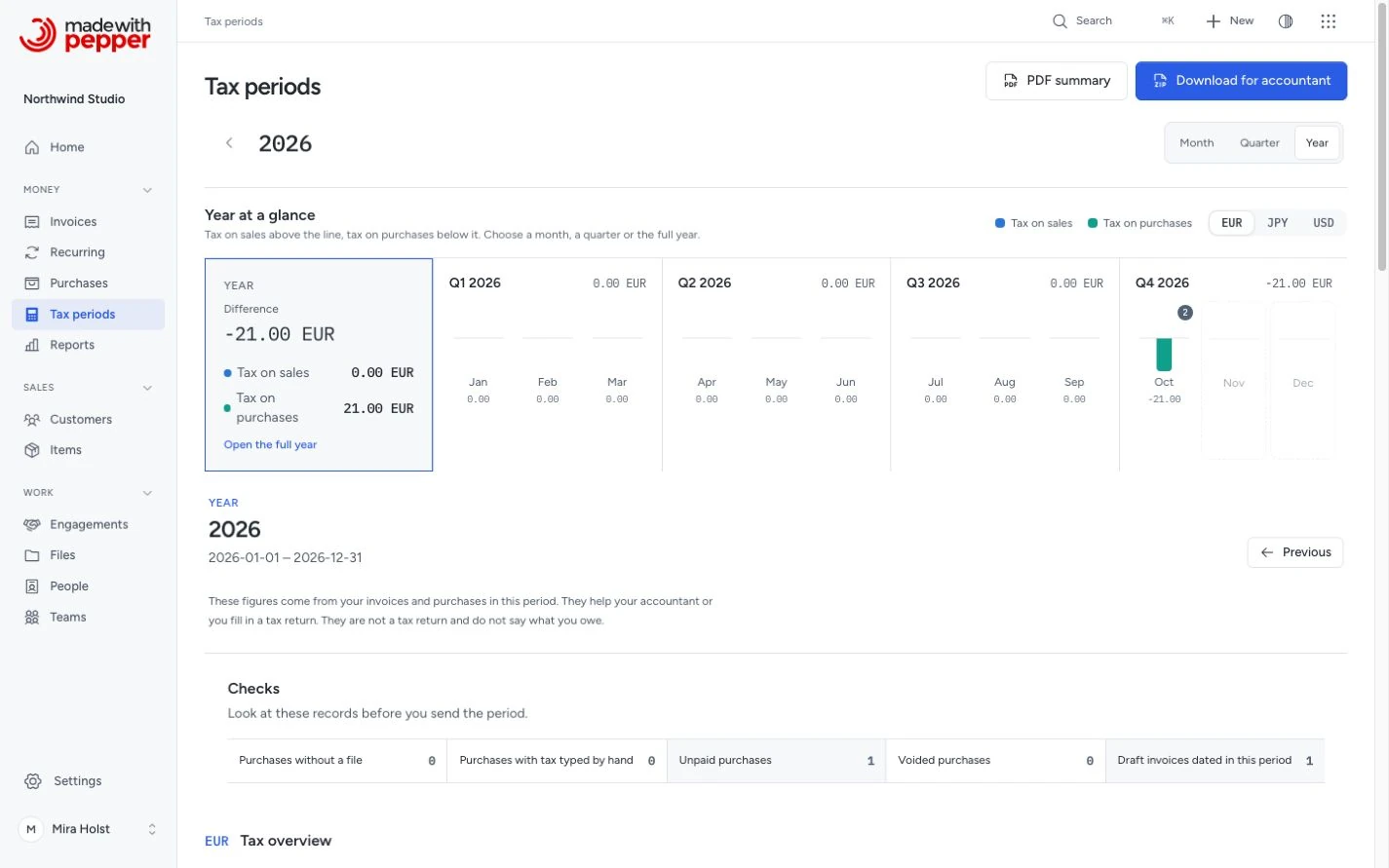
Year at a glance shows the whole year for one currency. If you use more than one currency, choose it at the top right of the panel.
| Part | Shows | Click it to open |
|---|---|---|
| Year tile | The Difference for the year, with Tax on sales and Tax on purchases | The full year |
| Quarter header | The quarter name and its difference | That quarter |
| Month bar | Tax on sales above the line, tax on purchases below it | That month |
All bars of a currency use one scale, so a taller bar means more tax. Point at a bar, or move to it with the Tab key, to see the month's tax on sales, tax on purchases and difference. A number on a bar counts that month's open checks. Months that have not started yet are dimmed. The selected period has a highlighted surface and boundary.
Each quarter is the exact sum of its three months, and the year is the exact sum of its twelve months. Screen readers find the same figures in a table under the chart.
3. Read the figures of the selected period
Under the overview, the selected month, quarter or year shows one currency at a time: the same currency you chose for the year. With more than one currency, switch it beside Tax overview; the year overview follows. Pepper never adds amounts of different currencies. Use the arrows beside the period name to step one period of the same length.
| Part | Shows |
|---|---|
| Tax overview | Tax on sales, Tax on purchases and the Difference: tax on sales minus tax on purchases |
| Sales by tax rate | Net, tax and gross of the invoices you issued, by tax rate. Credit notes reduce the figures. Drafts and cancelled documents are not included |
| Purchases by tax rate | Net, tax and gross of your recorded purchase lines, by tax rate. Voided purchases are not included |
| Purchases by category | The same purchase lines, by category |
Each figure uses the tax rate that the record was saved with. A later change in tax rates does not change an old figure. Sales figures match the tax report for the same dates and currency.
Worked example, Northwind Studio in EUR for one quarter:
| Line | Net | Tax | Gross |
|---|---|---|---|
| Sales at 21% | 1,250.00 EUR | 262.50 EUR | 1,512.50 EUR |
| Purchases at 21% | 120.00 EUR | 25.20 EUR | 145.20 EUR |
| Purchases at 9% | 12.00 EUR | 1.08 EUR | 13.08 EUR |
| Difference (tax on sales minus tax on purchases) | 236.22 EUR |
4. Open the records behind a figure
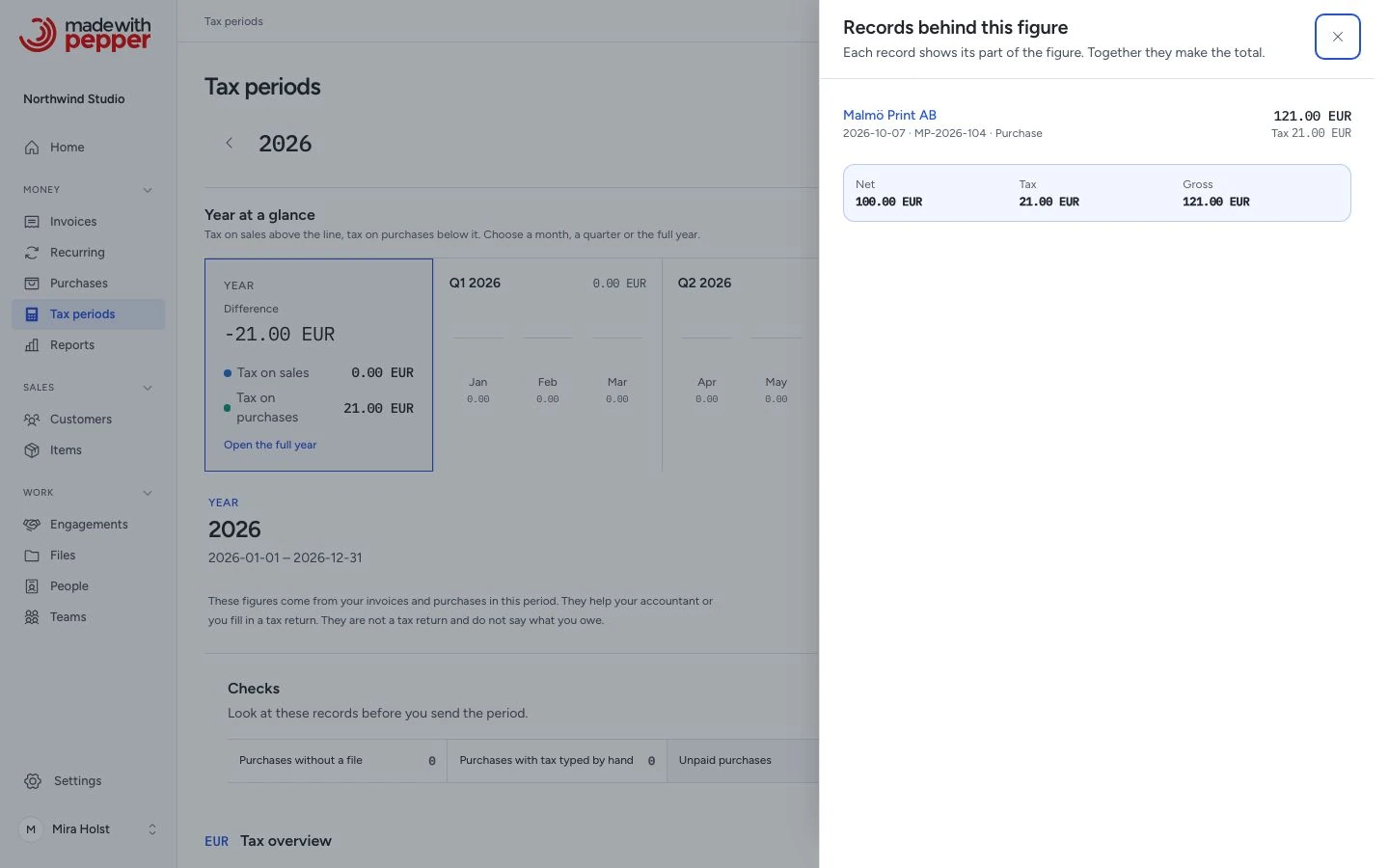
Click a rate or category in any table. A panel lists each record behind the figure with its date, its number or reference, the customer or supplier, and its share of the figure. The shares add up to the figure. Click a record to open it.
5. Check what needs attention
Checks counts the records to look at before you send the period, on one line. A count of zero is grey. Click a count to list its records. A count of zero opens nothing. Closing the panel returns focus to its control.
| Check | Meaning |
|---|---|
| Purchases without a file | Recorded purchases with no attached receipt or invoice |
| Purchases with tax typed by hand | Lines where you typed the tax from the document instead of the calculated tax |
| Unpaid purchases | Recorded purchases without a paid date |
| Voided purchases | Purchases you voided. They are not in the figures |
| Draft invoices dated in this period | Invoices and credit notes not yet issued. They are not in the figures |
6. Download for your accountant
Click Download for accountant. Your browser saves one ZIP file named after the period, for example period-2026-07-accountant.zip, period-2026-Q3-accountant.zip or period-2026-accountant.zip. It contains:
| File | Contents |
|---|---|
summary.pdf |
The figures and checks, laid out so you can copy each figure. A quarter or a year also lists each month |
summary.csv |
Every figure of the period, one row each |
sales.csv |
One row for each issued invoice or credit note and tax rate |
purchases.csv |
One row for each purchase line, with supplier, category, payment and the number of files |
files/purchases/ |
The current files of the purchases in the period |
files/invoices/ |
The stored issued original PDF of each invoice and credit note |
manifest.json |
The period, the counts, any warnings and the SHA-256 fingerprint and size of every file |
The CSV files use UTF-8, ISO dates (2026-10-06) and amounts with a period and no thousands separator, such as 1234.50. Each row names its currency. A text that a spreadsheet could run as a formula starts with an apostrophe.
Pepper leaves out a missing or changed issued original or purchase file. It lists the problem under warnings in the manifest. It never creates a new file and calls it the original. Restore the file from a backup. Download the package again.
To get only the PDF, click PDF summary. The PDF uses your language, and each currency starts on a new page.
Compare business result and cash
Use Money overview for a previous-period comparison of revenue, selected costs and recorded cash. Its category and purchase-tax choices affect that report alone. This accountant package keeps all recorded purchases and its existing tax-rate totals.
Know when the figures changed
Each download is recorded with the period, the time, the person and a fingerprint of the figures. The period then shows the last download. If a record in the period changed after it, for example a late purchase or a voided one, the page says so. Download again so your accountant has the current figures. Downloads lists the last five downloads of the period.
Who can do what
These are built-in role defaults. Custom roles use their assigned permissions. Guest access also follows permitted modules and record scope.
| Role | Open tax periods | Download |
|---|---|---|
| Owner, Admin, Accountant | Yes | Yes |
| Employee | No | No |
Related pages
Need help with the product?
Contact support