
Browse the manual
Create, send, and convert a quote
Full lifecycle of a quote in Pepper, from creation to customer acceptance to invoice conversion.
On this page
For: business owners who send estimates before starting work. What you need: at least one customer.
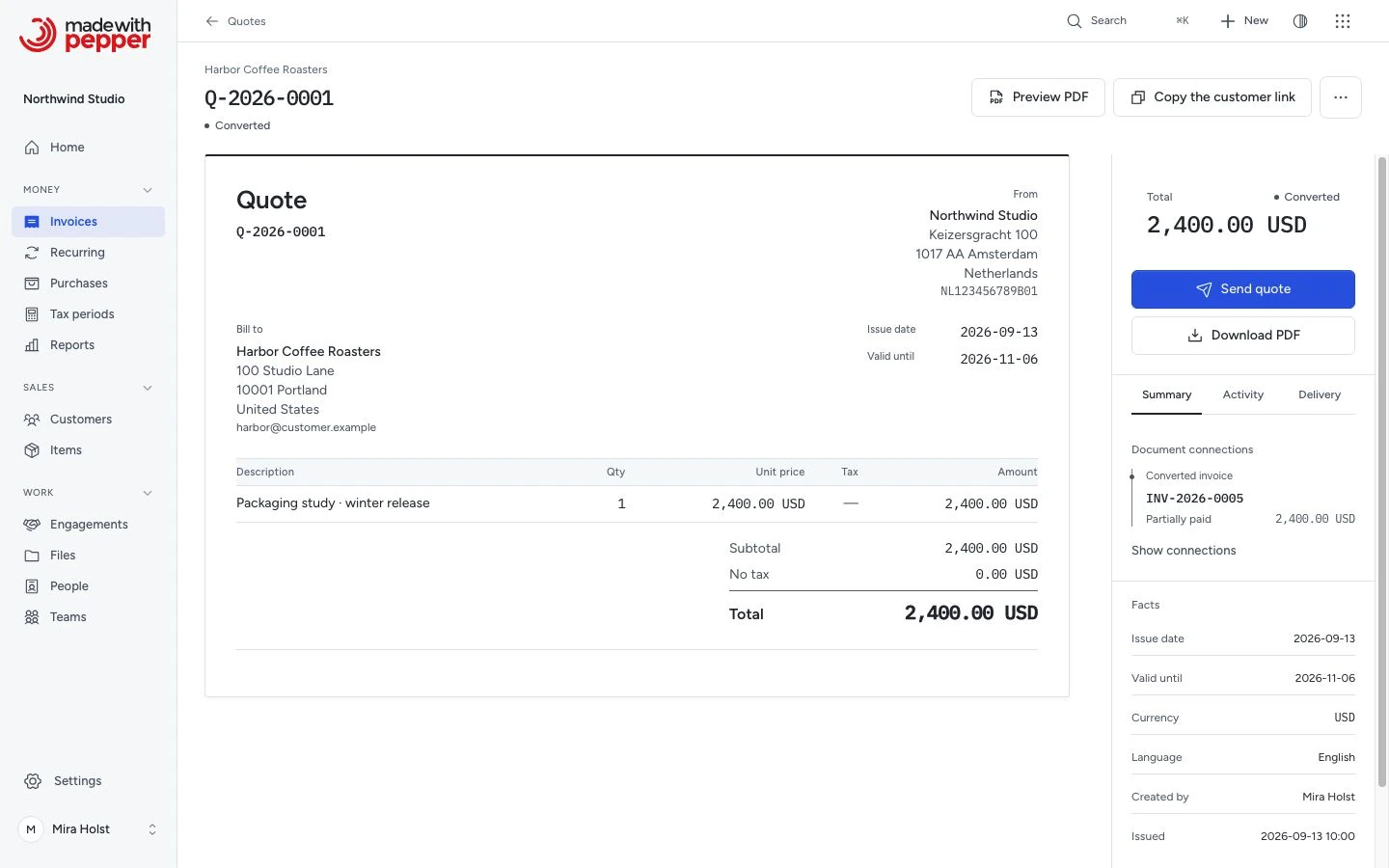
What a quote does
A quote records proposed work and prices. Its contractual effect depends on the terms and acceptance. Your customer reviews it, accepts or declines, and you convert accepted quotes to invoices. Quotes do not appear in the money figures on Home. They use their own numbering sequence, separate from invoices.
1. Create the quote
- Click Invoices in the navigation.
- Open Views in the global bar.
- Choose Quotes.
- Click New quote.
The quote opens as a sheet, the same workspace as an invoice. Choose the customer under Bill to, or create one with New customer. Set the Issue date and Valid until, the date the quote expires. Valid until takes the place of the due date. It cannot be before the Issue date. If it is, Pepper refuses the draft and shows the reason at the field.
Set the Currency, then add lines by hand or with Add from catalog. The totals update as you type.
Northwind Studio in Utrecht creates a quote for a new logo design: two lines (concept work and final delivery), each with 21% VAT. Valid until is 14 days from today. Harbor Lane Studio in Portland quotes the same work in US dollars with sales tax at 8.25%.
Click Save draft. Pepper saves the quote without a document number.
2. Review and issue
When the checklist on the right shows "4 of 4 ready", click Review and issue. The dialog "Issue this quote?" names the customer, the total and the expected number. Click Issue quote. Pepper assigns a quote number from the Q sequence, for example Q-2026-0001, and stores the issued original PDF. Issuing does not email the quote. The quote shows the status Issued.
Once issued, the quote number is permanent. It does not change if the customer declines or the quote expires.
3. Send to the customer
Click Send quote to email the quote. In the dialog, select the recipients and click Send email. The email attaches the issued original PDF and shows Valid until in place of a due date. The dialog works the same as for invoices. Pepper also generates a signed link your customer can visit to accept or decline.
The Delivery tab of the quote shows whether the mail server accepted the email. If you gave the quote to the customer another way, click Record delivery there. See Track the delivery.
From 1280 px wide, the header of an issued quote has Copy the customer link. Click it to put the signed link on the clipboard. The button reads "Link copied" for 2 seconds. Share the link over any channel: email, chat or a messaging app.
4. Customer accepts or declines
Your customer opens the signed link in their browser. They do not need to log in. The page shows the issued quote with your company name and logo above its lines and totals. It uses your Document brand color from Settings > PDF & branding.
The name, the logo and the color are the ones saved when you issued the quote. A later change in the settings does not change the page. The page has no Pepper navigation and works on a phone.
The page uses the language of the quote, with the date and number formats saved when you issued it, like the PDF. It shows only what the customer's PDF shows: never your internal notes, tags or payment records.
The public quote page uses the same totals rows as the quote PDF. With a discount, it shows Subtotal before discount, Discount and Net total first. One row per tax group follows, then Total. The page prints quantities without trailing zeros, for example 2.5, not 2.5000. Addresses show the country name from the saved country code. A quote never carries an EPC QR code.
To accept, the customer types their full name in Your full name and clicks Accept quote. Pepper records the name, the time and the IP address. The Summary tab of the quote shows them under Acceptance record.
To decline, the customer clicks Decline quote and confirms. Pepper records the declined status. Open the quote to see the updated status.
The page reports only what Pepper recorded. After an answer, the link shows a page that says Quote accepted, with the name and the time, or Quote declined. If the customer opens the link again later, they see the same page. A second answer is refused.
What happens when a quote expires?
If the validity date passes without a response, Pepper marks the quote as expired the next time someone opens the signed link. The link then shows Quote expired. Customers cannot accept expired quotes. The Summary tab then shows Expired. If your company has an email address, the page offers a button to email you.
A link that was changed or copied incompletely shows This link is not valid. Copy the link again with Copy the customer link.
5. Convert to an invoice
An accepted quote that has no invoice yet offers Convert to invoice. Home also lists it under Needs attention with a Create invoice button.
- Open the quote.
- Click More actions, the button with three dots in the header.
- Click Convert to invoice.
- The dialog reads "Convert Q-2026-0001 to an invoice?" Click Convert to invoice.
Pepper creates a draft invoice and opens it in the editor. The message reads "Quote converted. A draft invoice has been created." The draft copies:
- All line items (descriptions, quantities, prices, discounts, tax rates)
- Currency, language, and notes
- PDF template override (if set)
- The quote number as the invoice reference
The invoice starts as a draft. Pepper assigns its number when you issue it. It takes new customer and company snapshots at issue instead of copying them from the quote.
The quote status changes to Converted. Its row in the list reads "Converted to INV-2026-0004", and its Summary tab lists the Converted invoice under Document connections. The invoice lists the Source quote.
Quote statuses
| Status | Meaning |
|---|---|
| Draft | Saved but not assigned a number |
| Issued | Issued with a permanent quote number. The status does not say whether anyone emailed the quote. The Delivery tab shows that |
| Accepted | Customer accepted via signed link |
| Declined | Customer declined via signed link |
| Expired | Validity date passed without a response |
| Converted | Accepted and converted to an invoice |
| Cancelled | Voided by you with Cancel quote under More actions. Only an issued quote can be cancelled |
The quote list has a view for each status. Its Valid until column takes the place of the lifeline. See The invoice list.
To reuse a quote, click More actions, then Duplicate. Pepper creates a new quote draft with the same customer, currency, notes and lines, and calculates the totals again. The copy rules are the same as for invoices.
Follow document connections
Open a saved document. Find Document connections on the Summary tab of its context. On a phone, open Details first. The list shows its visible source and linked documents with their totals.
Click Show connections to open the diagram. Read the main path from top to bottom: a source document appears above the current document, and its converted invoice or credit notes appear below. Extra records branch to the right, or to the left in Arabic. Click a document number to open that record. On a keyboard, press Tab to reach a record link in the diagram or the list, then press Enter.
Click Show as a list to close the diagram. The list stays available if the diagram cannot load.
A line shows a saved conversion or credit-note relationship. It does not send, issue, pay or cancel a document.
You see only records your role permits. A document with no visible relationships says No connected documents are visible.
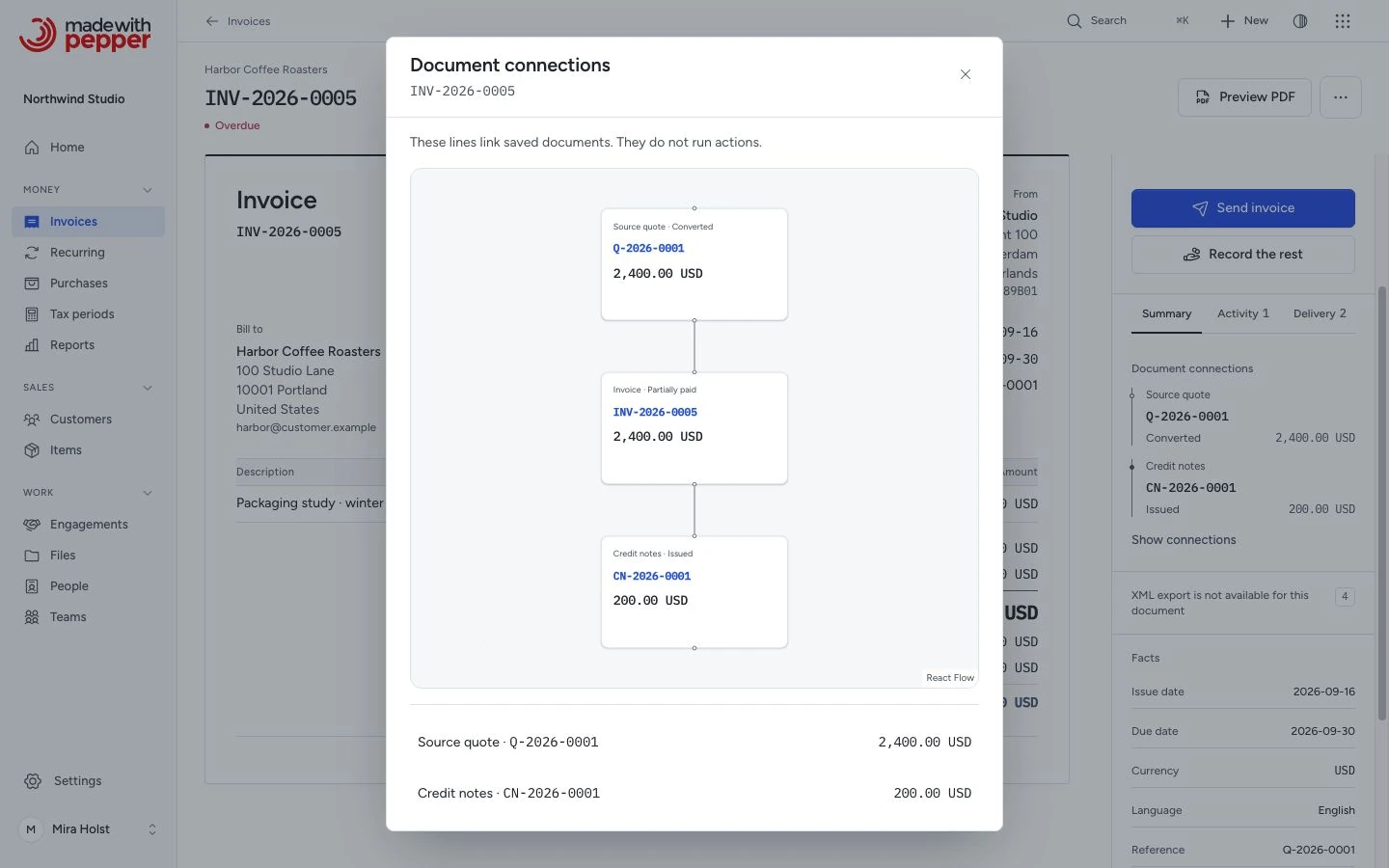
Quote to invoice
- Issue the quote.
- The customer accepts it on the public quote page.
- Confirm Convert to invoice to create the linked invoice draft.
- Review the invoice draft.
- Issue the invoice after confirming its details.
Related pages
- Documents: how the document system works
- Quotes, invoices, and credit notes: the relationship between document types
- Configure numbering: set up the Q sequence for quotes
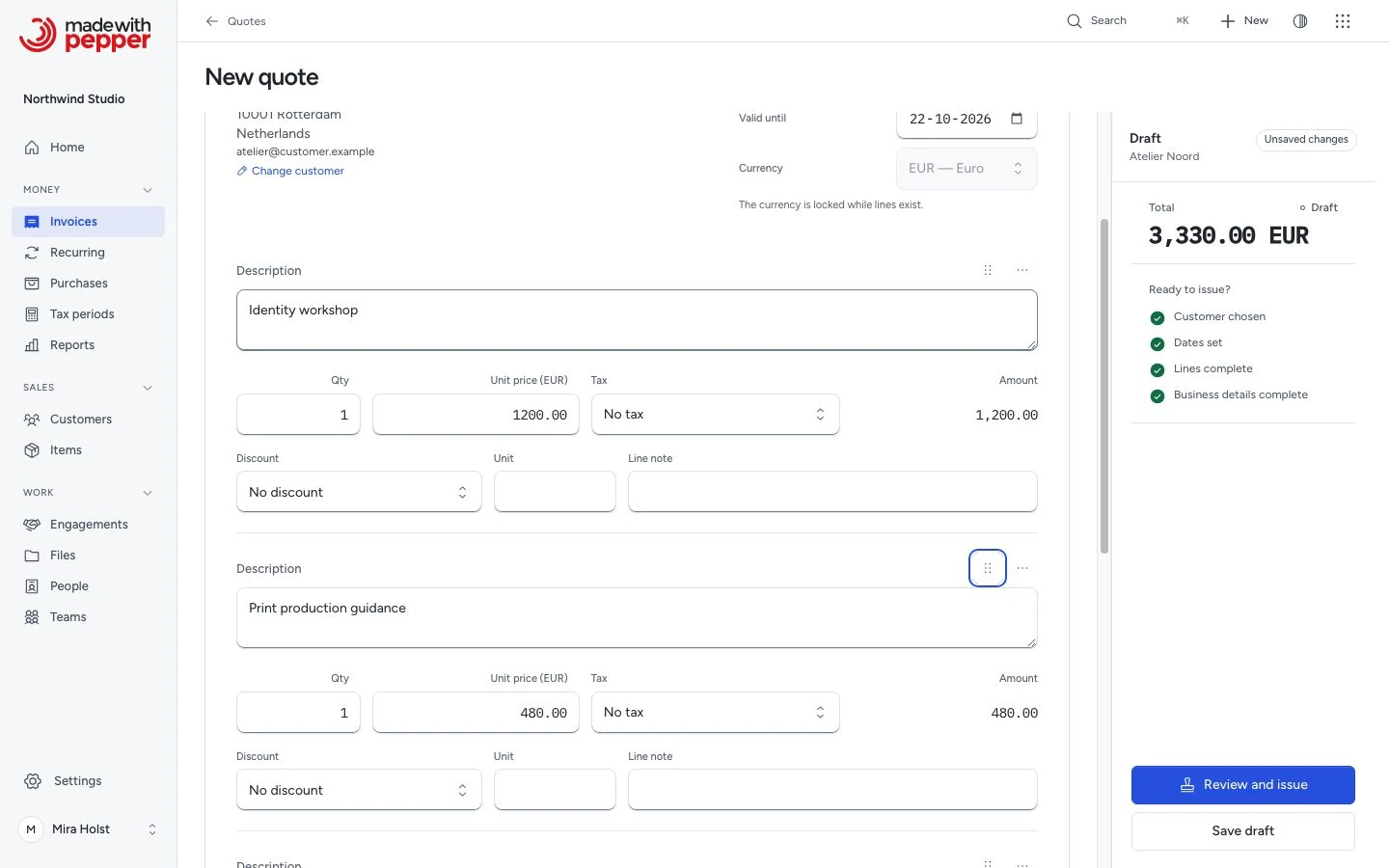
Reorder draft lines
Open a draft quote and click Edit. Use the handle beside a line to drag it into position.
For keyboard use, focus the numbered Move line handle. Press Up or Down. On touch, use the numbered move action under More actions beside the description.
Click Save draft to keep the order. Each line keeps its price, tax, discount and note. Moving a line leaves the total unchanged.
Issued documents keep their saved order. An invoice prepared from approved project work keeps its source lines locked.
Need help with the product?
Contact support