
Browse the manual
Import customers from CSV
How to import your customer list into Pepper from a CSV file using the column-mapping UI.
On this page
For: business owners migrating from another invoicing tool or spreadsheet. What you need: a CSV file with your customer data.
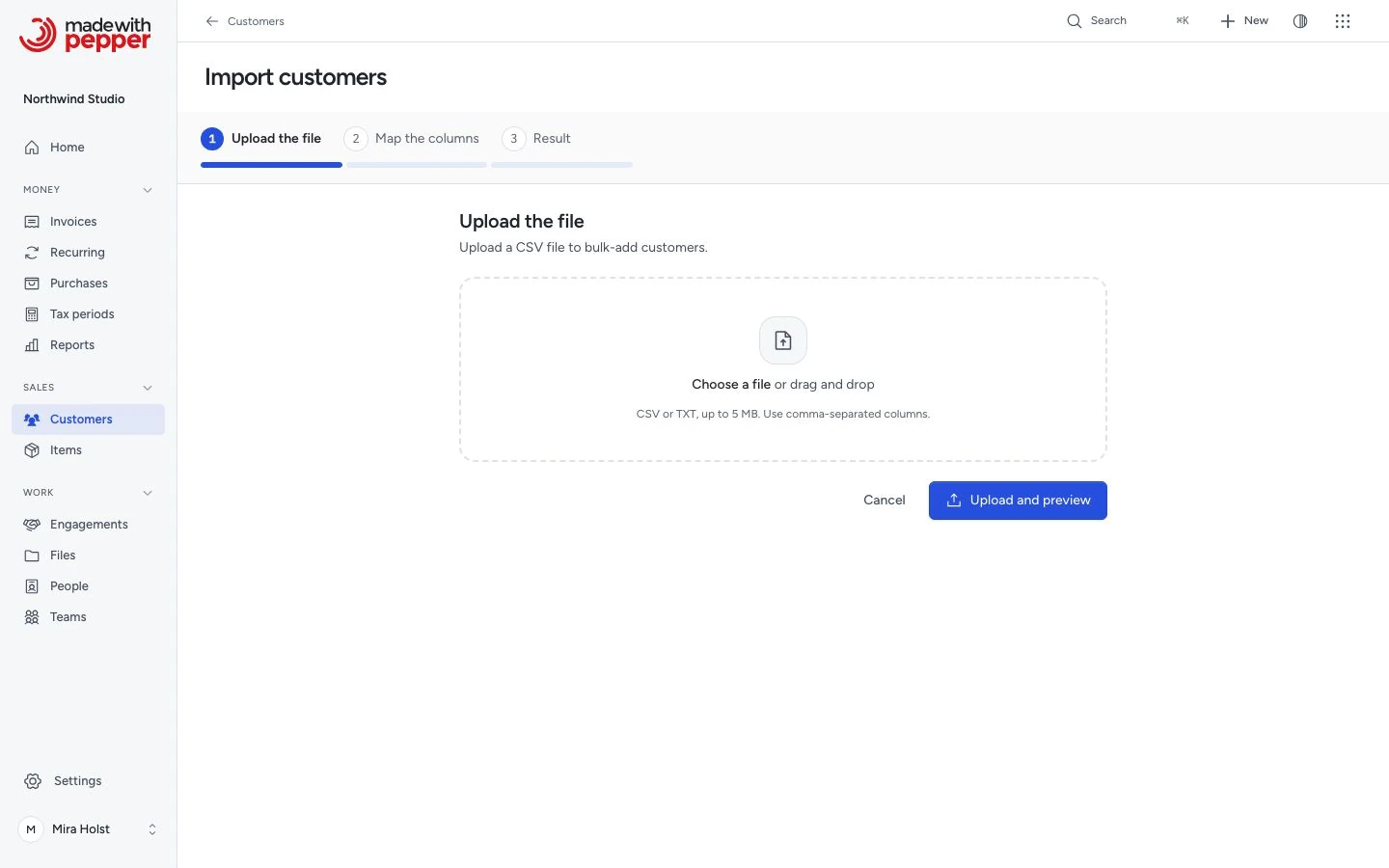
1. Go to the import page
Go to Customers and click Import. You need the owner, admin or employee role. The import has three steps: Upload the file, Map the columns and Result.
2. Upload your file
Select a CSV or TXT file of up to 5 MB. Click Upload and preview. Pepper reads the column headers and shows the Column mapping screen.
If the file has the wrong type or is larger than 5 MB, Pepper shows an error and does not read it. An empty file or a file without data rows also returns an error.
3. Map columns
For each CSV column, select the matching customer field in Maps to, or skip the column. Pepper maps common header names automatically. Data preview (first 5 rows) shows the rows as Pepper reads them, so you can check the mapping. Map each field once.
Required mapping: Name. All other fields are optional, Email too. Pepper skips a row without a name, or with an email address that is not valid. An empty email cell stays empty.
To keep a source or label from the file, select Tags in Maps to for that column. Headers such as tags, labels, source, lead_source, channel and sales_channel map to Tags. Check the mapping before you continue. Map only one column to Tags.
Enter an optional tag in Tag every imported customer with. For example, use Trade fair for that import. Pepper adds it to each imported customer and keeps the tags from the file. The field starts empty; no source tag is added by default.
A tags cell can contain several tags separated by commas. Put a cell such as "Web shop, Newsletter" in CSV quotes. Pepper removes blank tags and duplicates that differ only in case. A tag that matches an existing customer tag uses its existing spelling. Each tag can contain up to 50 characters. Check the combined tags in Data preview (first 5 rows).
4. Run the import
Click Confirm import. Pepper creates a customer record for each valid row. Duplicate detection uses the email address. If a customer with the same email already exists, or an earlier row of the file has it, Pepper skips the row. Rows without an email address are never duplicates.
After the import, Pepper shows how many customers it created and how many it skipped. The Import errors list shows the row number, the column and the reason for each skipped row. Click Import another file or Back to customers.
Use Tags on the customer list to find the imported group. The global search also matches customer tags.
If you wait too long between the upload and the import, Pepper asks you to upload the file again.
CSV format tips
- The first row should contain column headers.
- Use UTF-8 encoding for international characters.
- One customer per row.
- Pepper reads the Type and Active values without regard to case or surrounding spaces. The mapping step lists the accepted values.
- Type column: write
businessorindividual, or the words for Business and Individual in your interface language. An empty cell means business. If you do not map this column, Pepper imports all customers as businesses. - Active column: write
yes,true,1oractivefor an active customer, andno,false,0,inactiveorarchivedfor an inactive one. The words for yes, no, Active and Inactive in your interface language work too. An empty cell means active. If you do not map this column, all customers are active. - Pepper skips a row with any other Type or Active value. The error names the value and the accepted words. No row becomes inactive or another type without a message.
Related pages
Need help with the product?
Contact support