
Browse the manual
Customize your PDF template
Choose a PDF template, set your brand color and logo, and override the template per invoice.
On this page
For: business owners who want their invoices to look professional. What you need: owner or admin access.
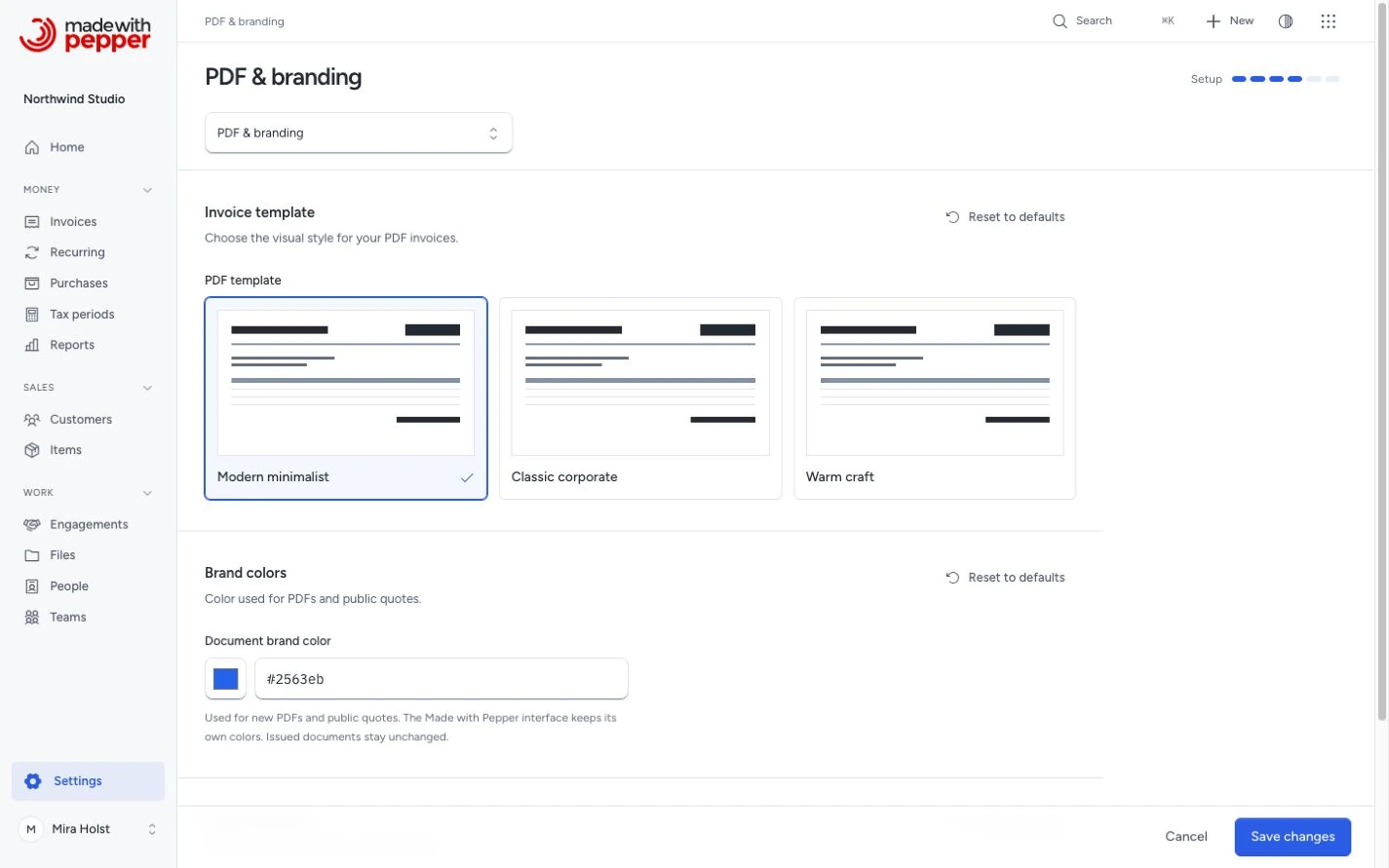
1. Choose a template
Open Settings > PDF & branding. Under Invoice template, choose the company default. Choose one of the three layout cards:
| Template | Personality | Good for |
|---|---|---|
| Modern minimalist | Clean lines, generous whitespace, no background fills | Most businesses, professional services |
| Classic corporate | Bordered sections, alternating row stripes, colored header banner | Accounting firms, formal corporate invoicing |
| Warm craft | Airy layout, accent bars, tinted backgrounds | Freelancers, designers, creative studios |
All three use your brand color for accents and print well in greyscale. Each prints in 14 language variants, including European and Brazilian Portuguese, with right-to-left layout for Arabic. See PDF languages.
2. Set the brand color
On the same Settings > PDF & branding page, pick Document brand color with the color picker, or enter a six-digit color such as #087F8C. Click Save changes. This color controls accents in your PDFs and public quotes. The selected PDF template determines where the accents appear.
3. Upload your logo
Go to Settings > Company and upload your logo.
Requirements:
- Format: PNG or JPG
- File size: max 2 MB
- Dimensions: min 200 x 200 px, max 2000 x 2000 px
4. Choose logo position
Go to Settings > PDF & branding. Under Logo placement, open Logo position. Choose the placement. Click Save changes. The default is Top left.
Three options:
- Top left: replaces the company name text with your logo
- Top center: centers the logo above the header
- Top right: places the logo above the document title
5. Override the template per invoice
The company template is the default for all invoices. To use a different template on a specific invoice:
- Open the invoice form (create or edit)
- Click More fields.
- Open PDF template.
- Choose the template.
- Save the draft.
Choose "Company default" to revert to the global setting. When you finalize the invoice, Pepper freezes the template it uses.
6. Preview
Create a draft invoice and click Preview PDF to see the result. A draft always shows a live preview with the current settings. Adjust settings and preview again until it looks right.
What every template prints
The three templates print the same content. Only the layout differs.
- Line table: the Net amount column shows each line after its discount and before tax. A discounted line shows "Discount −" under its net amount.
- Totals: Subtotal before discount, Discount and Net total when the document has a discount, or Subtotal without one. Then one row per tax group and Total. How the totals appear has an example.
- Tax breakdown: every tax group, 0% groups included, with its taxable amount and tax.
- Balance: the issued original shows the invoice as issued, without Paid or Balance due. Download current copy adds Paid, Credited and Balance due on an invoice with a payment or a credit note.
- Labels and addresses: every label and the country name in the document language.
- Page layout: a 36 pt top margin, and a 50 pt bottom margin that holds the footer. The header of the line table repeats on each page.
- EPC QR code: only on a finalized EUR invoice with a selected bank account that has an IBAN. It asks for the total on the original and the balance due on a current copy. See EPC QR codes for all conditions.
A credit note PDF shows its totals as positive amounts. It has no Paid or Balance due rows, no payment instructions and no QR code.
Snapshot behavior
Settings changes apply to new documents only. Finalizing a document freezes its presentation. It keeps its language, template, brand color, logo position, number format and date format. It also embeds the current logo. A later change to these settings, or a new logo, does not change an issued document.
Pepper stores the first PDF after the issue as the issued original. Preview PDF and Download PDF give that stored file. To see a settings change, create a new draft and click Preview PDF. See Issued originals and downloads.
Removing the logo
Open Settings > Company. Select Remove logo below the upload area. Click Save changes. Pepper deletes the logo from storage.
Application color
Pepper uses fixed interface colors. Document brand color does not change the app’s navigation, buttons, menus, forms or focus indicators. Changing it does not change an issued document.
Related pages
Need help with the product?
Contact support