
Browse the manual
Export a UBL 2.1 XML file
How to prepare your settings, check a draft and export an issued invoice or credit note as a Peppol BIS Billing 3.0 UBL file.
On this page
For: business owners and bookkeepers who need a structured invoice file for an accounting system or a receiver that asks for UBL.
Who can export: people with data.export and access to the document. Owners, admins and accountants have the permission by default. Built-in Employees do not. A custom role can include it. Guest scope still limits the records.
What you need: an issued invoice or credit note in a currency with 0 or 2 decimals.
The file is a UBL 2.1 file for the Peppol BIS Billing 3.0 profile. Pepper downloads it to your computer. It does not send it anywhere. See UBL XML export for the full rules and limits.
1. Prepare your settings once
Set these details before you issue documents that need an XML file. An issued document keeps the details saved when you issued it.
- Go to Settings > Company.
- Select your Country.
- Enter your VAT number with its two-letter country prefix.
- Select an Electronic address scheme.
- Enter your Electronic address. Use the identifier under which receivers know you.
- For German customers invoiced from Germany, fill in Contact person for invoices, Phone number and Business email.
- Click Save changes.
- Go to Settings > Tax rates.
- Open each exempt (E) or reverse-charge (AE) rate that needs a correction.
- Set its Exemption code (VATEX) or Exemption reason.
- Save the changed rate.
- Go to Settings > Bank accounts.
- Check that each IBAN saves without an error.
- Open the edit form for each customer you invoice this way.
- Enter the customer's country and electronic address. Ask the customer for the identifier if you are not sure.
- Click Save changes on each customer form.
See Company settings, Manage tax rates and Customers for each field.
2. Check the draft
Open the draft invoice or credit note. If Pepper finds a problem, the Summary tab of the inspector shows Structured XML: check before you finalize. Each item names the problem. If you have access to the place of the fix, the item has a link to it.
- Fill in Reference with the receiver's reference or PO number. The receiver uses it to route the invoice.
- Set a due date on an invoice.
- Select a tax rate on every line.
- Select a bank account if the list asks for one.
- Fix the remaining items.
- Open the draft again.
By default, issuing does not depend on this list. Open items can prevent the later XML export.
Require e-invoice readiness can make these checks mandatory before issuing. The review names every missing input and keeps the draft.
3. Issue
Click Review and issue. Check the document, customer and total in the dialog. Click Issue invoice or Issue credit note to confirm. Pepper saves the company and customer details on the document. Issuing does not email the document. If the document passes the checks, Pepper stores its XML file as an issued original.
4. Export the file
- Click Invoices in the navigation.
- For a credit note, choose Credit notes from Views in the global bar.
- Open the issued document.
- Click More actions, the button with three dots.
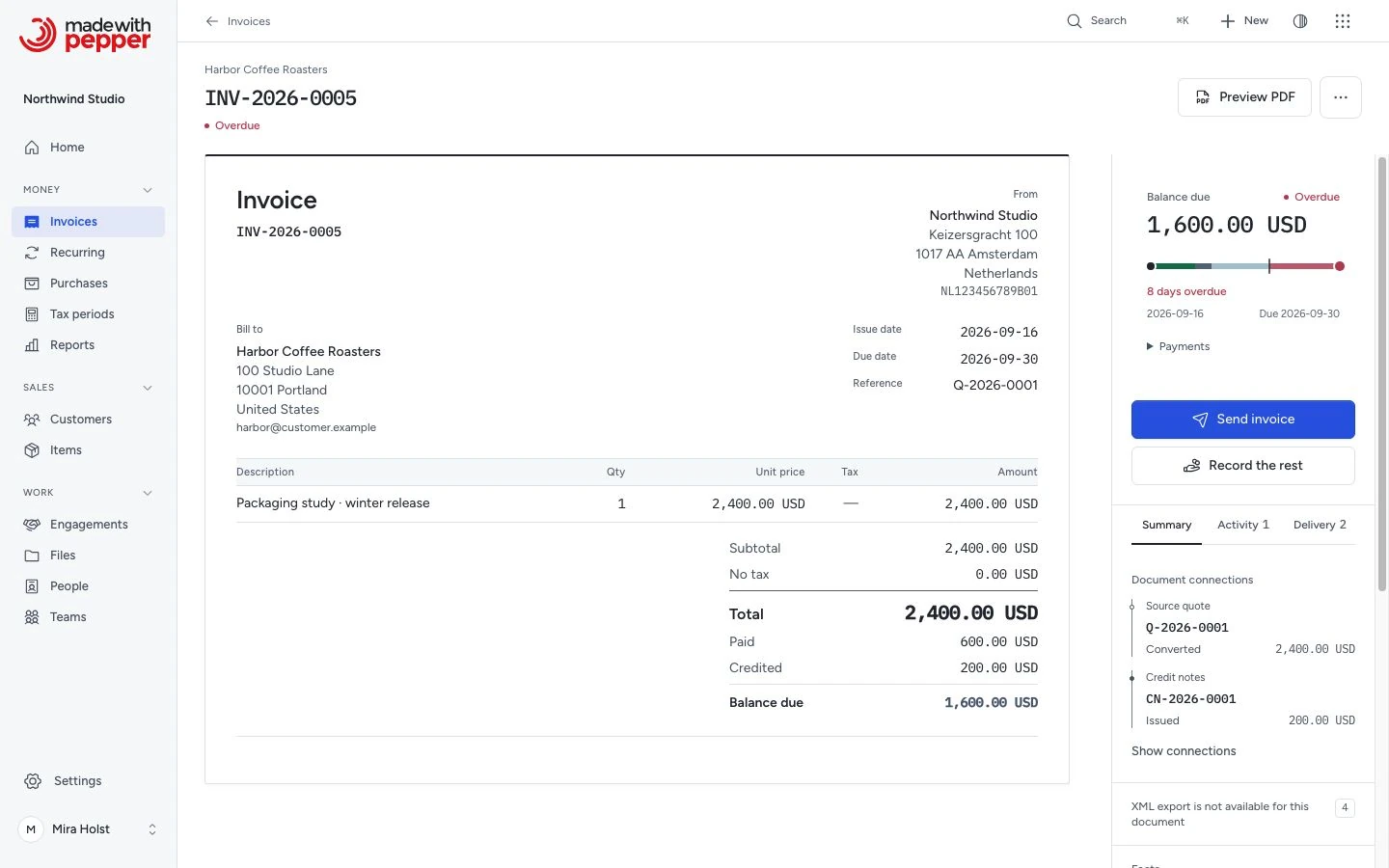
- Click Export XML.
Pepper checks the stored file against its SHA-256 fingerprint and downloads it.
Every export of an issued document gives the same file. If the stored file is missing or changed, the button reads Export regenerated XML. Restore the original from a backup, or use the regenerated file. Its name ends in -regenerated.xml.
If Pepper refuses the export
Pepper creates no file when a check fails. Export XML does not show under More actions. The Summary tab shows XML export is not available for this document with the list of problems. A direct export link returns to the document with the message "The XML file was not created. The list on this page shows what to fix."
Caution: a fix in settings or on the customer does not change an issued document. If you only fix the settings, the export of that document stays refused.
- Fix the cause in settings, on the customer or on the tax rate, so that later documents pass.
- Issue a credit note for the refused invoice.
- Create a new invoice.
- Review and issue it.
- Export the new invoice.
Some refusals come from limits of the export, not from missing details:
- A currency with 3 decimals, such as BHD
- A seller in Norway, Denmark, Sweden, Italy, Greece or Iceland, by company address or by VAT number prefix
- Two lines of one tax category whose rates have different exemption reasons
- Rounding: the line taxes of one category differ from the tax on the category total by one unit or more. Combine small lines or change their amounts
- A line in a currency without decimals, such as JPY, whose price times quantity is not a whole amount
What it does not do
Pepper does not send the file over the Peppol network or submit it to a government portal. It does not look up whether the receiver is on Peppol. The receiver can apply its own rules. If a receiver refuses the file, ask which rule failed. Talk to your accountant or tax advisor about the rules for your country.
Related pages
Need help with the product?
Contact support