
Browse the manual
Issue a credit note
How to credit part or all of an issued invoice, refund money to the customer, and cancel a credit note.
On this page
For: business owners who need to reduce an issued invoice. Who: owners and admins issue, refund and cancel credit notes on every invoice. Employees do the same on invoices they created. Accountants can view and download credit notes. They cannot change them. What you need: an issued invoice that is not cancelled and has an amount left to credit.
A credit note lowers what the customer owes on one invoice. You always create it from that invoice. You cannot create a standalone credit note.
| Current record | Action | Result |
|---|---|---|
| Issued invoice | Confirm Issue credit note | A linked credit note draft opens |
| Credit note draft | Review and issue the credit note | It becomes Issued and reduces the invoice balance or creates credit owed |
| Issued credit note | Record money refunded to the customer | The refund is recorded. The credit note stays Issued |
| Issued credit note with no refunds | Confirm Cancel credit note | It becomes Cancelled and no longer counts toward the invoice's credited amount |
1. Open the invoice
Click Invoices in the navigation. Open the issued invoice you want to credit.
2. Click Issue credit note
Click More actions, the button with three dots in the header, then Issue credit note. The dialog reads "Issue a credit note for HL-2026-0014?" and names the amount left to credit. Click Issue credit note.
Pepper creates a credit note draft and opens it in the editor. The draft copies every line of the invoice with its saved tax rate. It also copies the customer and the currency. The issue date and the due date are today in the company time zone. The Reference is the invoice number.
If you send the dialog twice, for example with a double click, Pepper creates one draft.
Issue credit note does not show on a draft, a cancelled invoice, a quote, a pro-forma or a credit note. It also does not show when the invoice is fully credited.
3. Edit the draft
The sheet shows the customer without Change customer. It says "This credit note keeps the customer and the currency of HL-2026-0014." Pepper refuses any change to them. Under the dates, the sheet shows Left to credit, the largest amount you can credit, for example $2,598.00.
You can change the lines, quantities, prices, dates and notes. For a full credit, keep the lines as they are. For a partial credit, remove the lines you do not credit and change the quantities or prices. Click Save draft.
Example: Harbor Lane Studio in Portland invoiced Pine Street Bakery for 16 hours of website design at $150.00 with sales tax at 8.25%. Invoice HL-2026-0014 has a total of $2,598.00. Two hours were disputed. The studio issues a credit note, keeps the design line and changes the quantity from 16 to 2. The credit note total is $324.75: $300.00 plus $24.75 sales tax.
Left to credit is the invoice total minus the credit notes you already issued on it. If the draft total is higher, the sheet says "The total is more than the amount left to credit. Reduce it to $2,598.00 or less before you issue it." Review and issue stays off until you do.
4. Issue the credit note
Click Review and issue. In the dialog "Issue this credit note?", click Issue credit note. Pepper locks the invoice, then the credit note, and checks two things:
- The invoice is issued and not cancelled.
- The credit note total is not more than the amount left to credit.
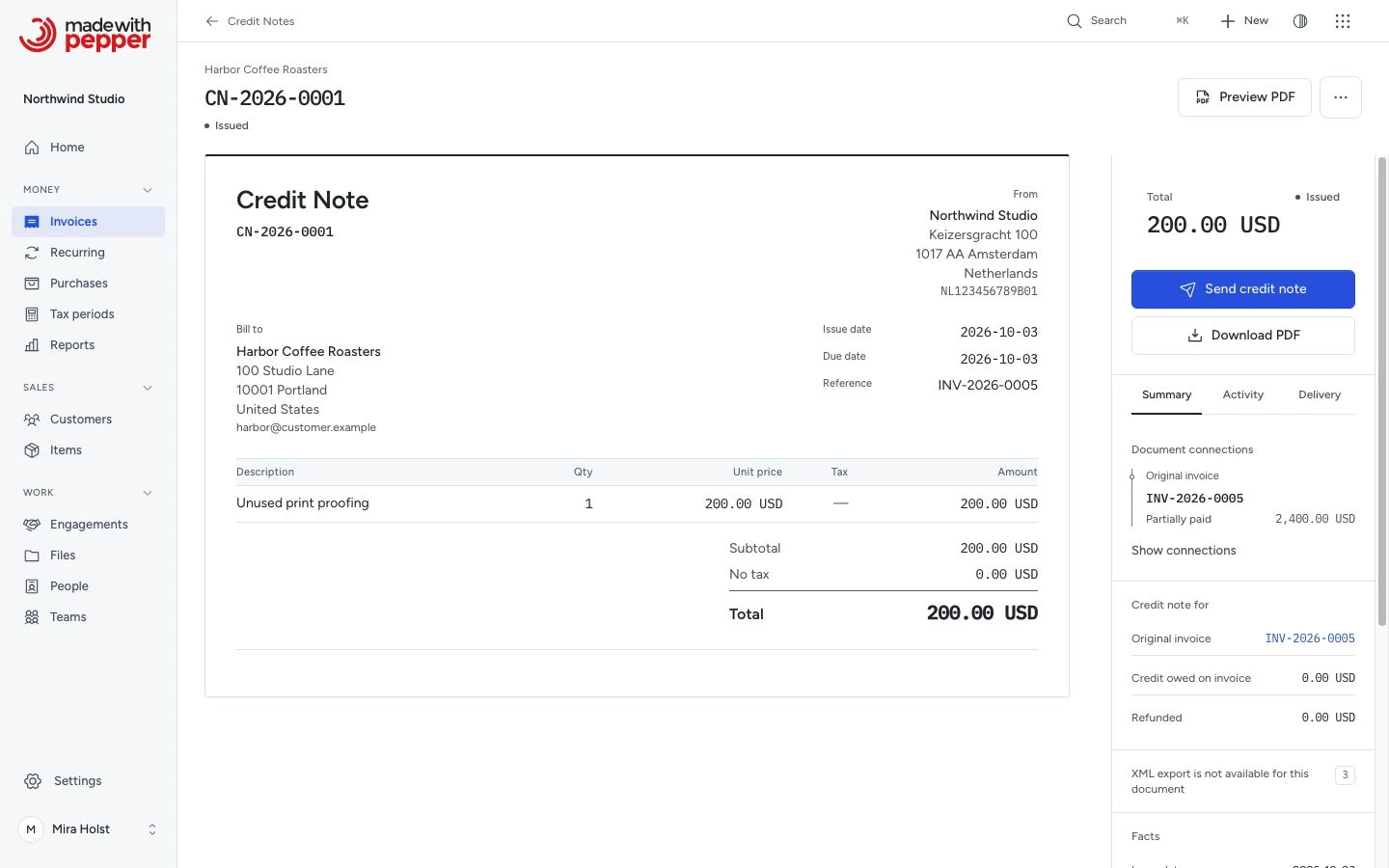
If both are true, the credit note gets the next number from the credit note sequence, for example CN-2026-0001. Issuing does not email the credit note. To email the PDF, click Send credit note in the panel on the right. The email shows the credit note total and no payment link. See Send by email.
What changes on the invoice
An issued credit note that is not cancelled counts on its invoice at once. Pepper works out one amount for the invoice:
Total − Paid − Credited + Refunded
Credited is the total of the invoice's issued credit notes that are not cancelled. Refunded is the money you paid back on those credit notes. Drafts and cancelled credit notes never count.
When this amount is above zero, it is the Balance due: what the customer still owes. When it is below zero, the balance due is zero. The amount without its minus sign is then the Credit owed: what you owe the customer. Every payment, credit note and refund, and every reversal or cancellation, moves this one amount.
The invoice sheet, its email and the current copy of its PDF show the rows under Total. The issued original PDF of the invoice does not change. Paid shows when a payment counts, and Refunded when you recorded a refund. With a credit note, Credited and Balance due always show. The invoice status follows the balance:
| Status | When |
|---|---|
| Issued | The full total is due. Nothing is paid or credited, or refunds equal the credit notes and no payment counts |
| Partially paid | Part of the total is due |
| Paid | Nothing is due |
For Pine Street Bakery, invoice HL-2026-0014 now shows:
| Row | Amount |
|---|---|
| Total | $2,598.00 |
| Credited | $324.75 |
| Balance due | $2,273.25 |
The status changes from Issued to Partially paid. A payment on the invoice can be $2,273.25 or less. On a EUR invoice, click Download current copy. The EPC QR code on that copy holds the lower balance due.
Credit owed to the customer
If the customer paid before you issued the credit note, the credit notes can be more than the unpaid amount. The invoice then shows Credit owed: the money you owe the customer. Its balance due is zero and its status is Paid.
Example: Northwind Studio in Utrecht invoiced Acme Hardware €1,210.00 (€1,000.00 plus 21% VAT) on NW-2026-0008. Acme paid in full. Then Acme returned a lamp, and Mira Holst issued credit note CN-2026-0004 for €242.00 (€200.00 plus VAT).
| Row | Amount |
|---|---|
| Total | €1,210.00 |
| Paid | €1,210.00 |
| Credited | €242.00 |
| Balance due | €0.00 |
| Credit owed | €242.00 |
Home shows Credit owed to customers separately from receivables, and the aging report lists it under Credit owed to customers. Neither subtracts it from what customers owe you. See Home.
Refund money to the customer
When you pay credit owed back to the customer, record a refund on the credit note:
- Open the credit note.
- In the panel on the right, click Record refund.
- Check the limit in the dialog, for example "You can refund €242.00 or less."
- Enter the amount, date and method.
- If needed, enter a reference and notes.
- Click Record refund.
Full refund fills in the largest amount you can refund. Refunds on the Activity tab lists the refunds so far.
The largest refund is the credit note total minus its refunds, or the credit owed on the invoice, whichever is smaller. Pepper refuses a larger amount and stores nothing. The message names the limit, for example "The amount is more than you can refund (EUR 242.00). Enter EUR 242.00 or less." The dialog stays open with what you typed.
Mira transfers €242.00 back to Acme and records the refund on CN-2026-0004. The invoice now shows Refunded €242.00, and the Credit owed row disappears.
A refund is money out. Home subtracts the refund from Paid this month on its date. Reports use the same cash movement in collected amounts. On a customer statement, a refund adds to the balance in the Debit column.
Reverse a refund recorded by mistake
Pepper never deletes a refund. If you recorded one by mistake, click Reverse on its row under Refunds on the Activity tab. Add a reason if you want, then click Reverse refund.
The row stays in the history, marked Reversed, and counts in no balance. Paid this month and the customer statement count the reversal on the day you record it, as the opposite amount. The invoice amount goes down by the refund. If the invoice has a balance due, for example after a payment reversal, the balance due goes down first. The rest goes to the credit owed.
You cannot undo a reversal: record the refund again if you need it. You cannot reverse a refund on a cancelled credit note.
Cancel a credit note
You can cancel a credit note only when it has no refunds. Reverse its refunds first.
- Open the credit note.
- Click More actions.
- Click Cancel credit note.
- Review the dialog before cancelling.
- Click Cancel credit note to confirm.
The dialog reads "Cancel this credit note? It keeps its number, and the balance due of its invoice goes up by the credit note total."
The credit note keeps its number and shows Cancelled. It no longer counts on the invoice, so the invoice amount goes up by the credit note total. If the invoice shows Credit owed, the credit owed goes down first. The rest goes to the balance due, and the invoice status changes to match. A new credit note can use the credit note total again.
Example: Acme paid invoice NW-2026-0008 in full, and Mira issued CN-2026-0004 for €242.00 by mistake. Before any refund, she cancels the credit note. The credit owed of €242.00 goes to €0.00. The balance due stays €0.00, and the invoice stays Paid. On an invoice that nobody paid yet, the same cancellation raises the balance due by €242.00.
If the credit note has refunds, the same menu item opens "Cancellation is not available" with the reason. It offers no cancel action.
The credit note page and PDF
A credit note has no payment status. It stays Issued until you cancel it. Its context shows the credit total, refunded amount and credit owed on its invoice. Document connections links to the source invoice.
Pepper stores the credit note PDF as an issued original, like an invoice. The PDF shows the credit note totals as positive amounts, in the same rows as an invoice. It never shows Paid, Balance due, payment instructions or a QR code.
A credit note has no Duplicate action. To credit more, create a new credit note from the invoice.
What can go wrong
- The credit note total is more than the amount left to credit. Pepper refuses to issue it and assigns no number. The message names the largest amount, for example "The credit note total (EUR 500.00) is more than the amount left to credit on NW-2026-0009. Enter EUR 300.00 or less." Edit the draft and issue it again.
- The invoice is cancelled. Pepper refuses to issue a credit note for a cancelled invoice. You cannot create one either.
- The invoice is fully credited. Nothing is left to credit. Pepper creates no new credit note.
- Nothing to refund. The invoice has no credit owed, for example because the customer has not paid yet. Pepper refuses the refund.
- You change the customer or the currency. Pepper refuses the save and keeps the form.
- This document changed after you opened it. Another person changed the credit note, for example with a refund. Pepper changes nothing. Review the page and try again.
- Already recorded. You sent the same refund form twice. Pepper recorded one refund.
Follow document connections
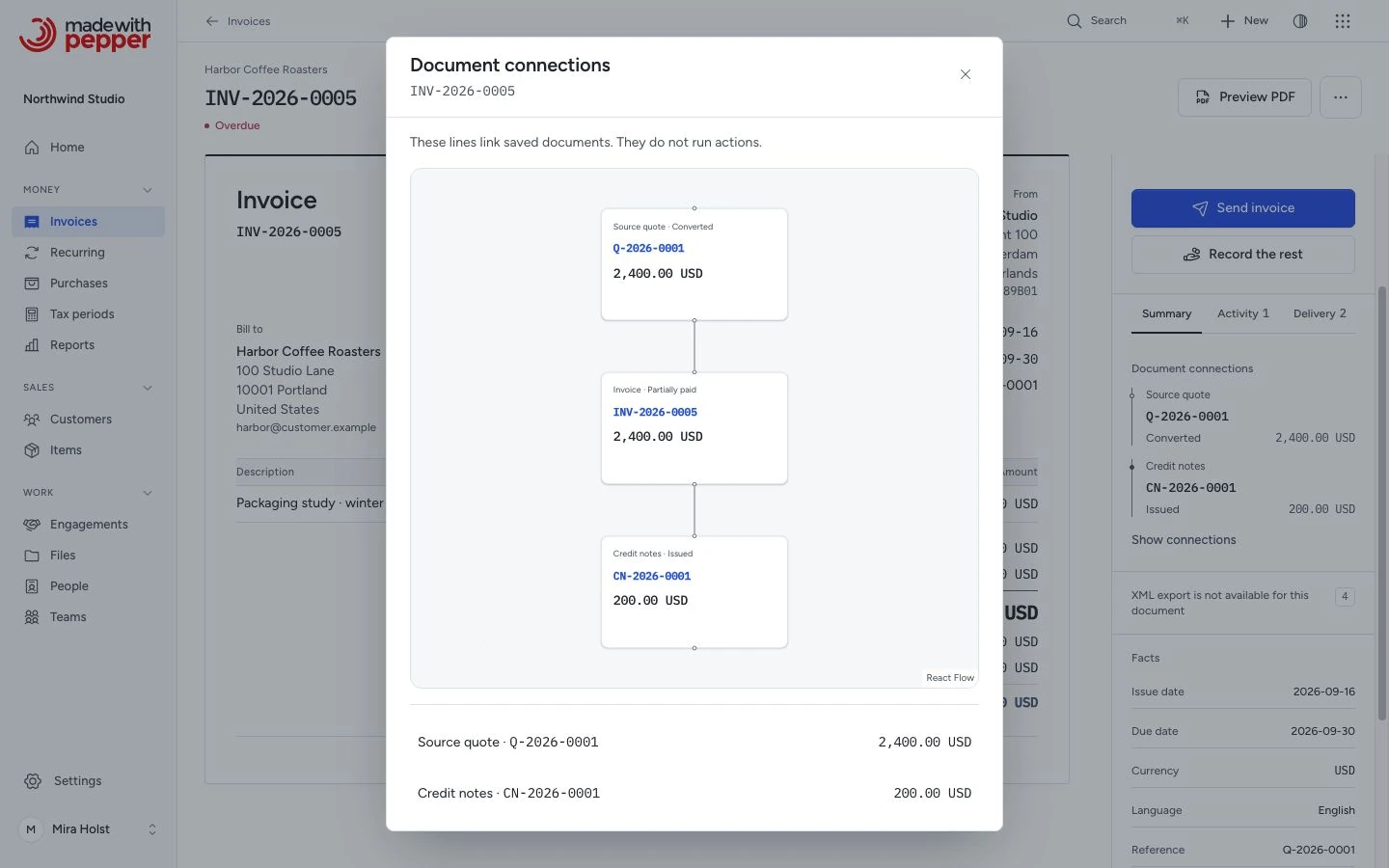
Open a saved document. Find Document connections on the Summary tab of its context. On a phone, open Details first. The list shows its visible source and linked documents with their totals.
Click Show connections to open the diagram. Read the main path from top to bottom: a source document appears above the current document, and its converted invoice or credit notes appear below. Extra records branch to the right, or to the left in Arabic. Click a document number to open that record. On a keyboard, press Tab to reach a record link in the diagram or the list, then press Enter.
Click Show as a list to close the diagram. The list stays available if the diagram cannot load.
A line shows a saved conversion or credit-note relationship. It does not send, issue, pay or cancel a document.
You see only records your role permits. A document with no visible relationships says No connected documents are visible.
Related pages
Refund a Stripe payment
The online-payment workflow adds Refund through Stripe to an issued credit note linked to a provider-paid invoice. Choose the original payment and an amount within the available credit. A pending refund reserves that credit; only provider confirmation records money out. The incoming payment remains. Confirmed provider records have no Reverse action. Read online refunds and recovery.
Need help with the product?
Contact support