
Browse the manual
Company settings
Set up your company name, address, logo, VAT number, electronic address, default currency, and timezone in Pepper.
On this page
Where: Settings > Company Who: owner, admin, or a custom role with the company-settings permission
Company settings define your business identity. Documents and outgoing emails use these details.
The settings overview
Click Settings in the rail. The overview shows Setup, the details your invoices print, with a meter such as "4 of 6 details set up":
| Detail | Done when |
|---|---|
| Business name and email | Company name and Business email are filled in |
| Business address | The street address, city and country are filled in |
| VAT or tax number | VAT number or Tax number is filled in |
| Logo | A logo is uploaded |
| A bank account for payments | At least one active bank account exists |
| Sender email address | The sender address for outgoing email is filled in |
Click a detail that is still to do to open its page. Below Setup, the overview lists every permitted settings page. Inside a settings page, the Settings location control opens grouped destinations. Search a page name, then select its result. The working form retains its width.
Click Save changes to save a page. If a field is not valid, Pepper keeps what you typed and shows each message at its field. If you leave a page with unsaved changes, Pepper asks you first.
Application branding
Pepper uses fixed interface colors in light and dark mode. Company settings no longer has an application color control.
Your uploaded company logo appears beside your business name in the signed-in navigation. Without a company logo, the navigation shows your business name alone.
To choose the color of your documents, open Settings > PDF & branding and set Document brand color. This color applies to PDFs and public quotes. It does not change buttons, menus or forms in the app. Issued documents keep their saved appearance.
A refused upload or failed save keeps the current logo.
Published public forms also use this company name and logo. The logo keeps its original proportions and colors. The business name remains when the logo is absent or cannot load.
Under Logo, Show “Powered by Pepper” on public forms starts on. Turn it off and click Save changes to hide that link on public forms and their receipts, on phones and larger screens. Other company edits leave this choice unchanged. It does not change issued documents or embedded widgets.
Logo
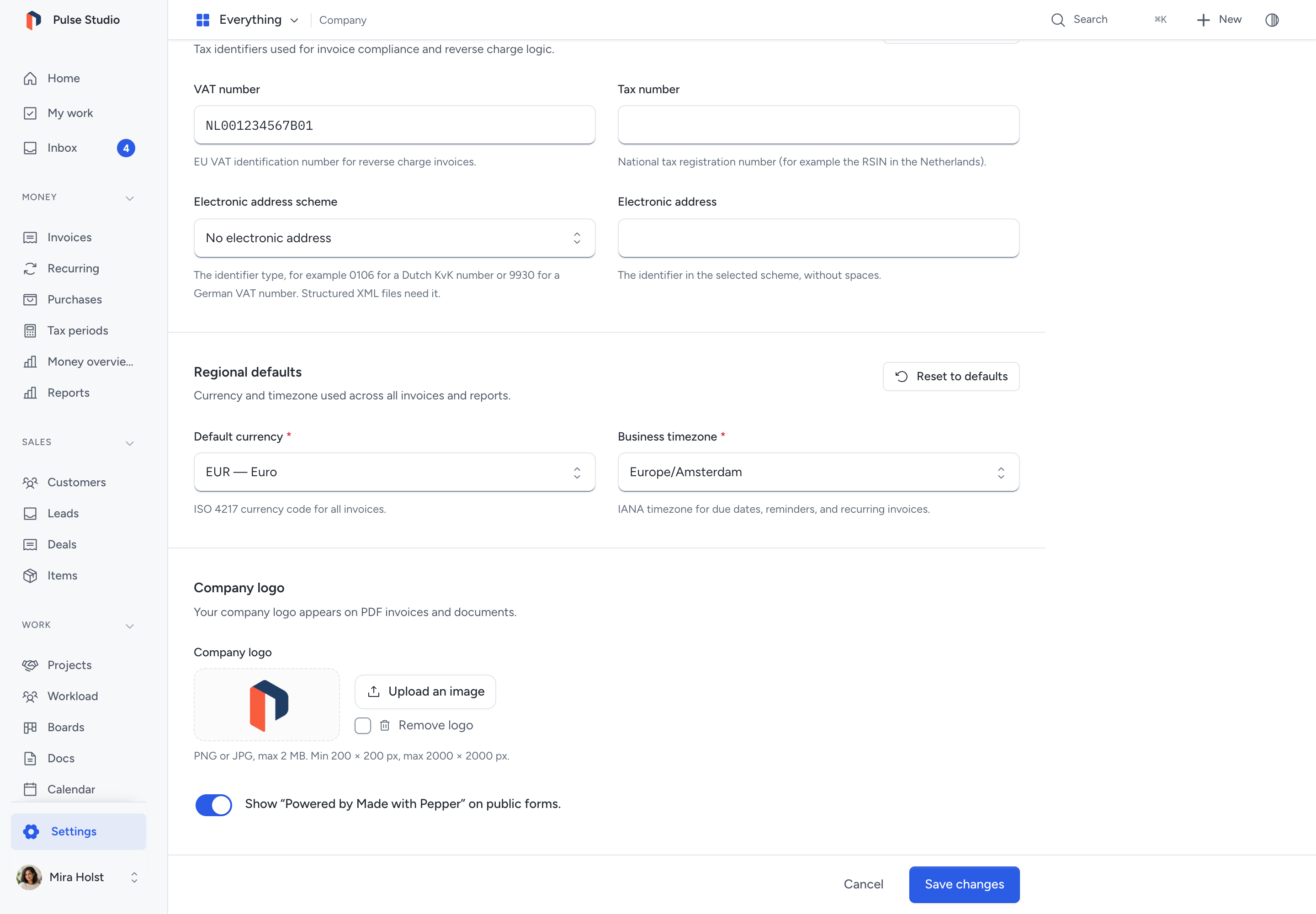
Upload your company logo under the Logo section.
Requirements:
- Format: PNG or JPG
- File size: max 2 MB
- Dimensions: min 200 × 200 px, max 2000 × 2000 px
The logo appears on PDF invoices at the position configured in Settings > PDF & branding (top-left, top-center, or top-right). When positioned top-left, it replaces the company name text in the PDF header.
Removing the logo: turn on Remove logo below the upload area and click Save changes.
Snapshot behavior: when you finalize an invoice, Pepper embeds the logo into the invoice record. Changing or removing the logo after finalization does not affect previously issued invoices.
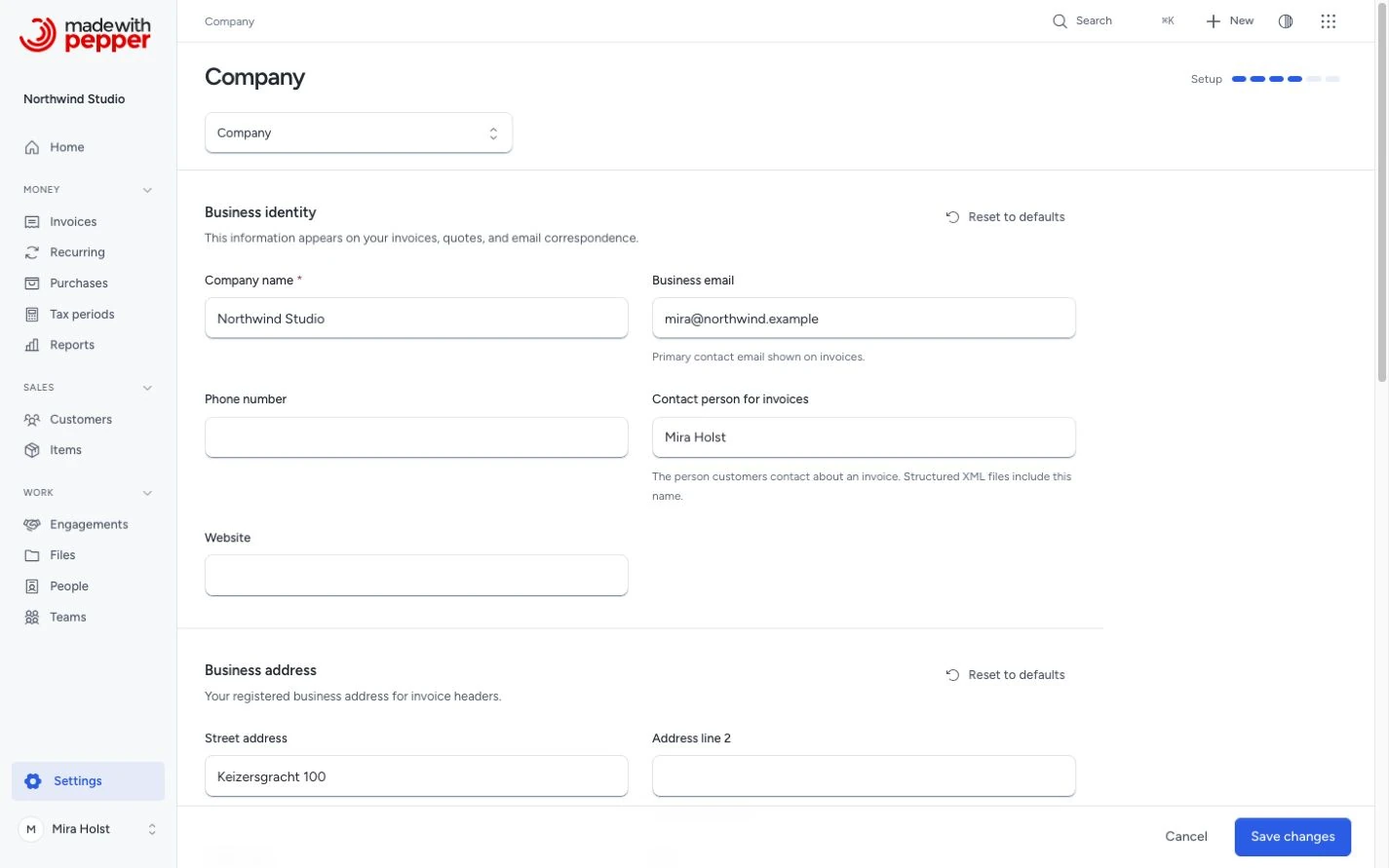
Business identity
| Field | Required | Description |
|---|---|---|
| Company name | Yes | Appears on all invoices and PDFs |
| Business email | No | Your company email address |
| Phone number | No | Company phone number |
| Contact person for invoices | No | The person customers contact about an invoice. The XML export writes this name |
| Website | No | Company website URL |
Business address
Choose the address's country, then enter Address line 1, Address line 2, city, region and postal code. The country changes field labels and printed order. It keeps every entered value.
These fields appear in the From section on PDF invoices. Newly issued documents keep their saved address lines after you change company details. See Enter country addresses for optional fields and printed addresses.
- Open Country code.
- Type a country name or code in Search.
- Choose a result, or use the arrow keys and Enter.
Escape closes the list and retains your choice. Pepper stores the two-letter ISO code, such as NL or DE. It refuses values outside the list.
Currency, timezone and electronic address scheme use the same searchable controls. A timezone keeps its IANA identifier, such as Europe/Amsterdam. Search changes the visible choices; it does not change a value until you select one.
Tax registration
| Field | Description |
|---|---|
| VAT number | VAT identification number, displayed on invoices. Start it with the two-letter country code. A VAT number that starts with NL must have the format NL123456789B01 |
| Tax number | National tax or business registration number |
| Electronic address scheme | The identifier type for structured XML files, for example 0106 for a Dutch KvK number or 9930 for a German VAT number. Select No electronic address to leave it empty |
| Electronic address | Your identifier in the selected scheme. Pepper removes spaces when it saves |
Enter both the scheme and the electronic address, or leave both empty. The form checks the format and the check digits for several schemes and refuses an identifier that fails. You cannot use an email address.
Details for the XML export
Company name is required. You can leave the other identity fields empty for PDF creation, but include the details your business needs. The UBL XML export requires more:
- Company name, Country, VAT number and the electronic address
- A street address, city and postal code for a Dutch company
- For German customers invoiced from Germany: Contact person for invoices, Phone number (at least 3 digits) and Business email
- City and postal code for both parties when both are in Germany
A change here applies to documents you finalize after the change. An issued document keeps the details saved when you finalized it.
Regional defaults
| Field | Required | Description |
|---|---|---|
| Default currency | Yes | Used as the default for new invoices and catalog items (EUR, USD, GBP, etc.). Changing it does not change saved documents, templates or item prices. The language-and-region installer shows and sets this initial currency; later region changes keep it. CSV item imports without a currency column also use it |
| Business timezone | Yes | Sets today's date for new documents, due dates, overdue invoices, reminders, report periods and recurring invoices. Times on screen also use it. Your own timezone does not change these dates |
Reset to defaults
Each section except Logo has Reset to defaults. It asks first, then restores the factory settings of that section only.
Related pages
Need help with the product?
Contact support