
Browse the manual
Bill tracked time
Select unbilled time, review exact rounded lines and prepare an invoice draft, with milestones when needed.
On this page
For: owners and staff who prepare project invoices. What you need: Manage invoices, access to the project, and completed billable time with a rate. The project must use Hourly or Milestones and time billing.
Prepare a draft
- Open the project and its Unbilled work section.
- Select Include unbilled billable time.
- Set From and Through for the entry dates to include.
- Choose a person or All people.
- Choose how to Group time: by task, person, day or one line per rate.
- Check Tax rate. It starts with your active default. Choose No tax to apply none to the time lines.
- For mixed work, select the approved milestones to bill too.
- Check the issue and due dates, then choose Review invoice draft.
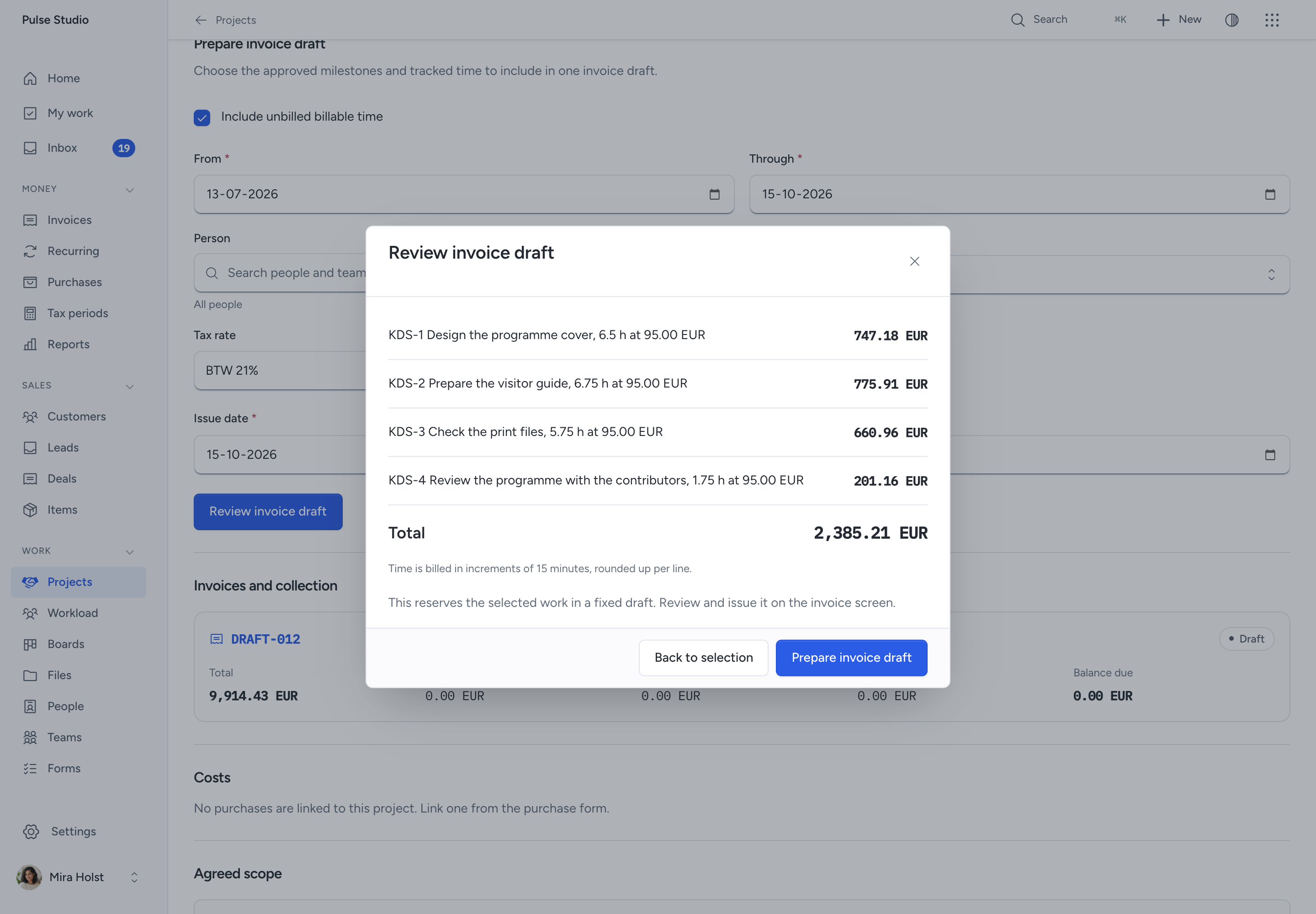
- Review the line descriptions, hours, rates, currency, tax and totals.
- Choose Prepare invoice draft.
Preparation opens the saved draft and locks the selected source entries. It does not issue, send or settle the invoice. Review it and follow Review and issue. Sending is a separate action.
The project uses one customer and currency. Non-billable, running, deleted or allocated entries do not enter the selection. If an entry needs a rate, correct it before preparing the draft.
How the increment works
Suppose a task has entries of 70 and 97 minutes at EUR 95.00 per hour. Grouping them on one line gives 167 minutes. With a 15-minute increment, the app rounds that line up to 180 minutes: 3 hours at EUR 95.00, or EUR 285.00 before tax.
With a 6-minute increment, the same group becomes 168 minutes: 2.8 hours, or EUR 266.00 before tax. The original entries still hold 70 and 97 minutes.
For a US customer, 97 minutes at USD 120.00 rounds to 1.75 hours with a 15-minute increment. The line is USD 210.00 before tax.
The increment applies once to each grouped line. Separate rates always make separate lines, including when you select One line per rate. Changing the grouping can change the total because it changes which minutes share an increment. The preview states the increment and shows the exact result before saving.
The unbilled report uses task, person and rate groups. Choose the same grouping and selection to compare it with a preview. Each currency has a separate total; the app does not convert currencies.
Keep each hour on one invoice
The app reserves each entry once. If someone prepares an invoice from the same time while you review it, the app refuses the changed selection. Return to the project, refresh the preview and review what remains.
Retrying the same preparation returns the same draft. Do not change the request key in a connected client just because a response was lost.
A source-linked draft cannot be edited or duplicated. To change dates, grouping or sources, delete the unissued draft through More actions > Delete draft, then return to the project and prepare a new one. Deletion releases the entries and keeps the allocation history.
After issue, credits and cancellation do not release the entries for another invoice. Correct the existing invoice through its financial actions. Do not bill those hours again.
Resolve a refusal
| Problem | Action |
|---|---|
| Billable time has no rate | Set a valid rate on the entry or its applicable work, then review the entries |
| Rate and project currencies differ | Set a rate in the project currency |
| Selection changed | Reload the project and review a new preview |
| Line description names too many tasks | Group by task or choose a shorter period |
| Project is closed | Reopen the project before preparing more work |
| Billing mode excludes time | Ask a project manager to choose hourly or mixed billing before the first allocation |
The first allocation fixes the billing mode. Deleting a draft does not unlock it. Start a separate project when the billing arrangement changes after that point.
Need help with the product?
Contact support