
Browse the manual
QR codes
Make QR codes for widgets, website pages, links, files, places, cards, apps, Wi-Fi and contacts. Style them, make sets, print sheets and read their results.
On this page
For: people who print or share QR codes for widgets, website pages and other destinations.
QR studio is the set of tools for the codes you print and share. A code can lead to a widget, a page on your website, a web page, a file, a place, a colleague's card or an app. It can also hold Wi-Fi access or a contact card. You can style codes in your brand, make hundreds at once and give your team one card standard.
Every code is a placement on your own installation. Pepper uses no outside link shortener and keeps nothing about the person who scans. Results appear in the same placement register as your other links. Read the QR codes overview for a short summary.
Who: a person who can publish the widget makes its codes and sets. A code for a website page needs View websites to choose a page. In the website editor, Edit website drafts makes and changes the page's codes. Settings > Widgets needs the Manage settings permission. The card standard needs the Manage profiles, teams, hours and rates permission. Only the owner sets up wallet passes.
The QR codes page lists every code you may use in one place. Open it from QR codes in the sidebar. On Everything, it is under Customer services. The Marketing, Website & shop, Venue and Showcase desks also show it.
Each code still belongs to its widget or its website page. The list only brings them together, so you can find a code without knowing where it was made.
Read the list
Each row shows the code's name, where a scan leads and its channel, such as print or online. Open codes come first, newest first. Closed codes stay in the list below them.
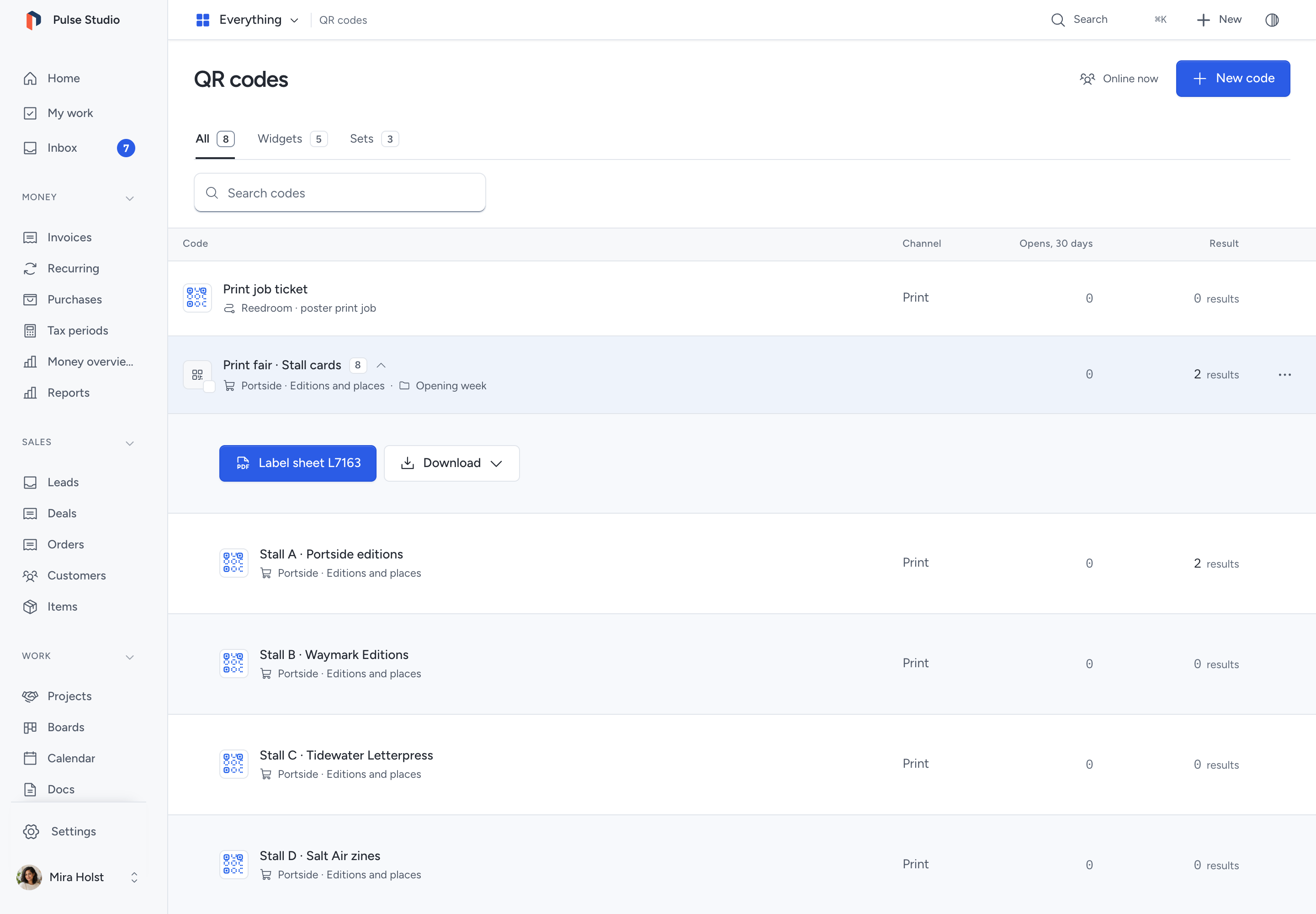
Use the tabs to show one kind of code:
- Widgets: codes that open a widget.
- Website pages: codes that open a page of your website.
- Wi-Fi and contacts: codes that hold the Wi-Fi details or a contact card. A lock marks them, because a printed code of this kind cannot change.
- Sets: a set of codes made together, such as one code for each table.
A tab without codes is not shown. Use Search codes to find a code by its name, by where it leads or by its widget or website. A search also finds a set by the name of a code in it.
A set is one row. Choose Show codes to fold its codes open below it.
When a page code says Page no longer published or Website not published, scans of that code have no live page to open. Publish the page or the website again.
See how often a code is opened
If you may view Analytics, the list also shows two columns. Opens counts the opens of each code over the last 30 days. Result shows what the opens led to most, such as form submissions. On a phone, both figures appear below the code's name. Opens count requests, not people.
Wi-Fi and contact codes do not open a page on your installation, so Pepper cannot count them.
Make a new code
- Click New code.
- Under Where should it lead?, choose A widget or A page on your website.
- Find the widget or page and choose it. When you have more than one website, each page shows its website and full address.
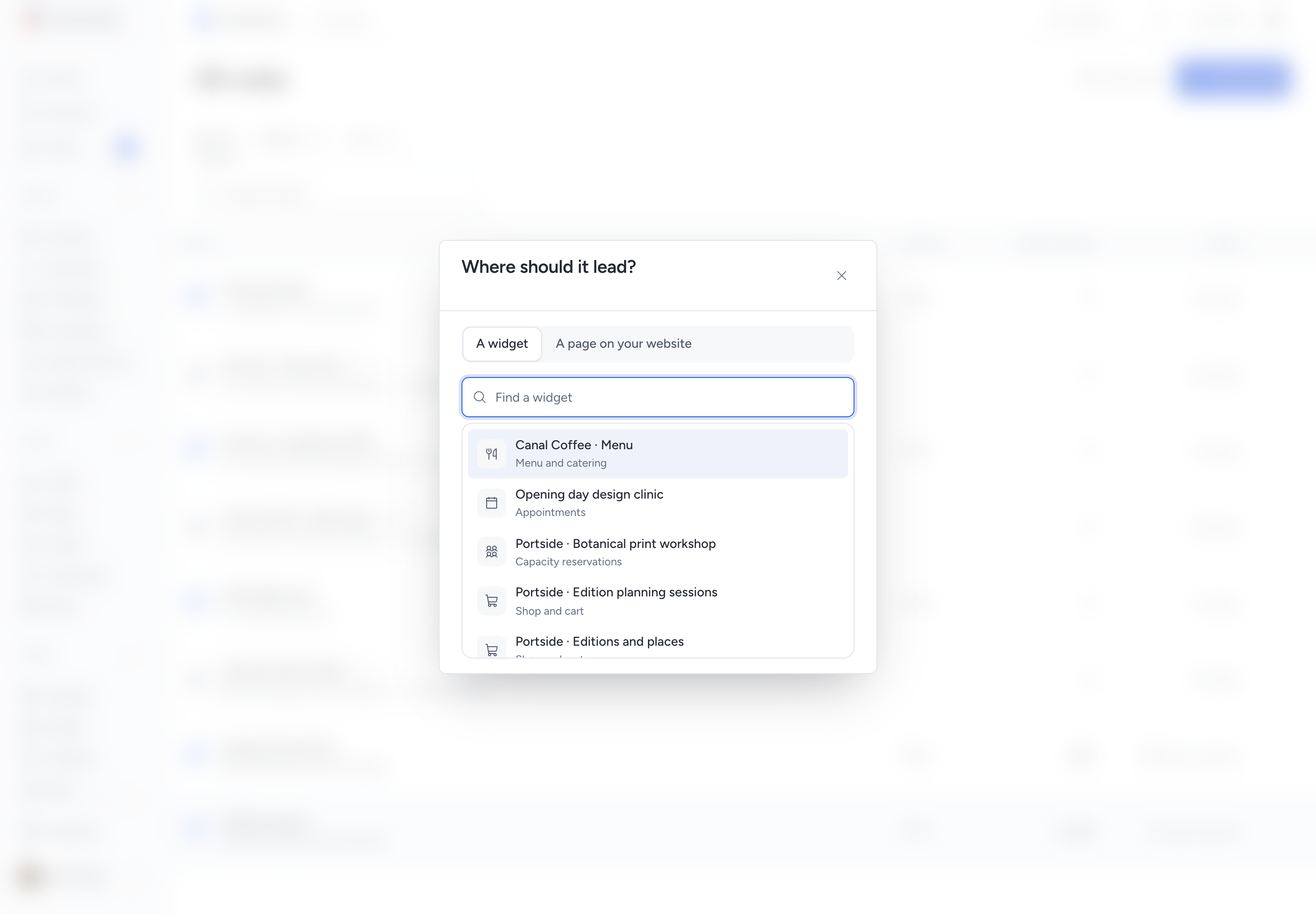
Pepper opens the widget's share settings or the page's panel, with the new code form ready. Name the code there and save it. The code then appears in the list.
You can only choose a published widget that you may edit, or a published page of a website that you may manage. If you have neither, New code says to publish a widget or a website first.
Choose where a code leads
- Open the widget's Publish & share and then Reusable links & QR codes.
- Under Where should this code lead?, choose a destination.
- Fill in the fields for that destination.
- Click Create code, or Save code for an existing code.
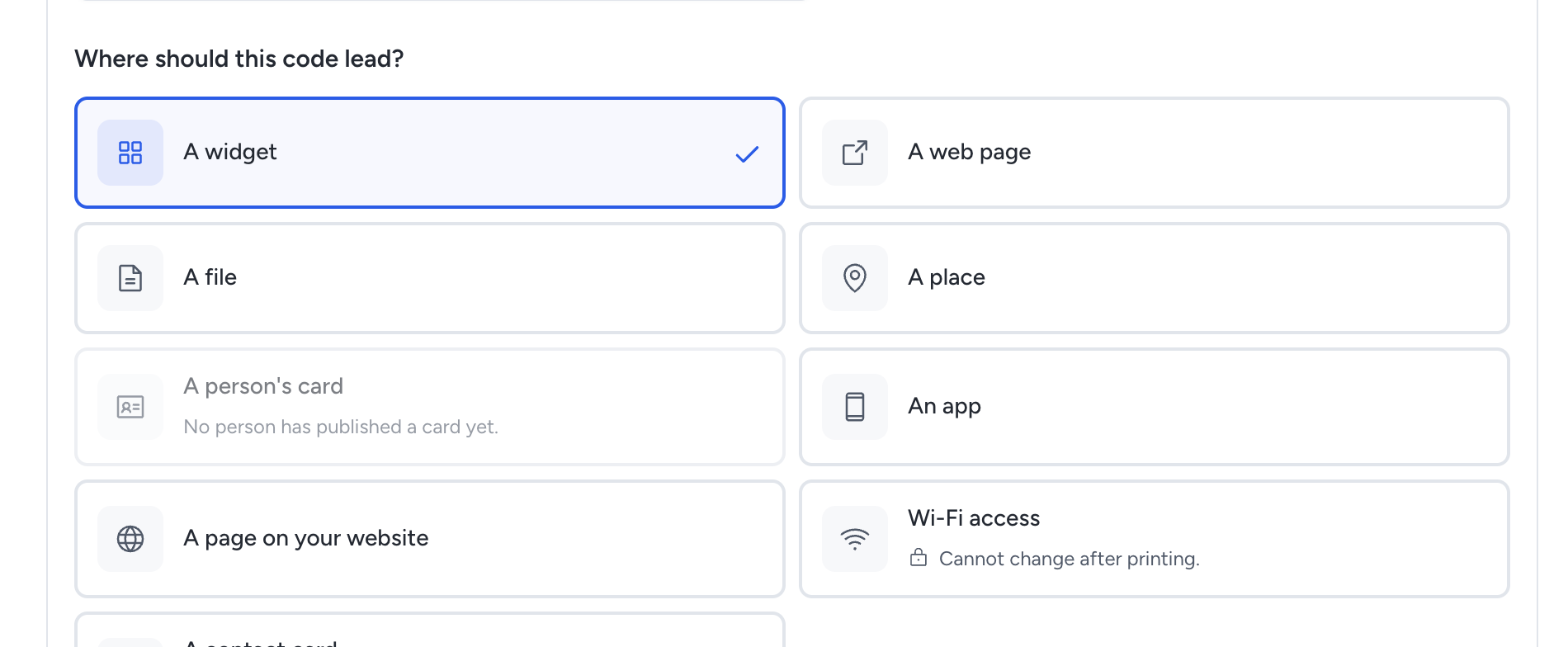
Each choice states whether it Can change after printing or Cannot change after printing.
| Choice | What a scan opens | After printing |
|---|---|---|
| A widget | A published widget of this business | Can change |
| A page on your website | A published page of your Pepper website. The address follows the page | Can change |
| A web page | A web address that starts with https:// |
Can change |
| A file | A share link to a file in Files. Anyone with the code can download the file | Can change |
| A place | A map at an active location | Can change |
| A person's card | A colleague's published business card | Can change |
| An app | The App Store or Google Play page of your app, for the scanning device | Can change |
| Wi-Fi access | Joins your network with its name, security and password | Cannot change |
| A contact card | Saves a plain contact with the fields you fill in | Cannot change |
A page on your website appears when you have View websites and a website is published. It is not offered in customer workspaces. See Codes for a website page.
Choices that need a record show a reason when none exists. A person's card says No person has published a card yet. Each person publishes their own card. A place says Add an active location first. Add locations in a Locations and hours widget.
A web address must start with https:// and use a public host name. Pepper refuses these addresses when you save, with the reason beside the field:
http://,javascript:anddata:addresses;- an address with a user name or password;
- a numeric IP address, or a host name that leads to a private or reserved network;
- a host name that does not exist;
- an address longer than 2,000 characters.
Pepper never opens the web page itself. It only checks the address.
An app link must start with https://apps.apple.com/ or https://play.google.com/. Enter one link or both. An iPhone opens the App Store and an Android phone opens Google Play. Another device sees a Get the app page with both store links.
A place opens the map you choose under Settings > Widgets > Map for place codes: OpenStreetMap (the default), Apple Maps or Google Maps. If the location has coordinates, the map opens at them. Otherwise the map searches for the stored address.
Codes for a website page
Use A page on your website to print a code for a menu, price or contact page of a website you built in Pepper.
- Under Where should this code lead?, choose A page on your website.
- Open Page and type part of the page title or address. Pages are grouped by website.
- Select the page. The exact address that a scan opens appears under the field.
- If the website has campaigns, choose a Campaign, or keep No campaign.
Name takes the page title until you type your own name. You can also start a code from the page itself in the website editor. Read Print a QR code for a page.
A page code reads the published website at every scan:
| What changed | Where a scan leads |
|---|---|
| The page title, page address or website address changed | The page at its current address |
| The page is no longer published | The website's home page, in the same language. The code says This page is no longer published. Scans now open and names the home page |
| The website is not published | Pepper's page for an unavailable code. The code names the website and says it is not published |
| You closed the code | A code made in the website editor opens the website's home page, without the code's campaign. A code made in a widget opens that widget, like every closed placement |
Beside a code whose page or website is no longer published, click Choose a page and select a live page. Pepper saves the code at once and confirms the new page. The printed code and its address stay the same.
A website arrival from a page code carries the code's campaign and channel. Only the first page of the visit carries the code. With audience measurement on, Analytics counts the arrival once, at the page. Website insights list these arrivals under Page codes.
Codes that hold their content
Wi-Fi access and A contact card write their content into the code. Pepper cannot change them later.
- Wi-Fi access: enter Network name (at most 32 bytes), Security and Password. Choose The network is hidden if needed. A WPA or WPA2 password has 8 to 63 characters. A WEP password has 5 or 13 characters, or 10 or 26 hexadecimal digits. An open network has no password.
- A contact card: only the fields you fill in go into the code. Enter at least a name or an organization.
A code holds at most 400 bytes. Pepper stores the Wi-Fi password encrypted. To keep the saved password when you edit, leave Password empty.
Caution: the Wi-Fi password is inside the printed code. Anyone who can see or photograph the code can join the network.
If you edit a Wi-Fi or contact code, printed copies keep the old content. Print the code again after you save.
How scans count
| Destination | Where Pepper counts the scan |
|---|---|
| A widget, A person's card | At the page that opens, as before |
| A page on your website | At the website page, as one arrival with the code's campaign and channel |
| A web page, A file, A place, An app | Once at the redirect, when audience measurement is on |
| Wi-Fi access, A contact card | Not counted. The phone reads the code without contacting Pepper |
A scan of an outside destination counts once per placement and channel. The outside page receives nothing from Pepper. A request that follows it shows source unknown in your records. The editor says Scans still count. Records will show source unknown.
Counting never blocks the redirect. A code still opens its destination when measurement is off.
Style your codes
One installation style applies to every new code. A code can also have its own style.
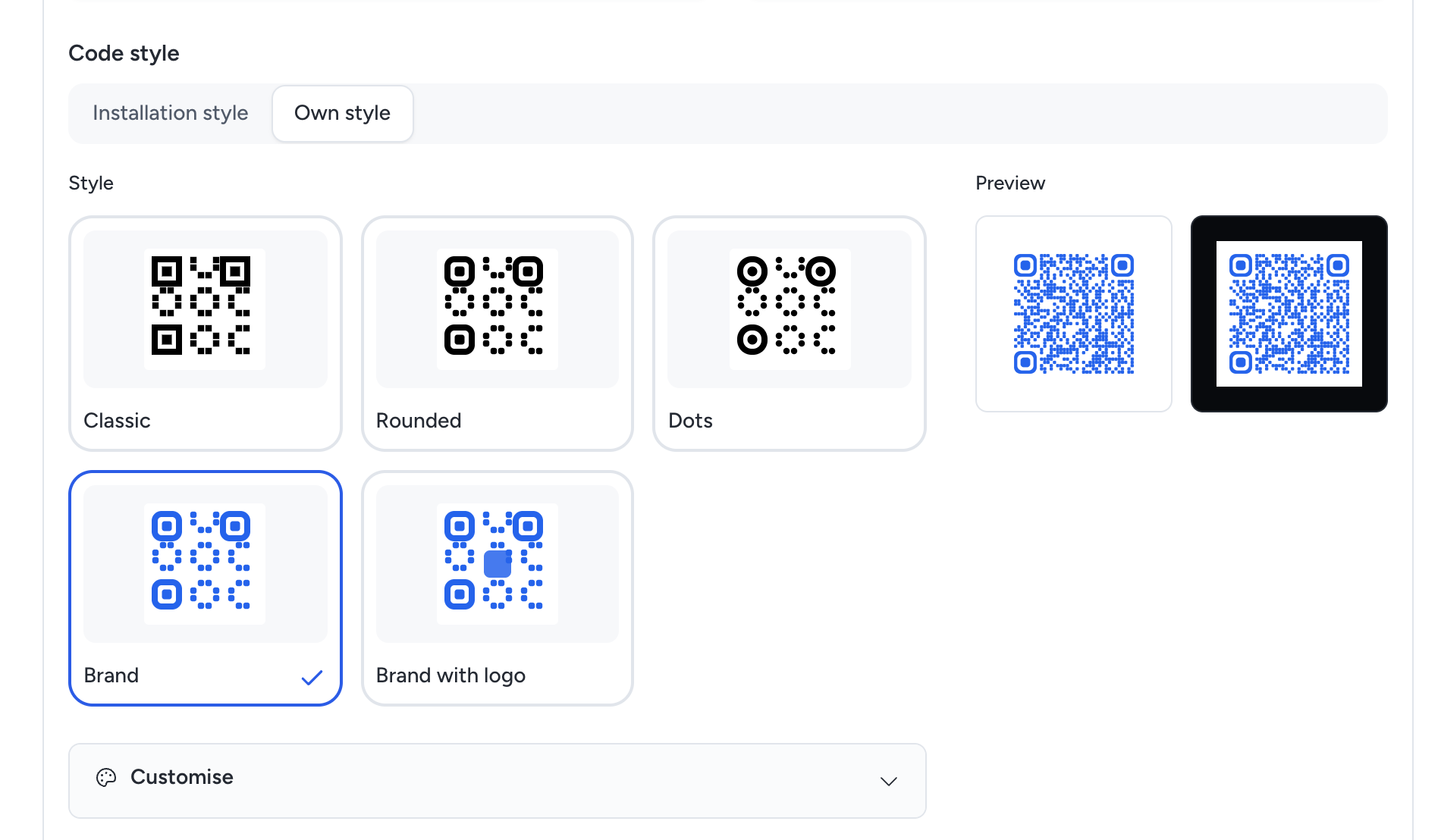
- Open Settings > Widgets.
- Under Codes, click Change code style.
- Choose a style: Classic, Rounded, Dots, Brand or Brand with logo.
- To change details, open Customise.
- Check Preview. It shows the code On a light page and On a dark page.
- Click Save style.
For one code, choose Own style under Code style in its placement form. Installation style follows the style in Settings > Widgets.
| Field | Options |
|---|---|
| Code colour and Background | Your brand colours or any #rrggbb colour |
| Module shape | Square, Rounded or Dots |
| Corner shape | Square, Rounded or Circle |
| Logo in the code | No logo, Company logo or Image from Files, with Logo size |
| Frame | No frame, Text below, Text above or Rounded badge |
| Call to action | The frame text, at most 24 characters, in any language |
SVG, PNG, the A4 and A6 print sheets and label sheets all use the same style. Classic is black on white, as before. Right-to-left text, such as Arabic, gets a right-to-left frame.
Pepper refuses a style that could fail to scan. The message names the limit and your current value.
| Rule | Limit |
|---|---|
| Contrast | At least 4.5 to 1 between code and background |
| Colour order | The code is darker than the background. Light codes on dark backgrounds are refused |
| Logo | At most 12% of the code area. A Logo size of 34% of the code width or less fits |
| Logo file | PNG, JPEG, WebP or GIF. SVG is refused |
| Quiet zone | Always 4 modules of light border |
| Module size | At least 0.5 mm at the smallest print size |
A logo raises error correction to level H, so the code can still be read with its centre covered. Before you print many copies, scan one printed code with the phones and light your visitors have.
If the server has no font support for frames, Pepper shows Frames with text are not available on this server. Choose No frame, or ask your hosting provider to add FreeType support to PHP's GD extension.
Make a set of codes
A set makes many codes in one step, for example one for each table or each product package. A set holds at most 500 codes.
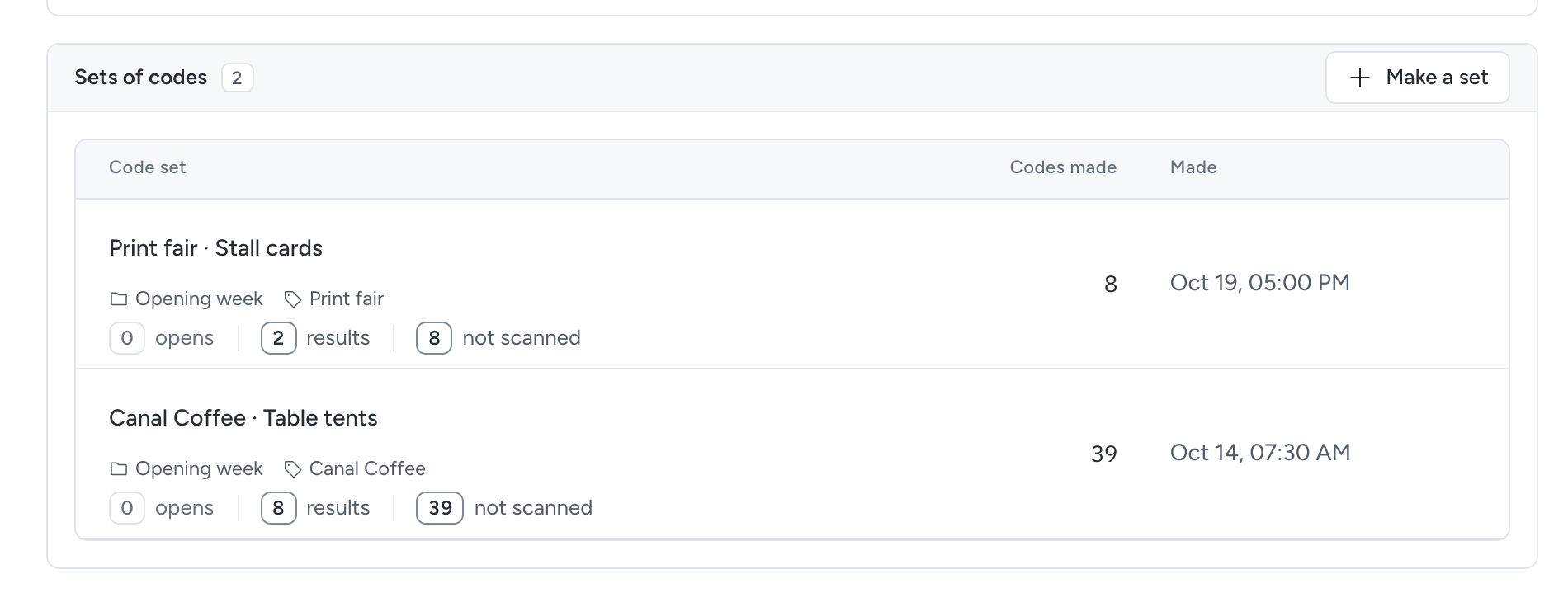
- Open the widget's Publish & share.
- Under Sets of codes, click Make a set.
- Enter Set name.
- Under How are the codes named?, choose Number them or Upload a CSV file.
- Under Where should these codes lead?, choose the destination for the set.
- Click Check the codes.
- Read What will happen. Each row shows Create or Skip with its reason.
- Click Create the codes.
Nothing is saved until you click Create the codes. If something changed since the check, Pepper asks you to check again.
Number them uses a Name pattern with {n} where the number goes, such as Table {n}. Enter Number of codes, First number and Digits. With Digits set to 2, the names read Table 01, Table 02 and so on.
Upload a CSV file reads the columns name, channel, destination and tag. Only name is necessary.
| Column | Accepted value |
|---|---|
name |
The code name, at most 120 characters. A name that an earlier row or an existing code uses is skipped |
channel |
print, online, email or messaging |
destination |
An https:// address, or the ID of a widget or card. With View websites, the exact address of a live page of your Pepper website makes a page code. Empty uses the set's destination |
tag |
A row tag, at most 40 characters |
The file can be at most 2 MB and 1,000 rows. Rows after the first 500 codes are skipped.
A set leads only to addresses, including A page on your website. Make Wi-Fi and contact codes one at a time.
Pepper creates the codes in the background. You can close the window; the progress continues. Clicking Create the codes twice creates nothing twice.
Use Name, folder and tags to group sets. A set has one optional folder and up to 10 tags. Filter the list with All folders and All tags.
Print label sheets and download every code
Open a ready set to see Files to download.
- Label sheet prints the codes on A4 label sheets. Pepper offers L7160 (21 labels of 63.5 × 38.1 mm), L7163 (14 labels of 99.1 × 38.1 mm) and 3×8 (24 labels of 70 × 37 mm).
- All codes as SVG and PNG downloads a ZIP file. One ZIP holds at most 250 codes and 50 MB. A larger set downloads in parts.
Pepper offers a label layout only when each code stays at least 30 mm wide with modules of at least 0.5 mm. Smaller labels, such as L7651, are not offered. Print at 100% scale.
Undo a set
Undo this set removes all its codes in one step. Printed copies stop working.
You can undo a set only while no code in it has a scan or a record and none was changed or closed. Otherwise close the codes one at a time.
See how codes are doing
With View analytics, the widget's Publish & share shows figures for the last 30 days. Each code and each set shows its opens, its results and, for a set, the codes not scanned. A line gives the results per 100 opens. Opens are counted page views and scans, not people. Select a figure to open the same filters in Analytics.
A set's code table adds an Opens column. A Wi-Fi or contact code shows a dash, because its scans never reach Pepper. When Undo this set is unavailable, the set names the codes with scans.
Compare sets
The placement register in Analytics compares the codes inside a set and compares sets with each other. Single codes lists every code outside a set. It shows opens, results, paid money, results per 100 opens and opens per 100 printed copies. Open a figure to see its records within your access. The CSV export has a Placement sets section with the same figures. Read compare QR codes and sets.
Download, copy or close a code
Open the … menu at the end of a row, or right-click the row. Both menus have the same actions:
- Open opens the code where it belongs.
- Edit code opens its form.
- Download SVG and Download PNG download the code at the size that suits its channel.
- Print sheet A4 and Print sheet A6 download a sheet that is ready to print: an A4 poster or an A6 table card with the code, its title and one short instruction.
- Copy scan link copies the address in the code.
- See in Analytics opens the code's figures.
- Close code stops the code.
You see only the actions you may use. For example, a person who may only view a website can open and download its page codes, but cannot edit or close them.
A set has its own menu. Use it to show the set's codes, to make label sheets or to download all codes as a ZIP file.
Close a code
Closing cannot be undone. Pepper asks you to confirm and tells you what a scan opens after that:
- A widget code then opens its widget.
- A page code then opens the home page of its website.
- A Wi-Fi or contact code keeps its printed content.
A closed code keeps its row. Its menu then only has Open and the downloads.
Set a card standard for your team
The card standard gives every colleague's business card the same layout, colours, logo and footer. Each person still chooses their own fields and publishes their own card. No owner or admin can publish a card for someone else.
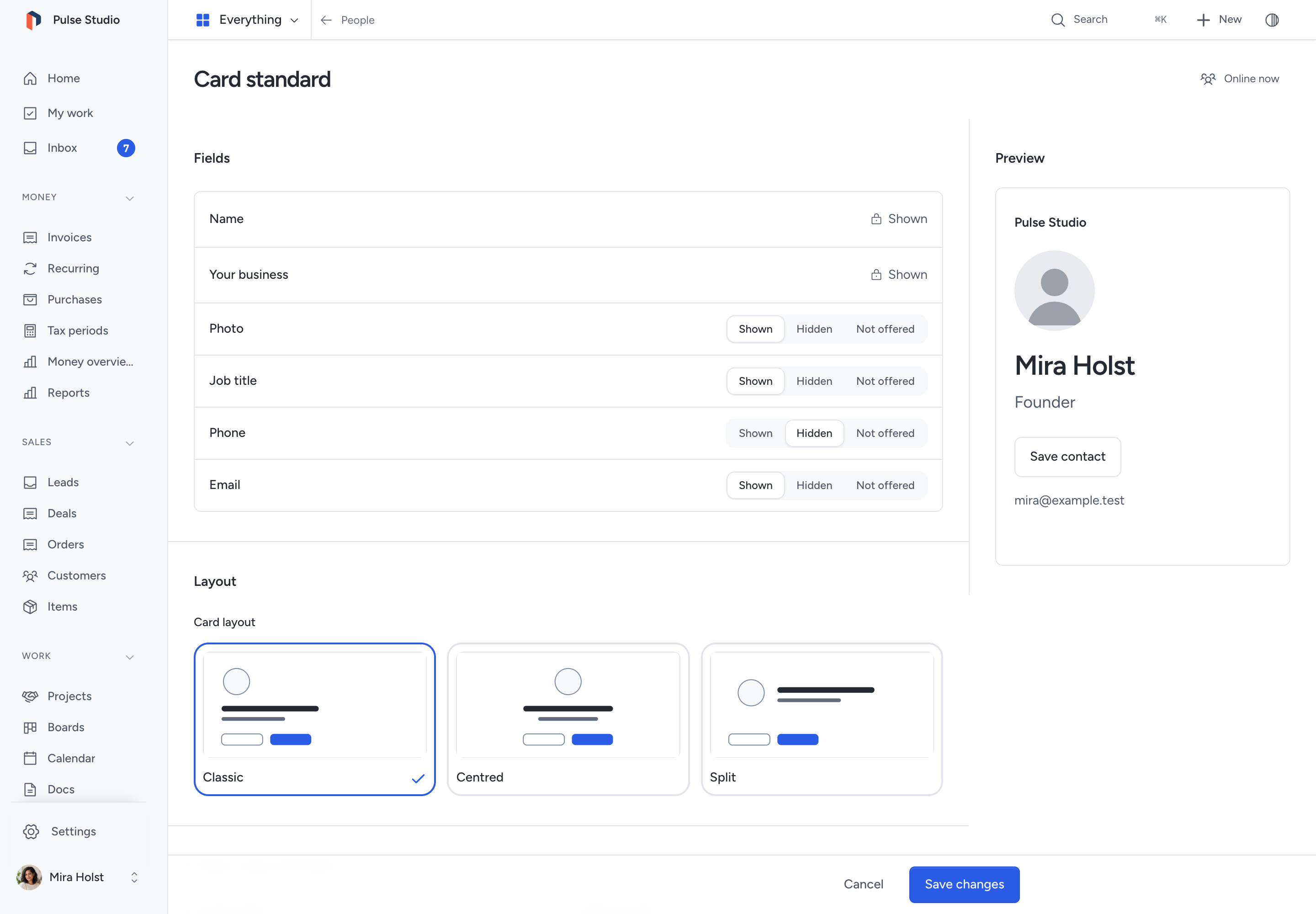
- Open People and click Card standard.
- Under Fields, set Photo, Job title, Phone and Email to Shown, Hidden or Not offered.
- Choose the Card layout: Classic, Centred or Split.
- Set the Accent colour, Logo on cards and Legal footer.
- To add a shared button, turn on Show a call to action.
- Enter Button text and choose where it Leads to.
- Check Preview and click Save changes.
The name and the business name are always on the card. Shown and Hidden set what a new card shows first. A person can change both. Not offered removes the field from every card from the next visit.
| Setting | Limit |
|---|---|
| Legal footer | At most 280 characters |
| Button text | At most 40 characters |
| Leads to | A web page, a widget, a person's card, a place or an existing code. Existing codes include codes for a website page, grouped by widget or website |
| Logo on cards | The company logo, or a JPEG, PNG, WebP or GIF image from Files |
Published cards change from the next visit. Saving publishes, closes or changes nobody's chosen fields. If the button's destination stops being available, cards leave the button out.
Who has a card lists each person with Published or Not published. Click Invite to send one email and one inbox notice with a link to make their card. You can invite each person once. If email is not set up, only the inbox notice arrives.
Deactivation and offboarding close the person's cards and withdraw their Google Wallet passes. Reactivation does not publish a card again.
Compare cards at work
Cards at work on the Card standard page shows how business cards did in the last 30 days. Each figure compares with the 30 days before. You need View analytics; without it, the section does not appear.
- With Manage profiles, teams, hours and rates, you see the team: one row per person whose card was published in the period, and a Team row with the total.
- Every other person sees only their own row.
| Column | What it counts |
|---|---|
| Opens | Counted opens of the card. Opens are not people |
| Saved contacts | Counted contact saves from the card |
| Call or email taps | Counted taps on the card's phone number or email address |
| Messages | Messages sent from the card. A count appears only when you may read every card message of that person. The contents never appear |
Under each figure, was shows the previous period, such as "was 12". If the card was not published in the previous period, no line appears. Pepper never shows a missing figure as zero.
A figure from 1 to 4 shows Withheld, together with one figure beside it. This protects each person. The previous period follows the same rule and shows was withheld. Pepper computes the Team total from every row, withheld figures included. When a column has a withheld figure, its total is withheld too, because the total would show the hidden figures. A total from 1 to 4 is also withheld. The team's message total appears only when every row has a count. Rows are sorted by name.
Draft cards and cards that were never published are not counted. A card closed during the period counts for the days it was published, and its row shows Closed. A card that offboarding closed appears only if it had activity in the period or was published during it.
Select a person's name to open their card in Analytics. The link appears only when you may read that card's report.
The section menu offers Open Analytics and Export CSV. The CSV has the same rows and Team total, with the period dates. A withheld figure is an empty cell, and the row's note gives the reason. An AI client with the same access reads the same result with people.card_standard.get.
When audience measurement is off and nothing was counted, the section shows Analytics is off. With Configure analytics, click Turn on Analytics. When figures exist but measurement is off, a line says Analytics is off, so nothing new is counted.
Copy your email signature
- Open your profile.
- Under Business card, click Email signature.
- Choose Formatted or Plain text.
- Click Copy signature, Copy HTML or Copy text.
- Paste it into the signature settings of your email program.
The signature holds your card link, a link to its code image and only the fields your card shows. If you change your card, copy the signature again. You need a published card to get a signature.
Offer wallet passes
Visitors can add a published business card to Apple Wallet or Google Wallet. This is optional. You use your own Apple certificate or Google service account. Without them, cards show no wallet button and Pepper makes no call to Apple or Google.
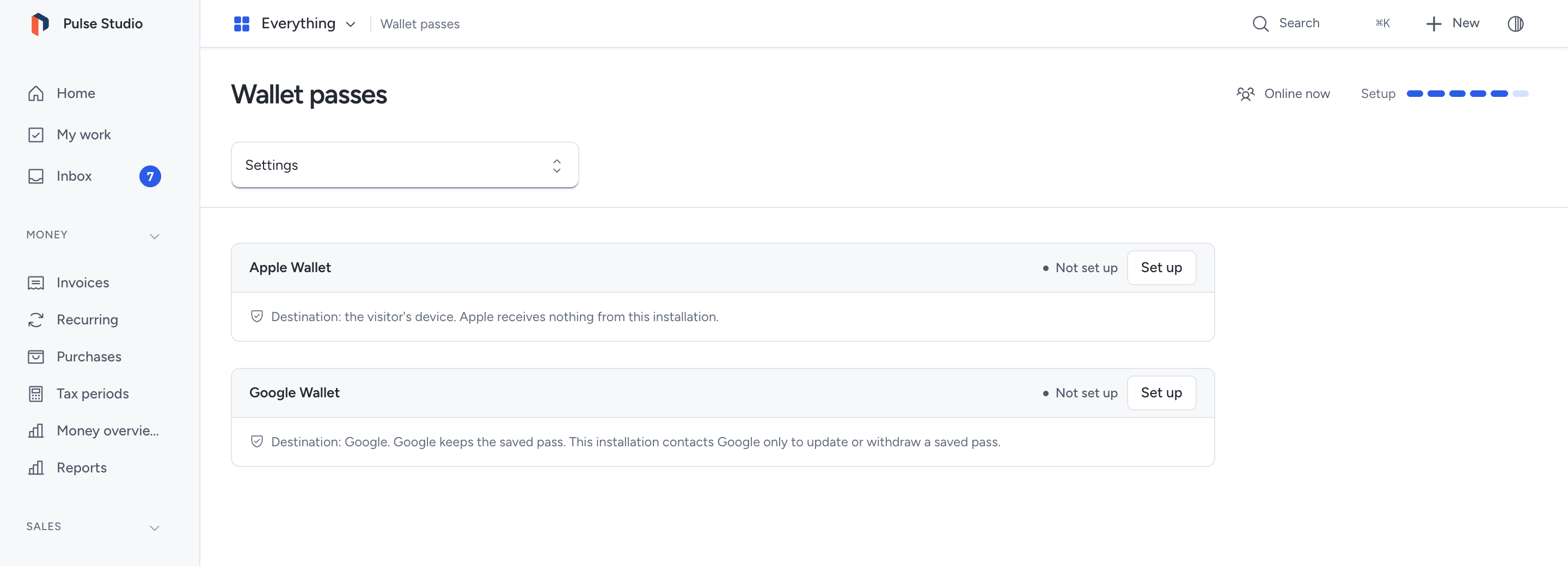
Who: only the owner.
- Open Settings > Wallet passes.
- Under Set up, add the files for Apple, Google or both.
- Click Save.
- Read A pass shows these card details.
- Turn on Offer Apple Wallet on published cards or Offer Google Wallet on published cards.
| Platform | Files you need |
|---|---|
| Apple | Pass type certificate (a .p12 file, or a certificate with a separate Private key), its Password if it has one, and the Apple WWDR intermediate certificate that issued it |
| The Service account key JSON file of a Google Cloud service account with access to your Google Wallet issuer, and the Issuer ID |
Each file can be at most 64 KB. Pepper checks the files and stores them encrypted. Nobody can download them again. Pepper refuses an expired certificate, a key that does not match and a WWDR certificate that did not issue yours.
A pass shows the name and business name, and the job title, phone, email and photo only when the person shows them on their card. It also shows the business logo, the card colour and a code that opens the card.
Published cards then show Add to Apple Wallet or Add to Google Wallet.
| Apple Wallet | Google Wallet | |
|---|---|---|
| Where the pass goes | Signed here and downloaded as a file to the visitor's device. Apple receives nothing from this installation | Signed here. The visitor's browser sends it to Google, which keeps the saved pass |
| When the card changes | A new download gets the current card. A saved pass does not update | Pepper updates the saved pass |
| When the card closes or the button is turned off | A saved pass stays on the device. Pepper cannot remove it | Pepper withdraws the saved pass |
Pepper contacts Google only to update or withdraw a saved Google pass. Turning a platform off removes the button. Remove deletes the stored credentials; you can set them up again later.
Who sees which codes
You see a code only when you may use its widget or its website. A person who works with widgets but cannot view websites sees no page codes. A person who can only view websites sees only page codes.
The list never shows a Wi-Fi password or the content of a contact card.
In a customer account, the owner of that account sees only the codes of that account. Staff of a customer account do not see the QR codes page.
An AI client can read the same list with the widgets.codes tool. It sees page codes only when its connection has the Websites read grant, and figures only with the Analytics read grant. Read Forms and widgets tools.
Related pages
Need help with the product?
Contact support