
Browse the manual
Set up Assistant
Choose a hosted provider, control which data leaves your installation, and set request and history limits.
On this page
The owner can enable a chat panel that uses Pepper's permitted business tools. You need your own provider account, API key and a model that supports tool calls. Provider charges are separate from Pepper.
Without this setup, the panel is absent and Pepper makes no generation requests. Ordinary work and external MCP clients keep working.
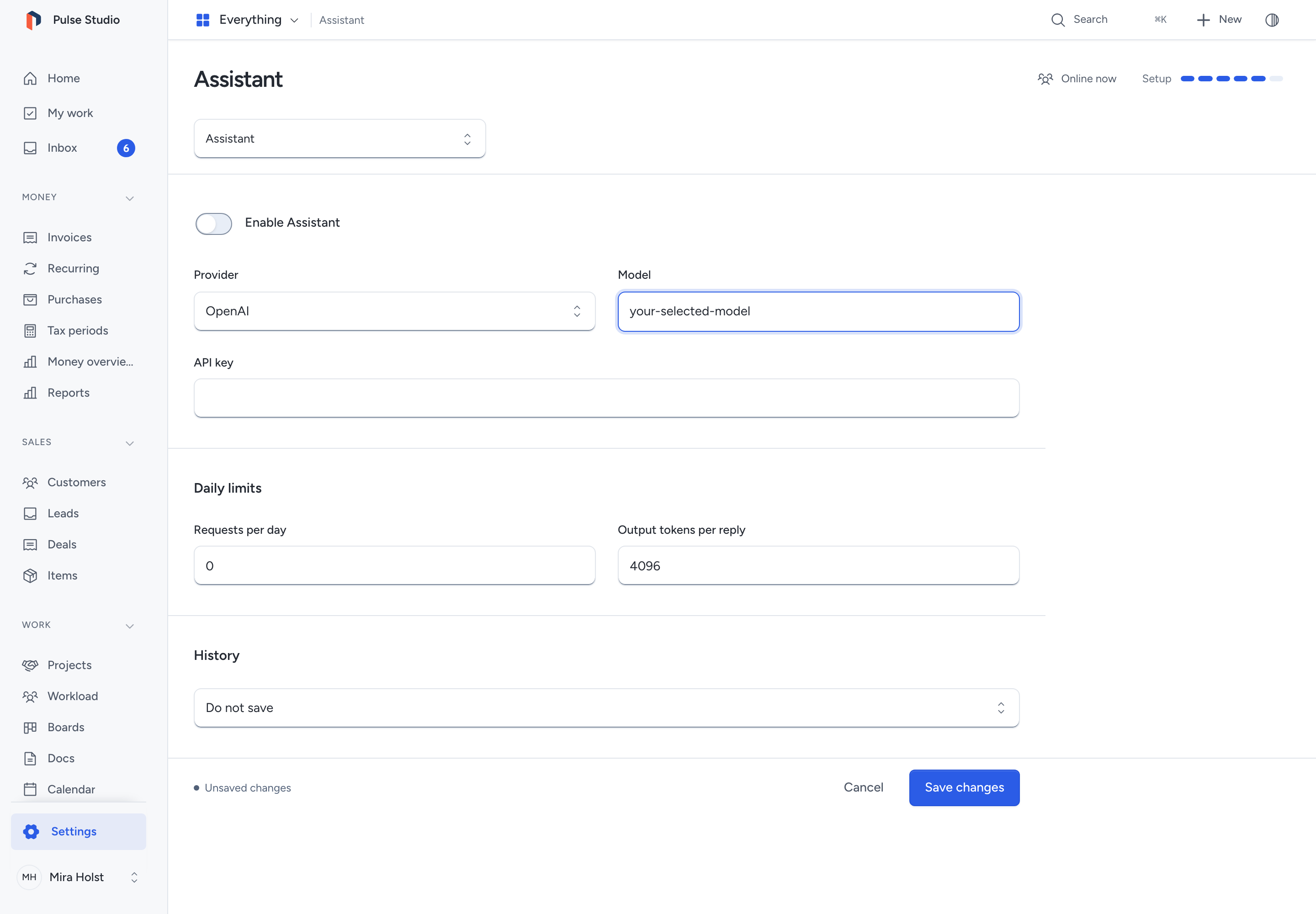
Choose a provider
- Open Settings > Assistant as the owner.
- Select Enable Assistant.
- Choose Anthropic, OpenAI or OpenAI-compatible.
- Enter the exact Model identifier from your provider account.
- Enter your API key.
- For a compatible provider, enter its API base URL. It must be a public HTTPS address. For Anthropic, expand Connection details if your account needs a Workspace ID.
- Set Requests per day, Output tokens per reply and Keep conversations.
- Read Data sent and the provider's terms.
- Select the disclosure checkbox.
- Click Save changes.
Saving makes no test request. Each person must then allow their own tools before using chat. Guests cannot use Assistant. Other staff cannot read or change the owner's provider settings.
Pepper uses one selected provider and model. It never switches to another provider after an error. The compatible profile uses Chat Completions; a service calling itself compatible must support its tool-call format. Local HTTP endpoints, streaming and provider-hosted tools are unavailable.
For a compatible service, use its API base, such as https://api.example.com/v1. Pepper appends /chat/completions. Do not paste that complete route or put a key in the URL. Use the final HTTPS address; Pepper does not follow redirects.
Pepper encrypts the key on your server. The form never displays a saved key. Leave the field blank to keep it, or enter a new key to replace it. Changing the provider or compatible destination requires a new key. Validation errors do not return the key to the page.
Set limits
| Control | Behavior |
|---|---|
| Requests per day | 1 to 10,000 generation requests for the installation, counted by UTC day |
| Output tokens per reply | 128 to 4,096 tokens for each provider reply |
| Concurrent generation | One request at a time for the installation |
| Turn limit | At most 12 dispatches and 12 tool calls |
| Active processing window | 60 seconds; confirmation waits have their own expiry |
| Provider request | At most 20 seconds, bounded by the remaining turn time |
| Automatic retries | None |
A task can need several provider requests. Confirming a card starts another active processing window without resetting the turn's dispatch limit. A timed-out request remains charged against the daily count. Disabling, changing settings or deleting history does not reset usage. Unknown provider usage stays unknown. These controls do not guarantee a currency spending cap; check pricing and billing limits with your provider.
Three consecutive failures pause new calls for 5 minutes. After that, a person's next request can try again. Pepper does not poll the provider in the background.
Control disclosure and history
The provider receives the person's messages, selected task instructions, permitted tool definitions and selected business results needed for that request. Grant tools narrowly and avoid putting private information into a message unless you intend to disclose it. Pepper checks current access before reading records and using returned results.
Depending on the selected tools, results can include record names, Doc and comment text, project or sales facts, financial lines and exact totals. File reads disclose metadata such as names and sizes, without file bytes or download links. Review the tool groups before granting them.
Keep conversations starts at Do not save. You can choose 7 days or 30 days as the maximum retention for saved display history. A conversation keeps at most 20 completed turns; its data limit can remove older turns sooner. Selecting Do not save clears stored conversational text. Short-lived operational state can retain confirmation inputs and action receipts for up to 24 hours of recovery eligibility. The scheduler removes expired bytes on its next successful hourly cleanup. Keep the scheduler running.
People can delete their own local history from their profile, including when Assistant is disabled. Deletion preserves business records, action/request facts and charged usage. Your backups may retain older copies.
Your provider controls copies it receives. OpenAI requests use store: false, which does not remove all provider retention. Read OpenAI data controls, Anthropic retention terms, or your compatible operator's terms. Pepper makes no zero-retention or data-residency promise.
Disable or change the connection
Clear Enable Assistant and save to stop new generation requests. To remove the key, select Remove saved API key and save.
Saving settings withdraws existing personal Assistant grants and discards pending confirmations. People must allow tools again. An action already started can finish; its business result and charged usage remain. A saved history choice never gives a new grant access to old protected source data.
Recover from setup errors
If the provider cannot respond, check the selected model, key, endpoint and account limits. Pepper shows the error without switching providers or retrying in the background. Start a new request after fixing the cause.
If settings or access changed, read the current state and allow tools again. Review the source record before repeating an action with an unknown outcome. See use Assistant.
Need help with the product?
Contact support