
Browse the manual
Boards and cards
Organize work in boards, connect cards to business records and share access with colleagues or guests.
On this page
For: people who organize client work, requests or ideas with colleagues.
Where: Work > Boards. On a phone, open More, then Boards.
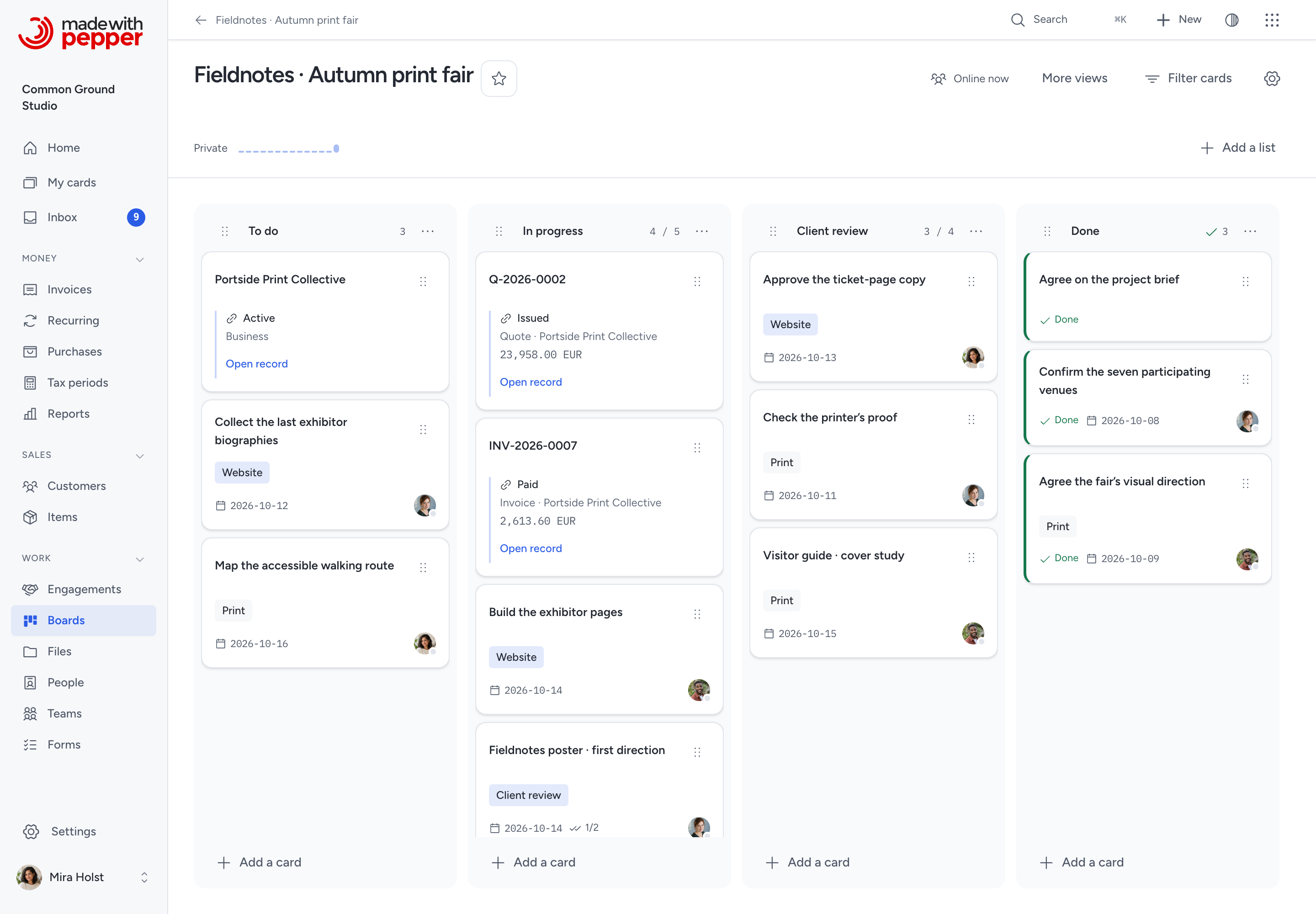
A board holds lists of cards. A card can describe a piece of work or link to a customer, invoice, project or another business record.
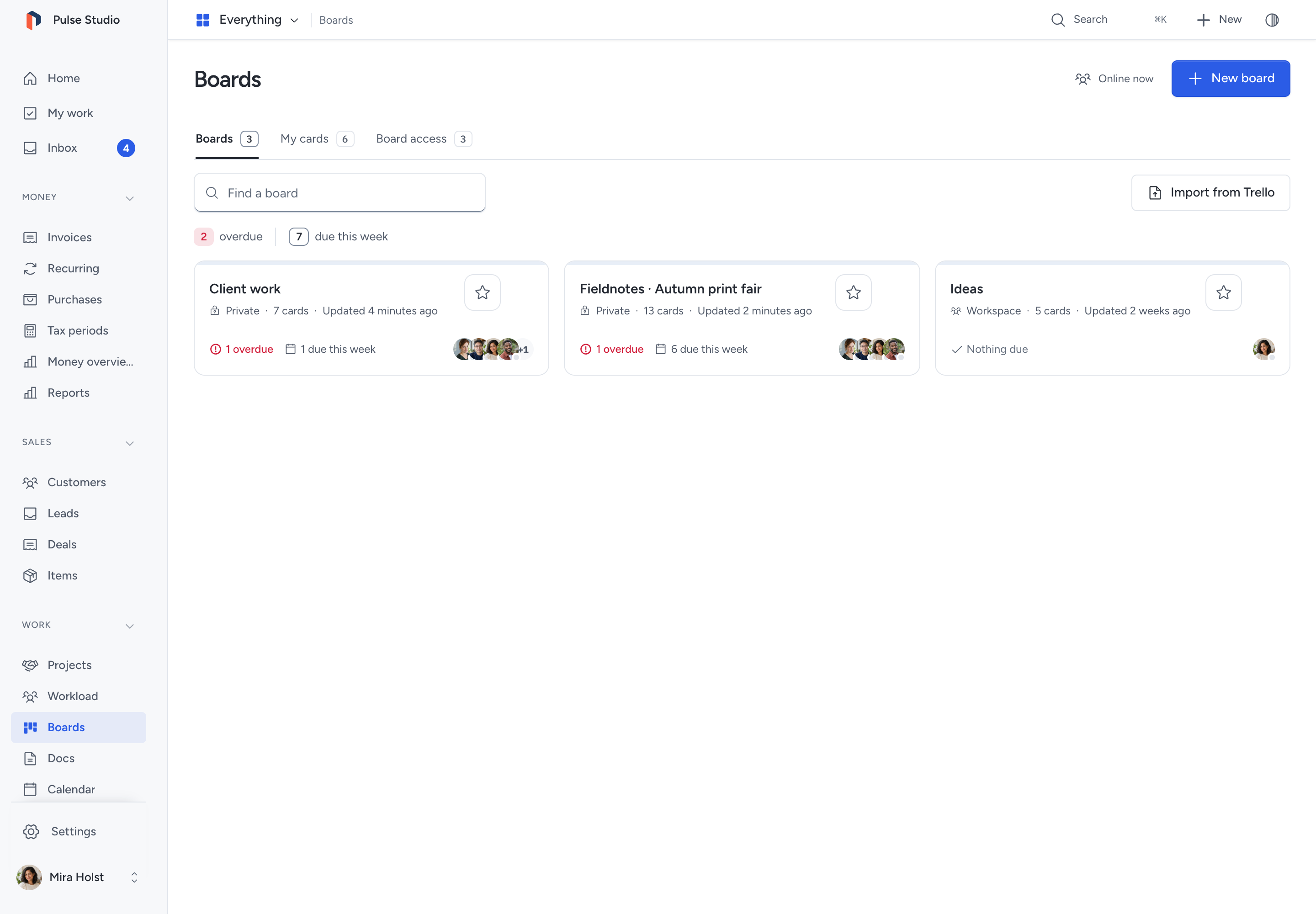
Boards, My cards and Board access
The three tabs answer different questions:
| Tab | What it shows | When to use it |
|---|---|---|
| Boards | Boards you can open | Create a board or continue working on one |
| My cards | Your assigned, due, overdue or watched cards across boards you can open | Find your next piece of work |
| Board access | All board names and admins, including private and archived boards | Recover access as an installation owner or admin |
Board access is available only to people with Recover and manage boards permission. Listing a private board here does not reveal its cards. Click Join as admin and confirm to gain access. The board admins receive a notification, and the join appears in activity. If you are already a board admin, click Open.
Above the boards, one line counts the open cards that need attention: overdue and due this week. Click a count to show only the boards that hold those cards; click it again to show all boards. The line does not appear when nothing is overdue or due this week.
Each board shows:
- Who can see it, its number of cards and the time of the last card change.
- Overdue and due this week counts for its open cards, or Nothing due.
- Its members.
The figures include only cards you can open. Archived cards and lists are not counted.
An empty Boards tab offers New board. My cards and Board access explain what will appear there; use the tabs to return to Boards.
Create a board
- Open Boards and click New board.
- Enter its Name.
- Under Start with, choose Ideas, Project, Kanban, Weekly planning, Announcements, Retrospective or Client work.
- Click Create board.
The board starts private, with you as its admin. Its example cards show how to add and move work. Click Remove example cards beside Add a list when you no longer need them.
Click the star beside the board title to keep it in Favorites. Open Board settings to change its name, background or access.
Add and edit cards
- Click Add a card below a list.
- Enter what needs doing. For example, type
Call Acme tomorrow @Anna. - Review any date, person or label chips before saving. Names and labels must already be available on the board.
- Click Add.
Date words follow your interface language. Pasting several lines offers one card per line, up to 50 at a time. You can also drop files onto a list; an image becomes its card's cover.
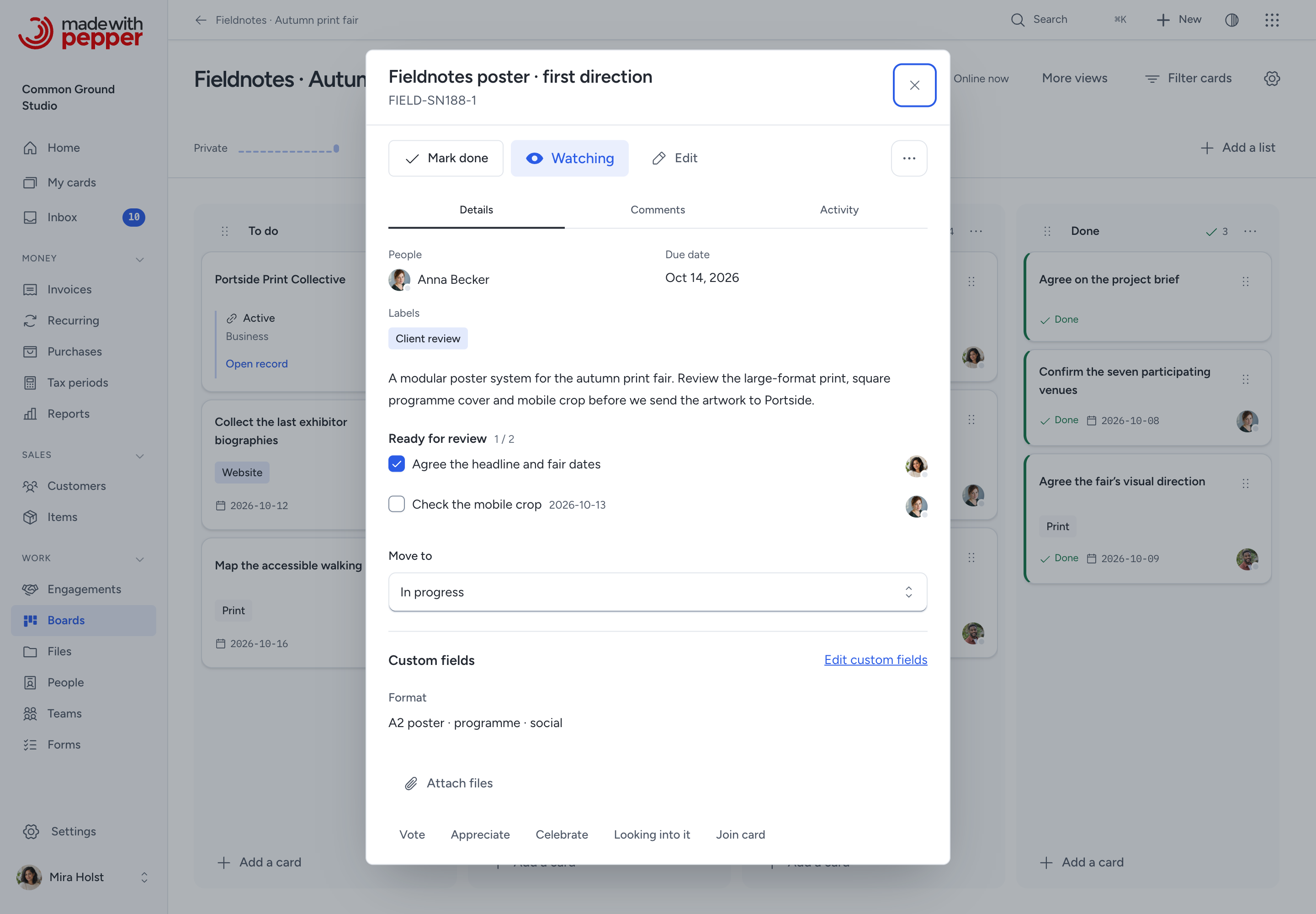
Open a card to change its description, labels, people, dates and checklists. Checklist items can have a person and a date. Attach files, choose an image cover, comment, mention someone, vote or watch the card. A board admin can add custom card fields through the shared field editor.
The card has its own address. Copy that address to share it with someone who can open the board. Browser Back closes the card and returns to the board.
In the demo, changes are not saved. The card stays open and shows a read-only message. If your access to the page ends, Pepper hides the record and offers Return to Home.
Keep business records with the work
On a customer, lead, deal, document, project, purchase, file, comment, form submission or person, choose Add to board. Select a board and list, then click Add. The card links to the original record. Linked cards appears on that record when you can open at least 1 linked card.
To create a board for a project, open the project’s Overview tab and choose More > Create project board in the header. This opens the same creator as Boards > New board, with the project already linked. Choose a title and template, then click Create board. The board appears under Boards on the project. A project board has the same visibility and member controls as any other board.
You can also paste a Pepper record address into Add a card or drop it on a list. External website addresses do not get fetched for previews.
A linked card shows the original record's confirmed state and, where available, its amount and next action. Moving an invoice card does not issue the invoice, record a payment or change its financial state. Make those changes on the invoice itself.
Each person sees only the linked records they can open. Someone with board access but no access to an invoice sees Restricted record instead of its private details.
Move work and follow progress
Drag a card by its handle, or open the card and use Move to. You can move it within a board or to another board you can edit. Moving to a board with guests shows who will gain access before you confirm.
For keyboard movement, focus the drag handle. Press Space to pick up the card. Use the arrow keys, then press Space or Enter to drop it. Escape cancels the move. On a phone, hold the handle to start a drag; moving toward an edge scrolls the board. You can also swipe between lists.
The board fills the available screen height. Each long list scrolls vertically, and the horizontal scrollbar stays at the bottom of the board area. To add a list, click Add a list in the board toolbar.
Open a list's menu to rename it, set a work-in-progress limit or mark it as a done list. You can copy a list, move all its cards or archive it. Drag a list's handle to change its position.
The header shows cards finished per day over the last 14 days. Old untouched cards fade slightly. Cards can move into a list while none move on. The list then shows how many arrived, for example 5 cards moved in over 7 days and none moved on. It needs at least 3 cards moved in from other lists; cards created in a list do not count. These cues describe the work; they do not score people.
Other people's saved moves arrive without a page reload and briefly show who moved the card. Reduced-motion settings remove the movement effects.
Find your work
- Use My cards for Assigned to me, Due today, Overdue or Watched. Each card shows its board and list, its due date and its members. A past due date shows in red as Overdue. Click a card to open it on its board.
- Use Filter cards inside a board to filter by text, person, label or due date.
- Use More views to open cards in other available layouts, including a list, table or calendar. Save useful views through Saved views.
- Press
?on a board to see its shortcuts. Shortcuts do not run while you type in a field.
Assigned and due cards also appear among Home's next actions. Watching a card keeps its updates close without assigning the work to you.
Share a board
In Board settings, choose Who can see this board:
| Visibility | Who can open it |
|---|---|
| Private | People explicitly added to the board |
| Team | Members of the selected teams and people explicitly added |
| Workspace | Internal people with Use boards permission |
Before a change gives more people access, Pepper shows the audience change for confirmation.
In People, give each person a board role:
| Role | What it permits |
|---|---|
| Admin | Board settings, visibility, people and archiving, as well as card work |
| Member | Create, edit and move cards, and join conversations |
| Observer | Read, comment, react and vote |
A board must keep at least one active admin. An installation owner or admin does not silently receive access to private cards; Board access provides the recorded recovery action.
Guests need the boards module in their invitation and explicit membership of a private board. They can be members or observers. A persistent banner identifies boards with guests. Team and Workspace visibility do not give guests access. Access to linked customers or invoices still depends on their separate grants.
Removing an explicit member takes effect on their next request and live refresh. Team or Workspace visibility can still give internal people access. Remove that access too if the person must no longer open the board. Open board content closes when access ends. Offboarding transfers board administration and open card assignments to the chosen successor.
Create cards from form responses
In the form builder, use Create a card for each submission. Choose a board, a list and a required text field for the card title, then save and publish the form.
Each accepted response creates a linked card. This also works when the form is embedded as a website widget. The destination board controls access to the response and its uploaded files.
The person configuring the destination needs permission to write to that board. If they lose access, or the board or list is archived, the form stops accepting new responses until its destination is corrected. See Forms and Website forms.
Import a Trello board
- Export the board as JSON from Trello.
- In Boards, click Import from Trello.
- Choose the JSON file, up to 10 MB.
- Click Preview import.
- Review the lists, cards, labels, comments, matched people and warnings.
- Click Import private board.
The imported board starts private. Lists, cards, labels, checklists and dates are retained. Comments include their original author and date as text. People are matched by email within the directory you may use; unmatched people are left unassigned.
Attachments remain links to their original locations. Pepper does not download them or connect to your Trello account. Review the preview's warnings before importing. Importing the same file again with the same account returns the existing board instead of creating duplicates.
Recover changes, archive and export
After a move, archive or supported bulk change, use Undo while it is available. If someone has changed the same card, review the latest values and your draft. Choose which to keep, then save. An offline draft stays in the open editor; it is not saved until the server accepts it.
In Board settings > Keep a copy, you can copy, export or archive the board. Archive keeps the work and prevents edits. A board admin can open an archived board and use Restore.
- Export JSON retains board work, conversations, votes, custom fields and current attachment contents that you may read.
- Export CSV is a card summary.
- A copied board starts private with you as its admin. It keeps completion and archive states and copies files independently; conversations and votes stay on the original.
Permanent deletion requires a fresh, complete JSON export and the board name typed in full. If the work changes after export, export again. An incomplete export or CSV summary cannot authorize deletion. A linked record that is missing or outside your access makes the export incomplete; the board stays in place.
A board export does not replace an installation backup. The installation backup also retains the linked business records and wider history.
Notifications and limits
Assignments, mentions, watched-card comments and scheduled due reminders use the shared inbox and notification settings. See Comments and the inbox.
Boards are not public website pages. This release does not include a power-up marketplace, board automation rules or AI board actions. A connected AI client can read permitted boards and make the board, list and card changes that its person may make, such as labels, dates, completion, archive and new lists. Each change shows in the card activity as done through the connection. It receives no access beyond the person who connected it. See Board, card and file tools.
Link tracked work
Use Add to board on a task or time entry to keep its current facts beside the discussion. A task card shows its key, status and the logged time the viewer may see. The original record still controls access. A board member without task access does not gain it from the card.
For work that needs estimates, a timer or invoice preparation, open the card’s More menu and select Convert to task. Choose a project or keep the task standalone. The original card keeps its comments, files, cover and links. The task receives copies of the work, comments and files, with normal task permissions. See task conversion and access. Moving an ordinary card between board lists does not change the linked task's status or billing.
Need help with the product?
Contact support