
Browse the manual
Choose and arrange your desks
Start with the pages for your work, arrange their order and give each person the desks they need.
On this page
For: people who work in Pepper, and owners or admins who manage access.
A desk gives you a Home page and a short list of pages for one kind of work. Choose its name in the top bar to switch. Your records stay where they are.
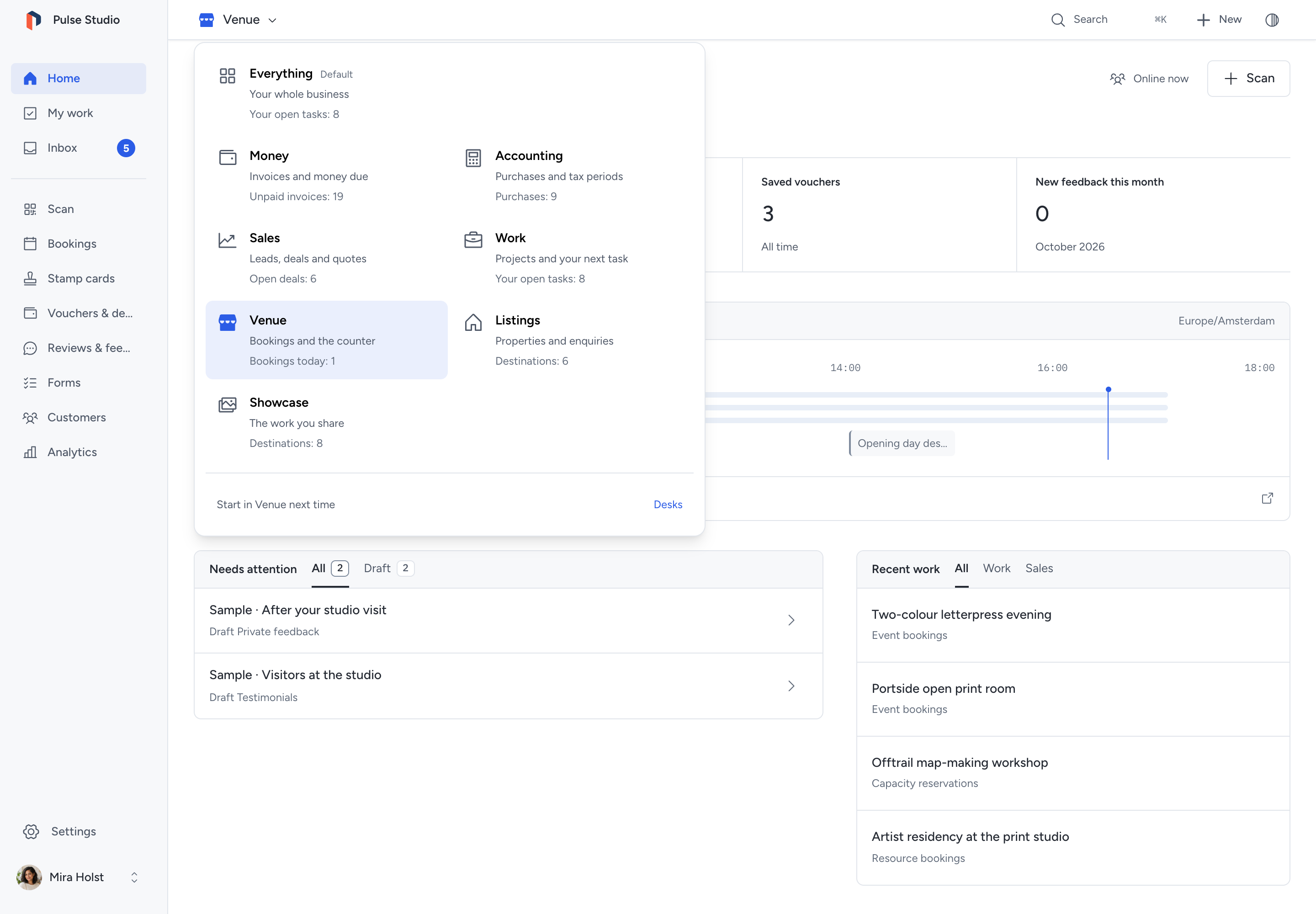
Choose where to start
- Open the desk menu in the top bar.
- Choose a desk. Pepper opens its Home page.
- To open there after your next sign-in, open the menu again and choose Start in … next time.
Your own start choice takes precedence over your role's choice and the installation default. Signing in opens your start desk. Switching during a session does not change that saved choice.
With one available desk, its name is plain text. The menu opens below its name at every screen size. Scroll inside it if the choices exceed the available space. More also lists your other desk pages and desks.
Press D outside a field or open dialog to open the menu. A focused card or task keeps its D due-date shortcut. G, then D, still opens Deals when you may use it. Use arrows to move, 1 to 9 to choose a visible desk, and Escape to close it. Focus returns to the menu trigger after a switch. If your device requests reduced motion, desk changes are immediate.
Owners and admins can open unused desks under More desks. Opening one does not assign it to anyone else.
Find the right desk
| Desk | Starting pages | Home shows |
|---|---|---|
| Everything | The full grouped navigation | The existing Home overview |
| Money | Invoices, Quotes, Recurring, Customers, Items and Money overview | Cash in, money owed, quotes and unbilled work |
| Accounting | Purchases, Tax periods, Invoices, Reports and Files | Recorded purchases, missing receipts, uncategorised lines and quarter exports |
| Sales | Leads, Deals, Customers, Quotes, Items, Forms and Analytics | Pipeline figures, new leads and deal stages |
| Work | Projects, Boards, Workload, Files, People, Teams and Proofs & progress | Work figures and your week of assigned tasks |
| Venue | Scan, Bookings, Stamp cards, Vouchers & deals, Reviews & feedback, Forms, Customers and Analytics | Stamps, rewards, saved offers, feedback and today's bookings |
| Listings | Listings, Enquiries, Bookings, Forms, Customers and Analytics | Open listings, enquiries, viewings and subscribers |
| Showcase | Stories & updates, Reviews & feedback, Proofs & progress, Downloads, Links & hours, Contact cards, Surveys & polls and Analytics | Available content and response figures |
Your permissions determine which entries and figures appear. A desk with no page you may open is left out. Figures use saved records; currencies stay separate. Unavailable sources are omitted. A visitor-count figure is not available.
The four instruments use the same records as their linked pages. Today shows booking times in the business timezone, with the next booking highlighted. Stages shows open deals and their values when you may see financial summaries. Quarter shows whether a quarter was exported and whether its figures have changed since. My week shows your assigned tasks, including completed tasks.
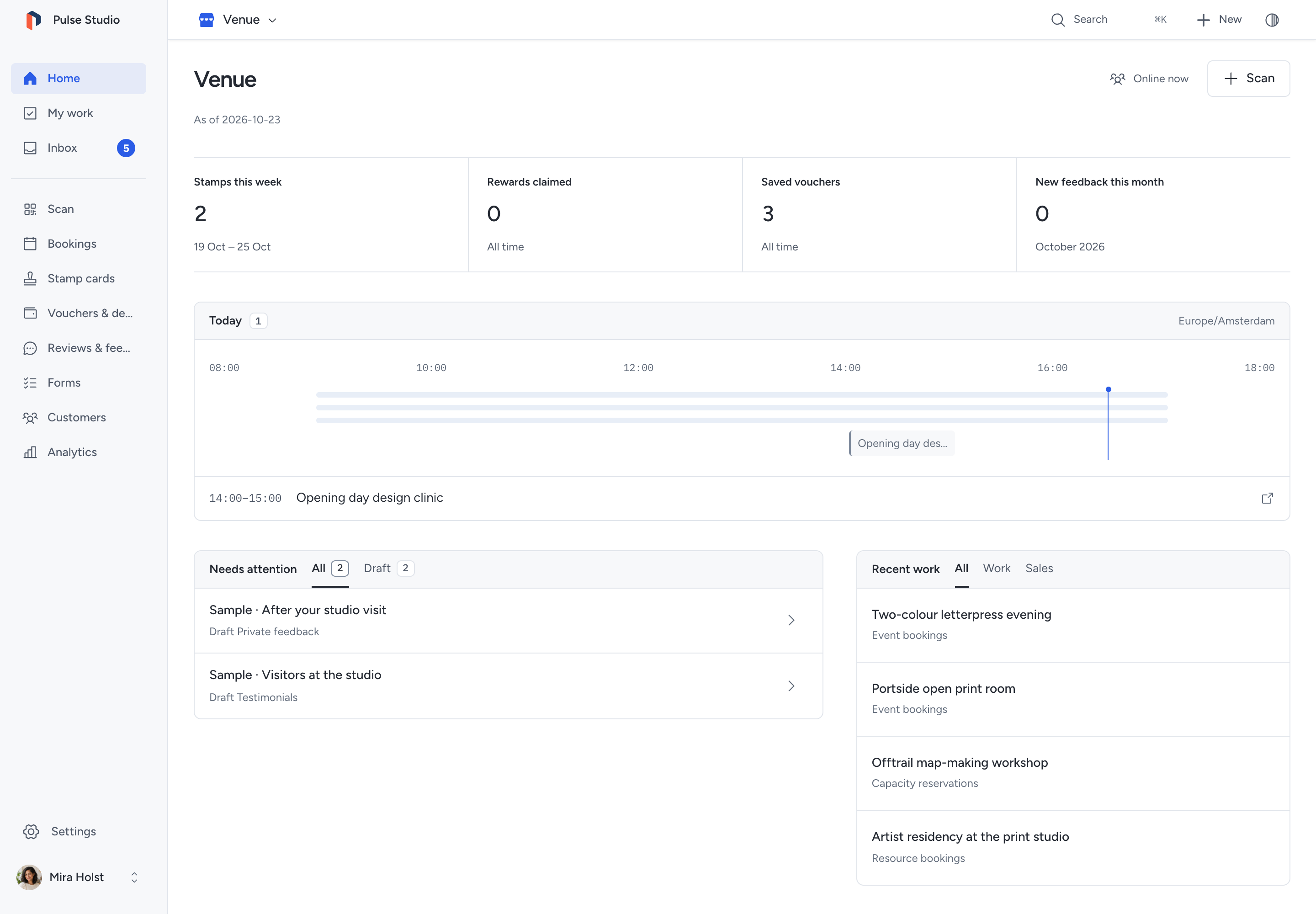
Compare Venue, Listings and Showcase with their actual Home pages. Choose a desk in the example to see the widget families it brings together.
The New menu puts the desk's actions first, followed by other permitted actions under Something else. Search and keyboard shortcuts still reach other pages you may open. Opening such a page keeps your current desk; no rail entry is selected when the page is outside it.
Arrange a desk
Owners and admins can change a desk for the installation.
- Open the desk menu and choose Desks, or open Settings > Desks.
- Open a desk.
- Enter a name of up to 24 characters, or leave it blank to use its translated name.
- Add or remove pages. Keep at least one.
- Drag a page to reorder it, or use its up and down buttons.
- Select Start here for the business if needed.
- Click Save.
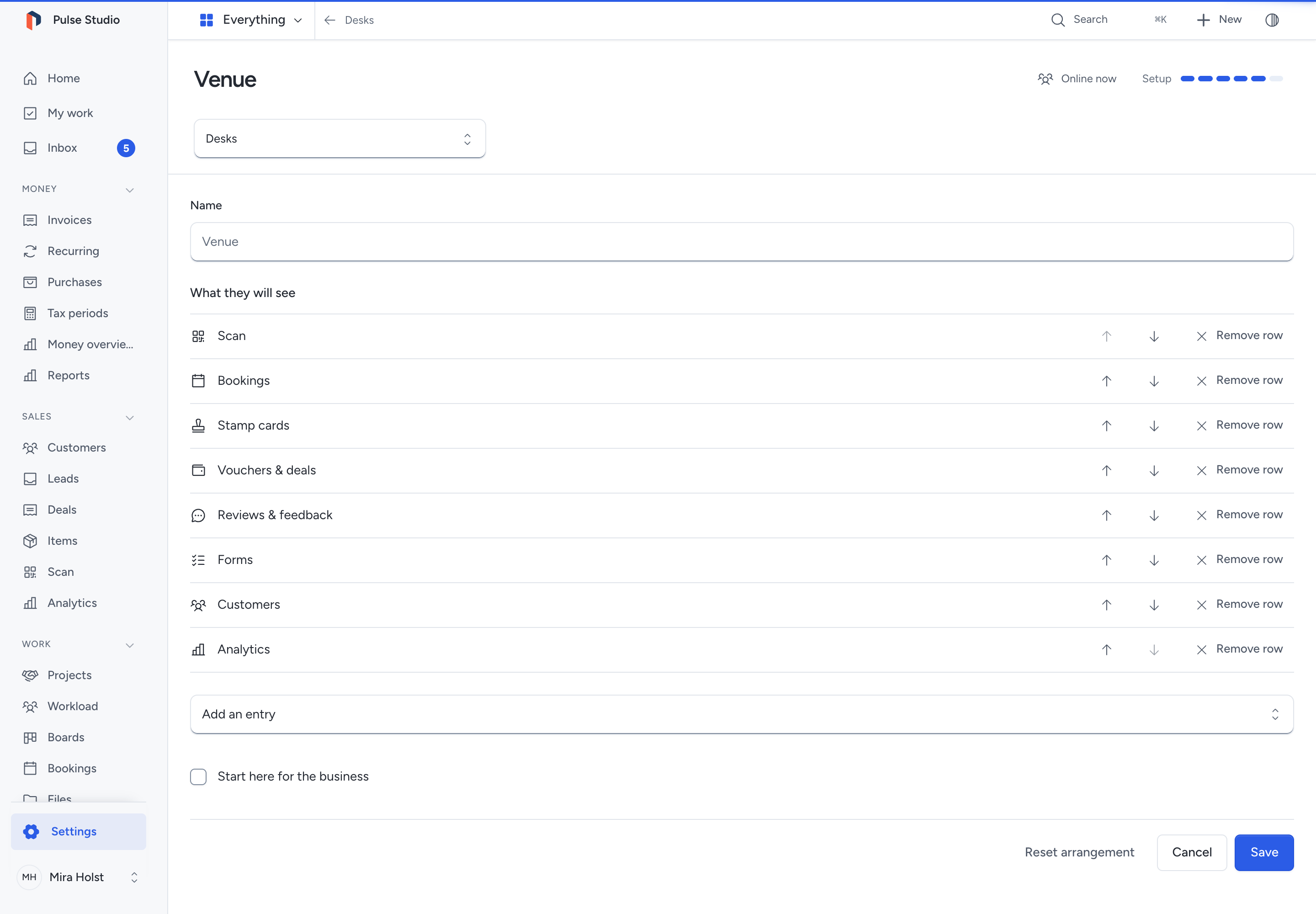
Reset arrangement restores the starting name and order. A business type chosen during installation keeps its recipe. Everything keeps its name and full arrangement; you can select it as the installation start.
If another administrator saved first, Pepper keeps your input and shows the current arrangement. Compare it before choosing to keep your edit and save again.
Give a role or person their desks
Owners and admins can assign desks without changing the role's permissions.
- Open Settings > Roles and open the role.
- Select its desks and, if needed, its start desk.
- Inspect What they will see. Choose each desk in the preview to inspect its pages and the modules it includes.
- Save the role.
Built-in roles keep their permissions, but their desk choices can change. New invitations inherit the role's desks.
To give one person a different set, open People, open the person and find Desks in the Account panel. Select their own desks and save. Clear the personal choice to use the role again. A personal set replaces the role's desks and role start choice.
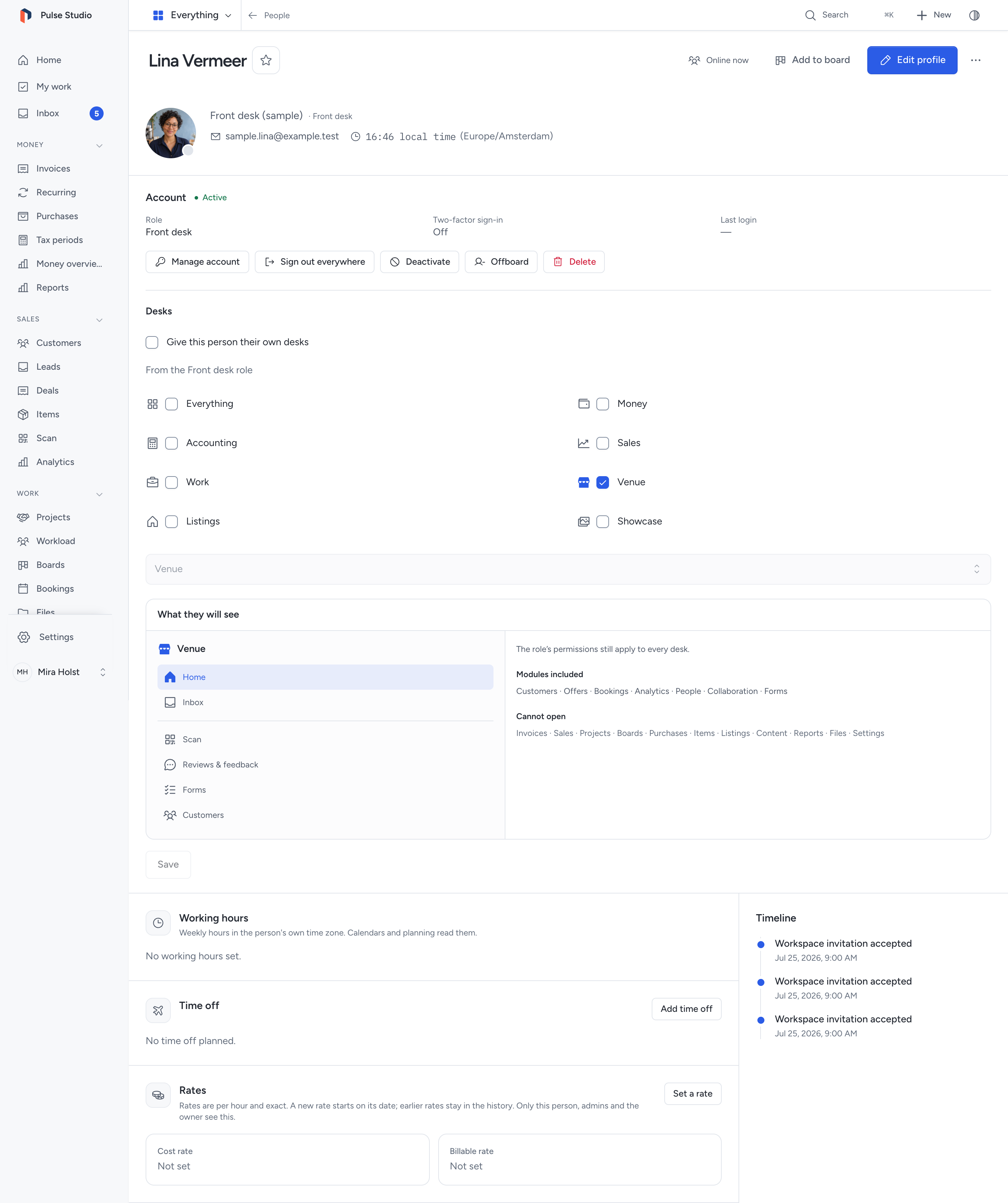
Below Admin, desks also limit access. The person needs both the role permission and a module included by their assigned desks. For example, an Employee with only Venue cannot open invoices, projects, purchases or boards, even with a saved link or an AI client. Adding Work includes its modules; it does not grant missing permissions. Everything removes the desk limit. Guest limits still apply.
A desk includes the modules that own its pages, plus collaboration and people for personal work. It does not add every module those pages use internally. Links to records outside a person's access remain restricted. Menus & price lists includes items and settings; the preview names both. That does not grant a custom role installation or account administration.
Owners and admins always have every desk. A role or personal list cannot be empty. People without saved desk assignments have all desks they may use.
Changing desk entries or someone's assigned desks signs affected people out and revokes their agent connections. A start-desk-only change does not. Pepper refuses a change that leaves a board without an administrator who can use it. Add another capable board administrator, then save again. If a saved change removes project access, Pepper stops the person’s running timer and keeps the recorded time. If a desk stops being available, Pepper opens an allowed start desk and explains the change.
Installation and customer accounts
The installer's Desk step offers eight business types and a live preview. The business type can name and arrange Venue or Listings for that business. Everything starts selected. Choosing a business type selects its suggested desk; you can then choose any other desk. No module is removed or switched off. Read Installation.
Customer accounts have one desk from their assigned plan: Venue, Listings or Showcase. Their pages depend on the plan and widget sharing. They have no desk menu and no Accounting desk. Accounts still switches businesses. Read Run your business's widgets.
An upgrade keeps existing people on Everything and preserves their records. Backups include desk arrangements and assignments. Read Backups.
Need help with the product?
Contact support