
Browse the manual
Publish listings and follow up on requests
Preview property, vehicle, rental and vacancy listings, with enquiries, viewing requests and private applications.
On this page
See the listing journeys, including collection comparison and the property, vehicle, rental and vacancy templates.
For: people who publish properties, vehicles, rentals or vacancies and respond to interested visitors.
Where: Open Work > Widgets, then Records > Listings. In a customer workspace, open Widgets > Records > Listings.
A listing holds its description, price, photos and availability. Manage listings beside the widget’s selector opens the separate listings manager. A Listing widget presents one listing. A Listing collection lets visitors browse and compare published listings.
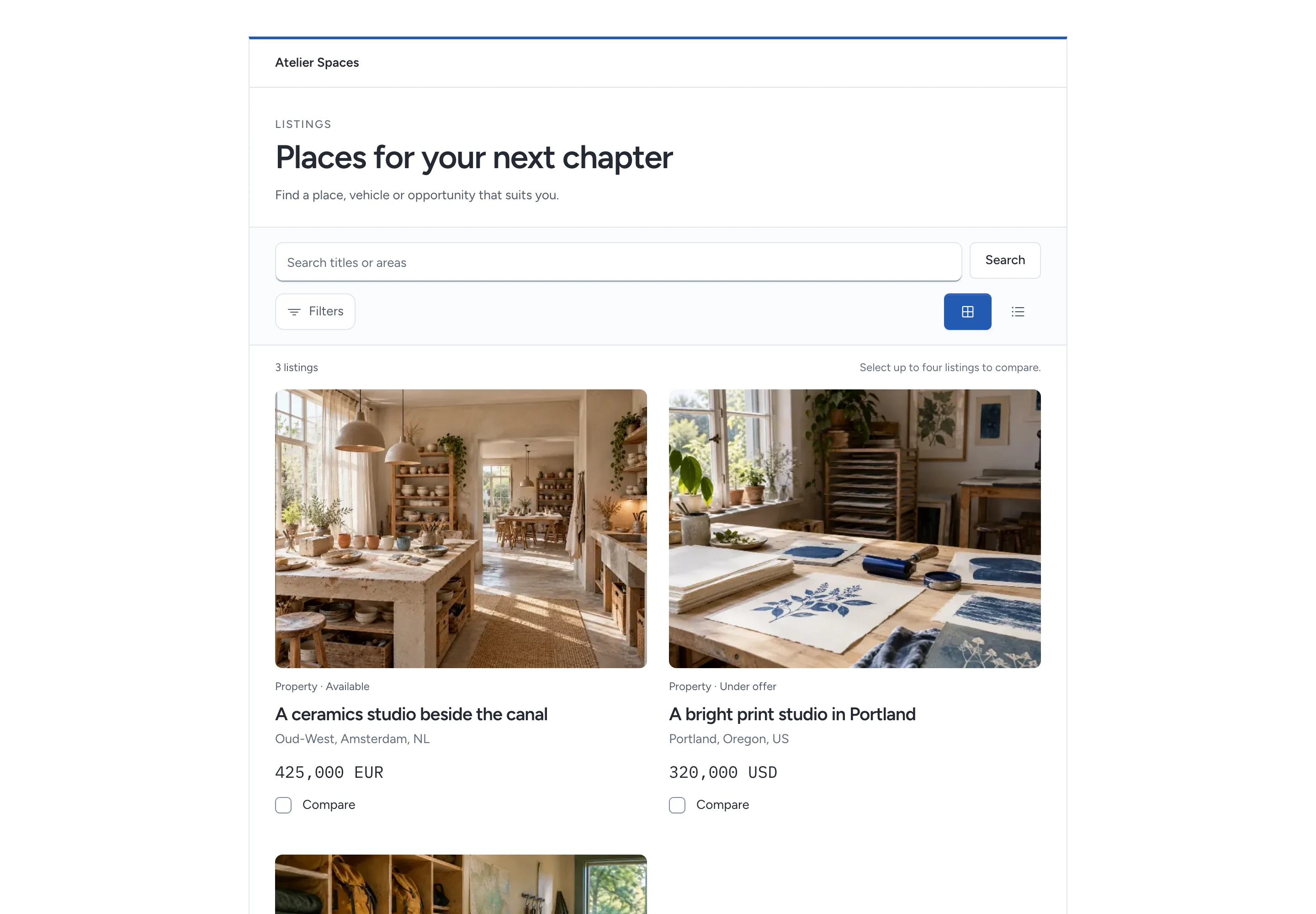
Create a listing
- Open Listings and choose New listing.
- Choose Listing type and Offer.
- Enter a title and description that explain what you offer.
- Choose the currency. Enter Price, or keep Price on request selected.
- Choose Public location, then enter the required location details.
- Fill in the facts that apply to this listing.
- Add photos and documents you have permission to publish. Use Move up or Move down to change their order. The first photo leads the listing.
- Choose the Responsible person for new requests.
- Choose whether closed listings remain visible with their status.
- Save the listing.
Owner and admin roles can manage platform listings by default. A custom role needs Manage listings. A customer workspace owner needs a plan that includes either listing widget type.
Assigned platform staff can read their listings and follow up on their own requests. Assignment does not grant publication access or access to another person's lead. Guests cannot manage listings.
Choose a template
The listing type stays fixed after creation. Create another listing if you need a different type.
| Type | Facts you can provide | Visitor request |
|---|---|---|
| Property | Sale or rent, floor area and unit, rooms, bedrooms, bathrooms, year built and features | Question or viewing |
| Vehicle | Make, model, year, mileage and unit, fuel, transmission and features | Question or test drive |
| Rental | Period, deposit, available dates and features | Question or rental dates |
| Vacancy | Employer, employment type, workplace, application deadline and requirements | Question or application |
Listing prices omit a zero fraction: 425,000 EUR. Nonzero fractions remain visible, such as 145.50 EUR. This changes only the display.
A rental deposit uses the listing's currency. Dates describe the offer; they do not reserve availability.
Vacancy applications require consent. Applicants can add a CV or supporting file. Pepper does not score, rank or reject applicants.
Choose the public location
| Public location | What visitors see |
|---|---|
| Area only | Area or city and country |
| Street and area | Street, area or city, and country |
| Full address | Full address, area or city, and country |
Hidden address details stay out of the public page and its map link. Open in Google Maps opens the displayed location in the Google Maps app when available, or in the browser. Only the chosen public location is included. Google receives it when the visitor opens the link. Pepper does not load map tiles or make a location lookup.
Choose public files
In the platform workspace, choose photos and documents from Files. Manage files beside the picker opens the separate file manager. Pepper determines photo or document from the file itself. You need permission to read and share those files.
In a customer workspace, choose or drop several files at once in the listing editor. A listing can hold up to 30 photos and documents. Photos accept JPEG, PNG or WebP. Documents accept PDF or plain text. Each upload can be up to 5 MB.
Use Move up or Move down to set the photo order. The first photo leads the gallery. Visitors can open any thumbnail in the shared image viewer.
The viewer supports arrow keys, touch swipes and zoom. Escape closes it and returns focus to the photo control.
Pepper keeps the chosen file version when you edit other listing details. Removing permission to publish a file prevents later public downloads. Public photos omit image metadata.
Application attachments use a separate private route. Adding a file to an application never adds it to the public gallery.
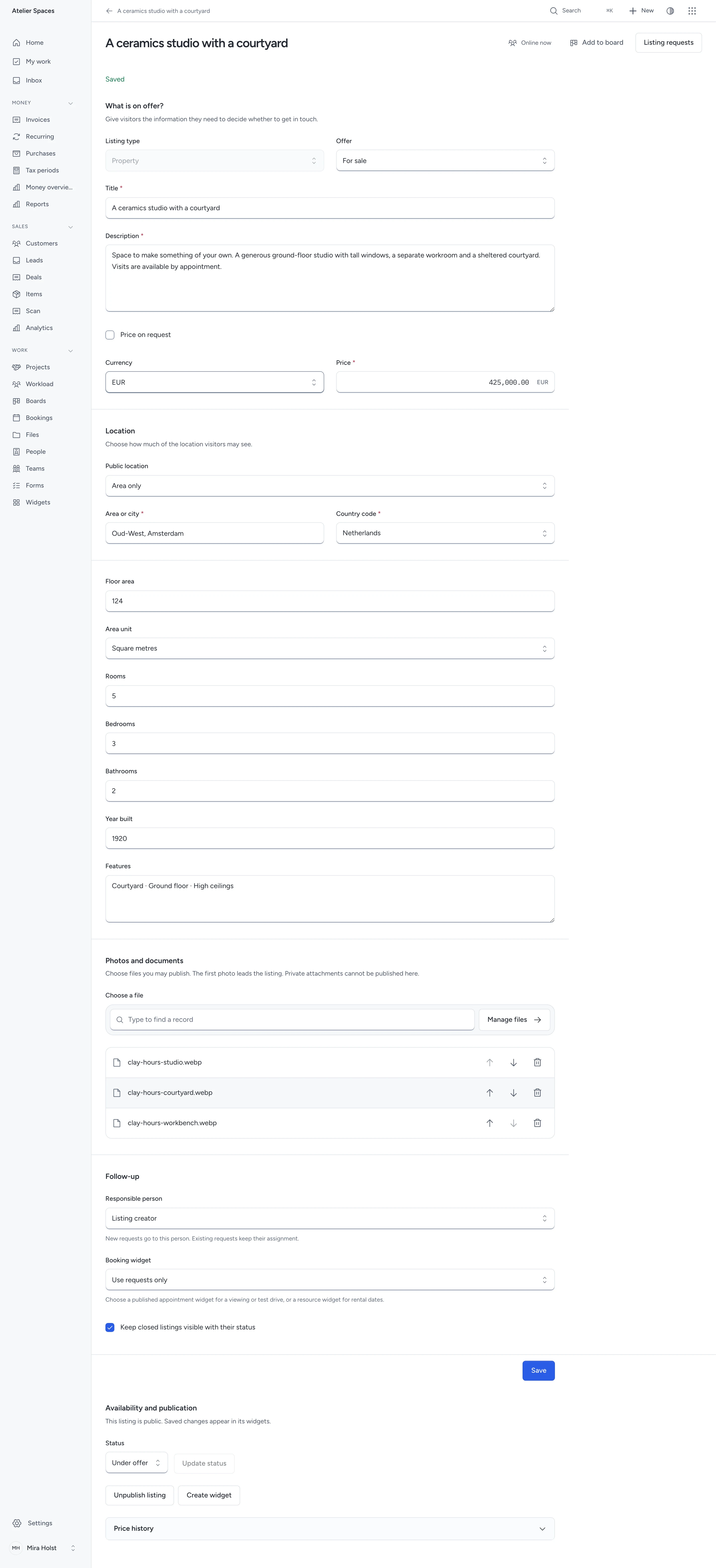
Publish and share
- Open the saved listing.
- Under Availability and publication, choose Publish listing.
- Choose Create widget to make its single-listing widget.
- Check the widget's Live preview and save it.
- Open Publish & share, then choose Publish widget.
- Share Page address, or choose the website presentation you need.
To publish a collection, create a Listing collection from the widget library. It includes published listings from the same business. You can restrict the collection to one listing type.
A listing and its widget each need publication. Publishing one does not publish the other.
Both types support a standalone page, an inline embed and a button panel. Use a named placement and print sheet for a window card, brochure or QR code. A placement for a single-listing widget opens that listing.
Visitors can switch between grid and list, search titles or areas, and filter by type, offer, rooms, status or price. They must select one currency before filtering prices.
Filters and selected listings stay in the page address. Use Share this page after making the selection to share that same view.
Change a price or close a listing
Save a new price in the listing editor. Pepper records the old price and the time of the change. Published price changes appear in Price history; private draft prices do not appear there.
Choose the current Status, then Update status. Available and under-offer listings accept requests. Sold, let and closed listings refuse new requests.
Keep a closed listing visible to explain its status, or clear Keep closed listings visible with their status to remove it from the collection. Unpublish listing removes its public content. Existing requests remain available to authorised staff.
Saved changes to a published listing appear in its widgets. A visitor who opened an older version must check the current details before submitting.
Let visitors book an available time
Set up a booking service and widget before connecting it to a listing.
- Open the listing editor.
- Choose Booking widget.
- Select a published appointment widget for a viewing or test drive, or a resource widget for rental dates.
- Save the listing.
- Open its published page and check the booking action.
The widget must belong to the same business and match the listing type. Vacancies do not take booking widgets.
Choose Use requests only to keep the appointment-request workflow. Existing requests remain separate from confirmed self-service bookings.
If the listing changes or closes before confirmation, the visitor must reopen it. A displayed time alone does not reserve capacity.
Respond to a request
In a customer workspace, the plan must also include contacts to read and follow up on requests.
Open Records > Listing requests, then open the request. Read the visitor's contact details, message and the listing snapshot from the time they sent it.
An enquiry, viewing request, test-drive request, rental request or shortlist creates or finds a lead. New requests go to the listing's responsible person. A returning lead keeps its existing owner; the request keeps its own assignment.
Platform listing managers and the request's current assigned agent with CRM access can read the request. Owning an earlier lead does not grant access to a later request.
A visitor can compare up to four listings and send one shortlist with their priorities. The request retains each selected listing and its snapshot.
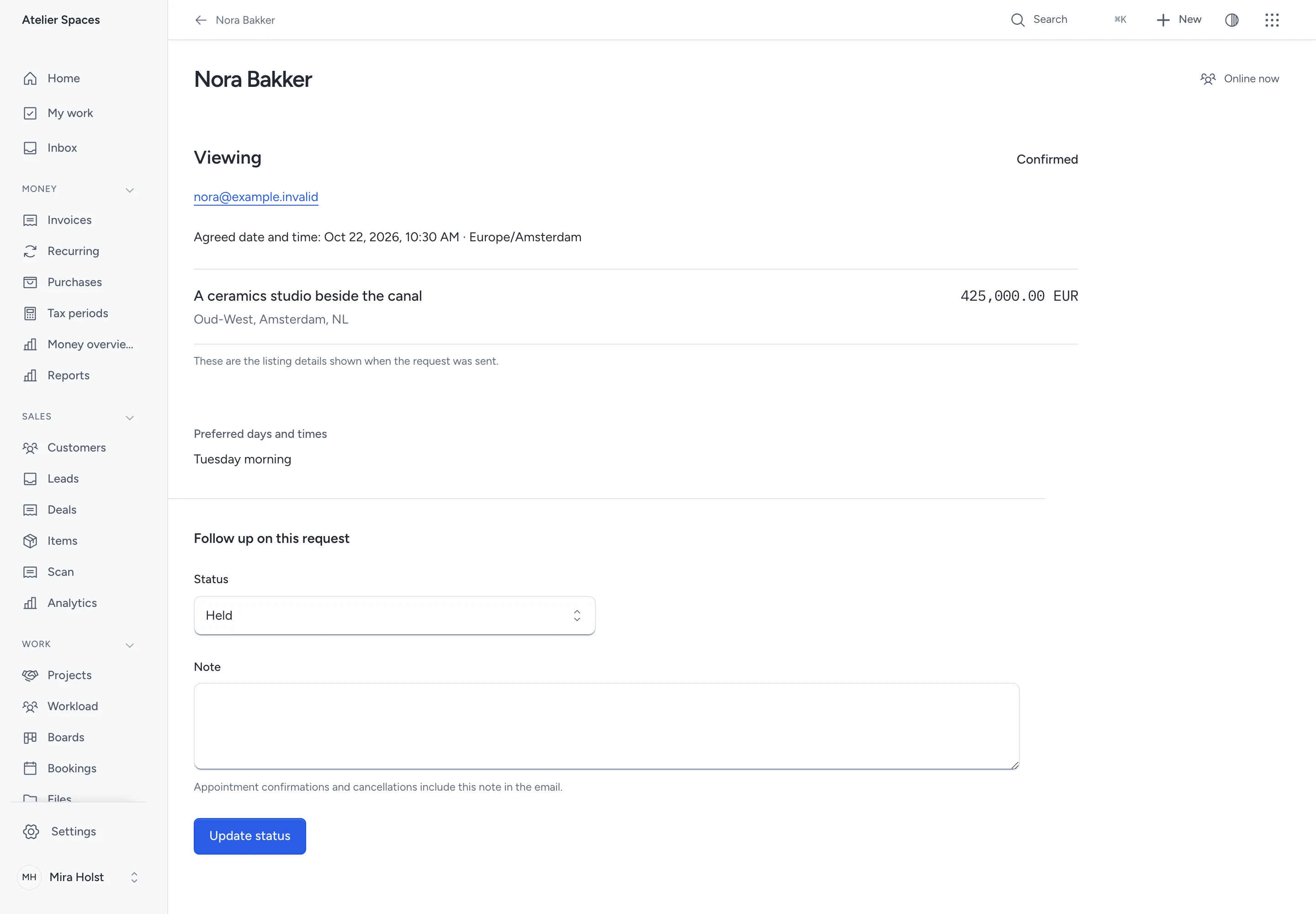
Confirm an appointment
- Open the viewing, test-drive or rental request.
- Agree a date and time with the visitor.
- Choose Confirmed.
- Enter Agreed date and time in the business timezone shown on the form.
- Add a note if needed, then save the change.
Pepper queues a service email with the agreed time and your note. It uses the language of the visitor’s request. A requested time becomes a confirmed appointment only after this action. Visitors cannot book an available slot themselves.
After the appointment, record Held, Did not attend or Cancelled. Cancellation queues another email. Confirmation and cancellation notes appear in those emails; keep internal notes elsewhere.
Service email shows the delivery state. Accepted by the mail server does not prove the recipient read it. The scheduler retries a known sending failure. Delivery uncertain requires staff investigation; Pepper does not resend it on its own.
Review an application
Open the vacancy request to read the application and its private attachment. Use In review, Invited, Declined or Hired to record the decision you made.
Only people with current access to that request can download its attachment. Closing a vacancy or reaching its deadline stops new applications.
Receive alerts for new listings
Visitors open Hear about new listings in a collection, verify their email with a one-time code and agree to receive alerts.
The alert keeps that selection's filters. It covers matching listings first published after consent. Price edits and republishing an old listing do not create a new-listing alert.
Each alert email has Stop these alerts. Confirming it stops future sends. An email already handed to the mail server cannot be recalled.
Alerts pause if the widget or its business becomes unavailable. Changing the collection's saved configuration stops alerts tied to the earlier configuration; visitors can subscribe to the new selection.
Handle a personal-data request
An owner can find an alert subscription by its full email address or record ID. An alert does not create a contact or lead.
- Open Data requests below the platform listing register, or in the customer workspace's account settings.
- Enter the full email address or record ID, then choose Find records.
- Open the matching alert and review its report. Use Download data to keep a copy.
- Choose Review personal fields, read what Pepper removes, then confirm the erasure.
Stopping alerts removes the stored email address and cancels queued messages. Pepper keeps the consent record and delivery outcomes.
Erasure also removes the saved filters and personal source details. Consent text and delivery outcomes remain, without the address. This history has no automatic deletion deadline.
If the subscription changes during review, Pepper refuses the erasure. Open a fresh review and check it again.
Read listing results
Open Analytics and choose the listing family or a particular widget.
- Questions, viewing requests, confirmed viewings, applications, shortlists and alert sign-ups use saved records.
- Views and photos viewed need the existing measurement consent. They are counts, not unique people.
- Enquiry rate divides exact accepted enquiries by counted widget views. It names both populations.
- Photos viewed per measured view uses consented photo views and widget loads.
- Days to first enquiry starts at the listing's first publication.
- Price intervals show enquiries per published day before and after a price change. They use the selected report dates and the business timezone, including daylight-saving changes.
A missing measurement is not a zero. Money stays separate by currency. CSV and agent reads use the same calculations and access rules.
Actual Viewing booked, Test drive booked and Rental booked counts come from confirmed booking records. Earlier staff-confirmed appointments keep their own figures.
Do not add the two measures as though they were one continuous history. They do not prove that the same visitors completed each step.
Limits and recovery
Listings do not take payments, sign contracts, syndicate to property portals or offer self-service booking slots.
If submission fails, keep the form open. Correct the highlighted fields, or choose Try again to load changed details. A closed listing explains why it cannot accept the request. Repeating an accepted request does not create another record.
If a private file is missing or has changed, Pepper refuses the download. Recover it from a verified backup instead of replacing evidence in place.
Full export and import preserve listing facts, file versions, price history, requests, consent and mail history. A restored installation does not resend completed notifications. Follow the backup and restore guide.
Compare the channels that bring requests
In Widgets, find the published widget, open Publish & share, then open Track this link (UTM) to add optional tracking labels. Choose a preset, edit its labels and click Use these labels. Generate a newsletter or WhatsApp link, website code or printed QR asset from that kit. Follow the campaign steps.
Choose Analytics from the widget’s overflow or right-click menu. Review its primary result and compare campaigns or share channels. Open an exact result to read the permitted records and decide what to do next. Page requests and browser loads do not count unique people. Bookings and requests do not prove a payment.
Need help with the product?
Contact support