
Browse the manual
Plan and complete tasks
Create project or standalone tasks, assign work, plan dates and follow progress in lists, boards and timelines.
On this page
For: people with Use projects who plan or carry out work. What you need: access to a project, or permission to create a standalone task.
Create a task
- Open a project's Tasks tab, or open My work.
- Enter a title in New task.
- Optional: type
@or#to see suggestions. You can also choose Assignee, Due date, Tags or Estimate below the input. - Check the selected assignee, date, tags and estimate below the title.
- Choose New task to save it.
Suggestions work in My work → Today, My work → This week, the task register and a project's Tasks tab. Use the arrow keys and Enter to select a suggestion. Escape closes the suggestions without changing your text.
The assignee list shows people you may assign. Select one person per task. Tags come from tasks you can open; type a new tag to add it. Select a full name or a tag with spaces from the suggestions to keep it together. Help, beside the entry buttons, explains the available shortcuts.
Date choices show the actual date in your language. You can also type your language's words for today, tomorrow or a weekday, or use YYYY-MM-DD. Estimates have translated labels; typed shortcuts use h for hours and m for minutes in every language, such as 2h or 30m. Plain numbers remain part of the title until you choose an estimate. Unrecognized text stays in the title.
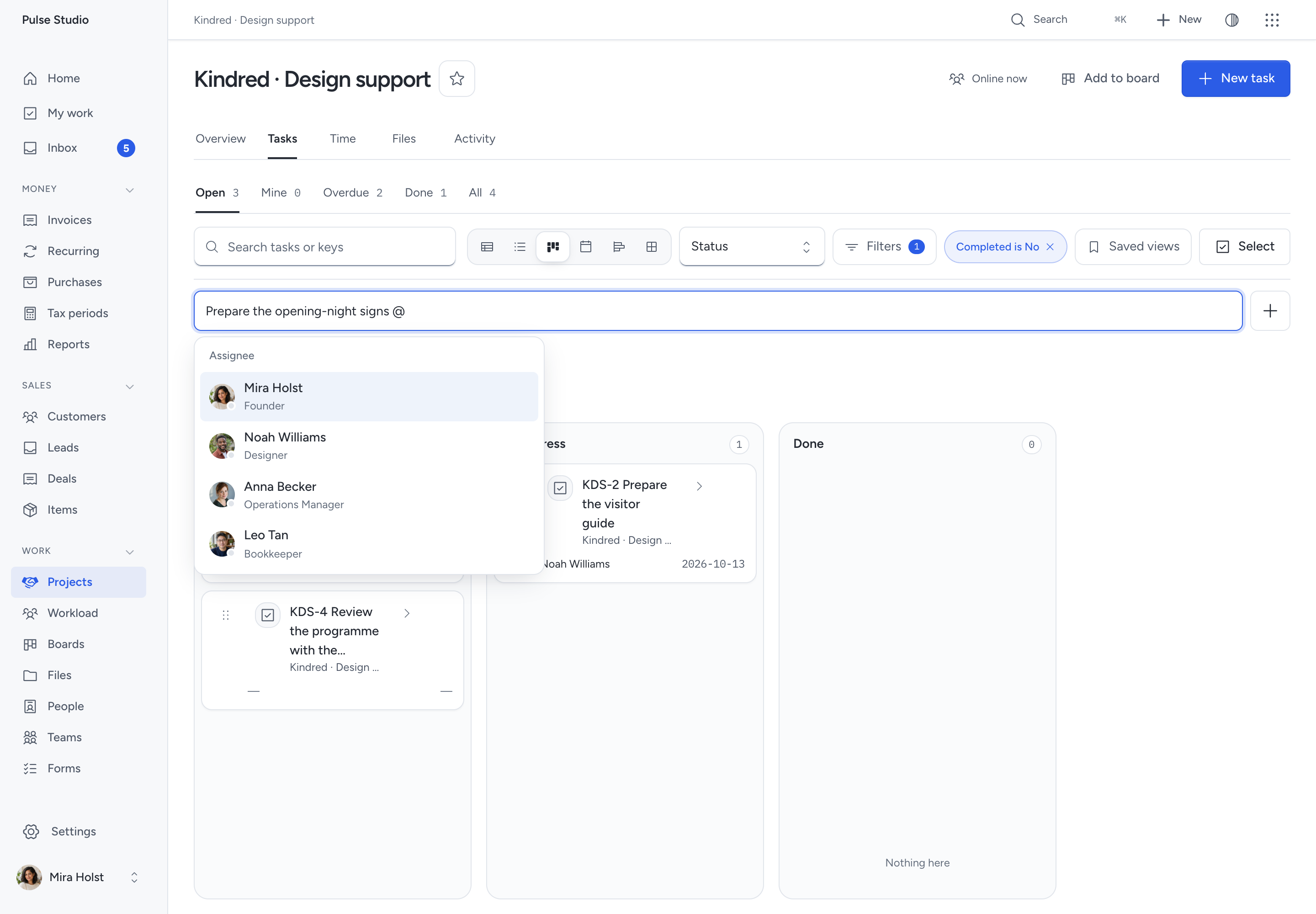
A project task gets a key such as WEB-130. A task created in My work can stand alone. Open the task to add its description, assignee, priority, start date, due date, estimate or tags. Changes save through the task form; a failed save keeps your input.
You can assign work to yourself or a team you belong to. Manage projects permits other assignments. An employee sees tasks they created or tasks assigned to them or their active teams. A removed assignment removes access unless another rule still grants it.
For a standalone task, choose Add to project in its detail, select a project and save. The task gets the next project key. Search still finds its former key. Recorded time moves with it. Stop its timer first; allocated time cannot move. Rates must use the destination currency.
Plan the work
The public demo is read-only. Trying to change a status or watch a task keeps its details open and explains that changes are not saved.
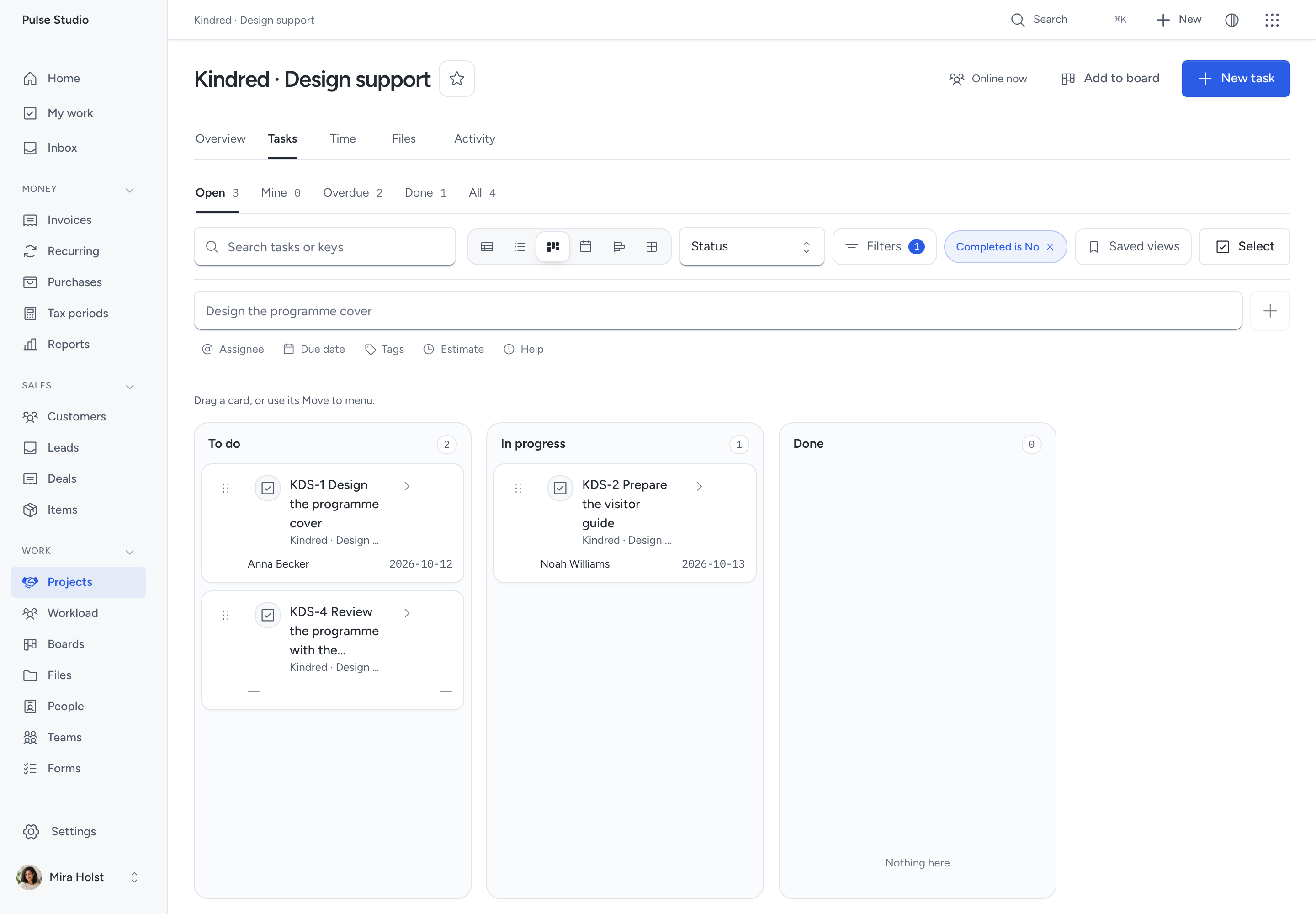
Use the view controls for a list, table, board, calendar or timeline. Filter by assignee, status, due date or estimate. Save a view to return to the same filters and layout. See Use views for grouping, sorting and bulk actions.
On a board, drag a task into another status or use its status control. On the timeline, each bar spans the task's start and due dates. Milestone notches mark due dates. A connector means one task blocks another; it does not move dates for you.
Choose a timeline bar to enter dates. You can also drag it, or focus it and use Alt + Left/Right to move one day. Add Shift to move a week. A start date cannot follow its due date. If someone changed the task meanwhile, reload before moving it again.
Open Blocked by in task details to add a task from the same project. Remove the link when the dependency no longer applies. A task cannot block itself, and dependencies cannot form a loop.
Complete and reopen
Choose Complete or the completed status on the stage path. To resume work, choose Reopen or another status. The activity records the change. Completing a task created from a deal's next step clears that linked next step.
A checklist helps divide the task into smaller actions. Give an item a person or date when needed. Completing a checklist item does not complete the task.
Use Archive to remove a task from working views while keeping its time and history. Use Restore to bring it back. The same assigned-or-created access rule applies to archived tasks. Archiving does not delete invoices or time entries.
Keep the conversation with the work
Use Comments for updates and mentions, Watch for task changes, and Files for attachments. The same access check applies to the task, its comments and its files. A board can show a linked task with its key, status and permitted logged-time fact. Linking it never grants task access.
See Comments and Inbox and Files.
Work from My work
Today and This week start with one line about your day: the date, the number of overdue tasks, tasks due today and follow-ups due, and the time you logged today against your available hours. A count of zero is not shown. When nothing is overdue or due, the line says so. At the end of the line, a strip shows the seven days of the week as one row. Each day shows your logged time against your available hours, and a dot for each open task due that day. A red dot on a past day is an overdue task. Today has a blue outline. Click a day to open This week.
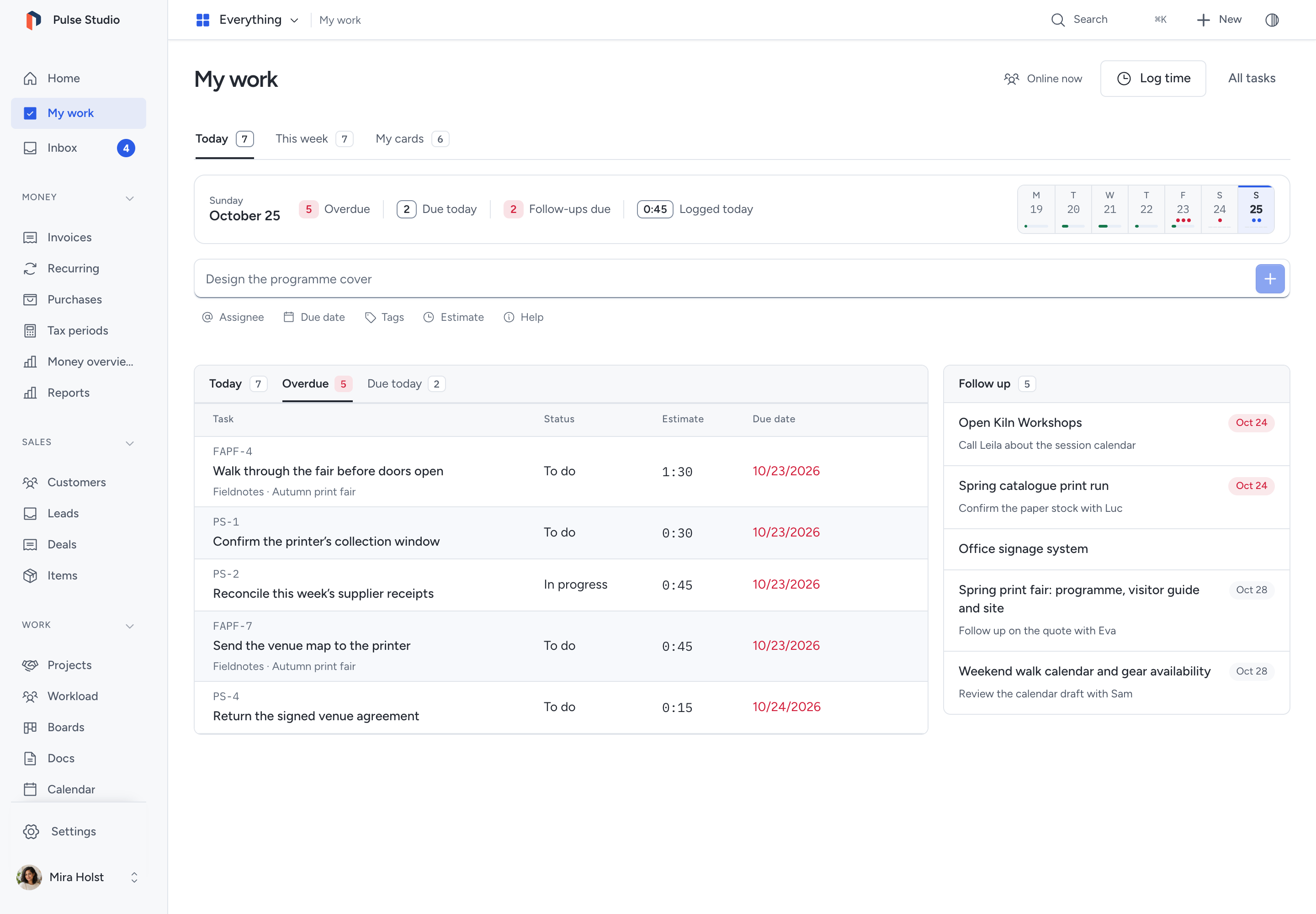
Today shows your tasks in tabs: Overdue, Due today, Coming up and Without a due date. Each tab shows its count, and only tabs with tasks appear. The most urgent tab opens first. Your sales follow-ups appear beside the tasks, or below them on a phone. Each follow-up shows its date; a date in red is past. When nothing is due, Today says so. Your running timer stays in its usual place. This week works the same way: its tasks sit in one panel with All and one tab for each day that has tasks, and your week's time follows in a second panel. Use the arrows in that panel's header to change the week. This week shows tasks and your week's time. My cards keeps the cards assigned to you. An empty task list shows a short message without table headings; other work remains visible below. Use the tabs on a phone or swipe across the list area.
Start a timer or choose Log time from a task. Follow Track time to record the work and Bill tracked time to prepare an invoice.
Turn a board card into a task
- Open the card.
- Open More, then select Convert to task.
- Choose a project, or keep Standalone task.
- Select Convert to task.
The task opens with the card’s title, description, dates, completion, labels and checklist. Its assignee is the first eligible card member in name order. Comments and files are copied. The original card keeps its conversation, files, cover and links. Later edits stay on their own record.
The task follows normal task access. Board readers gain no extra access to it. Employees can open tasks they created or that are assigned to them or their active team. Managers keep their management access. Guests see tasks in their granted projects. Each record links to the other only when you can open it.
You need permission to edit the card and create the task. Cards with files also need permission to read and copy those files. If the card changes before conversion, reopen it and try again. A card can become a task once. Retrying the same request opens the same task.
Need help with the product?
Contact support