
Browse the manual
Read widget results
Compare widget placements, trace linked revenue, open its records and set a target.
On this page
See the widget journeys for examples of the requests, bookings and counter results behind these reports.
Screenshots and counts use fictional example records, not customer results.
For: owners and authorised team members choosing where to place a widget.
Where: Sales > Analytics. You need View analytics. Owners and Admins also have Configure analytics by default.
In a customer workspace, open Analytics from the business menu. Your plan must include analytics. Counter staff cannot open it.
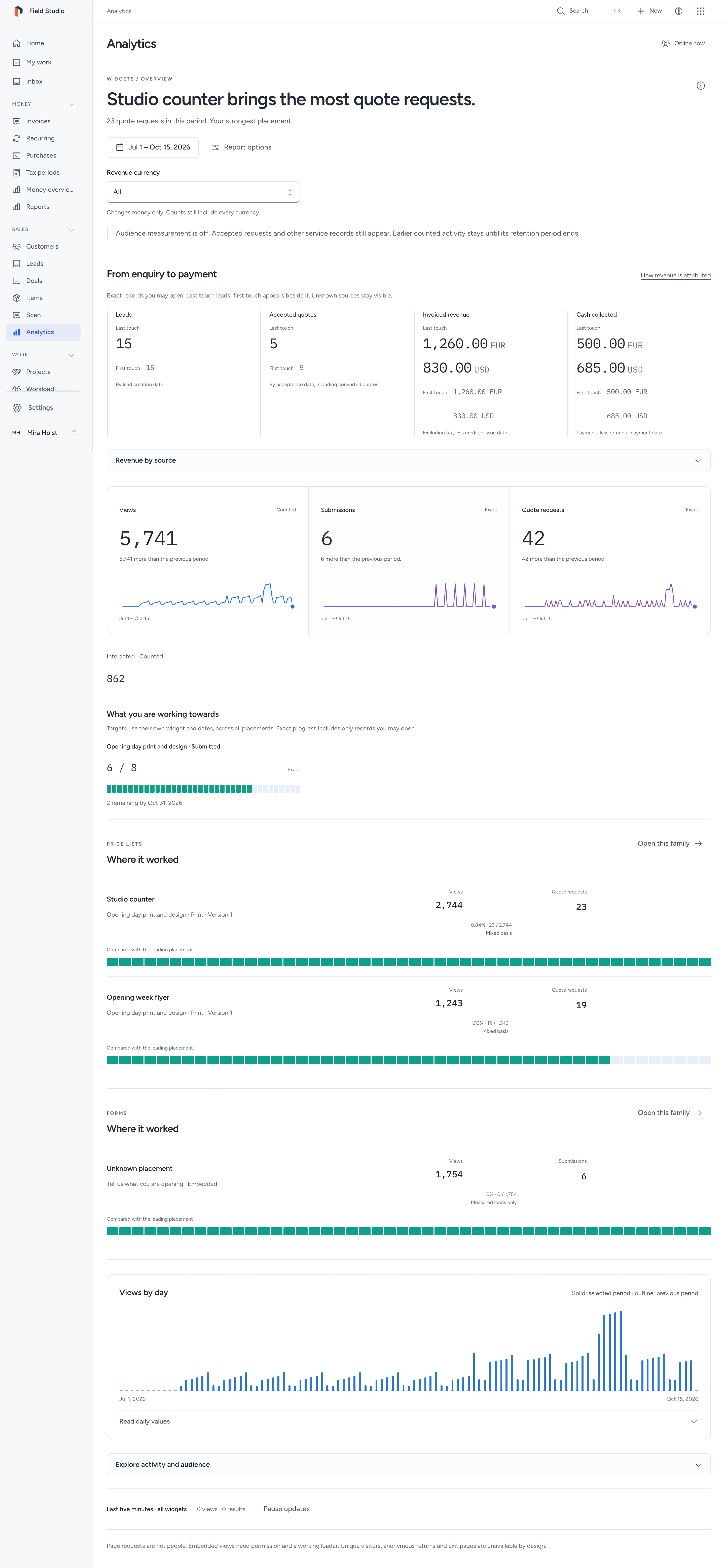
Compare the results from each widget placement. Open a result to see the records you can access. Different widget types have different purposes, so compare placements within the same type of work.
Accepted requests appear even when audience measurement is off. Turn it on to add page counts and permitted browser activity.
Turn on audience measurement
- Open Analytics settings.
- Check Enable audience measurement.
- Keep Respect Do Not Track and Global Privacy Control checked to exclude those requests.
- Explain Why you collect these figures.
- Enter the HTTPS address of Your privacy notice.
- Click Save settings.
Collection starts off. Known bots, previews and your installation's signed-in staff sessions are excluded. Your server must run the Laravel scheduler.
At a widget's own address, Pepper counts successful page responses on the server. The page asks for separate permission before measuring browser actions. That permission lasts for this page load. Visitors can stop measurement from the same control.
Switching collection off stops new audience activity. Accepted service records still appear. Earlier counts remain until their retention period ends.
Start with one widget
In Widgets, use search, type and status filters to find a widget. Sort by Page requests, Measured loads or Interactions. The order compares this month’s recorded activity across the whole list. On a phone, use Sort widgets. The date range uses the business timezone.
Each small chart shows measured loads by day. Focus a chart. Use the arrow keys to read exact values. Home and End go to the first and last day. Requests, loads and interactions are separate counts, not people. Interaction types depend on the widget, so a larger count does not mean a better conversion rate.
Choose Analytics from a widget’s overflow menu or right-click context menu. The report opens with that widget selected; Back retains the library’s filters, sort order and page.
The first section states the widget’s purpose, its primary result, the previous period and the next useful action. Its campaign and share-channel rows compare the same measure. Open an exact result to read the permitted records behind it. Review widget and publishing kit returns to that widget’s editor.
| Type | Start with | Next action |
|---|---|---|
| Business card | Contact downloads, counted as intent | Review published contact details and follow up accepted messages. A download does not prove a save. |
| Team | Cards opened | Review which published cards people open. Follow up messages in each person’s card. |
| Form | Accepted submissions | Open the response and act on its configured target. |
| Price list | Accepted quote requests | Open the request, check its scope and prepare a quote where your role permits it. |
| Voucher, deal or coupon | Confirmed redemptions | Review the saved promises and counter records. |
| Stamp card | Cards joined | Check stamps, completed cards and the next return visit. |
| Individual listing or collection | Accepted requests | Open the enquiry, shortlist, application or viewing request and decide its next step. |
| Appointment, resource, capacity or event | Confirmed bookings | Open the booking to prepare the service, arrange a change or follow the cancellation policy. |
| Link page | Links opened, counted per entry | Review which destinations people use. Closed destinations disappear from the page. |
| Locations and hours | Maps opened | Review the shared address and hours. Phone taps count separately; neither action proves a visit. |
| Testimonials | Accepted customer responses | Read consent and approve or hide the customer's unchanged words. |
| Download | File deliveries | Review the selected file and any email-gated leads. Delivery does not prove that a person saved or read it. |
| Private feedback | Accepted responses | Read private ratings and follow up contact requests from completed work. |
| Survey | Accepted responses | Compare question versions and open permitted answer records. |
| Poll | Accepted submissions | Compare choice totals. An anonymous poll counts submissions, not people. |
| Case study or portfolio | Similar-work requests | Open the accepted request with its case, version and tags. Case opens are counted activity. |
| Business updates | Confirmed topic subscriptions | Review subscriptions, withdrawals and email delivery states per topic. A sent email does not prove a read. |
| Guide | Step questions and version acknowledgements | Follow up the exact step question and see which version each recipient acknowledged. Step views and stops are counted activity within a page load. |
Server page requests and consented browser loads are separate populations. Neither counts unique people. A booking confirms a reservation, not payment. The report keeps money in its own currency and uses recorded payments for cash collected.
An empty report invites you to review publication and links. With collection off, exact service records remain available within your access; optional browser counts do not appear as proof of audience. Restricted result figures remain unavailable. Country or device filters suppress identified results; small anonymous groups can also be withheld. Clear those filters to return to permitted service results. Unrelated widgets’ targets stay outside a selected widget report.
Connect an existing website
Approved widget origins appear under Websites when you enable collection. An origin is the scheme, host and port, such as https://studio.example. It has no page path.
- Open the website's row in Analytics settings.
- If its pages already load a Pepper widget, keep the existing loader.
- For a page without a widget, copy Website snippet into that page once.
- Connect the site's consent control as shown below.
- Approve the shared page paths and campaign labels you want in reports.
Use Add website only for a website whose pages you control. This does not give that website permission to embed a widget; each widget still has its own approved origins.
After a visitor permits analytics, dispatch this event in the host page:
document.dispatchEvent(new CustomEvent('pepper:consent', {
    detail: { analytics: true }
}));
Send the same event with analytics: false when permission is withdrawn. The loader collects nothing without this signal. Your consent control must make the choice; loading the snippet alone is not permission.
Blocked scripts and withheld permission leave embed and website views uncounted. Standalone page requests still count when audience measurement is enabled. The report cannot reconstruct missing browser events.
Approve shared labels
Open the website row to add a Shared page path, such as /menu or /projects. Use public paths without names, addresses, account details or personal codes. Unapproved paths appear as unknown.
A campaign has a display name and shared labels for source, medium, campaign, content and term. Campaign label is required. Approve the exact combination used in your links; other combinations stay unknown.
For example, approve source neighbourhood, medium print and campaign autumn-window. Use those same utm_source, utm_medium and utm_campaign values in the link. Leave content and term empty unless you approved values for them.
Do not put a visitor's name, email or personal code in a path or campaign label. Sharing keeps an active placement and approved campaign, then records the chosen share channel. It does not identify the sender. The campaign’s medium label stays as approved. The actual delivery website stays separate from the campaign’s originating website. Use the publishing kit to generate links, QR assets and all three embed presentations.
Read the overview
Open the date control. Choose From and To, then Apply. The period uses your business timezone and can cover up to 366 days. Its comparison covers the same number of preceding calendar days.
The leading placement is the one with the most main results within its family and measure. A tie stays a tie. The placement register keeps print versions and channels separate, so changing a destination does not move earlier results to the new widget.
Select a widget, family or placement to narrow the report. Open a placement to compare its print runs and channels. Further filters cover website, page, source, referrer group, campaign, country and device. The URL retains the selection. Save this view keeps it for your account; Remove view deletes that saved selection.
| Figure | Meaning |
|---|---|
| Counted views | Successful standalone page requests plus permitted embed and website loads |
| Counted interactions | Defined actions, such as opening a card or requesting a contact file |
| Exact results | Accepted records you have permission to open |
| Mixed-basis ratio | Exact standalone results divided by counted standalone page requests |
| Results within measured loads | Ordered result steps within permitted loads, divided by compatible measured loads |
Tap a figure's explanation to read its basis. A served contact file counts as a download; it does not confirm that a contact was saved. Repeated page requests can count again.
Click an exact figure to open its records. Restricted records are absent from both the figure and its list. Results with no known placement keep an Unknown placement row.
Country and device filters apply to counted activity. Pepper does not attach those facts to a person's records, so exact results are unavailable under those filters. Small groups and revealing totals are hidden. Countries remain unknown if the server has no local GeoIP support.
Daily charts compare the selected and previous periods. Arrow keys read each day; Read daily values opens the values as a table. The hour grid uses the business timezone and has an equivalent table.
The live strip shows the last five minutes and recent accessible results. Use Pause updates when reading. Background tabs follow Pepper's shared polling rules. Rollup charts update through the hourly scheduler; they are not a live visitor trail.
Read content results
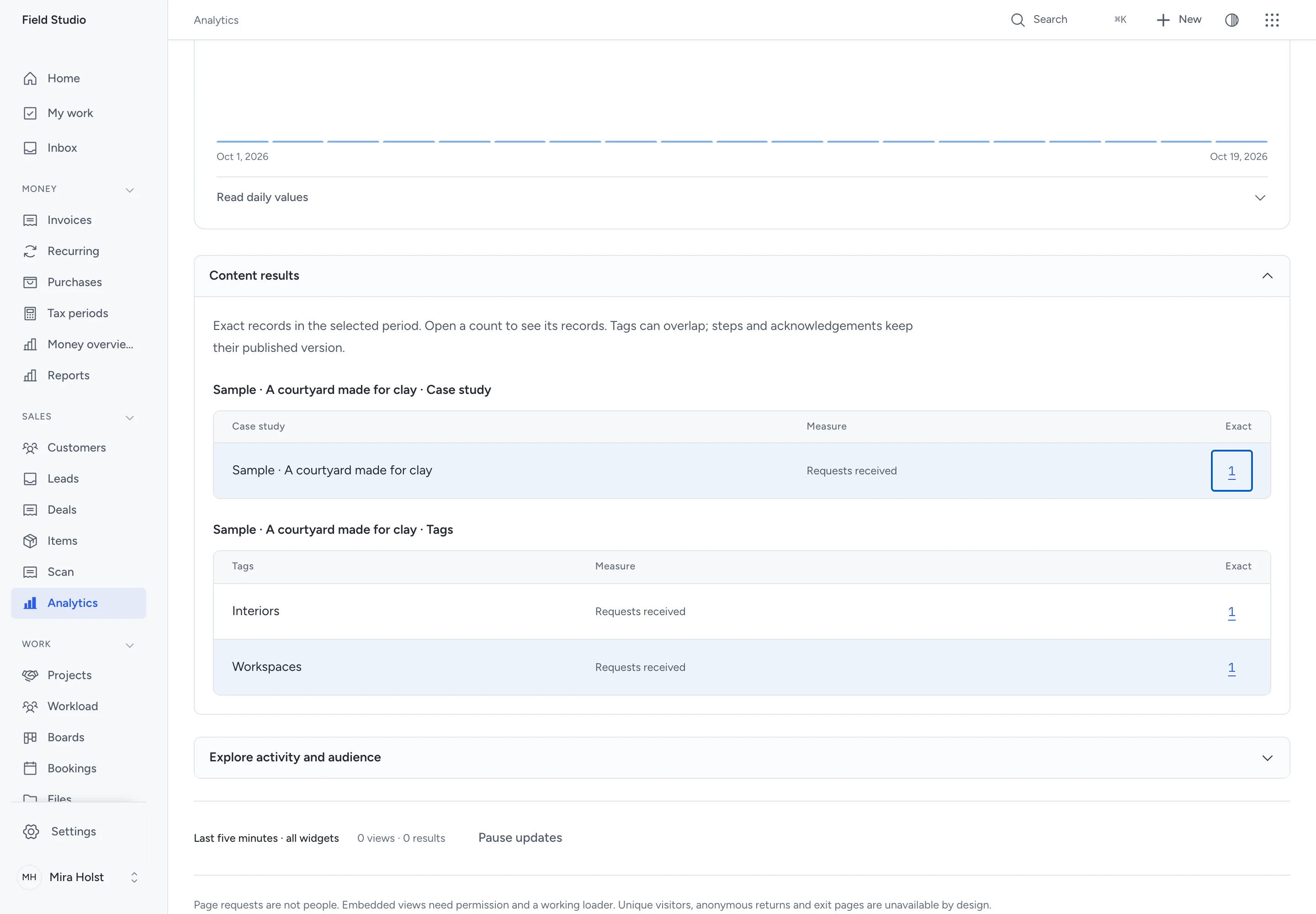
For a case, updates widget or guide, open Content results below the daily chart. Each exact count opens the records you may read.
| Breakdown | Date used |
|---|---|
| Similar-work requests per case and tag | Request accepted |
| New subscriptions per topic | Topic consent accepted |
| Emails accepted by the transport per topic | Transport accepted the message |
| Unsubscribes per topic | Subscription withdrawn |
| Guide questions per step and published version | Question accepted |
| Guide acknowledgements per version | Acknowledgement recorded |
Tags can overlap. A request with 2 tags appears under both tags but counts once for the case. A visitor who subscribes to 2 topics gives 2 topic consents. An unsubscribe in this period can refer to a subscription from an earlier period.
These figures count events in the selected period. Open the widget's Records and requests for its current active subscriptions. Published steps, tags and versions come from the saved record; later edits do not rewrite them.
Counted case, post and step activity keeps its own population. The last observed step in a measured load is not proof of completion. Questions, acknowledgements and unsubscribes are separate actions, so they do not form a conversion sequence.
Export CSV and the analytics read tool include the same breakdowns. Country and device filters hide exact records, including these breakdowns.
Read menu and choice results
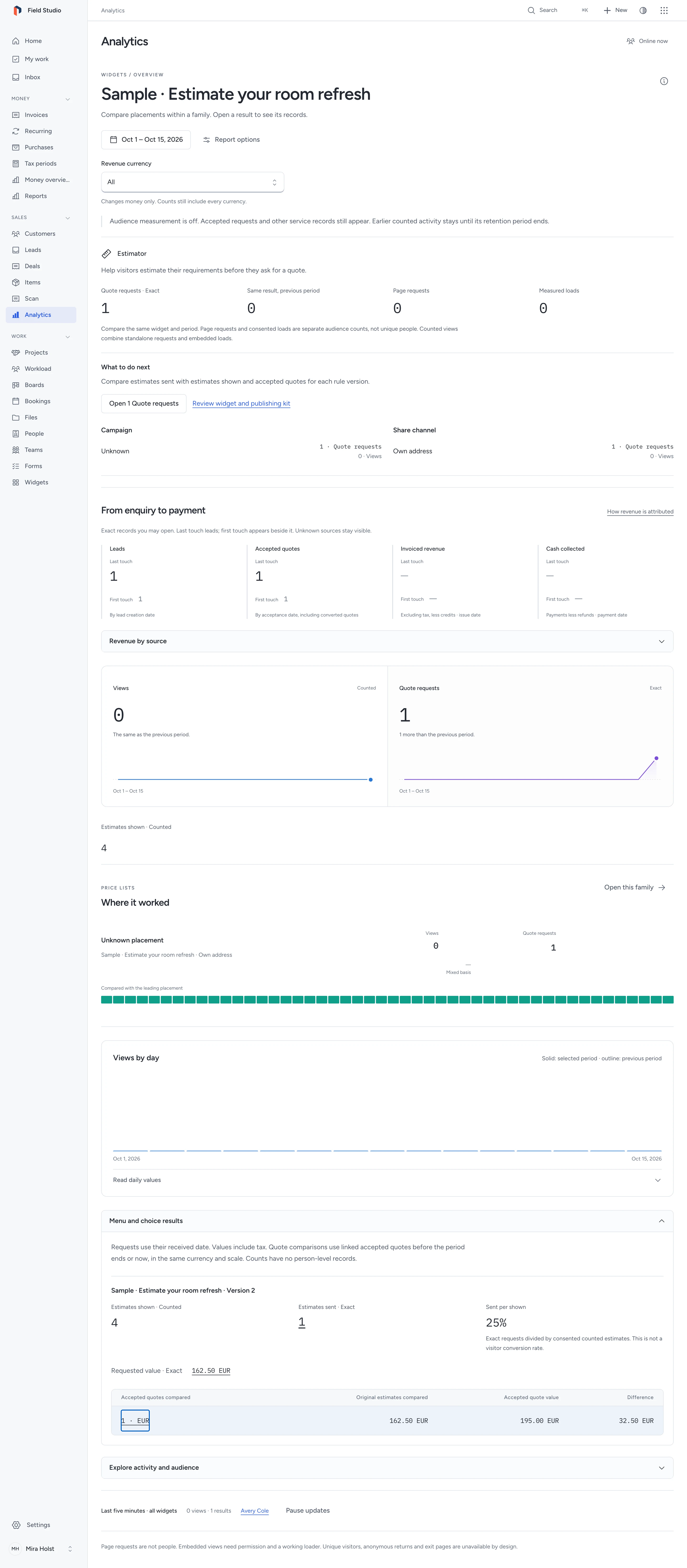
Select a menu, estimator or service-area widget, then open Menu and choice results.
| Figure | Basis |
|---|---|
| Menu views | Counted views under the normal measurement rules |
| Catering requests and number of people | Accepted requests and their saved headcounts |
| Requested value | Saved request totals including tax, separate for each currency |
| Estimates shown | Consented count, once per measured page load |
| Estimates sent | Accepted requests, grouped by their saved rule version |
| Sent per shown | Exact sent requests divided by counted shown estimates |
| Area checks | Consented counts grouped by the entered country and answer |
| Requests after an area check | Accepted requests with their saved area version |
Requests use their received date. An estimate can change several times within one load without counting as several shown estimates.
Sent per shown mixes exact records with consented counts. It is not a visitor conversion rate and can exceed 100%.
Quote comparisons start with estimator requests received in the selected period. They include linked quotes accepted before the period ends, or now if earlier.
Each comparison uses the saved estimate and accepted quote total, including tax, in the same currency and scale.
The difference is the accepted quote value minus the original estimate. Versions and currencies remain separate; drafts and cancelled quotes do not contribute.
These comparisons require access to each quote and See balances and figures. Business accounts do not see Platform quotes.
Open exact counts and values to read their permitted records. Country and device filters withhold identified results.
The area country describes the code the visitor checked. It is separate from the anonymous country classification used in audience filters.
Anonymous area checks retain no postal code. A sent request keeps it for follow-up. Export CSV and the analytics read tool include these breakdowns.
Read counter results
For offers, start with confirmed redemptions. The overview names the placement with the most redemptions, even when another placement has a higher rate.
For example, Canal Coffee's window brings 71 redemptions from 96 claims. Its WhatsApp link brings 18 from 21 claims.
The window brings more visits. WhatsApp has the higher redemption rate. These figures answer different questions.
Redemption rate follows the claims acquired during the selected period. It counts their own redemptions before the period ends, or now if earlier.
A correction removes that redemption from the rate when it falls before the report cutoff. Later corrections do not rewrite an earlier report.
Daily counts place confirmations and corrections on their own dates. A correction contributes minus one, so a day can have a negative net result.
| Figure | How to read it |
|---|---|
| Time from claim to redemption | Median time for claims in the period that were redeemed before its cutoff |
| Unused offers nearing expiry | Currently valid, unused offers whose expiry falls in the selected dates; past-only periods show zero |
| Time between stamps | Median gap between uncorrected stamps on one card, where the later stamp falls in the period |
A dash means there are no matching records for a time calculation. Open an exact figure to inspect its permitted records.
The stamp-card grid groups cards by their joining month. Each cell counts cards reaching that stamp in their first cycle, after corrections.
Newer cards have had less time. A dash marks a stamp that no card could yet reach under the saved minimum interval.
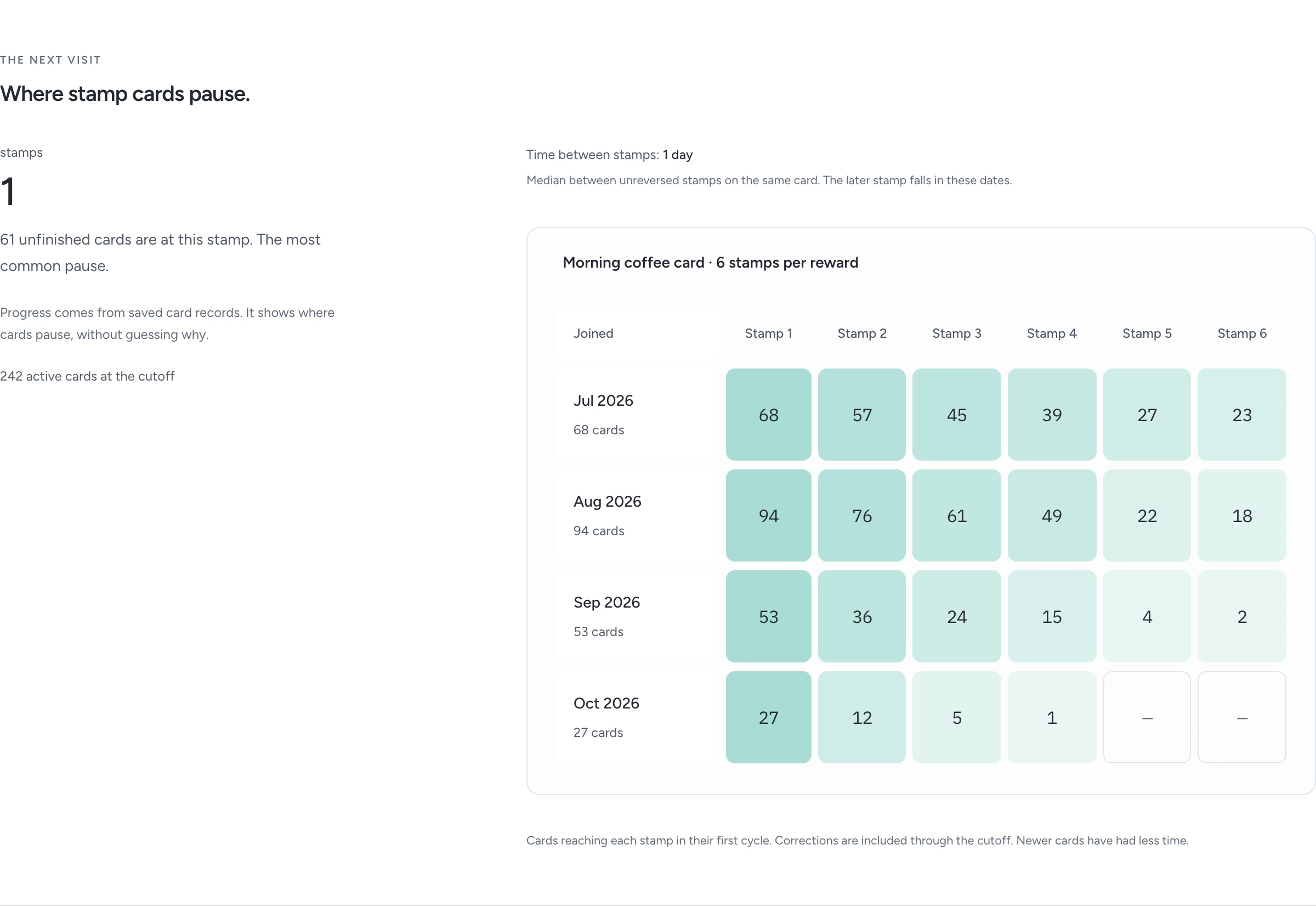
The pause summary shows where unfinished cards have stopped. It does not guess why someone has not returned.
Trace revenue to its source
Revenue attribution belongs to the platform workspace. Customer workspaces show their own widget outcomes, without the provider's invoices or payment figures.
From enquiry to payment shows Last touch first, with First touch beside it. The two models are alternative explanations of the same records. Do not add them together.
| Figure | What it includes | Date used |
|---|---|---|
| Leads | Leads you can open | Creation date |
| Accepted quotes | Accepted quotes, including those later converted to invoices | Acceptance date |
| Invoiced revenue | Issued invoice subtotals after discounts, excluding tax, minus issued credit notes | Issue date |
| Cash collected | Active incoming payments minus refunds, including any tax collected | Payment date |
Money requires See balances and figures, plus access to each document. Drafts, cancelled documents and reversed payment records do not contribute. A credit note reduces invoiced revenue once. It changes cash only when a refund is recorded. Cash can be negative when refunds exceed payments in the period.
- Choose your dates and source filters.
- Use Revenue currency to select a currency, or keep All to show separate amounts. This selection changes money only; lead and quote counts still cover all currencies.
- Open Revenue by source. Group by placement, widget, page, source, campaign or share channel.
- Compare last and first touch. Unknown includes records with no eligible known source.
- Click a count or amount to open the records behind it. Money rows show their signed contribution and reporting date.
Pepper uses the known source on accepted requests explicitly linked to one person. It looks back 30 calendar days from lead creation, quote acceptance or the moment an invoice was issued in Pepper. For an invoice, the attribution window ends at that moment even if its printed issue date differs. The revenue report still uses the printed issue date. Pepper does not link people by a shared email address or pool a company's contacts. Cash, credit notes and refunds keep the source of their original invoice, even when settlement happens later. A later enquiry cannot move an earlier sale to another campaign.
The source filter applies after first or last touch is selected. The two models can therefore show different totals for one placement. Across all sources, including unknown, each model adds up to the same total for each currency. A currency is never converted or added to another currency.
On a lead or deal, open Where this record came from to see known sources from the 30 days before that record was created. These facts remain separate from your editable source tag. Reading them does not grant access to Analytics. Removing a linked record or changing its access can change the reported source; it does not change an issued invoice or recorded payment.
Country and device filters make identified revenue unavailable. Anonymous views are not matched to sales. These figures show recorded work and payments; they do not establish that a placement caused a sale.
Set a target
- Open Analytics settings.
- Under Goals and targets, choose a Widget and Measure.
- Click Add goal.
- Choose the goal under Set a target.
- Enter a positive whole Target count, From and To.
- Click Save target.
The overview shows progress, what remains and the end date. A target uses its own widget and dates across all placements, even when the overview has other filters selected. It changes no request, price or offer. Exact progress counts only records you can open.
Remove target removes that planning target. Remove goal takes the goal off the active report; it does not delete service records. Re-adding the same widget and measure restores its goal.
Export and keep the data
Export CSV uses the current report filters and your access. The analytics read tool uses the same report. A saved view never grants extra record access. Revenue rows carry the attribution model, currency, scale and exact signed minor units. Keep long minor-unit strings as text when importing a CSV into a spreadsheet so the spreadsheet does not round them.
With the scheduler running, raw audience events and page-load identifiers are removed within 24 hours. Aggregated counts remain for up to 25 months. Full export and import carry those counts, goals, targets, saved views and operational source facts. Short-lived raw events and load grants are omitted.
An identified request's recorded source belongs to that request's personal data. Its access, data-subject report and erasure rules apply. Removing raw audience events does not delete a customer's service record.
Understand the privacy boundary
Anonymous pages set no cookie, use no browser storage and request no third-party assets. The server reads an address only for coarse country classification and short-lived abuse protection, and a user agent for a coarse device class and bot filtering. Neither raw value is stored by public collection.
A random identifier in page memory connects the permitted steps of one load. It expires and cannot recognise a later visit. Pepper therefore does not report unique visitors, visits, anonymous returns, exit pages or time between visits.
The operator chooses the purpose, privacy notice and consent flow. This method does not establish a legal exemption. Your hosting provider or proxy may keep access logs separately; configure their retention for your installation.
If a record panel fails to load, close it and open the figure again. An invalid settings field keeps your input and explains what to correct. An empty first month points back to publishing a widget and giving each placement its own link.
Read responses to listings
Choose Listings as the family, or select one listing widget. Listing journey shows counted views and photo views beside exact enquiries and confirmed viewings for the selected dates. These are separate populations; they do not trace an anonymous person through a funnel.
The listing rows show enquiries, viewing requests, confirmed viewings, applications and shortlists. An enquiry rate uses exact enquiries divided by counted widget views. The label names both populations. Photos viewed per measured view uses consented photo views and widget loads.
Days to first enquiry starts at the first publication. Price intervals show each public price, its enquiries, days of publication and enquiries per day. The calculation excludes unpublished time and uses the business timezone, including daylight-saving changes.
A missing count stays unavailable. Exact results obey your record access; a rate stays unavailable when you cannot read its whole enquiry population. Each currency stays separate. CSV and agent reads use the same values. See publish listings and follow up on requests.
Compare bookings with capacity
Select the bookings family to read confirmations, cancellations, no-shows and accepted waitlist offers. Open the linked records to understand the result.
Bookings and capacity compares each service and schedule using its own unit: capacity-minutes, resource nights or event seats.
Availability is recorded once per schedule and day, or when future time is first booked. Later edits do not rewrite that basis.
Recorded availability excludes closures and outside busy time observed then. Minimum notice and daily cut-off limits do not reduce configured capacity.
Cancelled bookings do not occupy capacity. Completed bookings and no-shows keep their occupied time.
If days were not recorded, the fill rate is unavailable. Restricted roles and source filters also withhold the whole-schedule percentage.
Clear source filters to compare a complete schedule. Shared schedules appear per service; their capacity figures must not be added together.
Average booking notice uses acceptance time and the original start. The report states its population and observation time.
Bookings do not mean revenue, payment or attendance. Read the booking workflow for completion and invoice drafts.
If you can read money totals but cannot read their source widget, Analytics groups that source as Unknown. The permitted financial totals stay unchanged.
Measure customer decisions and job times
Choose the Customer decisions family, or a proof or job widget. The report lists permitted records published in the selected period. Follow a record link to inspect the decisions and history behind its figures.
Proof figures show seconds from publication to the first decision and approval, change requests, time waiting and whether the current unapproved version exceeds its waiting target. Comments alone are not decisions. A new version starts its own figures; an earlier approval does not carry over.
Job figures show seconds in each recorded stage interval, total job seconds, waiting questions and answer times. Closed job intervals do not accumulate time. Corrections add intervals without changing earlier records. Reopened questions keep answers in separate rounds.
The report stops outcomes and elapsed times at the period end or now, whichever is earlier. Clearing placement, campaign, channel and other audience filters makes these operational figures available. They support dates, widget, widget type and family filters. They are unavailable in customer workspaces.
Linked quote attribution counts quotes accepted after a recorded visit from that job page. This sequence does not establish what caused acceptance. A quote must belong to the same customer and remain within your document access. The job page does not accept it.
These figures are exact records and UTC seconds. They do not connect anonymous visitors or prove payment. See proof decisions and job questions for the workflow.
Need help with the product?
Contact support