
Browse the manual
Installation health
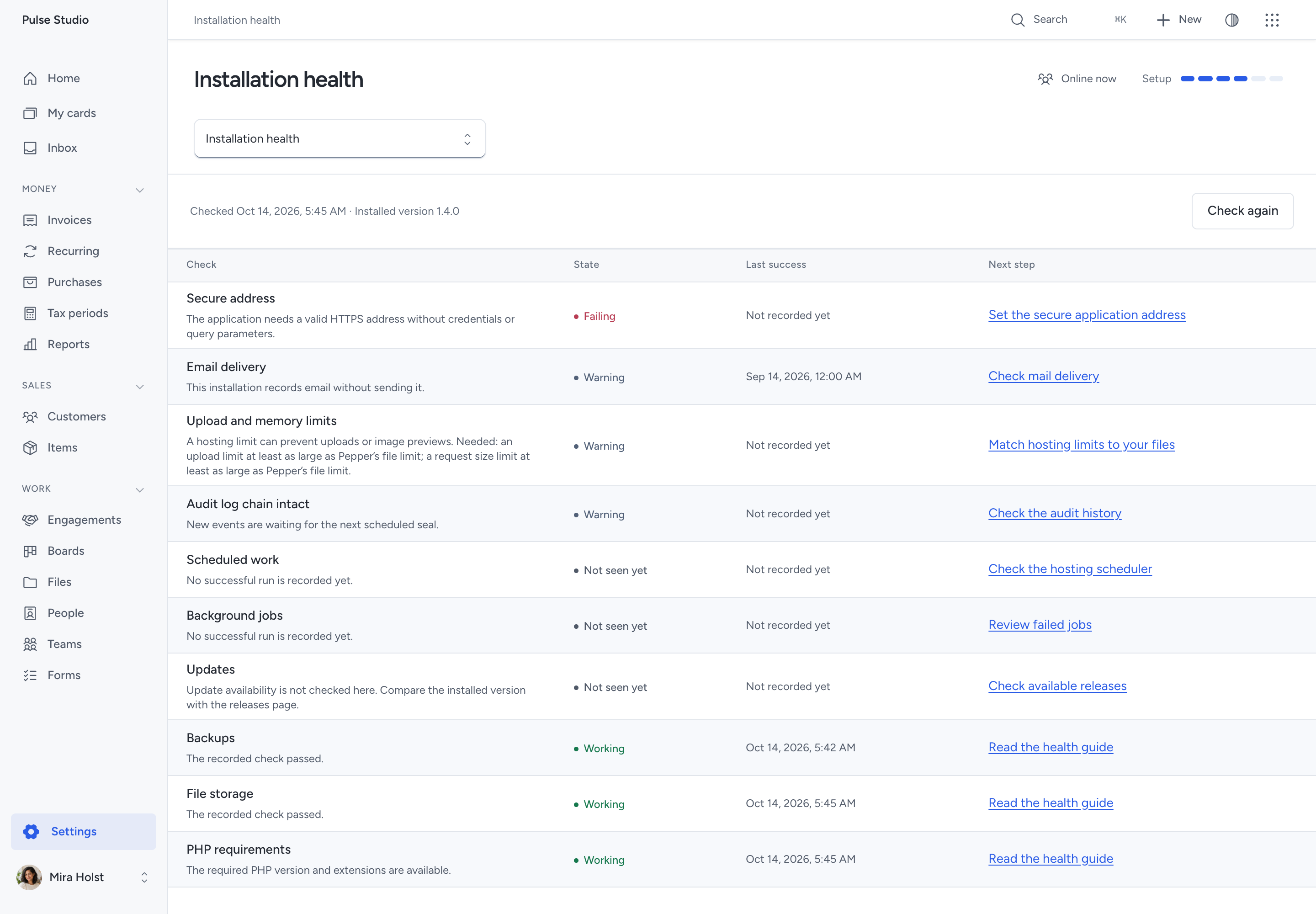
Find a failed installation check, see its last success and follow the next step.
On this page
Open Settings > Installation health as an owner or administrator. The page puts failed checks first. Each row explains the result and links to its next step.
Select Check again to read the latest evidence. The page sends no email, starts no backup and contacts no update service. If the request fails, the previous results stay visible with a notice.
Read the result
| State | Meaning |
|---|---|
| Working | The available evidence passed the check |
| Warning | A limit, configuration or unfinished operation needs attention |
| Failing | A recorded failure or unmet requirement needs a fix |
| Not seen yet | Pepper has no evidence that this operation succeeded |
Last success is the most recent recorded success. A blank history is not a successful check. Some checks, such as PHP requirements, run when you open the page.
A scheduled evaluation runs every five minutes. A new failure period adds one Home attention item and one Inbox update for each active owner and administrator, through their normal notification preferences. Repeated evaluations add no duplicate. The next evaluation after recovery removes the Home item. A later failure starts a new period.
Audit log
Audit log chain intact reads the most recent verification and the current pending count. New events waiting for a seal or a check older than one day produce a warning. A changed event produces a failure.
Follow Check the audit history to Audit log. Run Check history there. If it finds a changed link, preserve a backup and inspect the evidence. Refreshing installation health does not repair or rewrite the chain.
Scheduler
Scheduled work expects the hosting scheduler to check in at least once every five minutes.
If it has not, follow Cron setup. Ask your host to check that the command runs every minute with the correct PHP version and application directory. Wait for the next run, then select Check again.
Jobs
Background jobs uses the results of Pepper's existing scheduled jobs. A failed job or a job running for more than an hour needs attention. All registered jobs need a successful run before the check can show Working.
First check the scheduler. If it works, ask your host to inspect the failed scheduled command in the application logs. Do not send a log containing credentials or customer details to a public forum. After the next successful run, check the page again.
Email delivery reports whether the mail service accepted a message. It does not prove that the recipient received it.
If the installation only records messages, configure email delivery. If a send failed or its outcome is unknown, check those settings and the delivery history on the document. Follow the email guide before you retry an uncertain send.
A later accepted send restores installation mail health. Older failed delivery records stay unchanged and remain in the normal delivery work queue. Pepper does not mark those messages as delivered.
Backups
Backups shows the last backup run. A backup in progress is a warning. A failed run is a failure. With no recorded run, the result is Not seen yet.
Open Manage backups. Check the schedule and storage destination. Create and download a backup, then test a restore in a separate installation. A successful backup run alone does not prove that a restore will work.
Storage
File storage counts all saved file versions, including versions of deleted files. At 90% of the quota it shows a warning. At the quota it fails.
Review the file quota in Settings and the available space with your host. Deleting a file does not remove its saved versions or reduce this count. The check compares Pepper's recorded file bytes with its configured quota; it does not measure the host's entire disk.
Updates
Updates shows Not seen yet because Pepper does not check a remote release service from this page. Compare Installed version with the changelog, then follow Updating.
The page never installs an update for you.
Runtime
PHP requirements checks the supported PHP version, required extensions, image support and a database driver. If a requirement is missing, the row names it.
Give that list to your hosting provider and use the requirements guide. The PHP version used for web requests can differ from the version used by the scheduler. Ask the host to check both.
Limits
Upload and memory limits names the limits that fall below Pepper's needs: PHP memory, upload size, request size or execution time.
Ask your host to allow at least 128 MB of PHP memory and at least 30 seconds per request. Upload and request size limits must cover the file limit set in Pepper. A request containing several files may need more room.
Image previews have a separate memory check before decoding. An image that cannot fit safely shows its file type icon. The original remains available. See Files.
HTTPS
Secure address checks the configured application address. It must use HTTPS and contain no username, password, query or fragment.
Ask your host to set the correct secure application address and check its certificate in a browser. The health page checks the configuration; it does not contact the address or test the certificate.
Optional AI access
The installation.health read tool returns the same fields as this screen. It requires a connection with settings:read and a current active owner or administrator as its delegate. A custom permission alone does not grant health access.
AI is optional. This tool changes no settings and performs no repair. You remain in control of the installation. See the Agent API category.
Outside booking calendars
This check reports failed or stale calendar feeds. Open Booking settings > Outside calendars to review the affected connection.
The business owner can replace its private address or queue Check again. A stale feed may also mean the hosting scheduler stopped.
By default, bookings stay open using the last known busy intervals. The owner can choose to pause affected bookings during failure or staleness.
The owner receives one notice per incident and another on recovery. Read outside-calendar setup and limits.
Online payments
this check reports whether Stripe is configured, whether new payments are enabled, and whether delayed or unresolved operations need attention. A local or HTTP application address cannot receive public Stripe webhooks. Use public HTTPS for live collection and keep the scheduler running.
Follow online payment setup and recovery. Only the owner can change credentials. A healthy connection does not prove an invoice was paid; inspect that invoice's confirmed payment history.
Need help with the product?
Contact support