
Browse the manual
Manage customer accounts
Help customers sign in, manage their details and open linked purchases, then control access and respond to data requests.
On this page
For: business owners who offer online purchases and customer self-service. Where: Account on your website; Customers for staff controls.
Customers sign in with a code sent to their email. They need no password or staff invitation.
Their account holds a profile, saved addresses, email choices and linked purchases. It does not open every invoice on their staff Customer record.
Offer account access
Keep the Customers module and email delivery available. A published Pepper website shows Account in its header, including on a phone.
An account works without a shop. Businesses without a published website can share the installation's account address: /_account/en for English.
For example, an installation at https://business.example.com uses https://business.example.com/_account/en. Use the language shown by its language selector.
Website accounts use that website's published design and languages. Private account pages stay out of search results and public page caches.
Customers must sign in separately on each custom domain. Moving a website's address or withdrawing it ends access through its previous account address.
Purchases from the same business can appear together after sign-in, including purchases from its other websites. A shared Customer record alone grants no purchase access.
These accounts are separate from business workspaces for widget owners and staff accounts.
Sign in
Customers follow these steps:
- Open Account.
- Enter Email and select Send code.
- Enter the six-digit Verification code from the email.
- Select Verify code.
A code expires after 10 minutes. Use Send a new code if it expires or cannot be used. Repeated requests can require a wait.
The first successful verification creates an account when none exists. Later sign-ins open the same account for that verified email.
The account forms and language selector work without JavaScript. Select Sign out when finished on a shared device.
Verify checkout
Customers can browse, build a cart and review prices before signing in. Placing an order requires verification of the checkout email.
On a Pepper website, a matching signed-in account can confirm that email for checkout. Otherwise, checkout sends its own code.
An externally embedded shop also uses the code step. It does not depend on the customer already being signed in elsewhere.
After verification, select Continue to review, check the current order and select Place order. Changed checkout details can require verification again.
The accepted order links to the verified account. Payment still requires its separate confirmed result. See checkout and payment.
Edit the profile and addresses
In Profile, customers can change Name, Phone and Language, then select Save changes.
These changes update the account profile. They do not rewrite the staff Customer record, accepted orders or issued invoices.
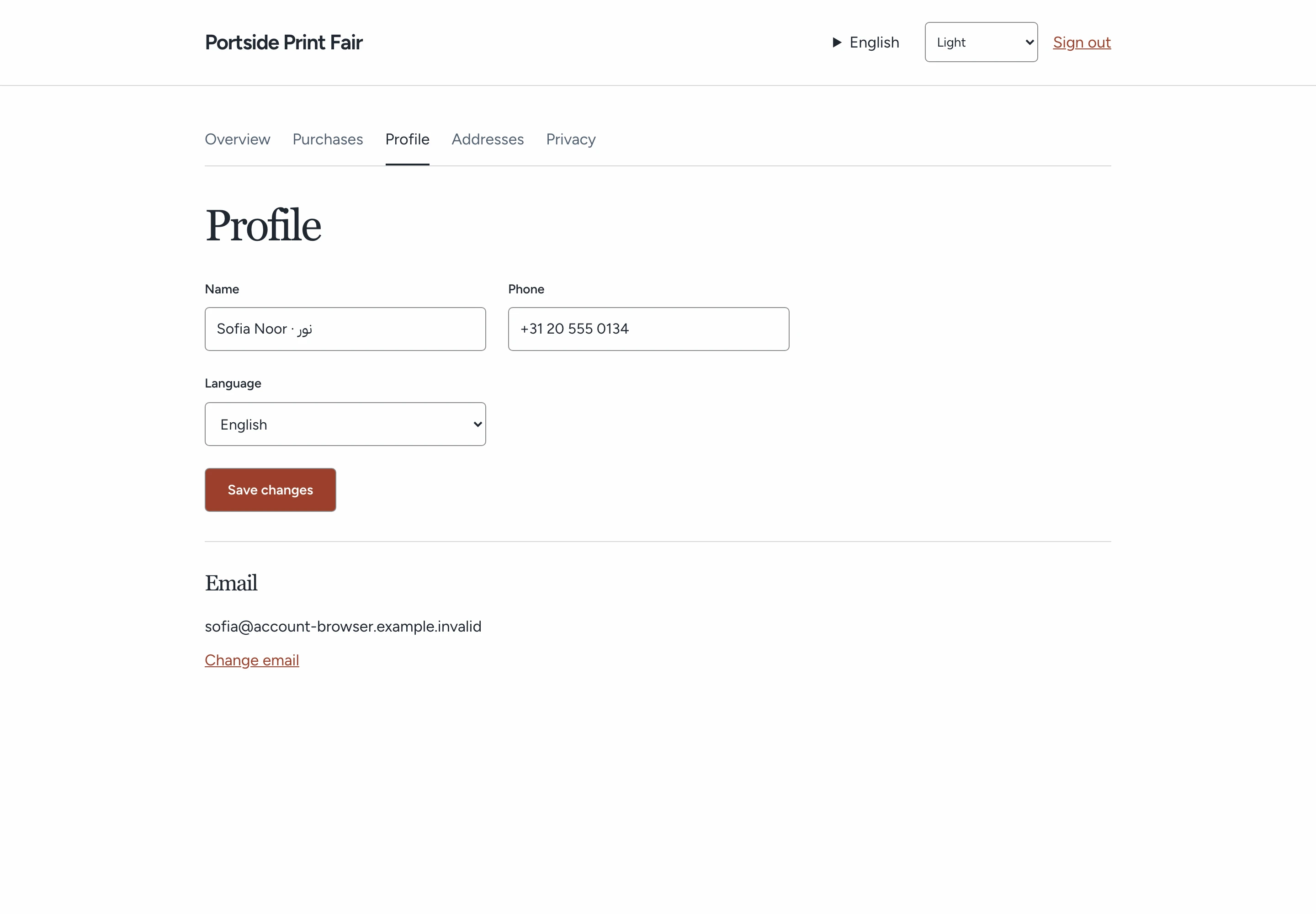
In Addresses, select Add address, choose Country and complete the address fields. Select Save changes.
An account can keep up to 20 saved addresses.
Use Edit to change a saved address or Remove address to remove it. Existing orders keep the addresses accepted for those orders.
Change the email
- Open Profile and select Change email.
- Verify the code sent to the current email.
- Enter the new email and select Send code.
- Verify the code sent to the new email.
Both inboxes must be verified. Pepper refuses an address already bound to another account or unavailable for registration.
The change ends earlier account sessions. The current session continues with the new email. The staff Customer email and issued records stay unchanged.
Open purchases and request returns
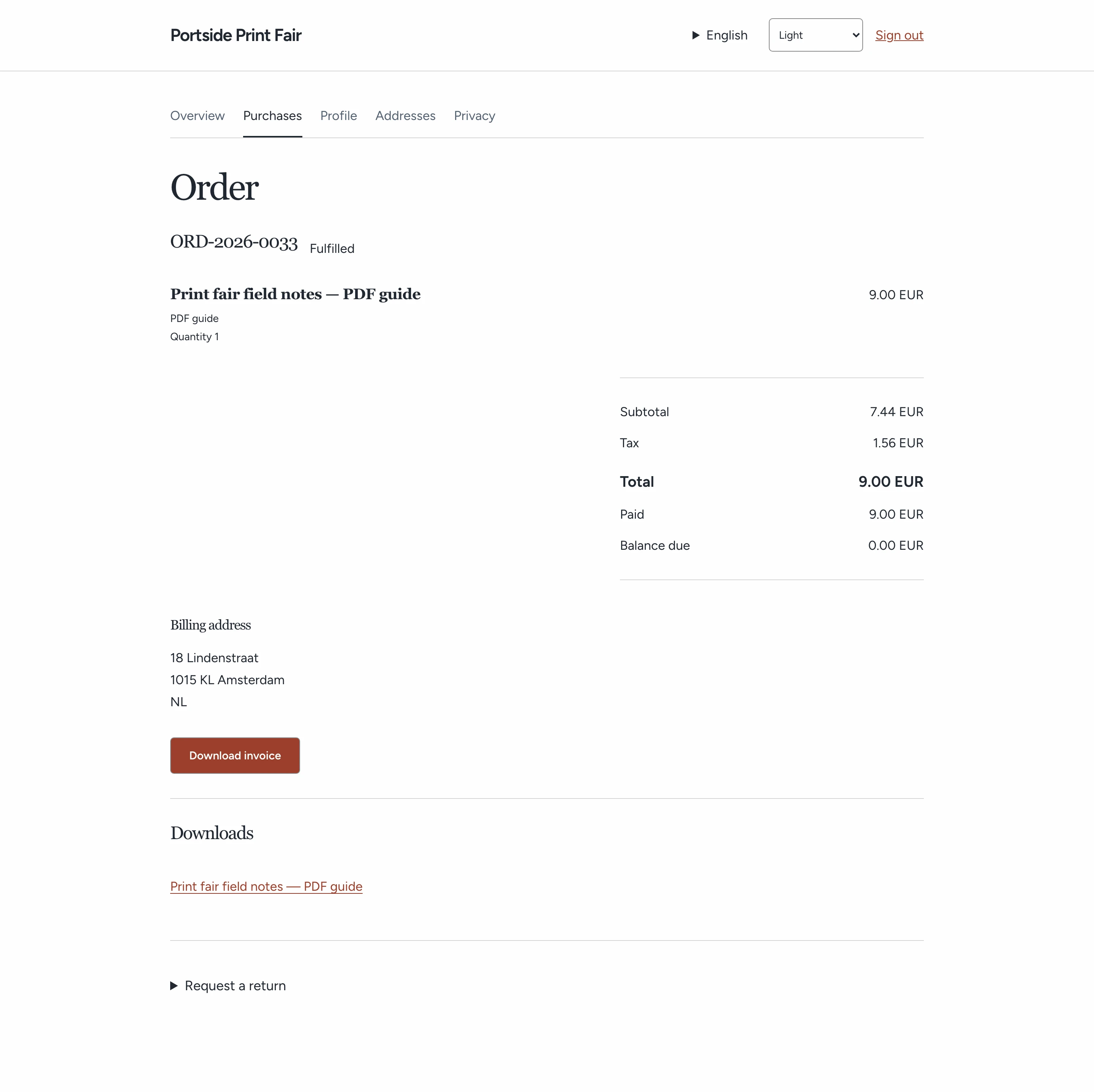
Open Purchases, then select an order. Its page shows the accepted items, quantities, totals, payment and available delivery details.
Use Download invoice for the order's issued invoice. Downloads contains the digital files currently available for that purchase.
A file can remain unavailable until fulfilment completes. Expired or revoked access does not grant a download.
For eligible items, select quantities under Request a return, enter the reason and select Send request.
The business reviews the request. Sending it does not confirm receipt, restocking, credit or a refund.
Add an earlier purchase
- Open Purchases and select Add an earlier purchase.
- Verify your email again with the new code.
- Paste the Original purchase link.
- Select Add an earlier purchase.
The original link and verified purchase email must match the permitted purchase. Knowing an order number or sharing a Customer record is insufficient.
Keep signed purchase links private. They still provide limited access to their stated order until expiry or revocation.
Manage email choices and data requests
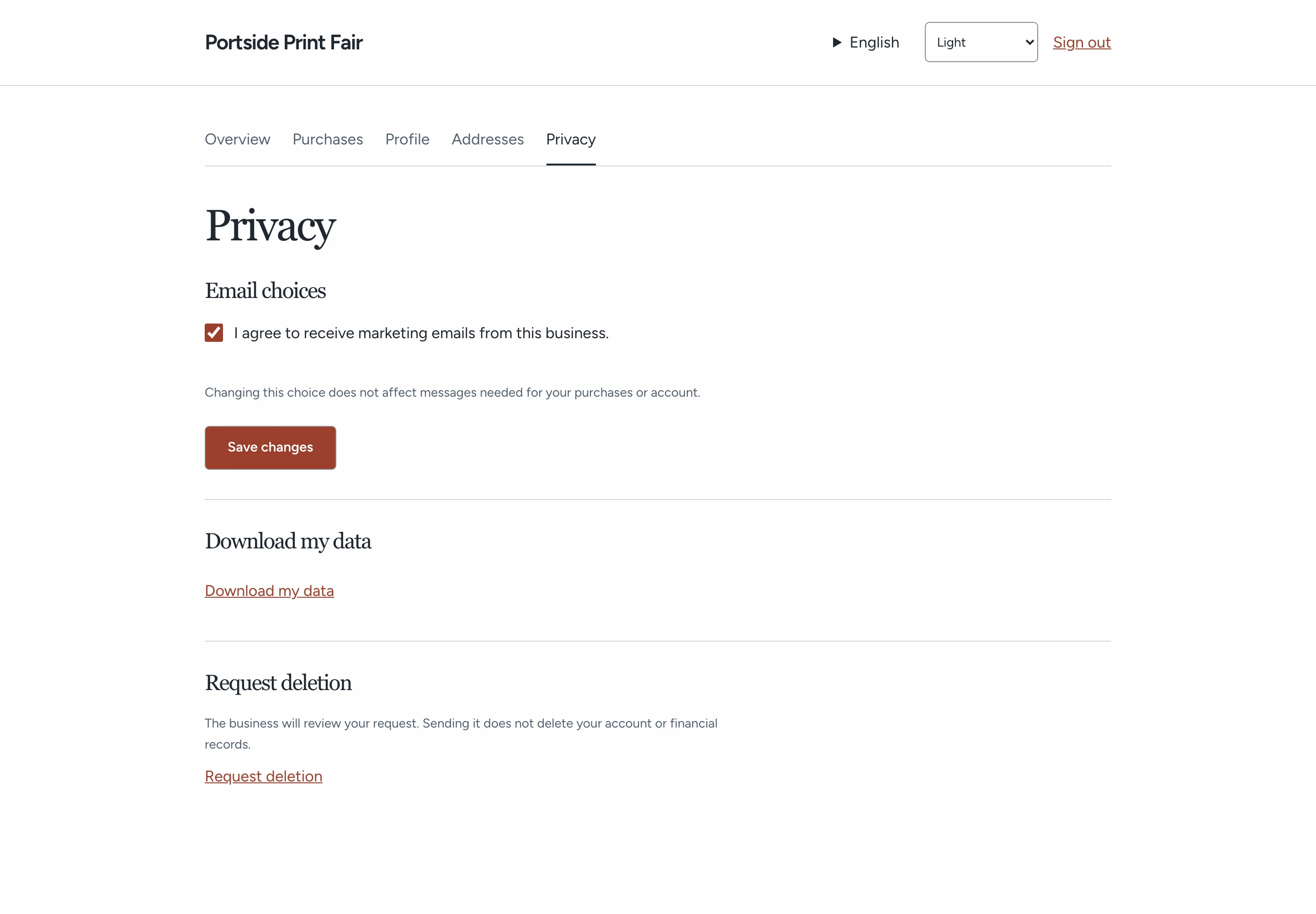
In Privacy, customers choose whether to receive marketing emails under Email choices, then select Save changes.
Consent starts unchecked. Withdrawing it does not stop messages needed for purchases or account access. Pepper keeps the choice history.
Download my data requires a new email code. It exports account details, saved addresses, consent, access history, requests and purchases linked to that account.
To request deletion, select Request deletion and verify a new code. Enter a reason if needed, then select Send request.
The request starts Under review. The business's decision and reply appear in Privacy. Sending a request does not erase account or financial records.
Find the account as staff
Open Customers. In View, choose With account or Without account.
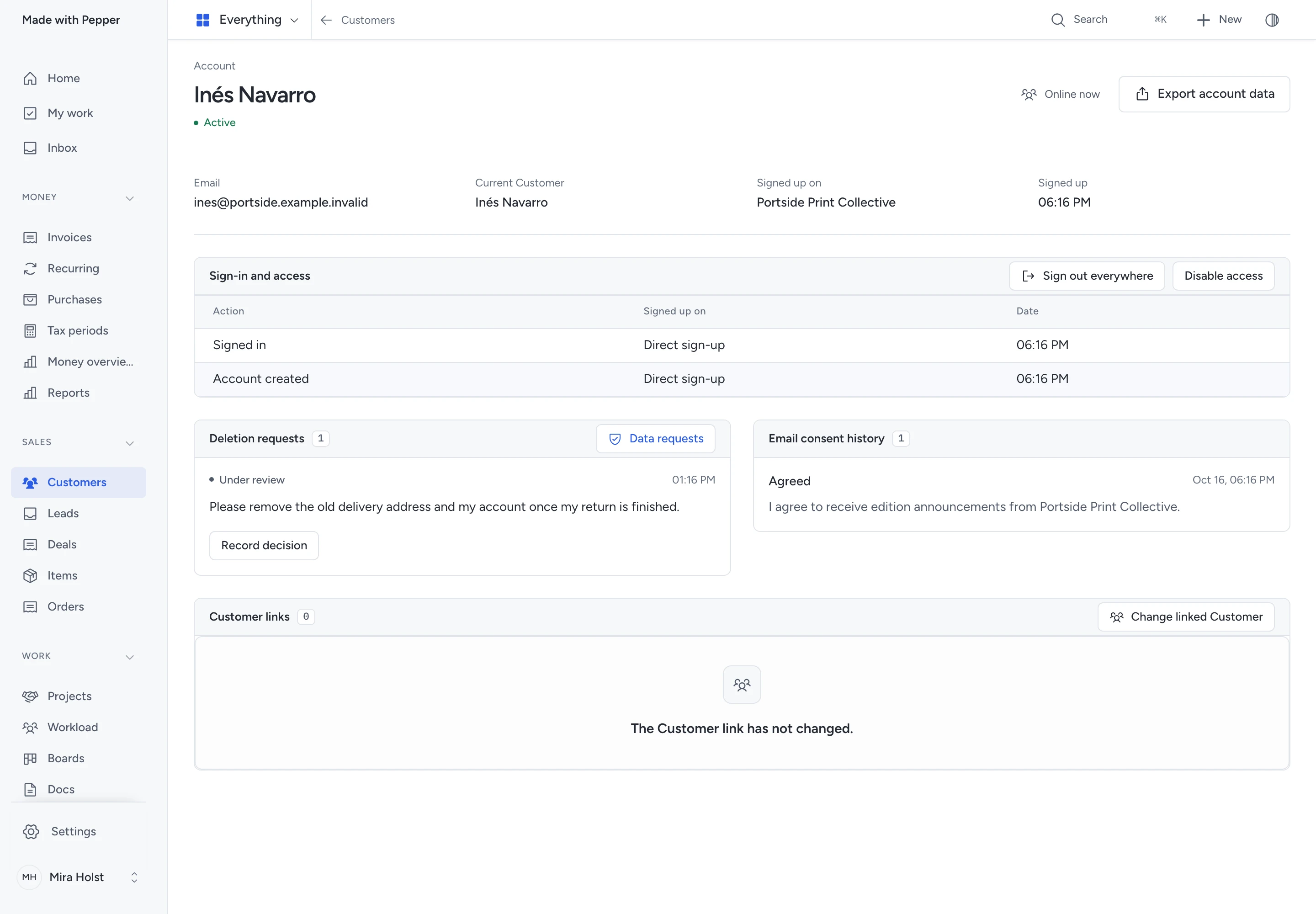
Open the Customer, then select the Account badge or the account name under Accounts. The account shows Current Customer, Signed up on, Signed up and permitted access history.
One business Customer can have several separately verified people. Their profiles and purchase access remain separate.
Verified registration reuses the matching Customer instead of creating another record. If the matching record is a supplier, it keeps that role and gains the customer role.
An inactive or deleted match blocks registration instead of silently creating a replacement. Staff must review the existing record.
Check possible duplicates
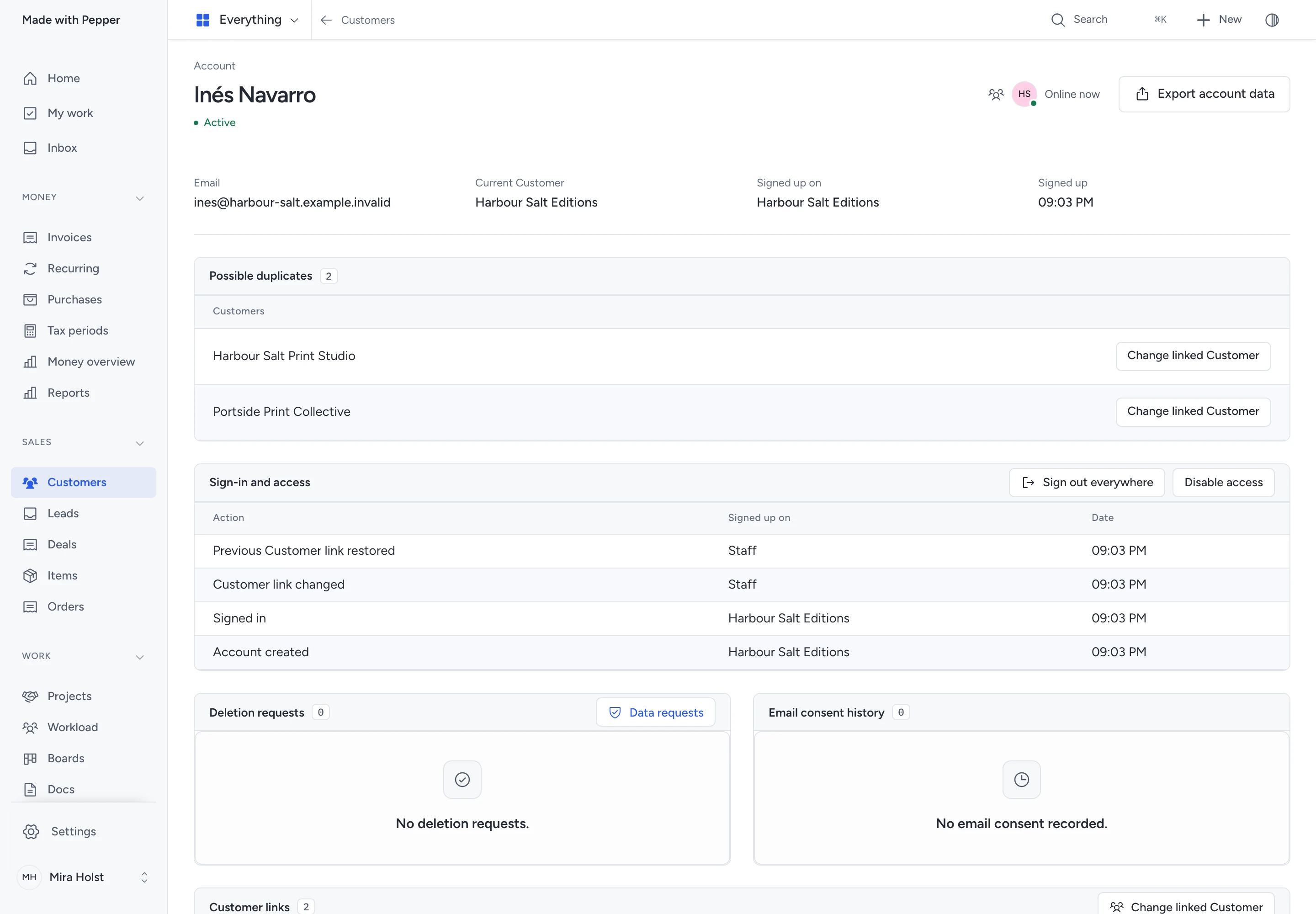
If several active Customers already share the verified email, Pepper keeps the oldest as the account's Current Customer. It preserves every matching record.
- In Customers, select Possible duplicates beside the account badge.
- Open a matching Customer to inspect its details. The list includes only Customers you can read.
- If the account needs another Customer, select Change linked Customer beside that match.
- Enter a Reason, review the consequence and confirm.
Changing the link requires Manage customer account access. Restore previous link reverses it from the account's link history. Neither action merges records or moves earlier purchases.
Control access
Account controls require Manage customer account access and access to the current Customer. Account export also requires export permission.
| Control | Result |
|---|---|
| Disable access | Ends current sessions and prevents sign-in until access is enabled. |
| Enable access | Allows sign-in again with a new code. |
| Sign out everywhere | Ends current sessions; the customer can sign in again. |
| Change linked Customer | Uses the selected Customer for future purchases. Earlier purchases and issued invoices stay unchanged. |
| Restore previous link | Restores an eligible previous Customer link for future purchases. |
| Export account data | Downloads the permitted account profile, addresses, consent, requests and access history. |
Enter a Reason when changing access or Customer links. Review the consequence before confirming. Refresh first if another change made the record stale.
Relinking does not merge Customers, transfer earlier purchases or give access to every invoice on the selected Customer.
Record a deletion decision
- Open the account's Deletion requests.
- Select Record decision on the request.
- Choose Resolved, Deferred or Declined.
- Enter Reply to customer and confirm Record decision.
The reply records the current decision and retains earlier decisions. Resolved does not mean account data was erased.
Erase account personal fields
Only the owner can confirm erasure. Open Data requests from the account, then Review personal fields.
Review this account's fields and retained records. Check the confirmation after reviewing the business's retention duties, then select Erase personal fields.
Erasure clears the account's personal profile, addresses and personal consent and access details. It permanently ends access; the email cannot register again.
Pepper keeps a protected email reference to prevent duplicate registration and access to earlier purchases. Issued originals, financial records and purchase ownership remain.
Erasing a Customer's personal fields does not automatically erase every linked account. Review each account explicitly. See data requests and erasure.
Fix an access problem
| Problem | Next step |
|---|---|
| No code arrives | Check the email address, spam folder and business's email delivery setup. |
| Code expired or refused | Select Send a new code and use the latest email. |
| Account disabled | Ask the business to review access. Repeated codes cannot enable it. |
| No purchases appear | Check the sign-in email or use Add an earlier purchase with the original link. |
| A request became stale | Refresh, review the current details and try again. |
| A website moved or was withdrawn | Use the business's current website or installation account address and sign in again. |
Related pages
Need help with the product?
Contact support