
Browse the manual
Build an estimator
Turn typed answers into catalogue quantities and keep the estimate a visitor sends.
On this page
An estimator turns a visitor's answers into catalogue quantities and a price estimate. The visitor can send it for follow-up.
For: an item manager in the Platform, or an authorised Business account with this widget in its plan.
Where: Work > Widgets, or Widgets in your Business account. First create the catalogue items.
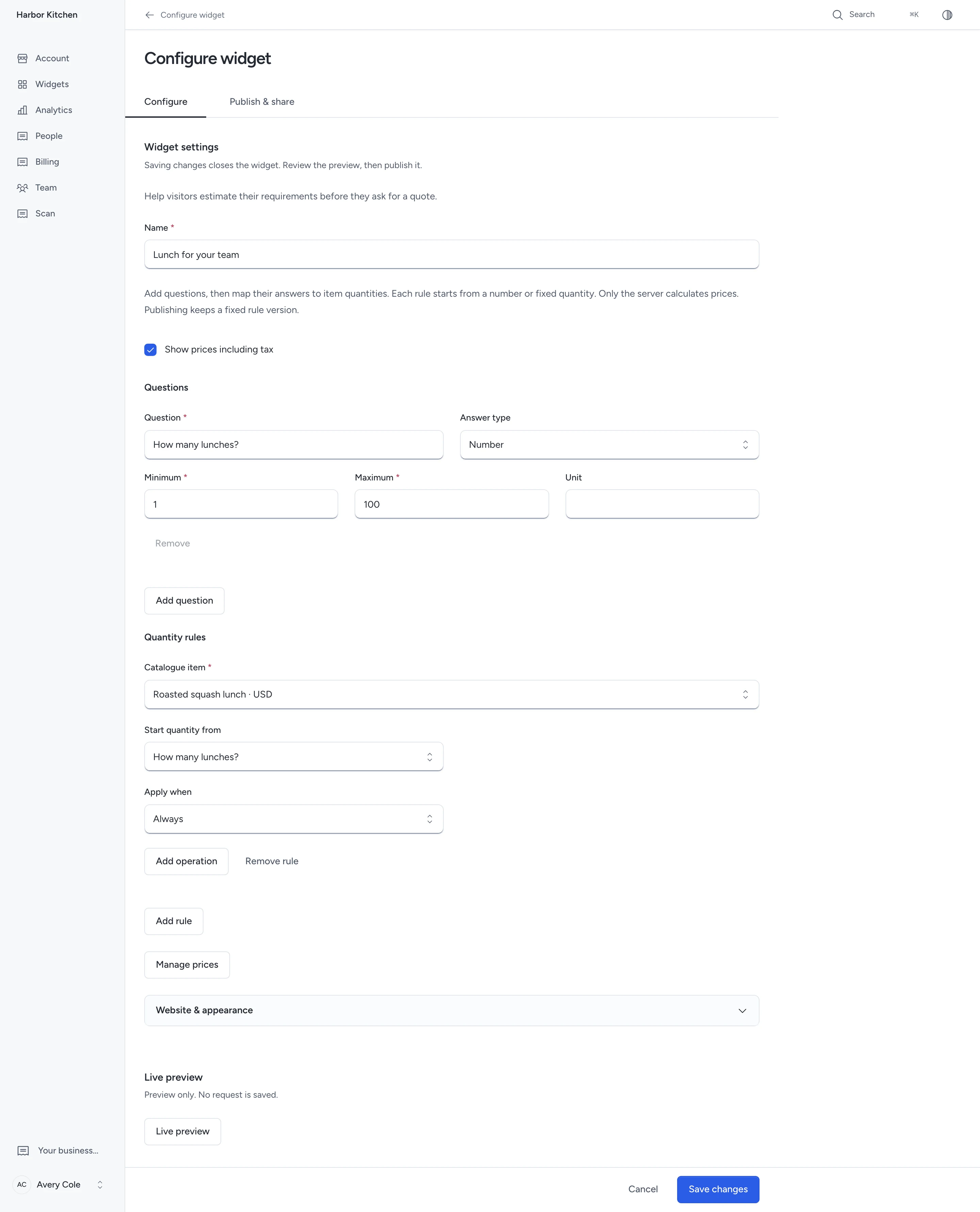
Add questions and rules
- Click New widget and choose Estimator.
- Enter the widget name.
- Enter a question and choose its Answer type.
- For a number, enter its unit, minimum and maximum.
- For a choice, enter one option per line. A yes-or-no question needs no options.
- Use Add question when you need another answer.
- Under Quantity rules, click Add rule.
- Choose a Catalogue item.
- Choose a numeric answer under Start quantity from, or enter a Fixed quantity.
- Choose Always, or a choice or yes-or-no answer under Apply when.
- Add operations in their calculation order.
- Check Live preview, then click Save changes.
- Open Publish & share and click Publish widget.
| Operation | Meaning | Example |
|---|---|---|
| Multiply by | Multiply the running quantity | 12.5 × 2 = 25 |
| Add | Add to the running quantity | 25 + 1 = 26 |
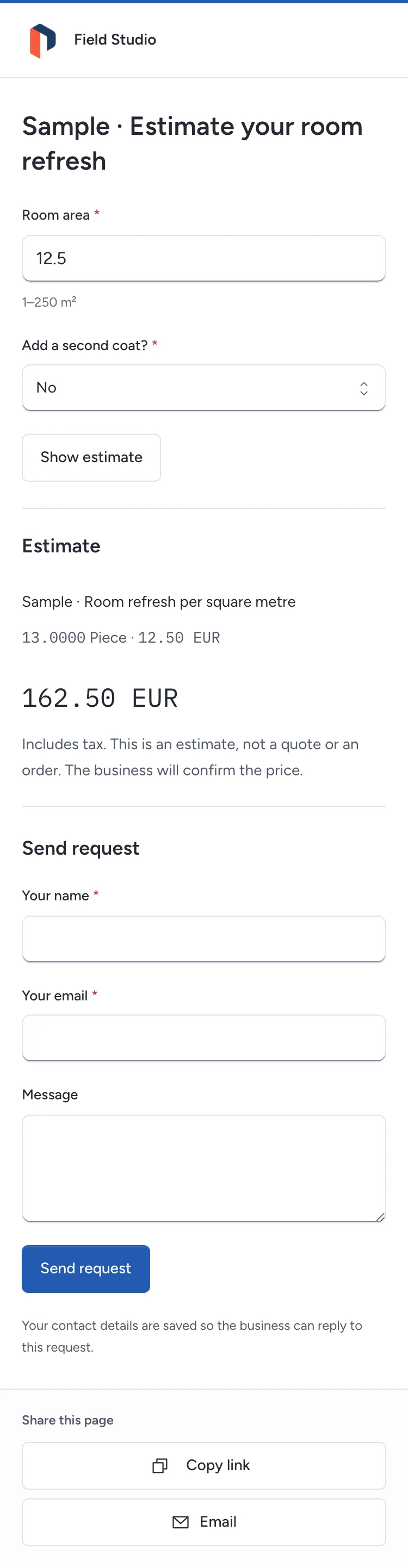
| Round up to a multiple of | Take the next whole multiple of a positive number | 12.5 rounded up to a multiple of 1 becomes 13 |
For a room refresh, start with the area answer and round up to a multiple of 1. At USD 12.50 per unit, 13 units total USD 162.50 before tax.
Rules can select the same item. Pepper adds those quantities before rounding the final quantity to four decimal places.
Use up to 30 questions, 100 rules and 12 operations per rule. All selected items must use one currency.
The server calculates prices using the current catalogue and tax rates. You cannot enter code or a browser formula.
The estimate total includes tax, including when displayed unit prices exclude it. An estimate is not a quote or a fixed-price promise.
Check the visitor journey
Open the published page and answer every question. Click Show estimate to read the selected lines and total.
Answers outside a numeric limit produce a field error. If the answers select no items, change them or contact the business.
To send the estimate, enter a name and email and click Send request. The message is optional.
If prices or published rules changed, Pepper stops submission. Refresh prices keeps the answers and contact details.
Click Show estimate again. Check the new total before sending.
Keep versions and prepare a quote
Publishing freezes the questions and rules as a version. Editing creates a draft; publish again when it is ready.
Each accepted request keeps its answers, version, items and exact estimate. Later rule or price changes do not alter that record.
Open Widgets > Records > Requests in the Platform, or People in the Business account, to follow up.
In the Platform, qualify the lead and prepare a quote. The draft uses current catalogue prices.
Review its difference from the saved estimate before sending it. Business accounts do not manage the Platform's quotes or invoices.
Menu and choice results separates shown estimates, sent requests and accepted quote differences by version and currency.
Follow Publish a widget for website presentations, allowed websites, named links and QR cards.
Need help with the product?
Contact support