
Browse the manual
Run your business's widgets
Manage widgets, invite counter staff, review activity and find your service invoices in your customer workspace.
On this page
See the widget journeys for separate visitor, member, platform-staff and customer-owner views.
The platform operator assigns the plan and access for your widget workspace. Read the licence scope.
For: a business owner with a customer-workspace invitation.
Accept your invitation, then work inside your business's account. Your plan determines the tools available there.
If you belong to several businesses, choose one on Your businesses after signing in. Each business keeps separate records and permissions.
On a phone, open More for all available destinations.
Open your account
- Open the invitation email and click Open your invitation.
- Set up your account, or sign in with the invited email address.
- Complete any required device or second-factor check.
- Accept the invitation.
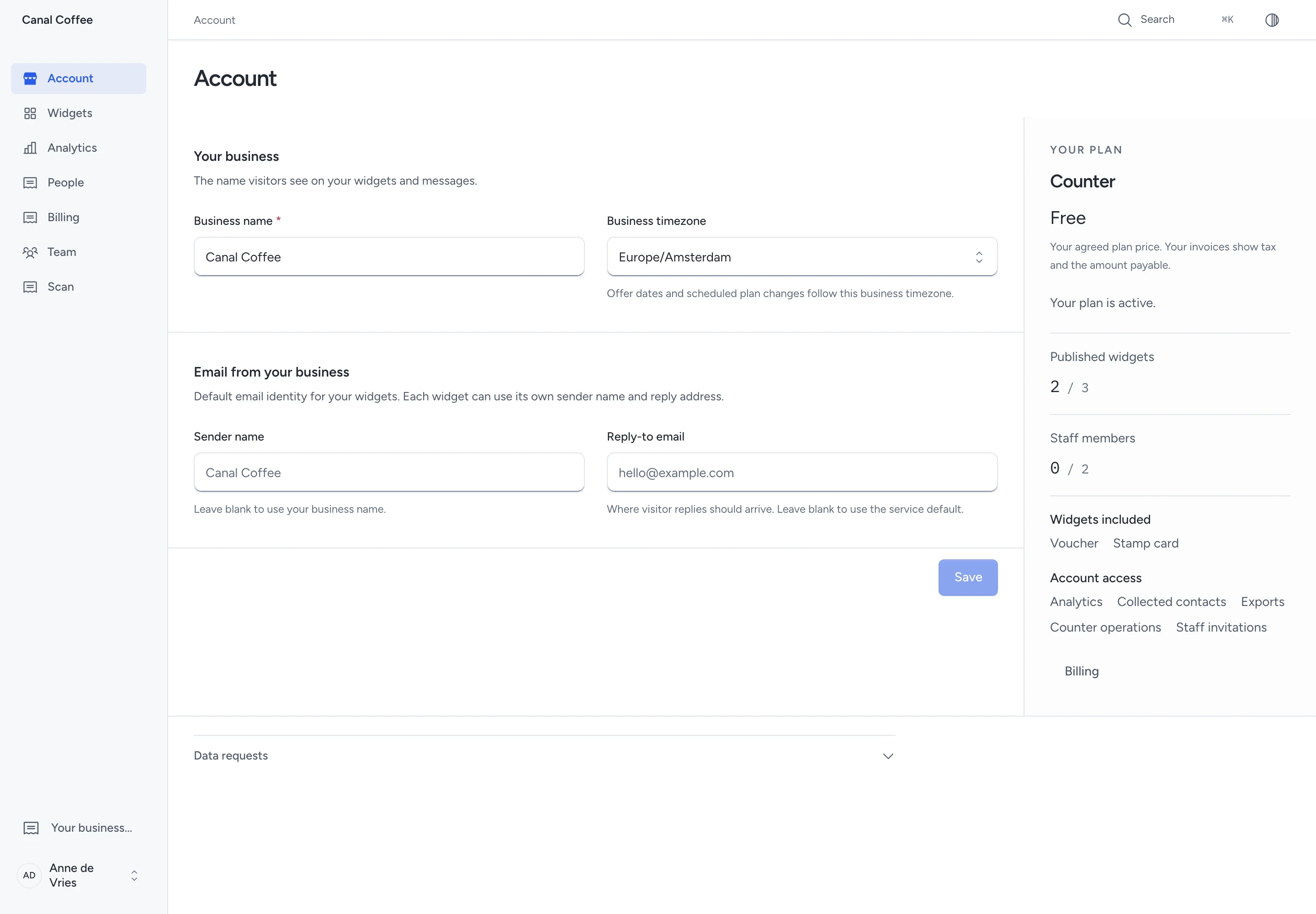
- Open Account to check your business name, timezone and plan.
Your plan lists the assigned widget types and account tools beside your usage. Staff permissions remain separate from these plan features.
Invitations last seven days. If yours expires, ask the person who invited you for a new one.
An offer or loyalty-card email code opens the visitor's offers. It does not sign anyone into your business workspace.
Publish your first widget
- Open Widgets.
- Click New widget.
- Choose an available type.
- Enter its content.
- Click Live preview.
- Click Save changes.
- Open Publish & share.
- Click Publish widget.
- Copy its page link or website code, or create a named QR placement.
The widget guide covers website embeds, newsletter and WhatsApp links, printed placements and website permissions. Use Campaign labels in Publish & share to choose or approve a campaign within your business.
Search and type/status filters narrow Widgets before pagination. Choose Analytics from either row menu to read the selected widget’s results and next actions. Its Back link retains your filters. Your plan and account access control analytics; the list explains unavailable statistics. Counter staff cannot use these management controls.
The counter guide covers offers and loyalty cards.
Drafts do not occupy a publication place. If you reach your plan limit, close a published widget or ask your provider to change the plan.
Saving a widget edit closes publication. Check the updated preview and publish it again when ready.
Forms and prices
For a form widget, create its questions, save the form, then choose Use in a widget. Responses become enquiries in your business's People.
For a price-list widget, open Manage prices. Add your products or services, then choose them in the widget.
To change a catalogue item, open its row menu. Choose Edit.
Visitors see current prices. Earlier requests keep the prices shown when they submitted. Making an item inactive removes it from public lists.
Your workspace uses its own forms and catalogue. Other businesses' records and the provider's catalogue are unavailable.
Set your email identity
- Open Account.
- Under Email from your business, enter Sender name and Reply-to email.
- Click Save.
Leave the sender name blank to use your business name. Leave Reply-To blank to use the service default.
A widget can override either value under Email from this widget. Its override applies to all placements of that widget.
The service controls the authenticated sending address. Your Reply-To sets where visitor replies arrive; it does not change that address.
Give a cashier their own access
- Open Team and click Invite staff.
- Enter the cashier's email address.
- Choose All widgets or Selected widgets.
- For selected access, choose each widget they may serve.
- Click Send invitation.
- Check its delivery status below the team list.
The cashier accepts with their own account. After signing in, they reach Scan and can serve only their authorised widgets.
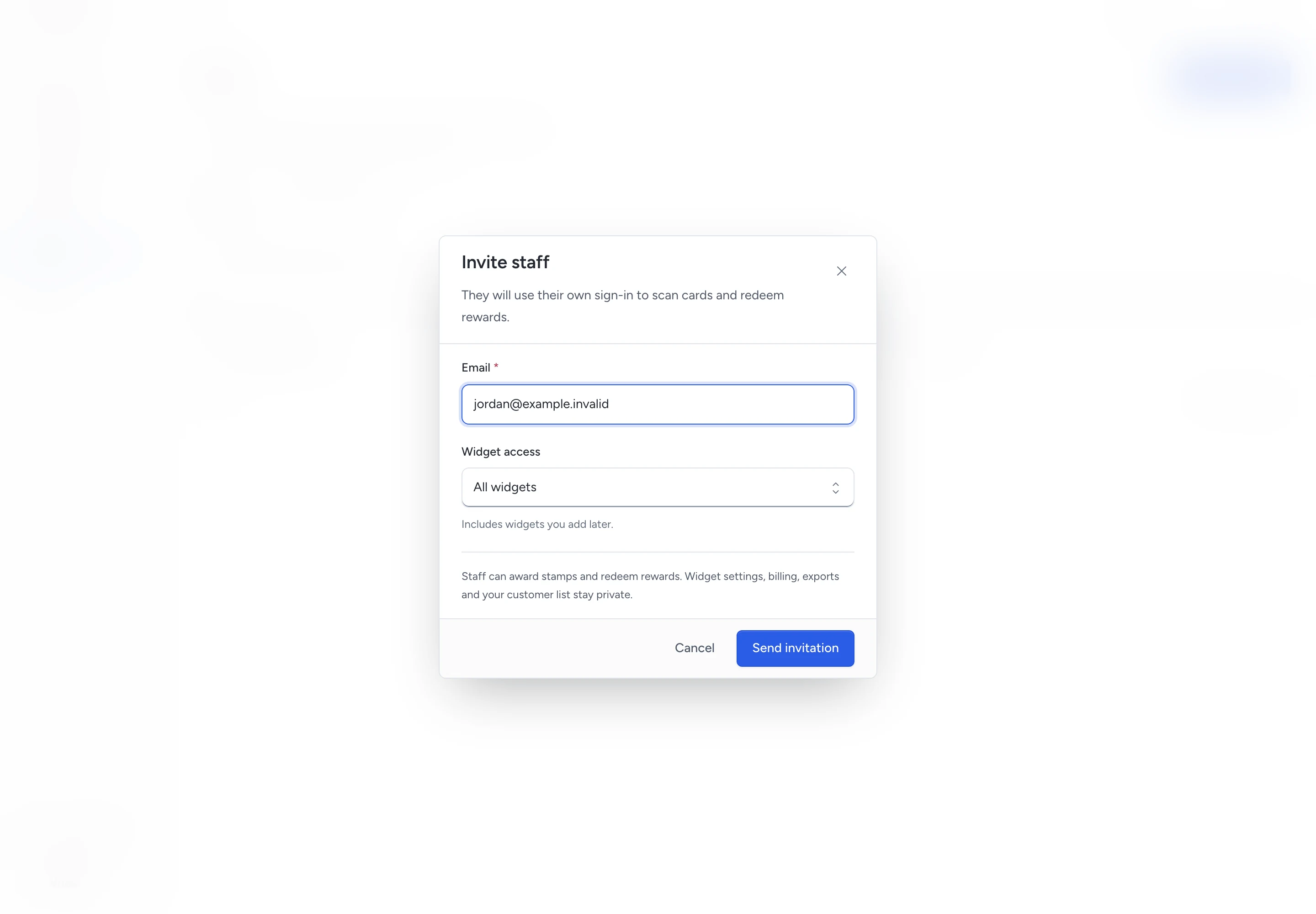
All widgets includes widgets added later. Selected widgets grants access only to those chosen.
Staff cannot open billing, exports, widget settings or your customer list. Each stamp, redemption and correction records the person who performed it.
Pending invitations count towards your staff limit. Cancel an unused invitation or remove someone's access before inviting a replacement.
To end access, find the person in Team and choose Remove access. Their next counter action is refused, including from an open screen.
Removing access preserves their past work. Use Cancel invitation for someone who has not joined.
Review results and shared details
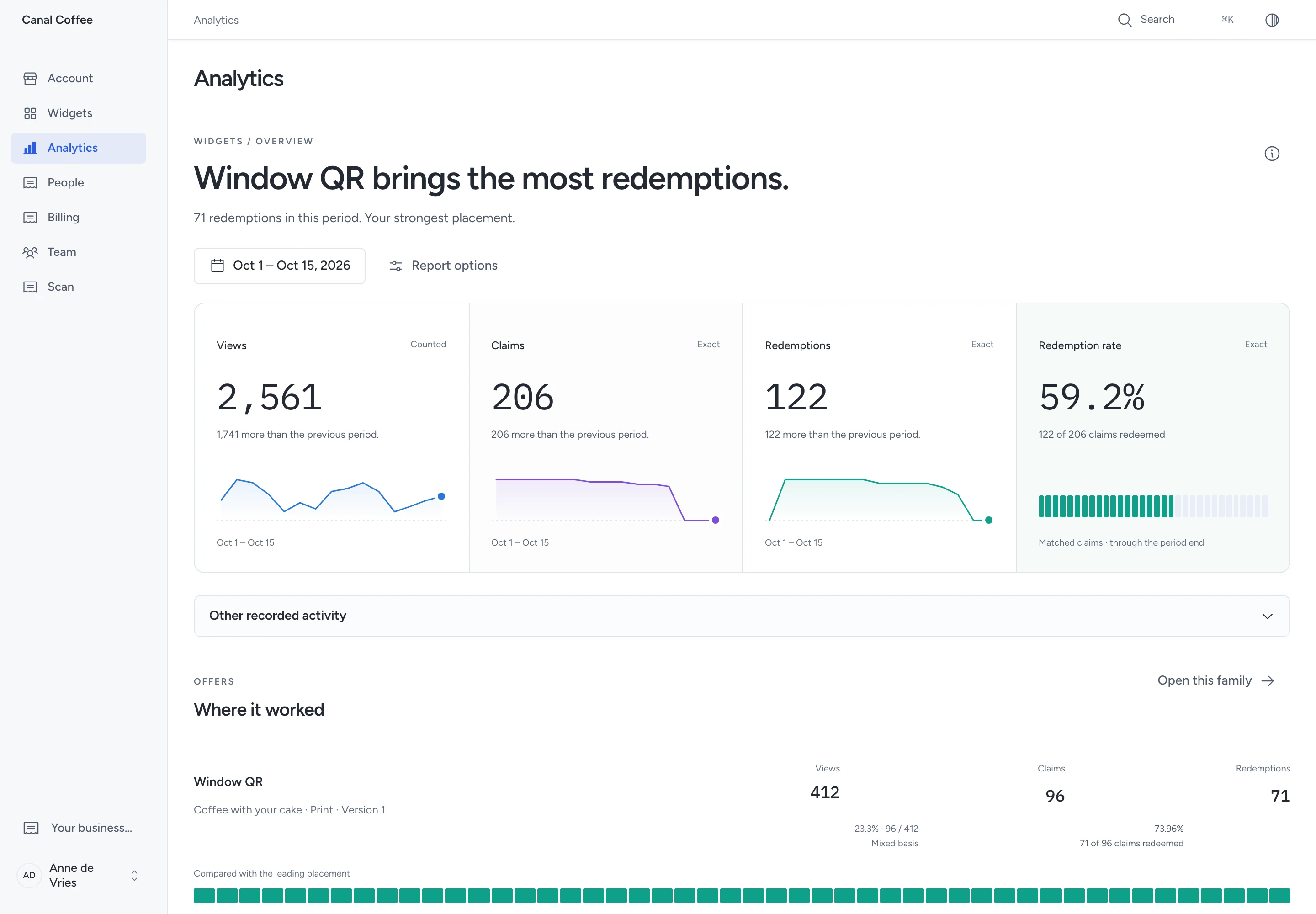
Open Analytics to compare placements and inspect confirmed results. See analytics definitions before comparing rates.
Open People to find details visitors shared through your widgets. Anonymous page views remain anonymous.
An offer member and an enquiry remain distinct unless a recorded relationship links them. A matching email alone does not create team access.
Choose a person to read their permitted activity. Export people appears only when your plan includes exports.
Handle a personal-data request
- Open Account and open Data requests.
- Enter the full email address or member reference.
- Click Find records.
- Review the person's linked information and attachments.
- Use Download data, or review the fields for erasure.
These request tools remain available after your plan ends. A search stays within your business.
Erasure cannot be undone. Review its scope before confirming.
Erasure clears personal fields and ends offer membership. It retains service evidence, such as offer terms, consent and staff actions.
Issued billing originals stay unchanged. Check retained files and free text separately.
If an unresolved request requires the data, choose Keep for an open request. Enter a reason and review date.
A dated hold prevents erasure. Review or release the hold before trying again.
Member personal fields normally clear 24 months after the later of last activity and offer expiry. A dated hold can extend this period.
Find your invoices
Open Billing to find invoices and credit notes your service provider issued to your business.
Search by document number or reference. Open the document's row menu. Choose Download PDF for an issued copy.
Your plan's price describes your agreed terms. The invoice shows tax and the amount payable.
Billing remains available to the owner after plan expiry or account closure. Staff have no billing access.
When access changes
If a screen reports changed access, reopen your account. The server checks your current role and plan before returning records or accepting an action.
If Access could not be checked appears, restore your connection and click Retry. Pepper checks access again without reloading the page.
Your unfinished work stays in this open page while the check is unavailable. A successful check restores it. Reloading or closing the page can discard unsaved work.
If the server confirms that access ended, Pepper removes the hidden screen. Restoring a connection does not bypass a revoked permission.
An expired plan preserves saved records. It stops editing and new activity. Contact your service provider to change the plan.
Suspension also stops public widgets and counter actions. The owner retains the restricted account, billing and data-request views.
Booking services
Your workspace owner can configure each booking type included in the plan. Open Booking settings, add schedules and create a service before publishing its widget.
The plan also needs contacts access to open accepted bookings and their connected enquiries. Counter staff do not receive booking management access.
When the booking feature ends, accepted records remain readable with contacts access. A new booking time requires the feature again.
Visitors can still open and cancel saved bookings within their accepted policy. Workspace bookings cannot issue platform invoices.
Follow Take and manage bookings for publication, outside calendars, waitlists and recovery.
Need help with the product?
Contact support