
Browse the manual
Show job progress and ask for answers
Give invited customer contacts a job page with stages, typed questions and collection or delivery choices.
On this page
Give a customer one page to check the job stage and answer your questions. Every stage change keeps its author and time.
For: Platform staff with project access. A project manager creates or changes the stage list and closes or reopens work. Guests and customer workspace accounts cannot manage these pages.
Where: Open a project, then Customer decisions > New job page. You can also use Work > Widgets > New widget > Job progress with answers.
First create the project for the customer. Add an active contact to that customer. Configure outgoing email before sending an invitation.
Create the job page
- Enter the widget name.
- Choose Customer and Project.
- Select Invited contacts.
- Enter the ordered Job stages, such as Received, Printing and Ready to collect.
- Choose a Quote if this job needs an existing quote from the same customer.
- Set the waiting target and reminder interval under Waiting and reminders.
- Click Save changes.
- Open Publish & share.
- Click Publish widget.
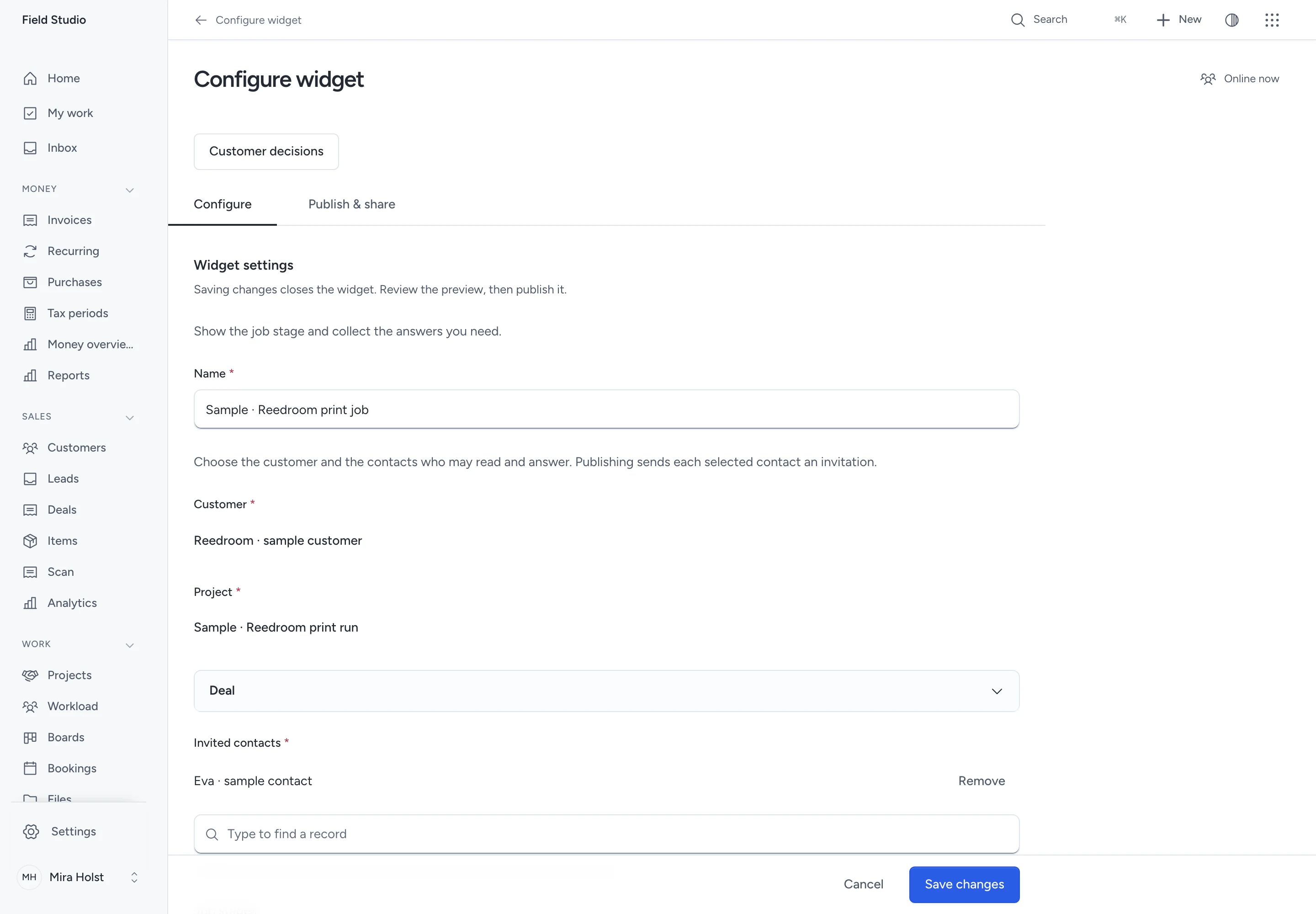
A job has 2–20 stages and 1–50 invited contacts. Keep each stage label within 160 characters. You cannot remove the current stage from the list.
The customer and project cannot change after creation. Create another page for a different job. The job page's stages do not move project tasks or change invoice status.
Share the page with the customer
The invitation opens the page's email-code sign-in. Only named contacts with a live grant can read the work or answer.
Use the same page address in email, WhatsApp, an inline website embed or a button panel. For a job ticket, create a named print placement and download its QR asset. Follow the placement instructions.
Removing or deactivating the contact ends access. Changing their email also ends access. To change the invited list, edit the widget, save and publish again. The page stays closed between saving and publication.
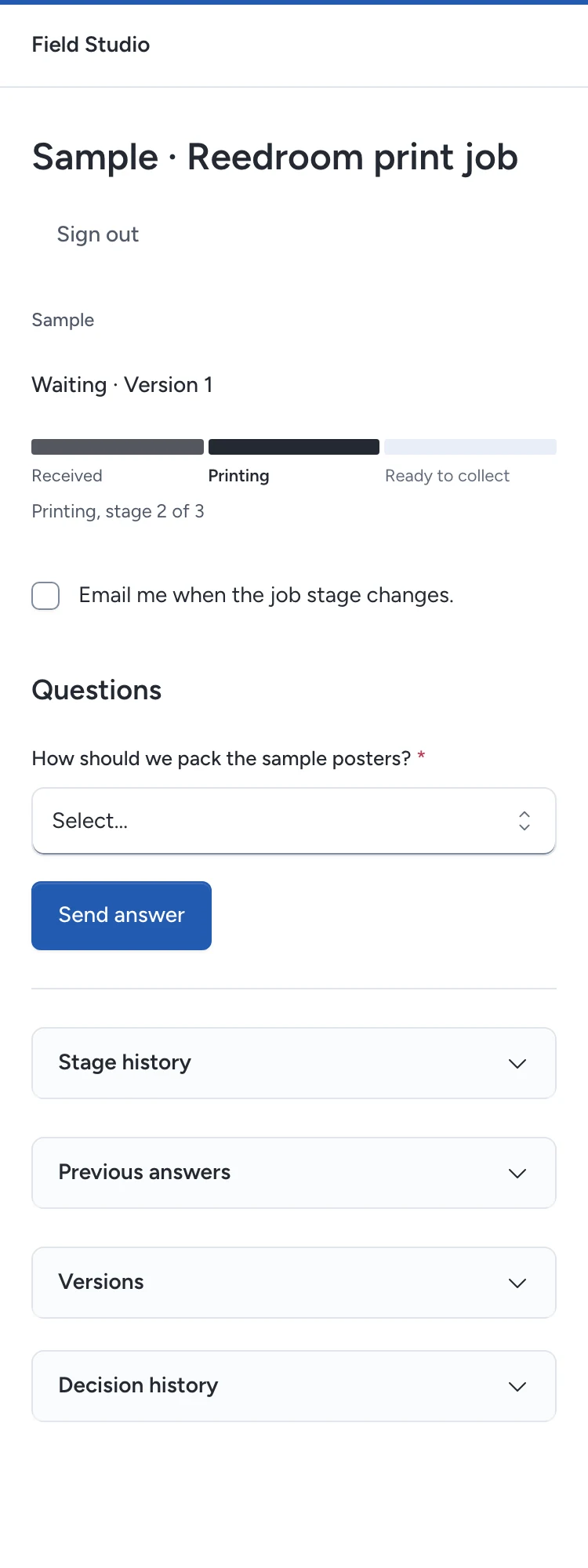
The customer can select Email me when the job stage changes. This choice applies to that contact's grant for this job. It does not enable automatic reminders.
Move or correct a stage
- Open the widget's Customer decisions page.
- Select a stage on the stage path.
- Enter a Reason when moving backwards or recording a correction.
- Confirm Move stage.
Use Record a correction to add a reason without moving to a different stage. Earlier entries remain in Stage history.
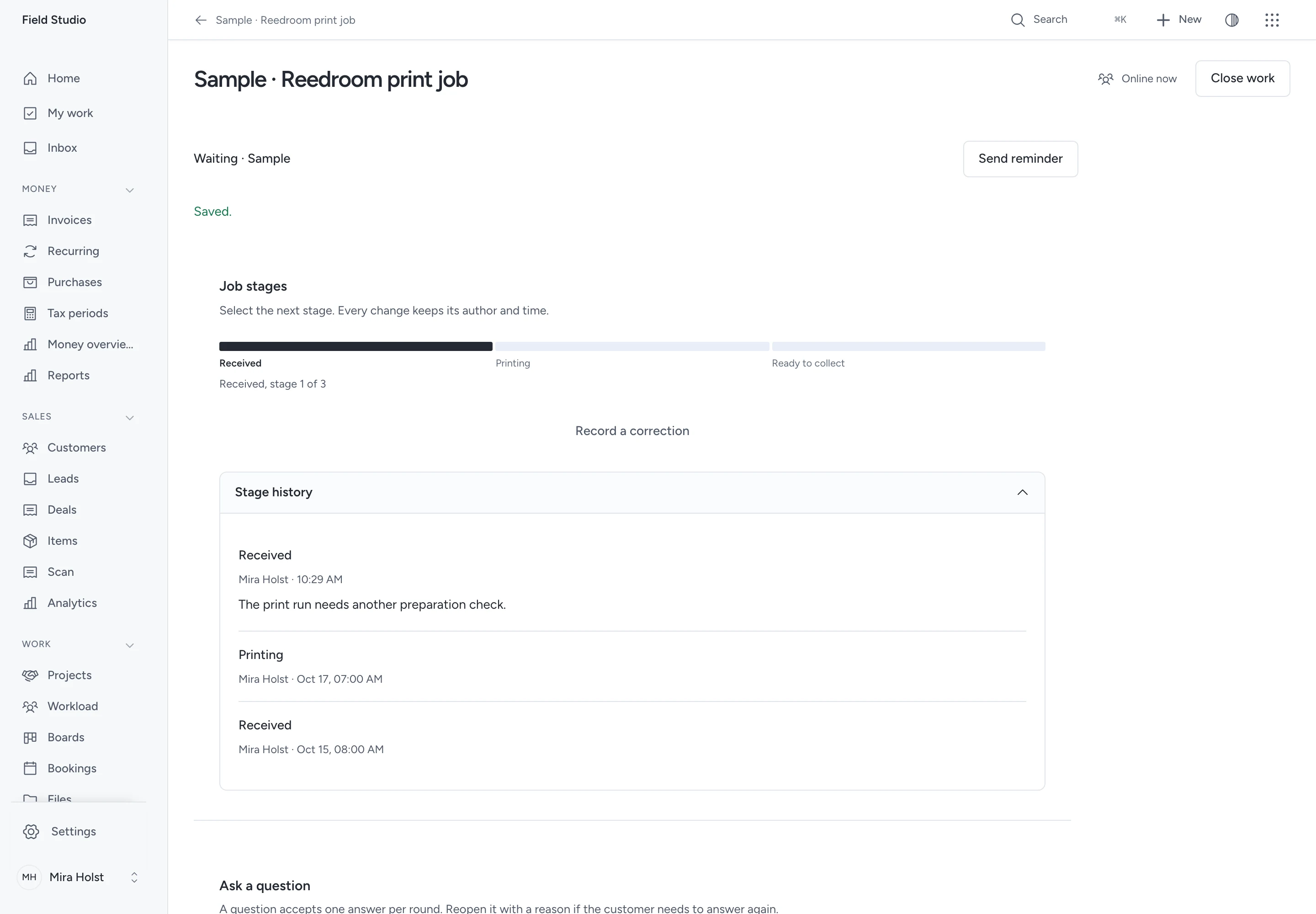
If another staff member changes the job first, the outdated request is refused. Review the current stage before trying again.
Stage email goes only to currently invited contacts who selected the email preference. Check Email history for the outcome. Sent means the mail service accepted the message. You can retry a failed attempt; an unknown outcome is not retried automatically.
Ask a question
- Enter the Question on the staff record page.
- Choose Answer type.
- Enter the choices or time windows when required.
- Click Ask a question.
| Answer type | What to enter |
|---|---|
| Choice | Between 2 and 30 distinct options, each at most 160 characters |
| Yes or no | No extra options |
| Short text | The customer can enter up to 2,000 characters |
| Date | The customer selects a calendar date |
| Collection or delivery window | Between 1 and 30 start/end pairs in the displayed business timezone |
Questions allow 2,000 characters. Each time window must end after it starts. Times that do not exist or are ambiguous during a daylight-saving change are refused; choose another time.
The customer chooses or enters an answer, then clicks Send answer. The question accepts one answer for the whole contact group in that round. A second different answer is refused.
To ask for a revised answer, choose Reopen question. Enter the reason and confirm. The previous answer remains on its own round under Previous answers.
A failed submission keeps the customer's input. Retry after correcting the error. A successful answer appears only after the server confirms it.
Link a quote
Select an existing quote for the same customer in the widget editor. Save and publish the changed page.
The page shows the quote's current state. Review quote opens the ordinary public quote page when the sent quote is still available. The customer reads its terms and accepts or declines there.
This page never accepts a quote automatically. Draft, expired, cancelled or otherwise unavailable quotes have no active review link. An accepted quote can be shown as accepted or converted to an invoice.
Close work and read its times
A project manager can choose Close work, then confirm. Closing stops new customer decisions and the job duration. Reopen work retains the full history and resumes the duration. A closed project also refuses new decisions.
Decision and job times shows exact seconds per stage, the total job time, waiting questions and answer times. Closed job intervals are excluded. A correction starts a new interval without rewriting earlier times.
Use Send reminder for a manual reminder. The configured interval applies per contact; the default is 24 hours and the minimum is one hour. Nothing sends reminders or moves stages automatically.
Read proofs and approvals for file choices. Read decision reports for report dates and quote attribution.
Need help with the product?
Contact support