
Browse the manual
Publish surveys and polls
Collect versioned answers, report each question and choose whether voters see totals.
On this page
For: a platform form manager, or a customer workspace owner whose plan includes the selected widget. Guests cannot manage these types.
Where: Work > Widgets > New widget. Choose Survey or Poll.
Build a survey
- Name the widget and choose Who can answer: Open to visitors or Chosen customers only.
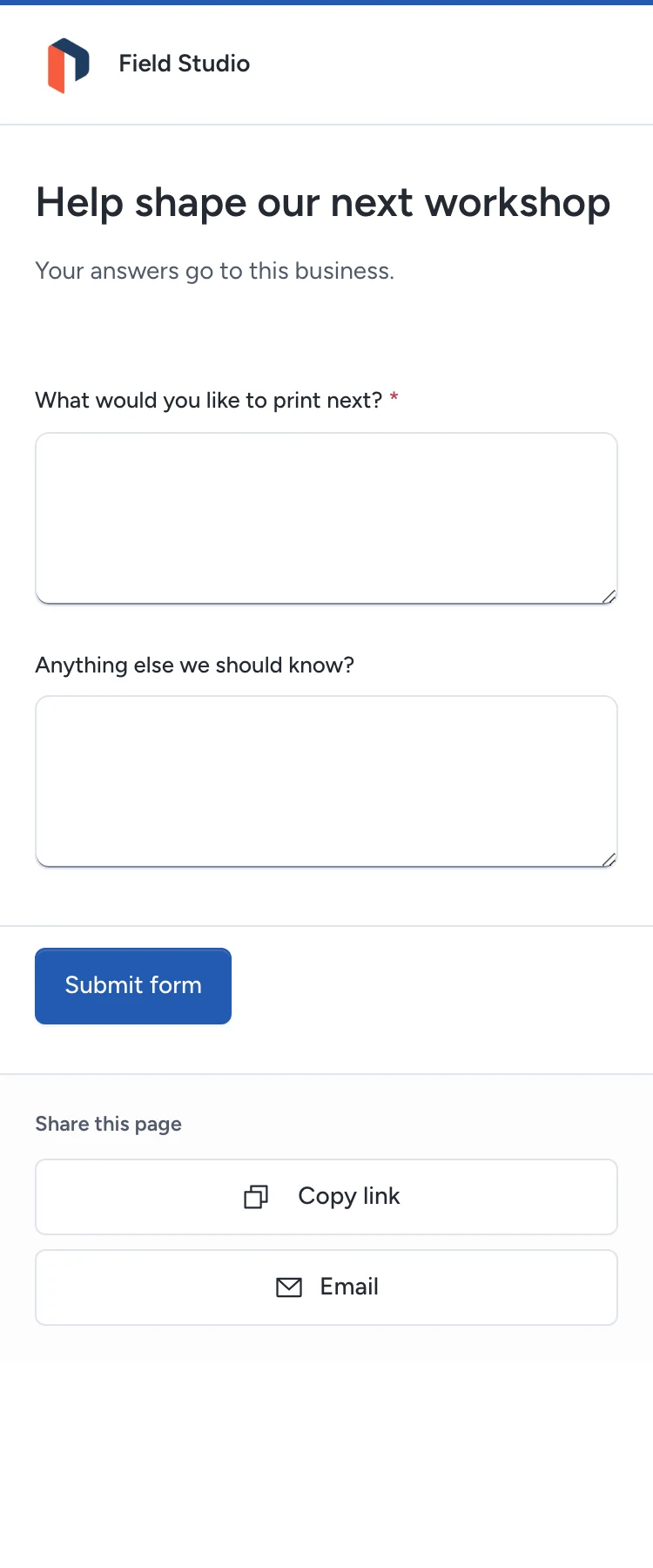
- Add at least one question in the shared form editor. Choose its type, label and whether an answer is required. Use sections and conditional fields where needed.
- Save and check Live preview. Publish from Publish & share.
- Share an open survey’s page, embed or QR placement. For a chosen-customer survey, open Requests and answers, select a customer and create or send a personal link.
The Forms guide explains supported fields, uploads, limits and validation. Private answer files stay behind the answer’s permission check. Staff can open them from that answer.
Personal links accept one answer and expire after the selected 1–90 days. Revoking the link, changing questions, closing the widget or losing access stops an outstanding request. Mail states and retries follow the customer-request procedure.
Editing questions creates a new version and closes publication. Preview and publish again. Saved answers retain the exact questions, choice labels and consent text shown when the customer answered.
Read the survey report
Open Requests and answers. Each version has its own question counts and choice totals. Expand a question and choose an answer link to read the complete record. Optional unanswered questions do not count as answered. The answer list is paginated; a question’s quick links show up to 20 records.
For sent requests, the exact response rate is sent and answered / sent requests. Copied links do not count as sent. This rate describes that sent cohort only.
Open-survey Analytics compares accepted answers with counted page requests or consented website loads. This is a mixed measure: its numerator is an accepted record and its denominator depends on measurement. It is not a percentage of unique people. With measurement off, exact accepted answers remain available but a measured completion rate may not be available.
Set up a poll
- Enter one question, up to 120 characters.
- Write 2–8 distinct answer choices, each up to 120 characters. Use Add option or the remove control to adjust the list.
- Choose After a vote or Never show results.
- If you need one vote per email address, select Require an email code; one vote per address.
- Save, preview and publish.
An anonymous poll counts submissions. It cannot establish one vote per person. The result says this and shows choice totals only.
With an email code, the visitor verifies access to an inbox before voting. Pepper refuses a second vote from that address for the poll, including from another device. This verifies an inbox, not a person’s identity. The standalone page uses the visitor session cookie; an embedded poll uses its short-lived in-memory token.
“After a vote” reveals totals only after an accepted vote. “Never show results” keeps that answer’s totals private, even if you change the setting later. Closing the poll stops new votes and freezes the totals. Staff can still read saved answers in their permitted report.
Recover from an error
Required-field errors stay beside the input. Correct them and submit again. If the questions changed, refresh the widget and answer the current version. An expired personal link needs a new request from the business. An expired email session needs a new code.
Full exports retain questions, versions, answers, consent and files. A restore closes old visitor sessions and personal links. Sample surveys and polls are closed and mark their fictional answers as Sample.
Need help with the product?
Contact support