
Browse the manual
Enter country addresses
Choose a country, enter billing and shipping details, and understand the address printed on a document.
On this page
Choose the address's country first. Pepper then arranges the address fields for that country. A country change keeps everything you typed.
For: owners and staff who enter company, customer or supplier addresses. What you need: permission to create or edit the record. Company details require permission to manage settings.
Enter a company address
- Open Settings > Company.
- Find Business address.
- Open Country code.
- Search for the country name or its 2-letter code.
- Select the country.
- Enter the street and the other address details.
- Click Save changes.
The country list shows each name with its code, such as United States (US). With a keyboard, press Arrow down, search, then press Enter.
Country names and field labels use your interface language. Your language choice does not change the address's country or its stored text.
Enter customer and supplier addresses
- Open the customer or supplier.
- Click Edit.
- Find Billing address.
- Select Country code.
- Enter the address details.
- If the delivery address differs, click Show shipping address.
- Enter its country and address details.
- Click Save changes.
Billing and shipping each have their own country. A US billing address can accompany a Brazilian shipping address.
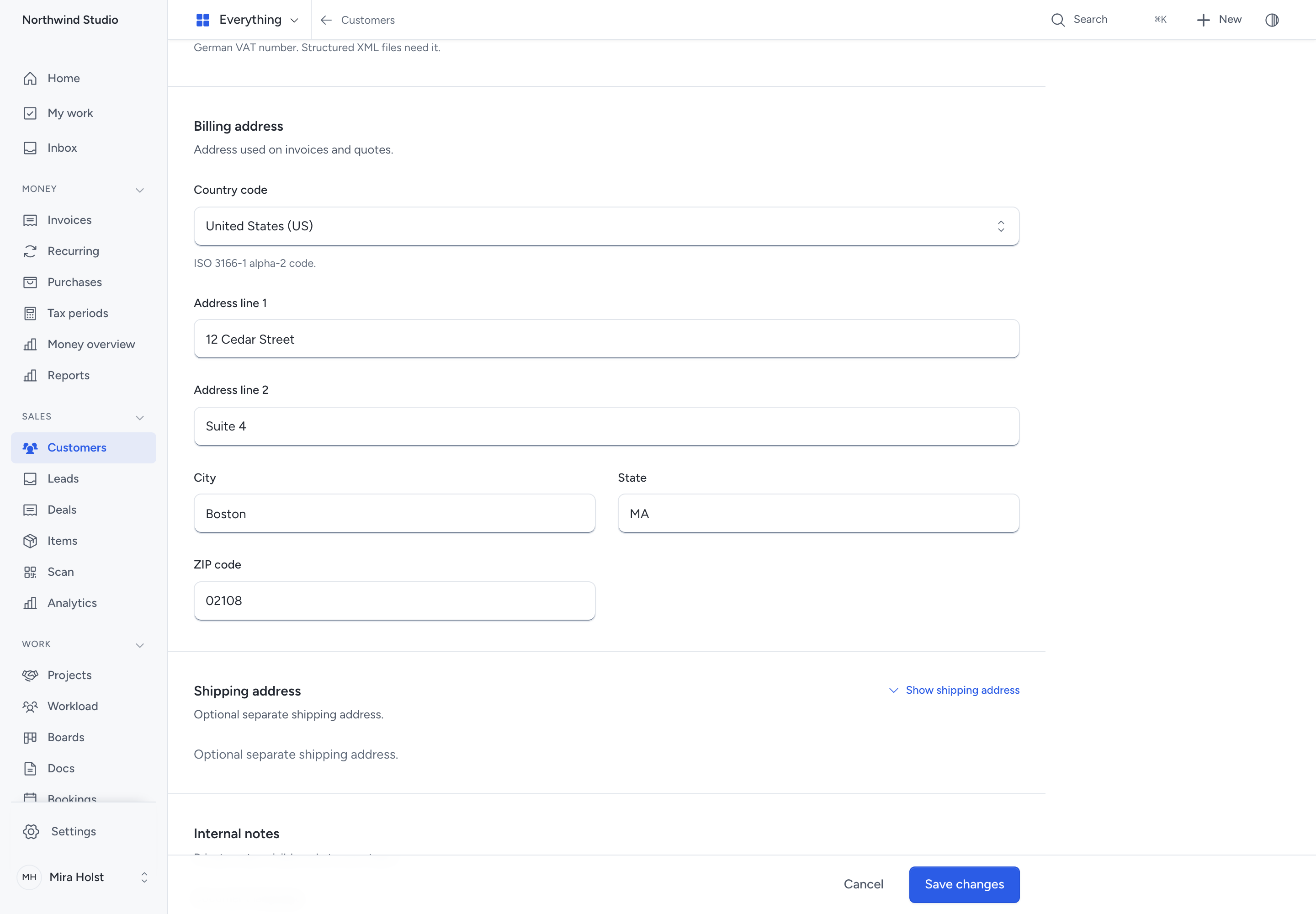
Use the same fields for a business or an individual. Leave a field empty when the address does not need it.
| Field | What to enter |
|---|---|
| Address line 1 | The street, PO box or first address line |
| Address line 2 | Building, apartment, department or other delivery details |
| City | The locality as the recipient writes it |
| State or province | An optional region. Its label follows the selected country |
| Postal code | Text, including spaces, letters and leading zeros |
| Country code | A country from the searchable list |
Street and second-line fields accept up to 255 characters. City and region accept 100 each. Postal code accepts 20.
Pepper keeps 00123 and a field containing 0. It also keeps accents and mixed scripts. Changing country keeps optional fields, including an unusual region or postal code.
These fields do not check whether an address exists. Separate XML export checks can require specific address fields.
Add address details while creating a document
When you write an invoice, open Bill to, then click New customer. Open Billing address to enter the same address fields.
When you record a purchase, open the supplier search, then click New supplier. Open Billing address for the supplier's address.
The address details are optional in both dialogs. Saving creates the contact and selects it in the document.
If the server refuses a field, Pepper keeps your input. Click its link in the error summary. Pepper opens Billing address and focuses that field.
Correct the value, then submit the dialog again.
Read the printed address
Sales documents use the company address and the customer's billing address. The address's country chooses the printed order. For example, a US address groups city, state and postal code together. Brazil puts the postal code on its own line.
The country name appears on the final line in the document language. Pepper keeps your entered address text.
When you issue a document, Pepper saves its address lines and document language. Later company, customer or viewer changes leave that issued address unchanged.
The PDF body shows the complete saved address. A repeated footer uses at most 2 lines. An ellipsis marks a shortened repeat.
Documents issued before this address format keep their former layout. Stored original files keep their original bytes.
Related pages
Need help with the product?
Contact support