
Browse the manual
Manage orders, fulfilment and returns
Place a catalogue order, record payment, fulfil selected quantities and handle returns with separate stock and refund decisions.
On this page
For: business owners who take catalogue orders and manage delivery and returns. Where: Orders.
An order keeps the products, invoice, payments and fulfilment records together. Receiving a return, restocking it and refunding money require separate decisions.
Before taking an order, add the customer and configure the products and stock. Set the applicable tax rates and rules.
Check access
Owners and admins manage all orders. Employees manage orders they created. Accountants can read all orders and download packing slips.
Placement, payment, placed-order cancellation and return credit also require invoice permission and access to the financial record. Only the owner configures shipping methods.
Customer, product and invoice links appear when your role permits those source records. Order access does not grant access to private files.
Guests and customer-workspace accounts cannot open these staff order records. See the permissions reference.
Staff-entered and online orders use these same actions. Read Sell through a shop or buy button to publish checkout.
Customer accounts show purchases explicitly linked through verified checkout or proof of an earlier purchase. A shared Customer record does not expose its other orders or staff invoices. Signed purchase links still open one order and its invoice.
Configure shipping methods
Shipping rates come from your configuration. Pepper does not obtain carrier rates or buy shipping labels.
- Open Orders, then New order.
- Click Shipping methods.
- Click Add shipping method.
- Enter the Method name and choose its Currency.
- Choose the Rate type.
- Enter the rates and their bounds or countries.
- Choose the shipping Tax settings.
- Click Review.
- Check the rates, then click Save shipping method.
| Rate type | Selection |
|---|---|
| Flat rate | One charge for the method |
| Country zones | The row containing the destination country |
| Weight bands | The combined physical weight in grams |
| Order-value bands | The merchandise subtotal before tax and shipping |
Band lower bounds are included. Upper bounds are excluded. Leave the upper bound empty for no upper limit.
For example, a weight band from 0 to 500 covers weights below 500 grams. A 500-gram order needs another matching band.
Weights use the exact product quantity and whole-gram variant weight. Order-value bands use the method's currency. Zero charges are valid.
A method supports up to 100 rate rows. A flat-rate method has one row.
Overlapping bands, duplicate country matches, missing matches or a different currency refuse the calculation. Correct the method before reviewing the order again.
Turn off Active to stop offering a method for new selections. Placed orders keep their saved shipping charge.
Create a draft
- Click New order.
- Choose the Customer.
- Choose the Currency before adding lines.
- Check Language and Billing address.
- Click Add from catalog.
- Select a service or product variant.
- Set its Quantity, Unit price and Tax.
- Repeat for the remaining lines.
- Set Shipping address and Shipping method.
- Click Save draft.
Use Use a different shipping address when the destination differs from billing. Address changes belong to this order; they do not overwrite the customer.
Enter money in your configured number format. Quantities use digits, a dot and up to 4 decimal places, such as 1.2500.
The currency stays locked while the draft has lines. Products must use that currency. Use the line actions to remove or reorder lines.
The issued invoice supports up to 1,000 lines. A shipping charge uses one line, leaving space for 999 product lines.
For a physical order, tax rules use the shipping destination. Other orders use billing. Tax matching inputs includes County when rule matching needs it.
Enter the county yourself. Pepper does not determine a tax jurisdiction from a postcode or choose your tax obligations.
A saved draft creates no invoice, payment or stock reservation.
Review and place
Placement reserves tracked stock and issues the related invoice. Check the complete proposal before confirming.
- Save the draft.
- Click Review and place.
- Check the customer, product quantities, prices, tax, shipping and total.
- Click Place order.
- Open the linked Invoice to inspect its issued record.
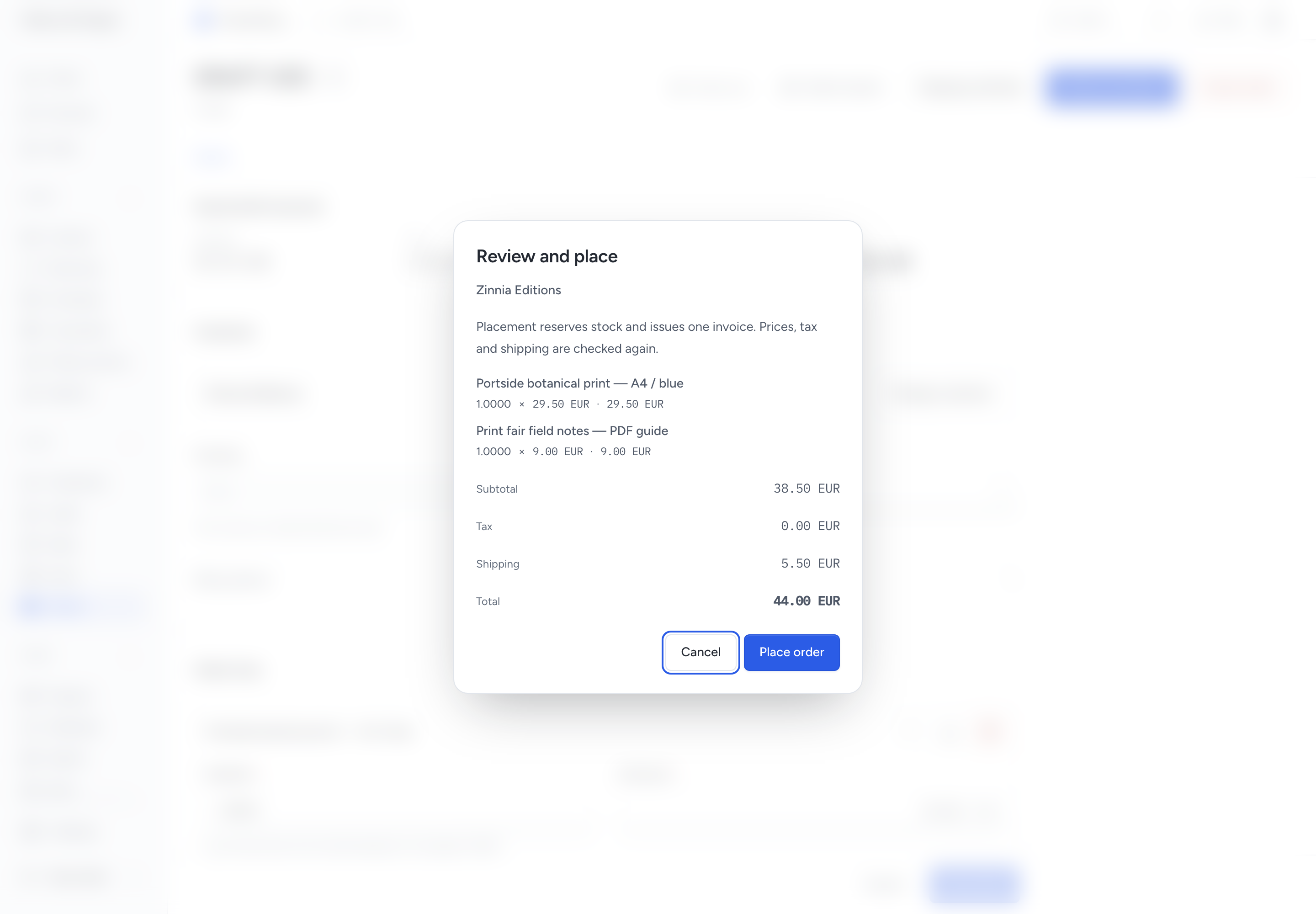
Pepper checks current catalogue values, tax inputs, shipping and stock again. A changed proposal or unavailable stock refuses placement without issuing an invoice.
Load current records, correct the draft and review again. A backorder is possible only when the owner enabled it for the product.
A successful placement keeps the accepted product descriptions, prices, tax, addresses and shipping selection. It also pins any purchased digital original.
Later catalogue changes do not rewrite the purchase. Repeating the saved placement request cannot issue another invoice or reserve the same stock twice.
Staff placement records no payment and sends no invoice email. Use the invoice's communication actions when you need to send it.
Online checkout queues its separate order confirmation and purchase link. Payment remains unconfirmed until the provider result is recorded.
The order shows merchandise Subtotal, net Shipping and combined Tax separately. These amounts add to its total.
The invoice subtotal includes merchandise and shipping before tax. Both records keep the same total.
Read the order state
Search Orders or filter its state and source. Use the shared view controls to open a board grouped by state.
Order states change through their actions. Moving a card cannot place, pay, fulfil or cancel an order.
| State | Meaning |
|---|---|
| Draft | Saved input awaiting placement |
| Placed | Accepted order with an issued invoice |
| Paid | Confirmed incoming money covers the total, or the order is free |
| Partly fulfilled | Some ordered quantities have shipped or completed |
| Fulfilled | Every ordered quantity has shipped or completed |
| Fulfilment closed | Fulfilled and released quantities together cover the order |
| Cancelled | Cancellation completed |
| Returned | All fulfilled quantities are back, with no delivery still open |
Fulfilment and return states can appear after payment. Check Paid, Refunded and Balance due beside the order.
Returned does not mean restocked or refunded. Fulfilled does not prove carrier delivery or payment.
Record received money
Use Record payment for money you received outside the online payment service.
- Open the placed order.
- Click Record payment.
- Enter Amount, Paid on, Method and an optional Reference.
- Click Review.
- Check the money received, then confirm Record payment.
A partial payment leaves the unpaid balance visible. A credit note can reduce invoice debt without proving receipt of money.
For online payment, use the linked invoice's configured payment service. Pepper records provider money after server confirmation.
Pending or unknown outcomes remain unresolved. Follow online payment recovery before treating the order as paid or releasing its stock.
Fulfil physical goods
Use separate fulfilments for separate parcels or partial quantities. You can ship an unpaid physical order; review its outstanding balance first.
- Open Fulfilment.
- Click Create fulfilment.
- Choose Physical goods under Fulfilment type.
- Select the lines and quantities for this parcel.
- Click Review, then confirm Create fulfilment.
- Use Record picking after selecting the goods.
- Use Record packing after packing them.
- Click Confirm shipment and enter Carrier and Tracking.
- Review the parcel quantities and confirm Confirm shipment.
Creating, picking and packing keep stock reserved. Confirming shipment consumes that parcel's held quantity once.
Pepper refuses shipment when recorded physical stock is missing. Receive the goods or correct the count before trying again.
Packing slip downloads the parcel's destination and quantities as PDF. It excludes prices and digital files. If rendering fails, download it again.
Correct a fulfilment
Before shipment, choose Cancel fulfilment, enter a reason and confirm its review. The order keeps its reservation.
Create a replacement fulfilment with the corrected quantities. Cancelling an allocation does not cancel the order or release its reserved stock.
After shipment, use Correct tracking to change the carrier or tracking reference. Enter a reason and confirm the review.
Tracking correction changes no shipped quantity or stock movement. Use a return for goods coming back.
Close an unshipped remainder
Close the unshipped part of a tracked physical line when you will not deliver it.
Closing the remainder releases all unshipped stock for the selected line. Invoice amounts, credits and refunds do not change.
- Open the order's Fulfilment tab.
- If the line has an unshipped fulfilment, review and confirm Cancel fulfilment first.
- Click Close unshipped remainder beside the product.
- Check Product and enter the Reason.
- Click Review.
- Check the product, quantity and financial consequence.
- Confirm Close unshipped remainder.
After success, the line shows Released separately from its shipped quantity. When every delivery is complete or closed, the order shows Fulfilment closed.
Released stock becomes available for another order. You cannot ship that quantity from this order.
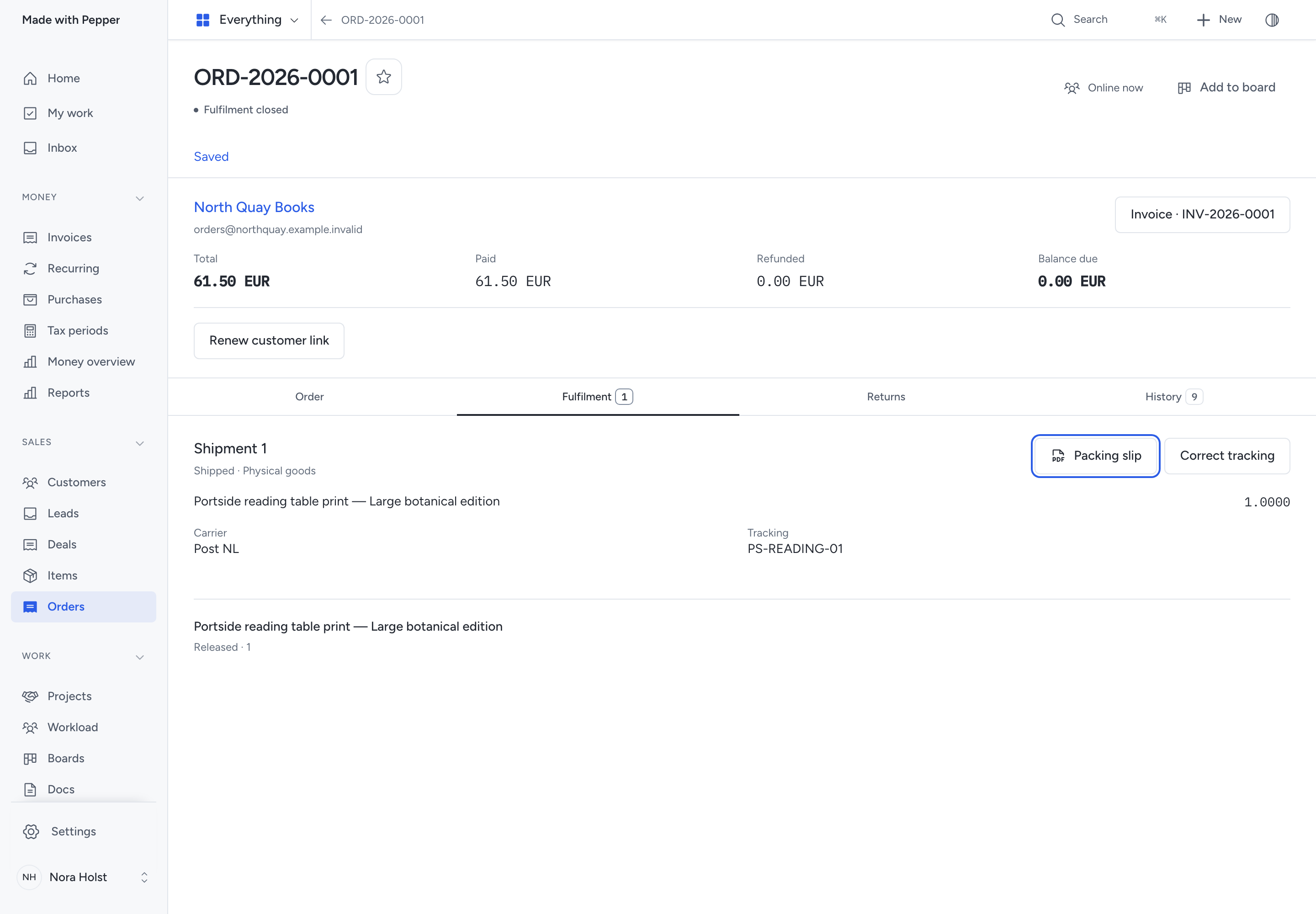
Example: An order contains 2 prints. You ship 1 and close the remaining 1. The shipped print keeps its tracking and return flow.
Use Returns for goods already shipped. Review any charge correction through the linked Invoice and its existing credit and refund actions.
Deliver digital goods
A digital order line keeps the file version accepted at placement. Changing the catalogue download does not replace that purchased original.
Full payment or a free order is required before digital completion and download-link creation.
- Open Fulfilment.
- Create a fulfilment with Digital goods as its type.
- Select the digital lines and quantities.
- Review and confirm the fulfilment.
- Record picking, packing and shipment for that fulfilment.
- Click Create download link beside the completed digital line.
- Set Valid for days, then review and confirm.
- Use Open download to open the purchased file.
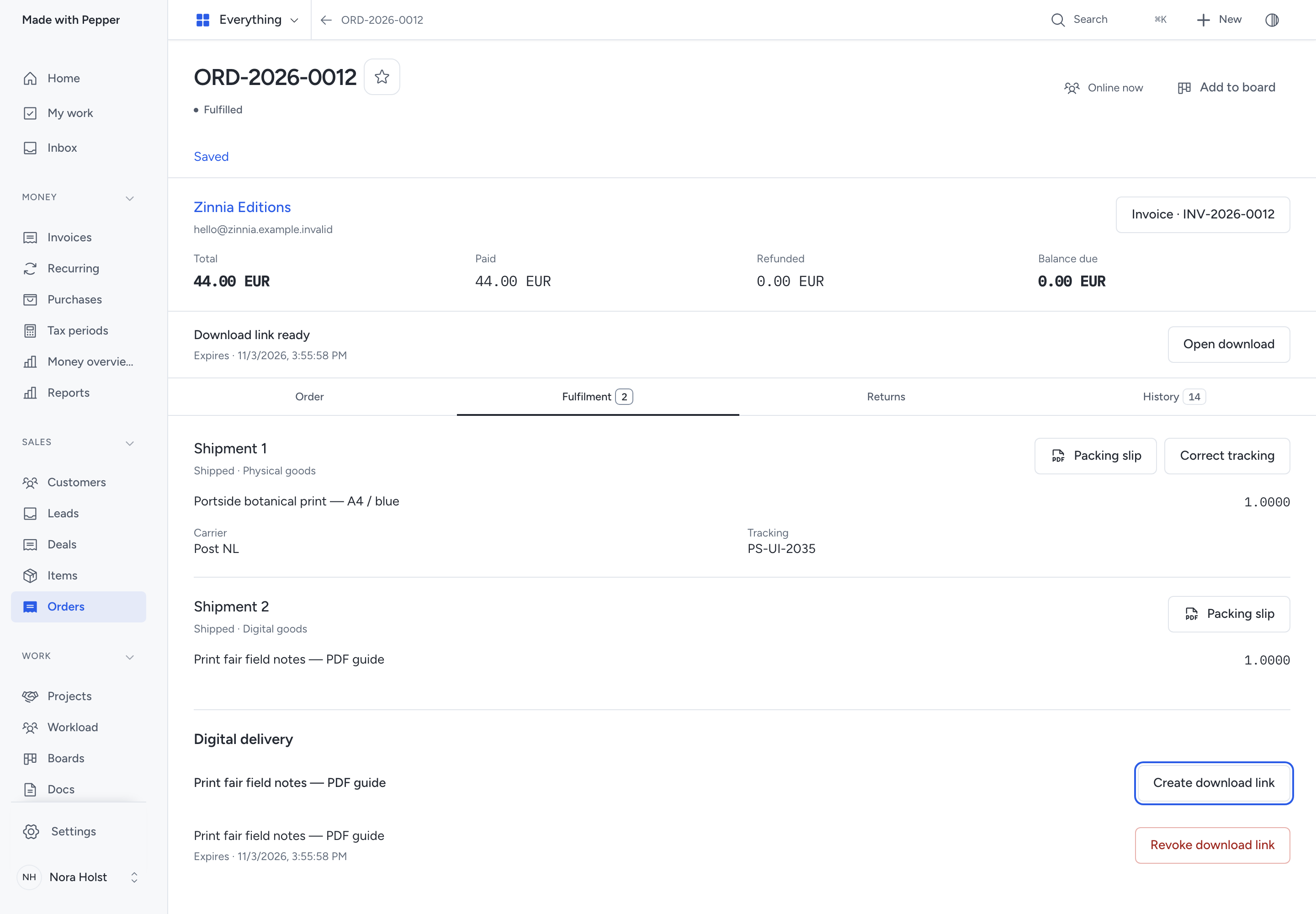
The default validity is 7 days. You can choose 1 to 30 days. Share the generated address with the intended recipient.
Creating a new link revokes earlier active links for that digital product. Revoke download link stops future opens after confirmation.
Expiry, revocation or a full refund of the line stops access. Deleted originals or lost source access also prevent downloads.
Check the purchased original in Files before trying a replacement link. Editing the catalogue file does not repair an older purchase's original.
An opened download records a request. It does not prove that a device saved the file or recall copies already downloaded.
Service lines use a Services fulfilment. Their completion changes no stock.
Receive and inspect a return
- Open Returns.
- Click Request return.
- Select fulfilled lines and the quantities coming back.
- Enter the reason.
- Review and confirm Request return.
- When goods arrive, choose Receive return.
- Enter the arrived quantities and reason, then review and confirm.
- Choose Inspect return after checking those goods.
- Enter the inspected quantity and Eligible quantity.
- Enter the inspection reason, then review and confirm.
Requested quantities cannot exceed fulfilled quantities not already covered by returns. Receipt cannot exceed the request; inspection cannot exceed receipt.
Eligible quantity means suitable for restocking. Enter 0 for damaged goods. Those goods can still receive a separate credit.
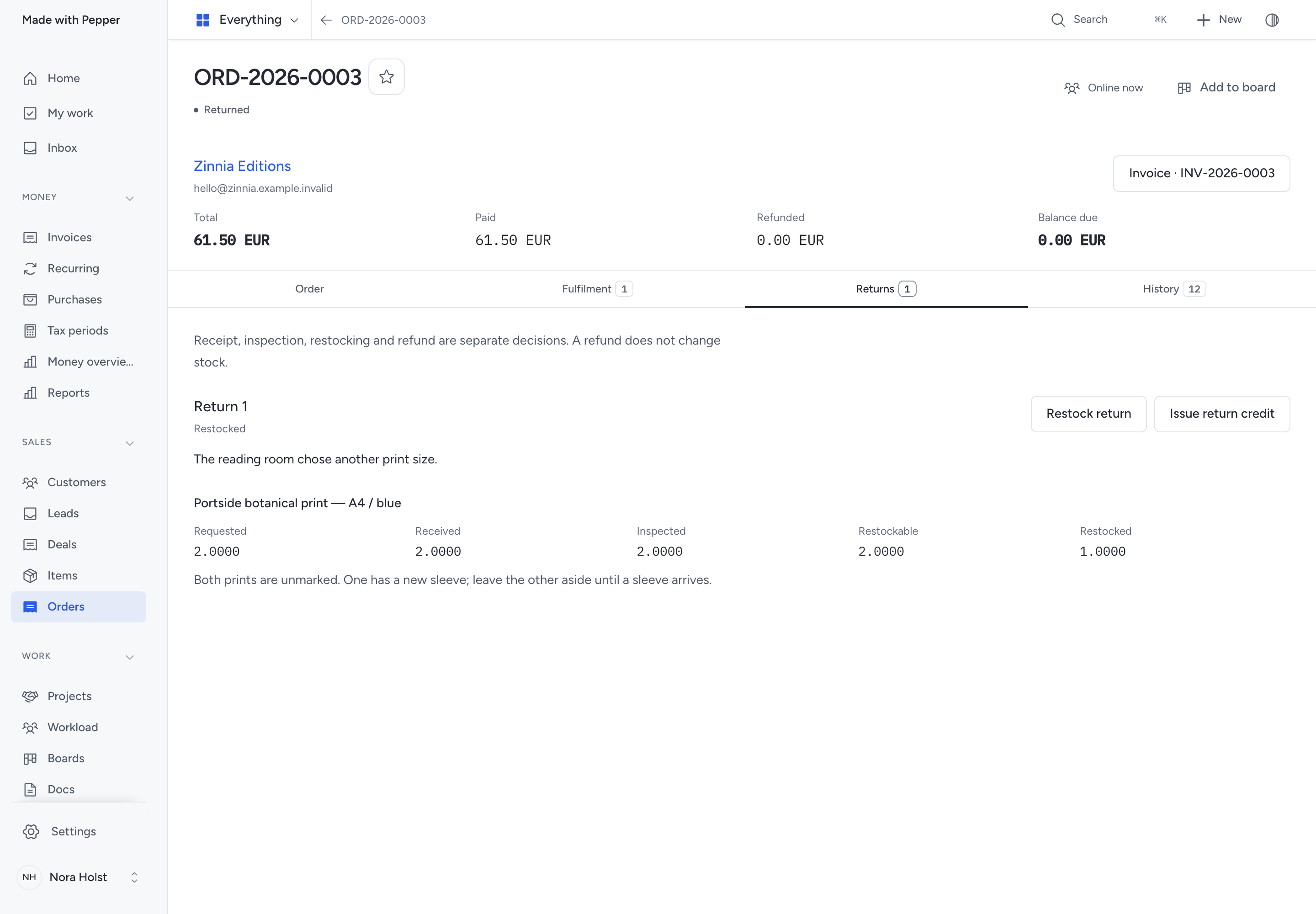
Receipt and inspection do not add stock or return money. The return shows Requested, Received, Inspected, Restockable and Restocked separately.
Decide whether to restock
- Choose Restock return.
- Select eligible tracked physical quantities.
- Enter the reason.
- Review and confirm Restock return.
This step adds the selected quantities to stock. Services, digital goods and quantities unsuitable for restocking cannot add physical stock.
Leave damaged goods unrestocked. Credit and refund decisions remain available through their own actions.
Issue credit and refund money
- Complete receipt and inspection for the requested quantities.
- Click Issue return credit.
- Check the credit calculated from the original prices and tax.
- Review and confirm Issue return credit.
- Open the linked Credit Note or choose Open refund.
- Use its existing manual or online refund action.
The return keeps one issued credit note. Credit reduces the invoice's debt; it does not prove money was returned.
Fractional returns keep the original line's rounding across all returns. A final portion can have zero credit; it needs no payment or refund.
An existing manual credit can prevent automatic return credit. Review the invoice and its credits before trying again.
Some e-invoice profiles cannot express this rounding. Pepper explains the XML refusal and keeps the credit note and its PDF.
Record a manual refund only after paying the customer. An online refund stays pending until the provider confirms it.
Read credit notes and refunds and online refunds. Neither issuing credit nor refunding changes stock.
Example: Pulse Studio sells 2 Portside botanical prints at €28 each and the €9 field-notes PDF. With €4 shipping and no tax, the order total is €69.
One returned print can receive a €28 credit and refund. If inspection finds damage, keep Eligible quantity at 0; stock stays unchanged.
Cancel an unshipped order
- Open the order and click Cancel order.
- Enter the reason.
- Review the effect, then confirm Cancel order.
A draft cancellation creates no invoice. For an unpaid, unfulfilled placed order, cancellation cancels the invoice and releases remaining reservations together.
Cancel any unshipped fulfilment allocations first. Shipped goods keep their return flow.
For a paid or partly paid order, open its invoice and complete the financial correction first:
- Issue credit notes covering the full original order total.
- Record the actual refunds covering all money received.
- Return to the order and load its current records.
- Choose Cancel order and review the closure.
The invoice must have no balance due. Partial credits or refunds keep the stock reserved.
This closure releases unshipped reservations and retains the issued invoice, credits and payment history. It creates no credit or refund for you.
If a recorded refund is later reversed, the order stays cancelled and stock stays released. Its financial notice directs you to correct the invoice.
An unresolved online payment prevents cancellation. Pepper keeps the stock reserved until provider recovery proves release is safe.
Do not cancel the linked invoice to bypass the order. Its cancellation action directs you to the order when your access permits that link.
Recover a refused or interrupted action
| What you see | Next action |
|---|---|
| Field validation error | Correct the named fields and review again. Your input stays in the form. |
| The record changed | Use Load current, then review the current quantities and amounts. |
| Unsaved input before loading | Review the warning before Discard changes and load replaces it. |
| Access refused | Keep the input and ask the owner to check your role and source access. |
| Unknown outcome | Use Retry saved request to recover the same operation. |
| Saved, but refresh failed | Load current records before making another change. |
| Unshipped fulfilment still allocated | Cancel that fulfilment, load current records and review Close unshipped remainder again. |
| Payment pending or unknown | Check the linked invoice's payment attempt; keep its stock reserved. |
| Financial records changed after cancellation | Review the invoice and complete the correction. Stock stays released. |
Retries keep the original request identity. They cannot repeat a payment, invoice issue, stock movement or accepted fulfilment step.
History shows recorded actions and permitted actor names. The invoice links back to its source order when you may open it.
Use full export and import to retain the connected records, stock history and purchased originals.
Use an AI client
MCP and /api/v1 use the same order actions as these screens. Each sensitive operation needs its own human approval.
Agent packing-slip exports also need data-export permission and use a single-use download. Ordinary order reads contain no private file identifiers or customer download grants.
Staff and agent order reads include the economic transaction identifier joining the permitted sale records. A shared identifier grants no access to a linked invoice.
See order and shipping tools. These staff controls remain separate from customer account access to linked purchases.
Need help with the product?
Contact support