
Browse the manual
Give a customer their own workspace
Create a plan, invite a business owner and manage their access without sharing your platform account.
On this page
One licence permits selling widget access to multiple businesses on one production installation you operate; it does not permit software redistribution or establish tenancy across the full business suite. Self-service signup and automated subscriptions remain planned. Read the licence scope.
For: the platform owner or an administrator who manages customer accounts.
Before you start: create the Customer and configure email delivery.
Give each business its own workspace and plan. Its owner manages widgets and staff there, using an individual sign-in.
Your licence permits selling widget access to multiple customer businesses on this installation. Each additional production installation needs its own licence. You may not redistribute the application source or installable package. Read the licence terms.
Your platform keeps the customer relationship and issues its invoices. A customer workspace cannot issue invoices to other people.
Create a plan
- Open Settings > Plans.
- Click New plan.
- Enter Plan name.
- Choose a free, monthly or yearly price period.
- For a paid plan, set its currency, price and tax treatment.
- Under Widgets included, select the widget types you offer.
- Under Account access, select the available tools.
- Set the published-widget limit and staff limit.
- Click Create plan.
Plans can have different currencies. For example, offer a EUR 29 monthly plan in Amsterdam and a USD 32 monthly plan in Boston.
Saving a price does not issue an invoice, collect payment or schedule a renewal. Use the platform's invoice tools for billing.
| Setting | What it allows |
|---|---|
| Widget types | Creating and publishing those types |
| Analytics | Viewing the business's widget statistics |
| Collected contacts | Viewing details people shared with that business |
| Exports | Downloading permitted exports |
| Counter operations | Serving offers and stamp cards |
| Staff invitations | Inviting individual counter staff |
| Published widgets | Maximum simultaneous publications; drafts do not use a place |
| Staff members | Active staff plus pending, unexpired invitations; the owner does not use a place |
A plan does not give a staff member owner permissions. Staff access stays limited to authorised counter work.
Invite the first owner
- Open the customer's record.
- Click Manage workspace.
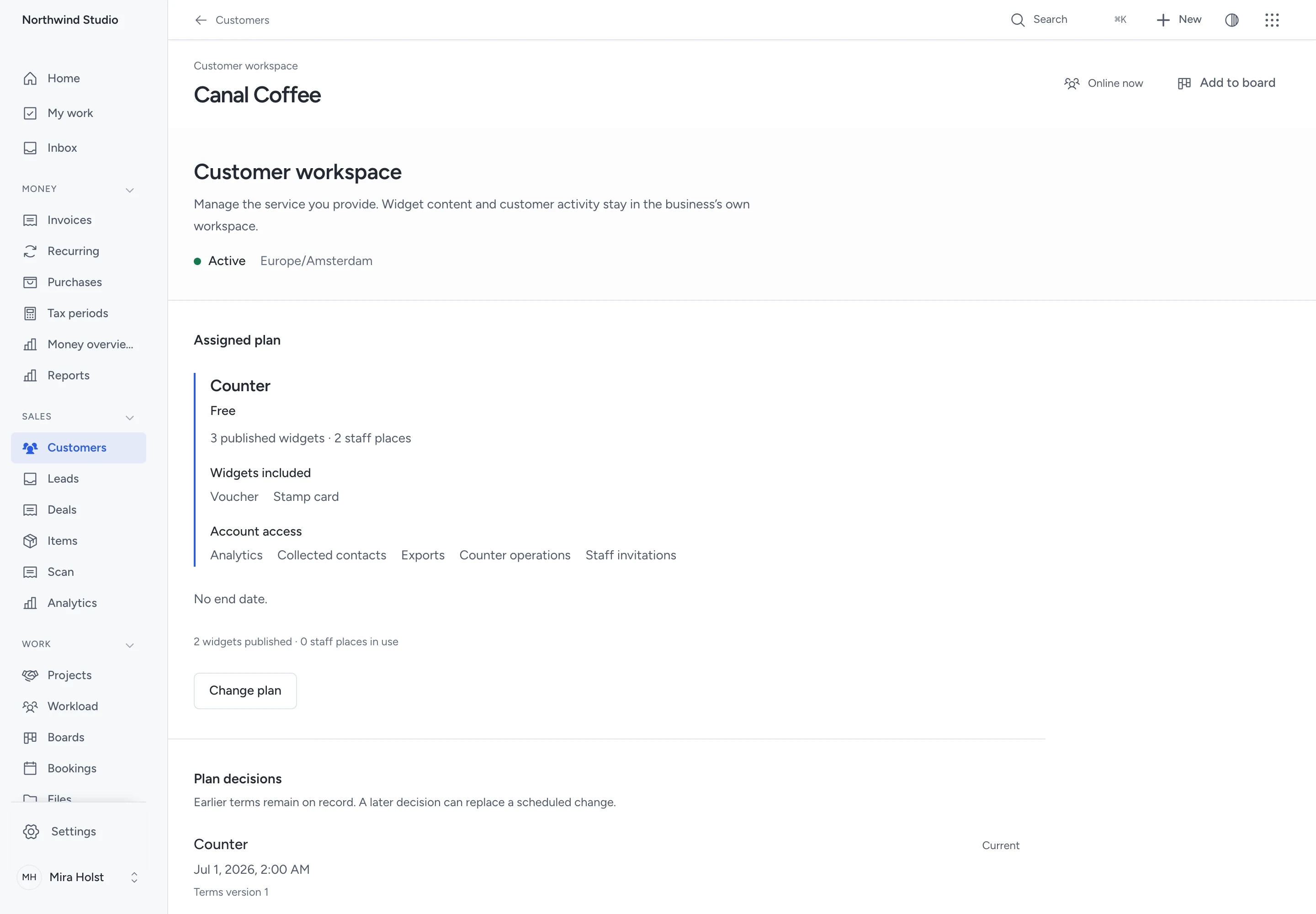
- Select a plan and review its price, included tools and limits.
- Check the Customer name. Open Business timezone if the business uses a different timezone.
- Enter Owner’s email.
- Click Create workspace & invite owner.
- Check the invitation's delivery status.
The workspace starts with the Customer name. Its owner can change the public business name later in Account.
The owner receives a personal invitation that lasts seven days. A new user sets a password; an existing user signs in first.
The normal device and second-factor requirements apply. Visitor email codes cannot accept a staff invitation or open a customer workspace.
An email address matching an existing contact does not grant access. The invited person must accept the invitation.
Accepted by mail service confirms the service accepted the message. It does not prove inbox delivery.
If delivery fails or the invitation expires, use Send new invitation. The previous link stops working.
Change a customer's plan
- Open the customer's Manage workspace page.
- Click Change plan.
- Select the new plan and review its included tools and limits.
- To change the start or end date, open Set dates.
- Click Assign plan.
Dates start at midnight in the business timezone. Without a later start date, the change starts now.
An end date ends access under that assignment. It does not reactivate an older plan.
Editing a plan creates new terms. Existing customers retain their assigned terms until you change their plan.
Plan decisions keeps earlier and scheduled terms. A newer decision can replace an older scheduled change.
If another administrator changes the account first, reload it before trying again. Check the current terms before making a new decision.
Understand a lower limit
A lower numeric limit keeps existing records and publications. It prevents another publication or staff invitation until usage fits.
Removing a widget type makes those widgets unavailable to the public. Removing a tool also removes the customer's access to its information.
When a plan ends, the owner retains saved definitions, billing and personal-data request tools. Editing and new customer activity stop.
For an active business, the owner can still fulfil or correct previously accepted offers after counter access ends. New stamps and acquisitions remain blocked.
Suspend or close an account
Open Account access on the customer's workspace page.
| Action | Result |
|---|---|
| Suspend activity | Stops public widgets and counter actions; preserves memberships for a later resume |
| Resume activity | Applies the current plan and each person's existing permissions again |
| Close account | Stops public activity, revokes staff access and cancels pending invitations |
| Finish closure | Keeps the closed account's records and billing for the owner; deletes nothing |
Closing is final through these controls. Use suspension when the business may resume.
The owner keeps restricted access to retained records and billing. Staff cannot use a closed or suspended account.
Keep billing separate
Create and manage service invoices from your platform's Invoices area.
The customer's Billing page shows issued invoices and credit notes addressed to its linked Customer. Drafts and internal accounting details stay private.
The customer can download issued PDFs. It cannot edit, settle, refund or cancel those documents.
Plan assignments do not collect subscriptions or generate invoices. Self-service signup, automatic subscription billing and custom-domain connection are planned capabilities.
Give the owner the customer workspace guide after they accept their invitation.
Need help with the product?
Contact support