
Browse the manual
Send proofs for a customer's approval
Invite named customer contacts to select files, request changes and approve one exact version.
On this page
Publish a proof set to named customer contacts. Each approval stays with the exact version the customer checked.
For: Platform staff who can use projects and access the selected customer or project. Guests and customer workspace accounts cannot manage these pages.
Where: Work > Widgets > New widget > Proofs and approvals. A project's Customer decisions panel also offers New proof set.
First add an active contact to the customer. Upload the images or PDFs to Files. You need permission to share each selected file. Configure outgoing email before inviting contacts.
Publish a proof set
- Enter the widget name.
- Choose Customer.
- Choose Project or Deal if the work belongs to one.
- Select the Invited contacts.
- Enter Instructions that explain what the customer must check.
- Choose the Selection rule.
- Set Number to select when the rule needs a count.
- Select the Proof files.
- Enter the Approval statement the customer must confirm.
- Open Waiting and reminders to set the waiting target and minimum reminder interval.
- Click Save changes.
- Open Publish & share.
- Click Publish widget.
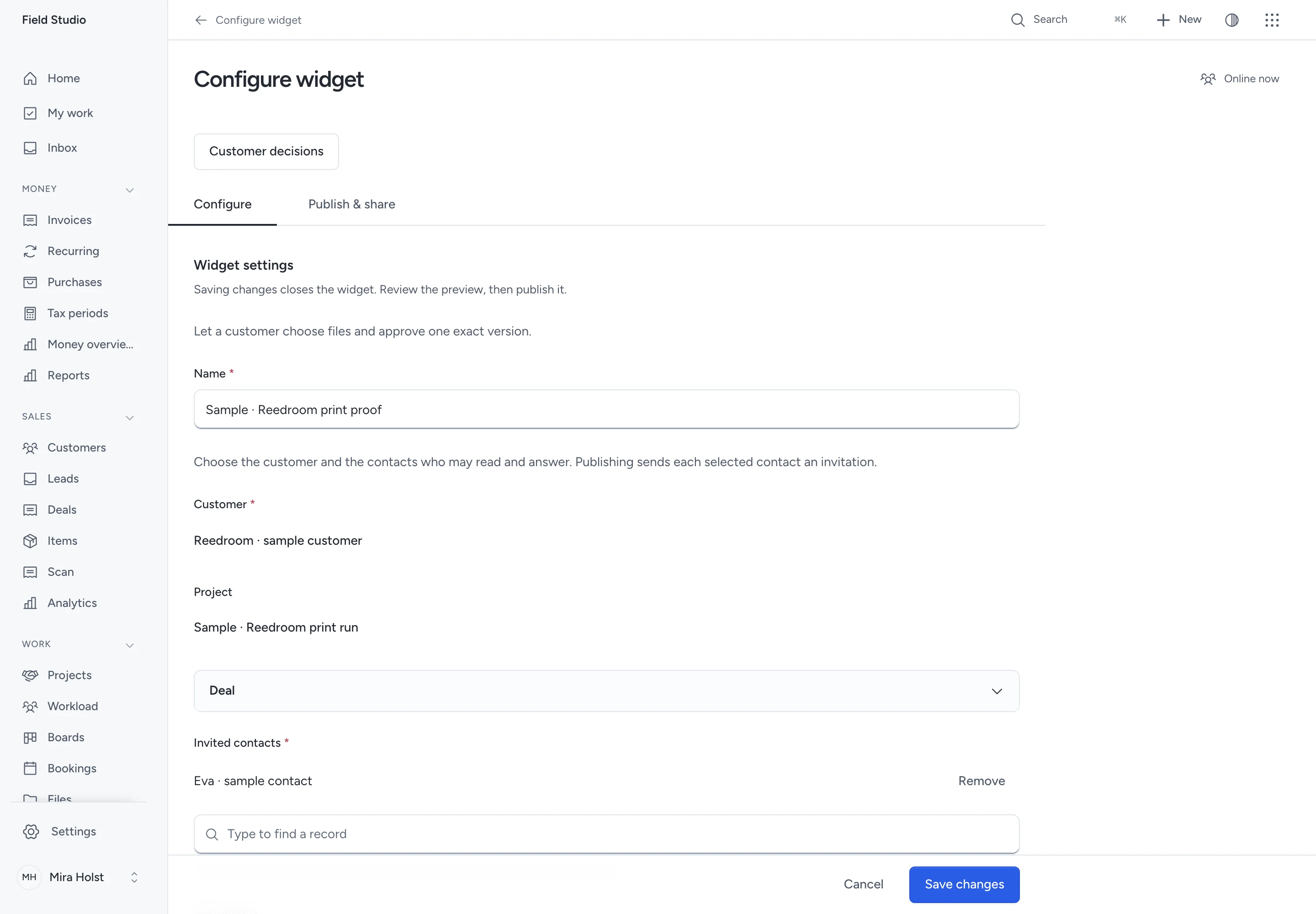
Choose Approve one, Pick exactly, or Pick up to. For example, Pick exactly 3 requires three distinct files. Pick up to 3 accepts at most three.
Publication keeps the selected file versions, their names and their content hashes. A later upload cannot replace an earlier proof. To publish a newer upload, remove the old file selection and choose the file again.
The customer, project and deal cannot change after the record is created. Create another proof set for a different job or customer.
Help the customer open the page
Publication sends an invitation to each selected contact. The customer enters the invited email address, then the code sent to that inbox.
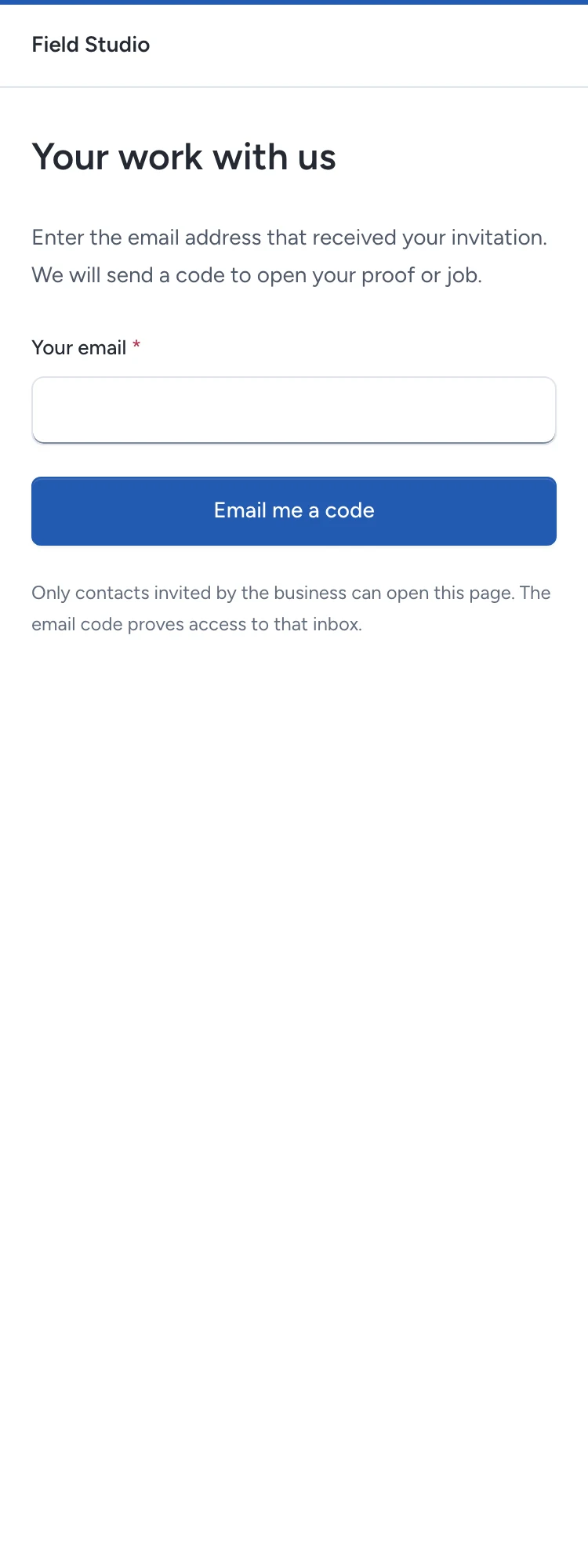
An email code does not grant access to an uninvited address. Removing a contact, changing their email or deactivating them ends access. A new contact with the same address inherits no earlier grant.
To remove one invitation, remove the contact from Invited contacts, save and publish. Saving closes the widget until you publish again. Restoring a revoked contact's grant requires a new email code.
Use the page address in email or WhatsApp. For a printed job ticket, create a named print placement in Publish & share > Reusable links & QR codes. Download its QR asset and place it on the ticket. Follow the sharing and print steps.
You can also embed the page inline or behind a button on your website. Every presentation asks for the email code first. Your other open work lists only pages with a live invitation for the same contact. Each page has its own sign-in.
Select, comment and approve
The customer can open an image preview or use Download original. PDFs download as files.
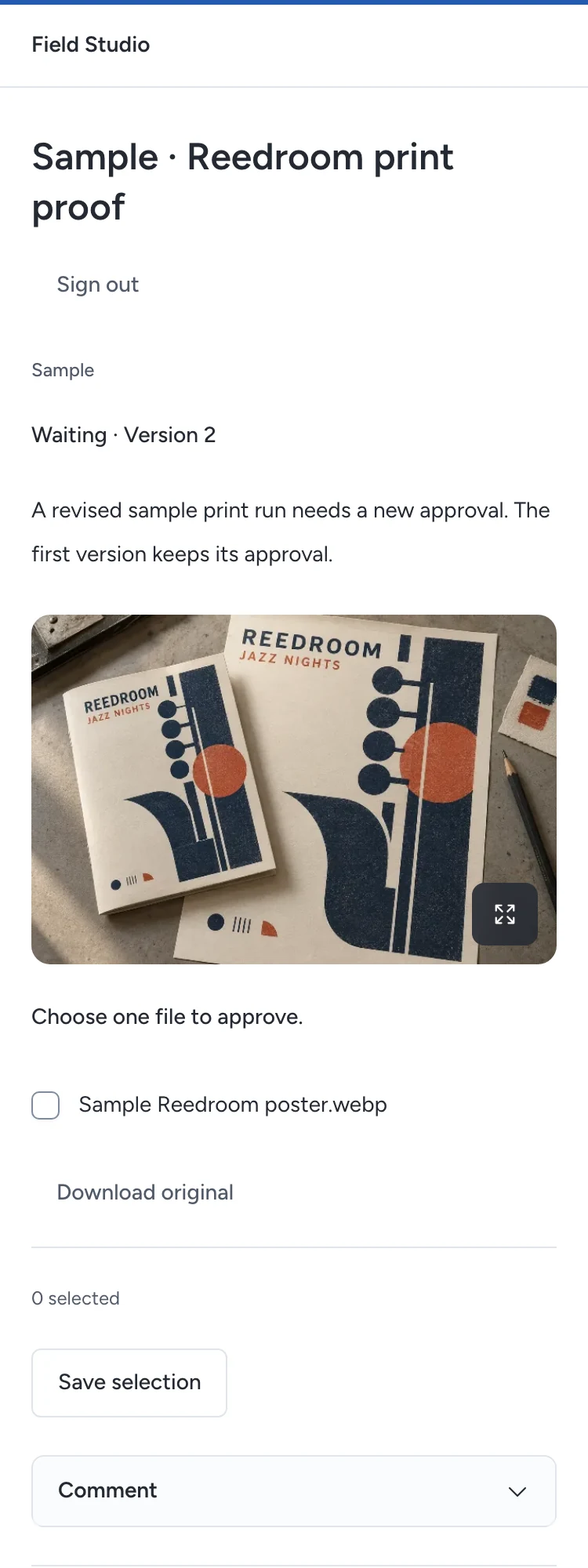
- Select the files that meet the stated rule.
- Click Save selection to record the choice without approving it.
- Open Comment to comment on the whole version or one file.
- Click Ask for changes if the work needs revision.
- Read the approval statement when the version is ready.
- Select its confirmation box.
- Click Approve version.
An approval records the contact, time, statement, selected files and version hash. It is final for that version. It records a customer decision; it is not a qualified electronic signature.
If a save fails, the form keeps the input. Retry after checking the error. If a newer version exists, review it and confirm its statement again. An old tab cannot approve a newer version on your behalf.
Review decisions and send a reminder
Open the widget's Customer decisions page, or select it from the linked project or deal. Read Versions and Decision history for the recorded choices, comments and approvals.
The current state is Waiting, Changes requested, Selected or Approved. A revised publication starts a new decision and retains the earlier version's history.
Choose Send reminder when a decision is waiting. No reminder is sent automatically. Each contact has one reserved or successful reminder per configured interval. The default is 24 hours; the minimum is one hour.
Read Email history after publication or a reminder. Sent means the mail service accepted the message, not that the recipient read it. Retry a failed attempt with Retry. An unknown outcome is retained and is not retried automatically.
A project manager can use Close work to stop new decisions. Reopen work keeps the history. Closing the linked project also stops new decisions.
Limits and unavailable files
- One set has 1–100 image or PDF files and 1–50 active invited contacts.
- Instructions allow 5,000 characters. The approval statement allows 2,000.
- Waiting targets and reminder intervals accept 1–8,760 hours.
- File upload limits and current sharing permissions still apply. Missing or withdrawn files cannot be downloaded.
- Comments attach to a version or file. You cannot draw annotations on the image.
- These records are Platform work. Customer workspace plans do not grant access to them.
Read job progress and questions to collect typed answers. Read decision reports for exact durations and their limits.
Need help with the product?
Contact support