
Browse the manual
Comments and the inbox
Talk about a record with your team, mention a colleague or a team, and read mentions, replies and updates in one inbox.
On this page
For: everyone who works on customers, projects, purchases and documents with colleagues. Where: the Conversation section of a record, and Inbox at the top of the navigation. On a phone, open More first.
Comments are visible to people who can open the record. On boards, lists and cards, this includes invited guests with board access. Comments never appear on a PDF, an email to a customer, a public quote page, a document share link or an XML export. Messages to a customer stay in the document's communication log.
Where you can comment
Customers, leads, deals, projects (projects), purchases, documents and board cards have a conversation.
| Record | Where the conversation is |
|---|---|
| Customer | Below the documents on the customer page |
| Project | Below the agreed scope on the project page |
| Purchase | Below the purchase history |
| Invoice, quote, credit note or proforma | Comments in the document inspector. Below 1280 px, open Inspector first |
| Board card | Open the card, then choose Comments |
| Lead or deal | Open the record, then choose Comments |
You see a conversation only when you can open the record. An employee who sees only their own documents sees only the comments on those documents.
Write a comment
- Open the record.
- Type your comment in the Conversation field. A comment can have 1 to 4,000 characters.
- To mention someone, type
@at the start of a word, or click the @ button (Mention). - Type part of a name, then choose a colleague or a team. Press Escape to close the search and go back to your text.
- Click Post comment. You can also press Ctrl+Enter, or Cmd+Enter on a Mac.
If Pepper refuses the comment, your text stays in the field with the reason below it.
Reply, edit and remove
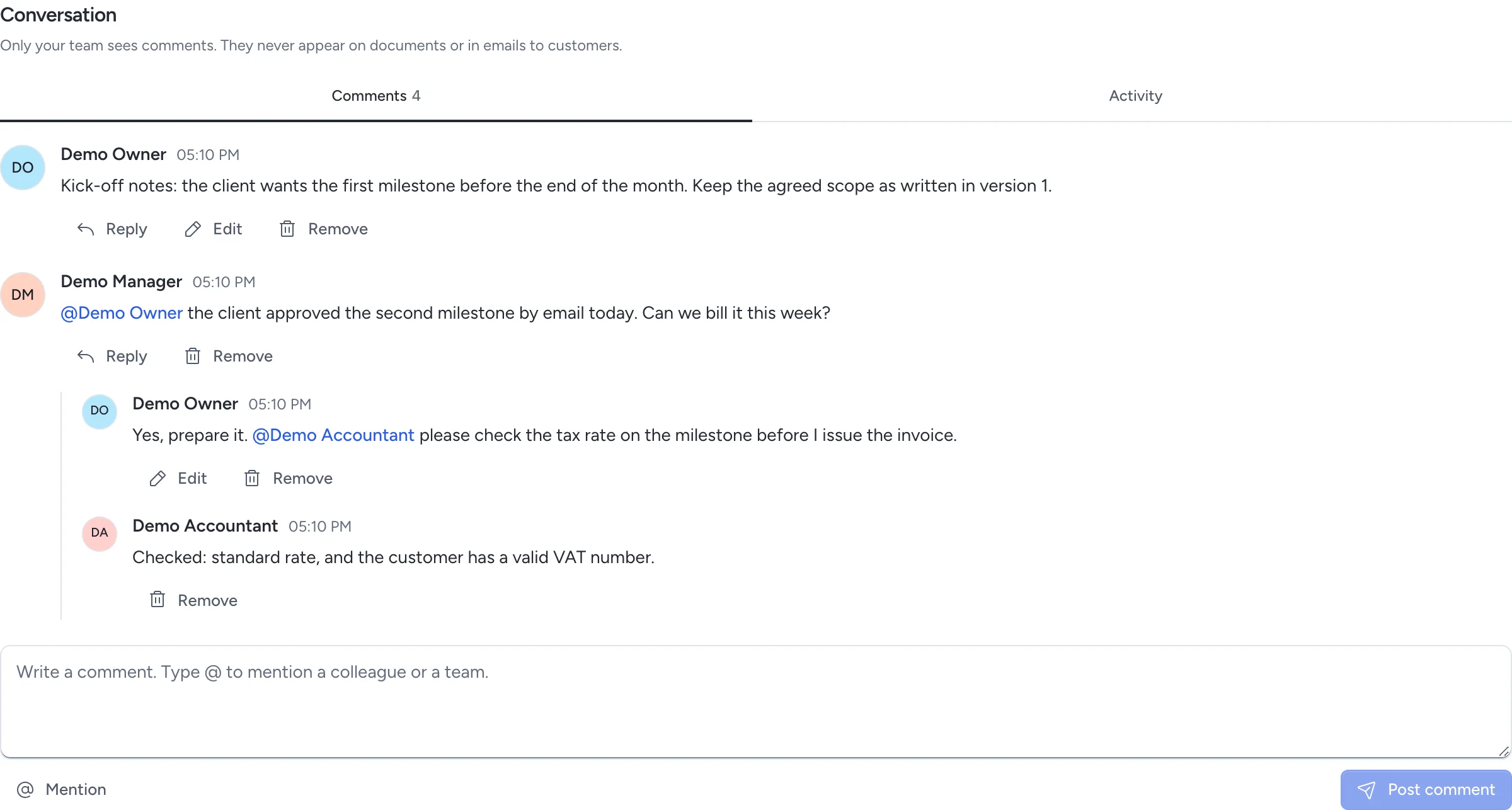
- Click Reply under a comment to answer it. Replies stay under their first comment. A reply to a reply joins the same thread.
- Click Edit to change your own comment. Others see edited beside it.
- Click Remove to remove your own comment. Owners and admins can also remove other people's comments.
A removed comment shows Comment removed for everyone. Its replies stay. Pepper keeps the removed text in the database and shows it to nobody.
Mentions
A mention sends a notification to the person, or to the members of the team.
- You can mention up to 20 people and teams in one comment.
- You can mention a person only if that person can open the record and use comments. Otherwise Pepper refuses the comment and names the person.
- A team mention reaches only the members who can open the record. If no other member can open it, Pepper refuses the comment.
- Mention choices follow your people access. People who share a private board can mention its permitted members, including guests. A guest still needs access to the conversation.
- A mention of yourself stays as text and sends nothing.
If you cannot see a mentioned person in the directory, the comment shows @someone in place of the name.
Read your inbox
Inbox collects your notifications. The number beside Inbox shows how many are unread. It refreshes through the same live connection as open conversations and boards. Refreshes are more frequent while you work and slow down while you are idle. Hidden tabs pause; one visible tab shares updates with the other tabs.
| Tab | You get a notification when |
|---|---|
| Mentions | A colleague mentions you or a team you are in |
| Assignments | You are assigned a card, a lead or a deal, added to a board, or receive open work when a colleague is offboarded |
| Replies | Someone comments on a record where you commented or were mentioned before, or on a card you watch |
| Updates | A payment on your invoice, a customer decision on your quote or on a quote linked to your deal, or a submission to a form you created |
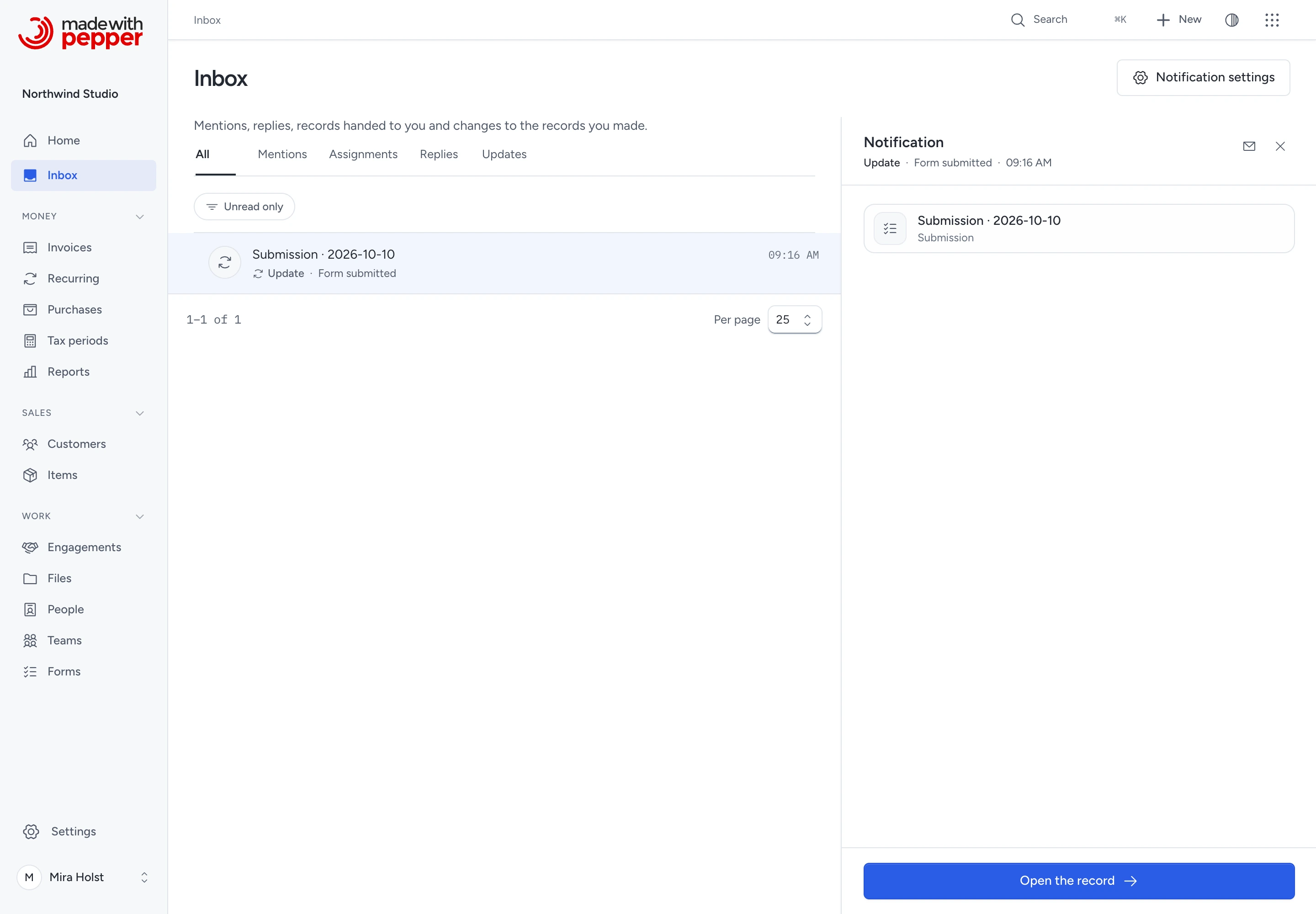
- Open Inbox.
- Choose a tab, or keep All. Click Unread only to hide notifications you read.
- Click a notification. The reading pane slides in beside the list. Below 1280 px, it opens as a sheet.
- Read the thread and type a reply in the pane. Press Ctrl+Enter or ⌘+Enter to send. Or click Open the record.
- To close the pane, click × at the top of the pane.
To change the reading pane width, drag the edge facing the list. Or focus the edge and press Left or Right. Hold Shift for larger steps. Double-click the edge to reset it. The browser keeps this width separate from other record panels. See Resize a context panel for all keyboard controls.
Opening a notification marks it read. Click the envelope at the top of the pane (Mark as unread) to keep it for later. Mark all read applies to the tab you have open. A notification is hidden while you cannot open its record, for example after a role change. Pepper keeps it and shows it again if your access comes back.
Choose your notifications
- Open Inbox.
- Click Notification settings.
- Choose Inbox and Daily email for each kind.
- For approvals, mentions and assignments, also choose In-app alert and Push notification. For approvals, also choose Email now.
- Click Save settings.
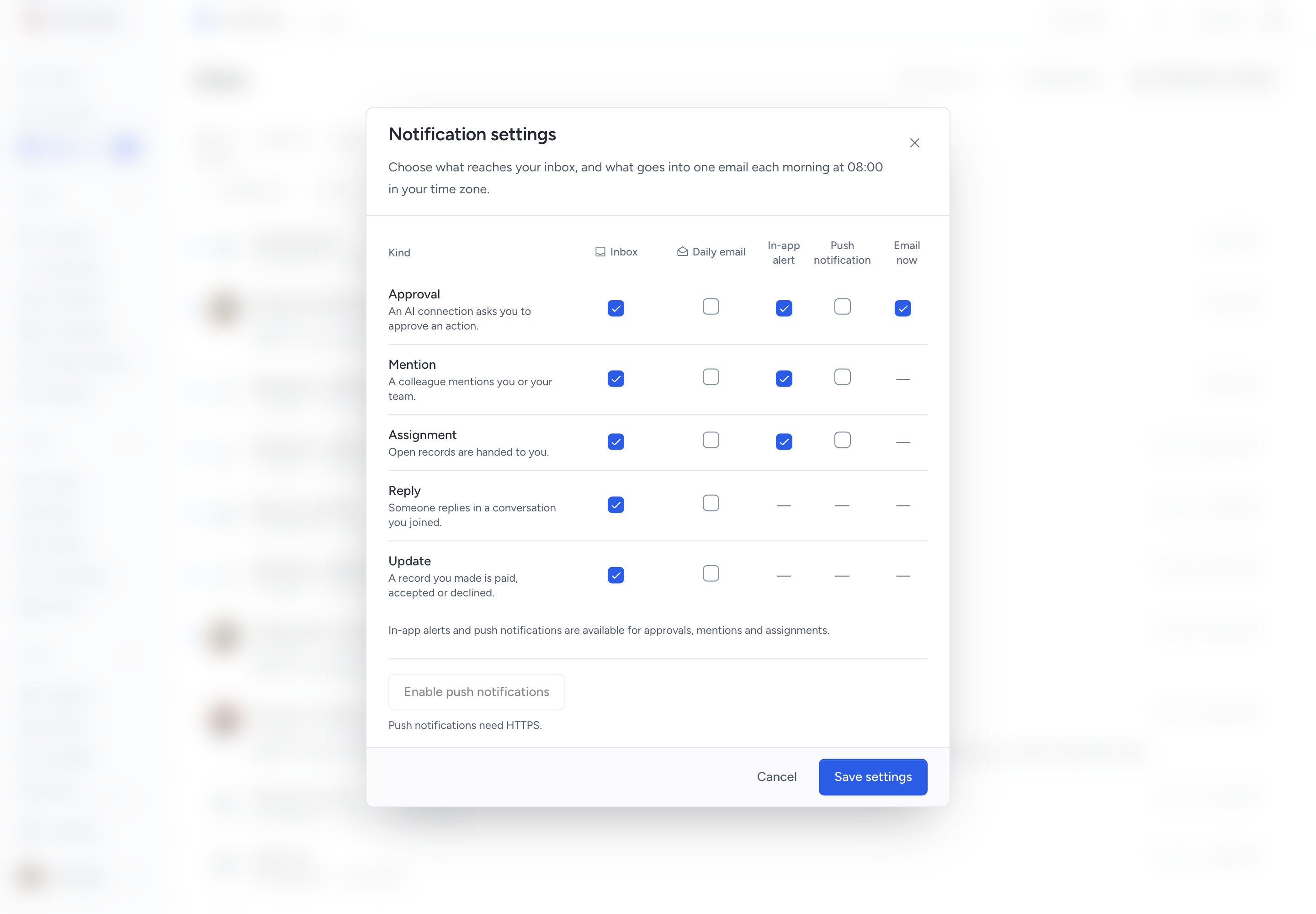
Every kind reaches the inbox by default. In-app alerts start enabled for approvals, mentions and assignments. Email now starts enabled for approvals. Daily email and push are off by default.
The daily email goes out once per local day, at the first successful scheduler run at or after 08:00. It uses your profile’s time zone. It lists unread notifications of the selected kinds from the last 24 hours. It shows record titles and links, never comment text.
The daily email needs a working mail setup and the scheduler (php artisan schedule:run every minute). Without them, only the email stops; the inbox still works.
Approval requests from AI clients
When an AI client asks you to approve an action, such as issuing or sending an invoice, recording a payment or changing a setting, you get an Approval item in your inbox. You also get an in-app alert and one email with a link to the review page. The email contains no code or token. Only you can open the review for a request that names you.
The item opens the review page, where you approve or reject the exact request. Agent approvals lists all your requests by state, and you can decide several waiting requests together. See Approve sensitive steps and Issue after approval.
In-app alerts and push
A new mention or assignment can show a short alert while the app is visible. It appears by the sender's avatar or the Inbox entry; on a phone, it appears at the top.
- Click Open to go to the record and exact comment. This marks the notification read.
- Click Reply to open the conversation with the reply field focused.
- Click Dismiss, or let the alert close, to keep the inbox item unread.
- Hold your pointer over the alert or focus one of its controls to keep it open. Press Alt+A to open the latest alert.
Ordinary updates do not interrupt you with these alerts. When the same conversation is already open, its comments update in place. More alerts wait behind the first one; +N more opens the inbox.
To enable browser push:
- Open Inbox > Notification settings on HTTPS.
- Click Enable push notifications and allow notifications in the browser prompt.
- Select Push notification for the kinds you want, then save the settings.
On iPhone and iPad, first add the installation to your Home Screen and open it there. Browser and operating-system settings can still block delivery.
Push is used when no visible active tab can show the alert. Pepper selects one alert channel for each notification; the inbox item remains available independently. Do not disturb, disabled channels or refused browser permission can leave an unread inbox item without an immediate alert.
The push payload contains an identifier rather than a record title or comment. The browser checks your current sign-in and access before loading the text. If it cannot load the text, it shows a generic notification. Signing out everywhere or offboarding removes registered push subscriptions.
Activity and who is online
Activity lists events you may read, including who changed a record and when. A card has its own Activity tab.
The page header shows colleagues viewing the same page or record. Click Online now to see the people available within your permitted scope and to change your own settings:
- Turn off Show me as online to appear offline while continuing to see others.
- Turn on Do not disturb to silence immediate alerts. Inbox notifications remain available.
A person becomes idle after five minutes without input and offline after a minute without a heartbeat. Presence shows who has the app open, not who is working. It is not an attendance or productivity report.
An owner can set Presence visibility to Everyone visible in the directory, People in my teams or Off. These choices never grant extra access to people or records. Guests see only the people within their shared scope.
Who can do what
| Action | Owner | Admin | Accountant | Employee |
|---|---|---|---|---|
| Read and write comments on records they can open | Yes | Yes | Yes | Yes |
| Use the inbox and notification settings | Yes | Yes | Yes | Yes |
| Remove another person's comment | Yes | Yes | No | No |
A custom role can hold Comment, mention and use the inbox and Remove other people's comments. A guest uses comments only when the invitation grants the collaboration module. See Roles and permissions.
Agents
Connected AI clients with the collaboration:read scope can read the comments of a permitted record, its activity and the delegated person's inbox. With collaboration:prepare they can also write, edit and remove comments, mark notifications read or unread, and change the person's notification choices, all as that person.
A comment that an AI client writes shows the person's name and "via" the connection's name, for example Mira Holst via Claude Desktop. Everyone who reads the conversation sees it. If the connection is later removed, the comment shows "via an AI connection". A mention from an AI client follows the same rules as yours: it reaches only people who can read the record, and Pepper refuses a comment that mentions someone who cannot.
See Comments, the inbox and activity.
Related pages
Task and project notices
Tasks and time entries use the same comments, mentions, files and record access as other work. Watch a task to receive completion and status-change notices. Assignments and due-tomorrow reminders can reach your Inbox. A removed assignment also removes future access unless another rule grants it.
Project creators and managers receive budget notices at 80% and 100%. Old unbilled time produces one notice per project per month. An active session receives a balloon, or the configured push path handles an inactive session. These notices carry no rates, margin or another person's time notes.
Need help with the product?
Contact support