
Browse the manual
Compare revenue, costs and cash
Read the money overview by month, quarter or year, choose a cost basis and open the records behind each figure.
On this page
For: owners and accountants reviewing business money.
What you need: See balances and figures (financial_summary.view), plus access to the invoices and purchases you want to include. Owners, admins and accountants have these permissions by default. Guests cannot open this report. Downloading also needs data.export.
Open Money overview in the Money navigation group. On a phone, open More first. You can also open it from Reports > All reports.
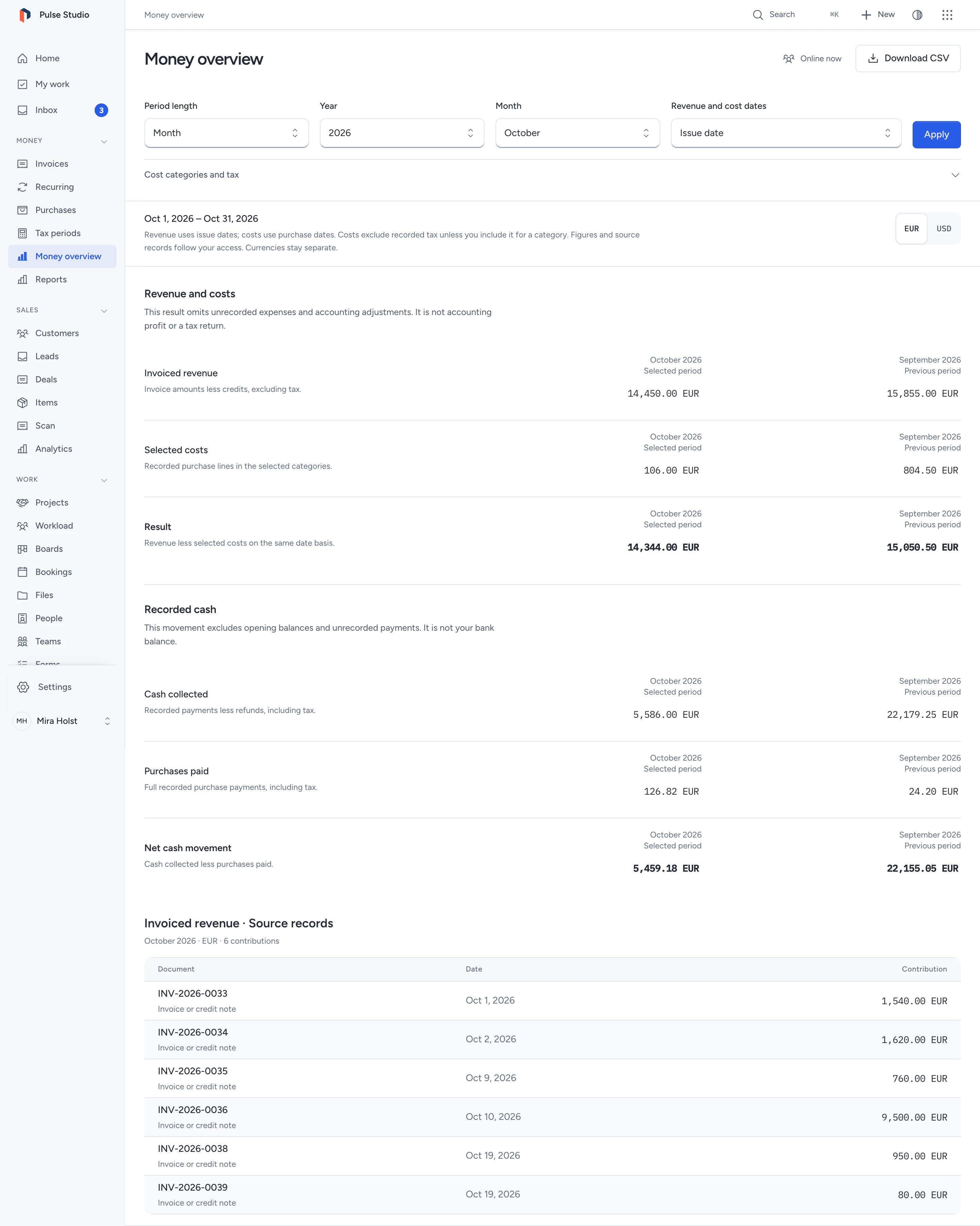
Choose the period and currency
- Choose Month, Quarter or Year under Period length.
- Choose the year and, when needed, the month or quarter.
- Choose Issue date or Payment date under Revenue and cost dates.
- Click Apply.
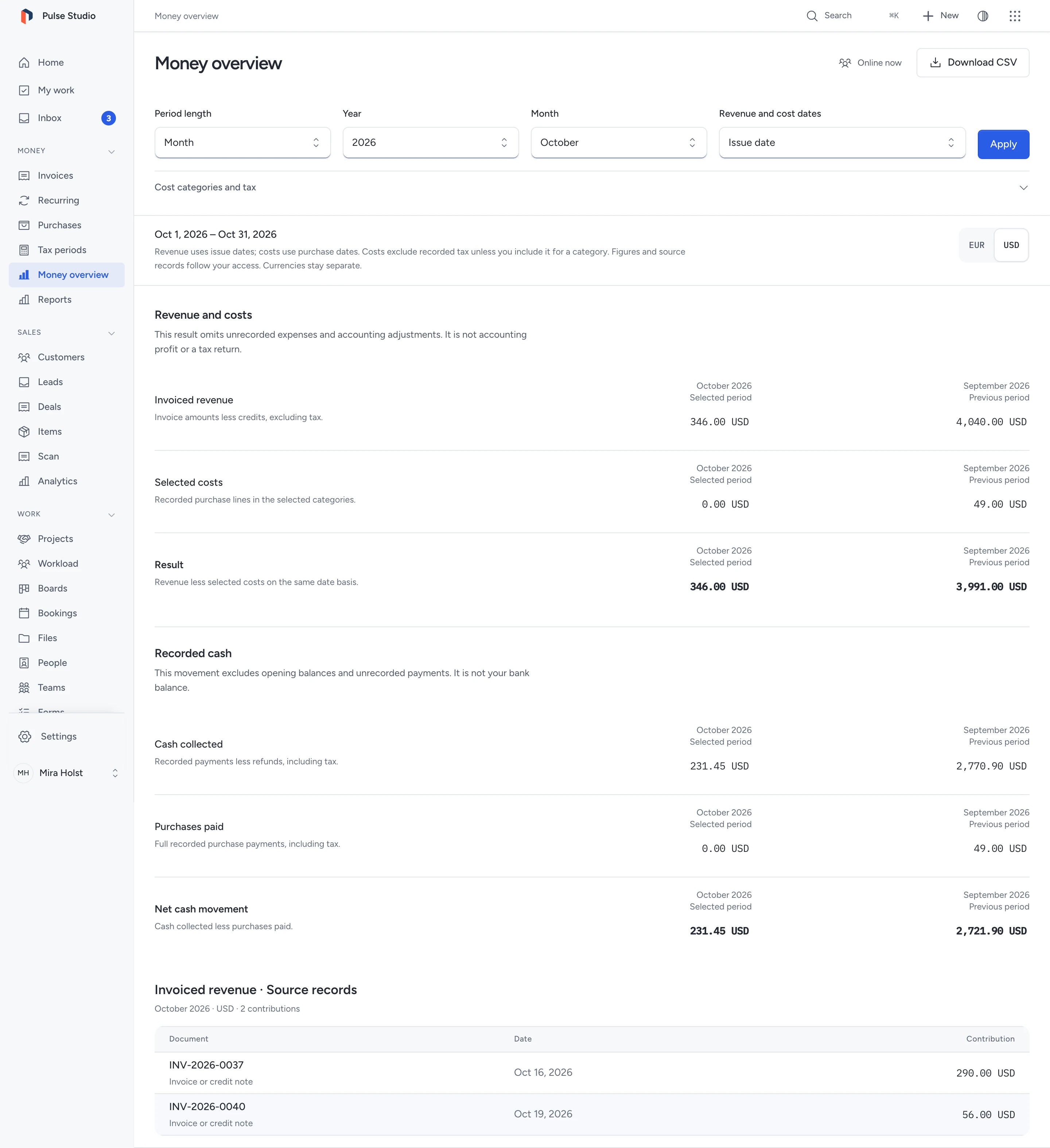
- Choose a currency beside the date explanation.
The default is the current month in your business timezone, with Issue date as the basis. The previous calendar period of the same length appears beside it. January compares with December of the previous year; the first quarter compares with the preceding year's fourth quarter. Years run from January to December. The report supports 2001 through 2100. It does not support a custom range or a different fiscal-year start.
Both periods show their full calendar ranges. The figures include records you have saved within those dates, including future-dated records. They contain no forecast. Each currency has its own figures; there is no conversion or combined total. The currency choices include currencies with records in either period. An API or saved URL can also select an empty supported currency.
Read revenue and costs
| Figure | Issue date | Payment date |
|---|---|---|
| Invoiced revenue / Revenue collected, excluding tax | Issued invoice amounts excluding tax, less issued credit-note amounts excluding tax, on each issue date | The share of each invoice's amount excluding tax paid in the period, less the share of credit-note refunds |
| Selected costs | Recorded purchase lines on the purchase date, with your category and tax choices | The same selected lines on the purchase's paid date; unpaid purchases contribute nothing |
| Result | Revenue less selected costs | Revenue collected excluding tax, less selected paid costs |
Draft, cancelled, deleted and unissued documents do not contribute. Voided purchases do not contribute. Reversed payments and refunds do not contribute. A credit note reduces invoiced revenue even when you have not refunded it. It changes cash when you record its refund.
For partial payments, Pepper allocates the invoice amount excluding tax in proportion to the gross amount paid. It rounds the cumulative allocation to the nearest minor unit, with halves rounded up. Each payment contributes the change in that allocation. This keeps a fully paid invoice's net total exact across periods. Refunds use their credit note's own amounts. Reversing a payment removes it and recalculates later allocations.
The result omits expenses you have not recorded, payroll, depreciation and other accounting adjustments. Use it to inspect the records in Pepper. It is not accounting profit or a tax return.
Choose costs and purchase tax
- Open Cost categories and tax.
- Clear Include cost for a category you want to exclude.
- Select Include tax for a category when its recorded tax is a cost to your business.
- Click Apply in that section.
By default, all categories contribute and all purchase tax is excluded. No category covers lines without a category. Historical inactive categories remain available. Ask your accountant which tax is recoverable; Pepper does not decide that. The category choice applies to every matching line in both periods, so use suitable categories if some purchases need different treatment.
These choices change the report URL. They do not change purchase records or save a tax preference. They affect Selected costs and Result. Purchases paid always uses the full recorded payment, including tax, even when you exclude its category from costs.
Read recorded cash
| Figure | Meaning |
|---|---|
| Cash collected | Active recorded incoming payments less outgoing credit-note refunds, including tax, on their payment dates |
| Purchases paid | Full gross amounts of recorded purchases on their paid dates |
| Net cash movement | Cash collected less purchases paid |
Cash always uses payment dates. The revenue basis and cost choices do not change it. A purchase's paid date represents its full payment; this report has no partial supplier-payment ledger. A pending online payment contributes nothing until Pepper records the confirmed payment. Provider fees contribute as costs or purchase payments when you record them as purchases.
Opening bank balances and movements outside these records are absent. Net cash movement is not your bank balance.
Check an exact example
Northwind Studio issues a EUR invoice for 100.00 excluding 21.00 tax and a EUR credit note for 20.00 excluding 4.20 tax. The customer pays 60.50; the studio refunds 12.10. Two paid purchases cost 10.00 plus 2.10 tax and 5.00 plus 0.45 tax.
A US studio with the same recorded amounts in USD gets the separate USD column below. These are recorded examples, not an exchange-rate calculation or a prescribed tax rate.
| Figure | EUR | USD |
|---|---|---|
| Invoiced revenue | 80.00 EUR | 80.00 USD |
| Selected costs, excluding tax | 15.00 EUR | 15.00 USD |
| Result on issue dates | 65.00 EUR | 65.00 USD |
| Cash collected | 48.40 EUR | 48.40 USD |
| Purchases paid | 17.55 EUR | 17.55 USD |
| Net cash movement | 30.85 EUR | 30.85 USD |
On Payment date, collected revenue excluding tax is 40.00 in each currency. Selected paid costs remain 15.00, so the result is 25.00. Including tax for the first purchase category and excluding the second category makes selected costs 12.10. Cash movement stays 30.85.
Open source records
Click an amount in either period. Source records below the comparisons shows each contribution, its date and its invoice, credit note or purchase link. The result includes negative cost contributions; net cash includes negative purchase-payment contributions. Their sum equals the selected amount.
A page holds up to 50 contributions. Click Next or Previous to move through them. The headline amount always includes all matching records. Click a record number or reference to inspect it. Use your browser's Back action to return to the same report URL.
All figures and links follow your current record access. An employee granted the summary permission still sees only their permitted records. A figure says Unavailable with your access when its source family is unavailable. The combined result and net cash also require both source families. An available empty period shows zero and No source records. A zero never stands for missing permission.
If permission changes after you open the report, refresh it. A source link can refuse access after that change. If a saved link contains an invalid period or a removed category, the report shows a validation message and the default filters. Choose the period and cost categories again, then select Apply. The report address now contains your corrected choices. An invalid CSV link opens the same report so you can correct its filters.
Download or read through a client
Click Download CSV. The file contains all reported currencies, all six figures and both periods, with the basis, date range, category IDs, saved currency scale and exact decimal amounts. It contains summary figures, not the source rows. An unavailable amount is blank. CSV text uses UTF-8 and a period as the decimal separator. Share the saved URL with a colleague who has their own access; it grants no permission.
The reports_money MCP tool and GET /api/v1/reports/money return the same figures and bounded source rows. Read the tool inputs and access rules.
For invoice originals, purchase files and tax-rate totals, use the separate accountant package. Cost choices in Money overview do not alter that package or its tax figures.
Need help with the product?
Contact support