
Browse the manual
Check a visitor's service area
Give an answer from your country and postal-code list, then receive a request with that answer.
On this page
Let visitors check their postal code before contacting you. You choose the answer for each country and code or prefix.
For: a settings manager in the Platform, or an authorised Business account with this widget in its plan.
Where: Work > Widgets, or Widgets in your Business account.
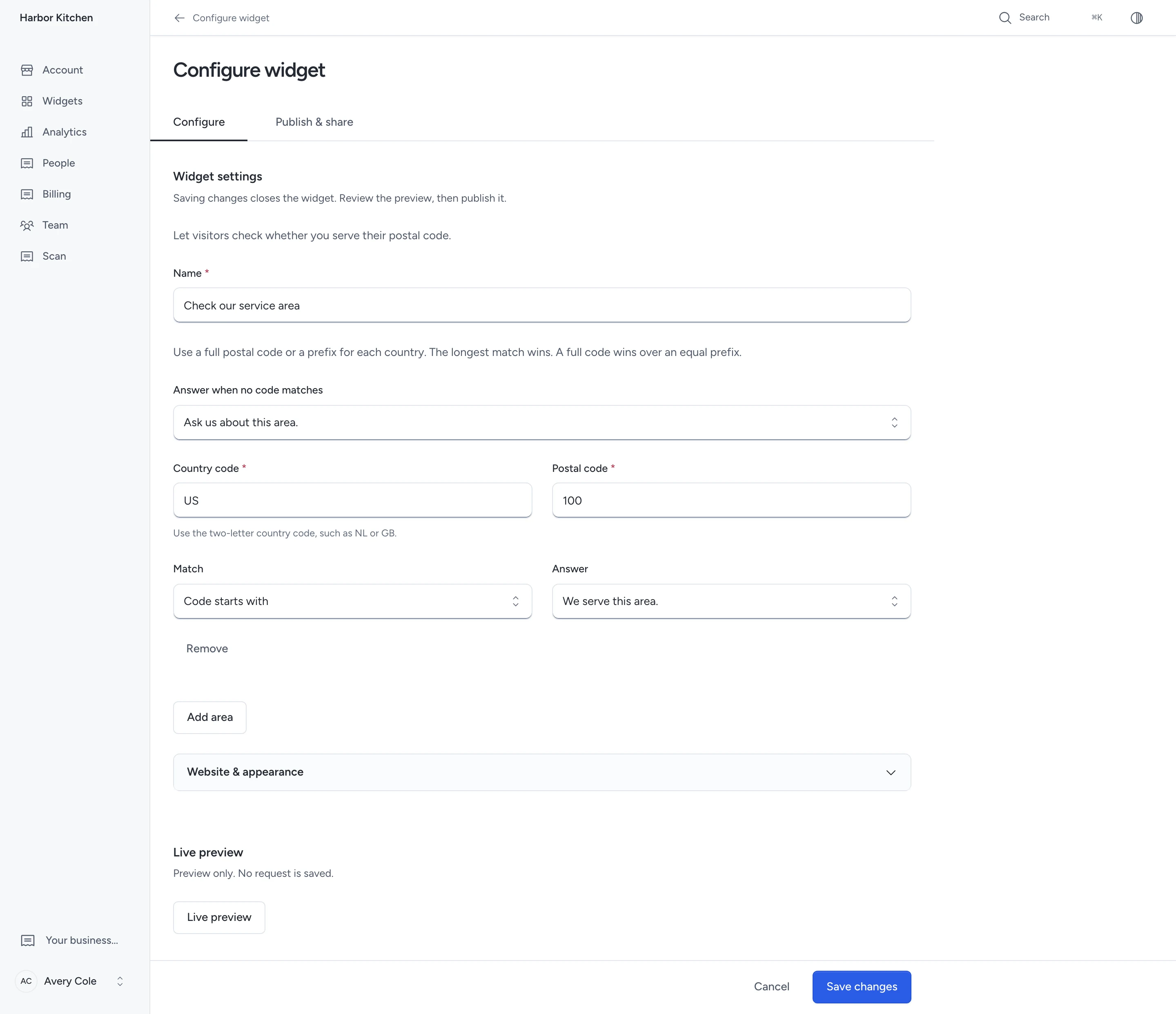
Set the areas
- Click New widget and choose Service area.
- Enter the widget name.
- Choose Answer when no code matches. The default is Ask us about this area.
- Click Add area.
- Enter a two-letter country code, such as
NL,GBorUS. - Enter a postal code or its starting characters.
- Choose Full code or Code starts with.
- Choose the answer: served, ask us or not served.
- Add other areas, up to 500 rows.
- Check Live preview, then click Save changes.
- Open Publish & share and click Publish widget.
Pepper ignores spaces, hyphens and letter case when comparing postal codes. The longest matching code wins within the selected country.
If a full code and prefix have equal length, the full code wins. Duplicate rows for the same country, code and match type are refused.
For example, serve Dutch codes starting with 62, but set 6211AB to Ask us about this area. The full code gets that exception.
A US prefix such as 100 applies to US checks alone. With no match, the visitor gets your default answer.
The check uses your list. It does not verify an address, calculate distance or call an outside mapping service.
Receive and follow up on a request
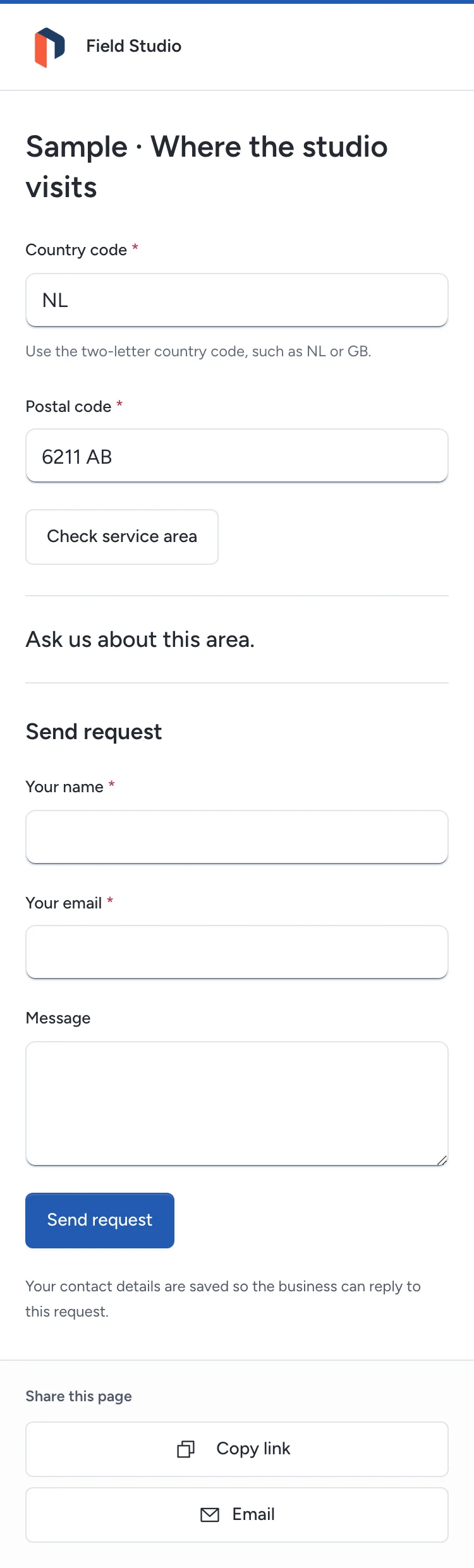
The visitor enters Country and Postal code, then clicks Check service area. Every answer offers Send request for follow-up.
An anonymous check retains no postal code. With audience measurement permitted, Pepper counts the country and answer.
When the visitor sends their name and email, the accepted request keeps the postal code, country, answer and published area version.
If you changed the published list, the visitor must refresh and check the new answer before sending. Their entries remain in the form.
Open Widgets > Records > Requests in the Platform, or People in the Business account. The request links to a lead.
An answer confirms no appointment, order or delivery. Contact the visitor to agree the work.
Use Menu and choice results for checks by country and outcome, and exact accepted requests.
Follow Publish a widget to share a direct link, embed the check or create a QR card.
Need help with the product?
Contact support