
Browse the manual
Build and publish a website
Create pages for your business, connect services and contact forms, and review each publication before visitors see it.
On this page
Build your business website in Pepper, then connect the services your customers need. Save changes privately and publish them after review.
For: owners and people who manage the business website. What you need: website editing permission and access to the files, catalogue items and widgets you select.
Publication needs Publish and withdraw websites permission. Owners and admins receive website permissions by default. Custom roles can separate viewing, editing and publication. Guests and customer-workspace accounts cannot manage these websites.
The editor includes 3 local starting layouts. You write the content yourself; no AI provider or analytics setup is required.
Create your draft
- Open Websites.
- Click New website.
- Enter a Website name, such as
Northwind Studio. - Enter a Website address, such as
northwind-studio. - Choose Service business, Studio or A place to visit under Starting layout.
- Click Create draft.
The address accepts lowercase letters, numbers and hyphens. Uppercase letters become lowercase; other characters are removed as you type or paste. Your first draft stays private.
Each layout contains sample text and pages. Replace the sample text before publication. Connect or remove every starter Contact form section.
The dedicated demo includes published Pulse Studio, Canal Coffee and Portside Print Fair websites. Portside sells its Harbour Salt edition and other prints on its Editions page, with a shop, a buy button and a cart. Pulse Studio and Portside have English and Spanish pages. Pulse Studio has an unpublished revision in History. These published examples belong to dedicated demo setup; fresh buyer samples stay private.
Find a website
Websites lists each website with its status, address, number of pages, languages and last edit. With Analytics access and collection enabled, it also shows page views for the last 30 days. Use the tabs to show Published, Unpublished changes, Draft or Withdrawn websites. A website has unpublished changes when you saved a draft after the last publication.
Open the row menu, or right-click the row, to Edit, Preview in new tab, Open website, Copy address or Analytics. Open website and Copy address appear only for published websites.
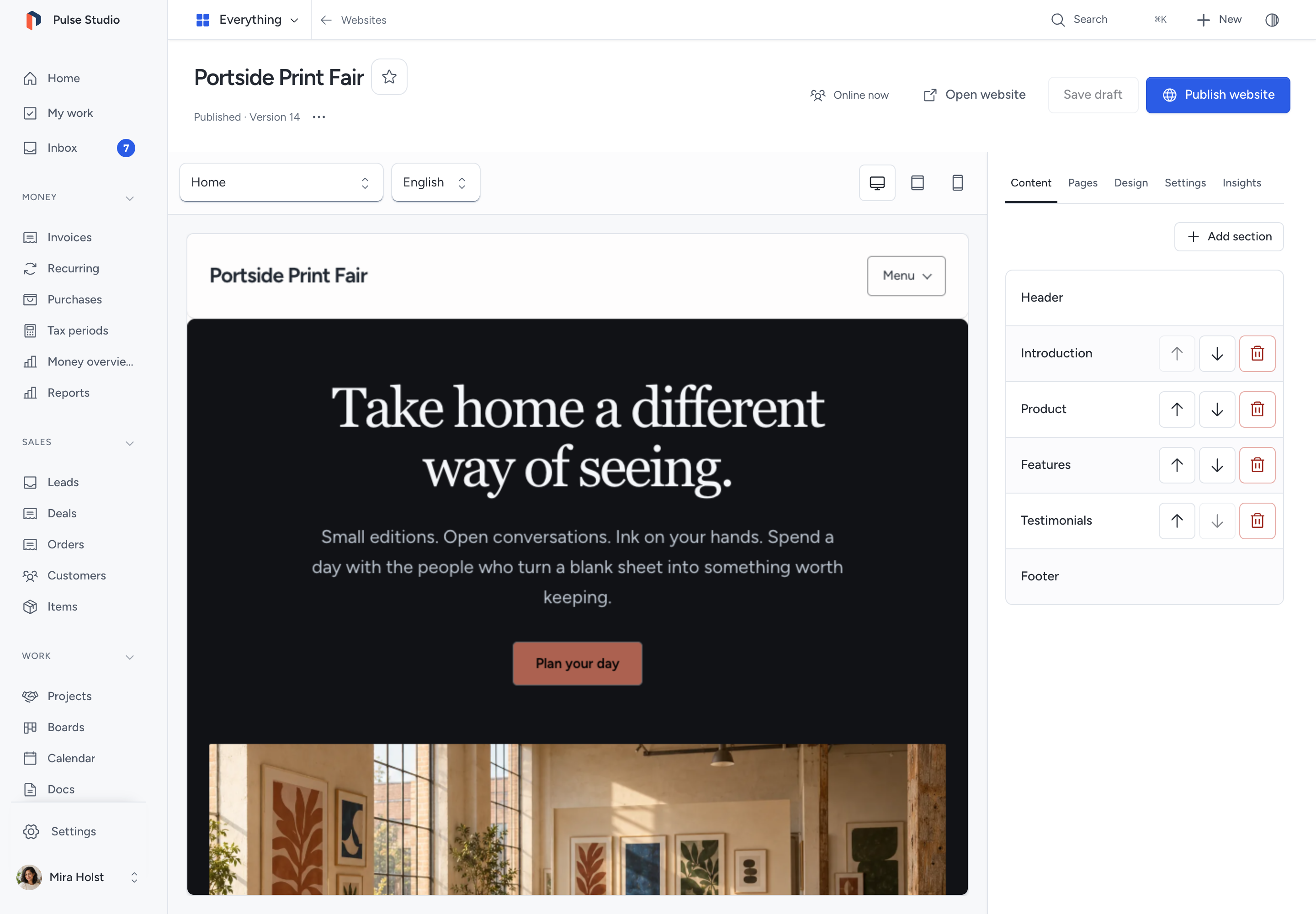
Read website insights
Select a page-view count or choose Analytics from the website row menu. The report opens with that website selected.
In the editor, open Insights. The page and language controls select the reporting scope. Choose Whole website to see all published pages.
For one page, Insights states its page views, arrivals, leads and orders for the last 30 days. It also shows arrivals from search and Search details to fix, such as No search description. Fix those fields under Search and sharing.
Each figure opens its definition or proof. See in Analytics opens the full report with the same filters. Your private draft does not change these figures.
Campaign links opens Analytics settings for this website. If collection is off, Open analytics settings appears instead of figures. Both links need Configure analytics and permission to edit website drafts.
A next action in Analytics, such as Add a contact form to a page, opens this editor at that page, language and field. See read the answer first.
Arrivals from a page code show under Page codes in Analytics, by code name. Page views and arrivals count requests, not people. Leads and orders use saved business records and your current access. See website and shop insights for counting, privacy and currency rules.
Preview a saved draft
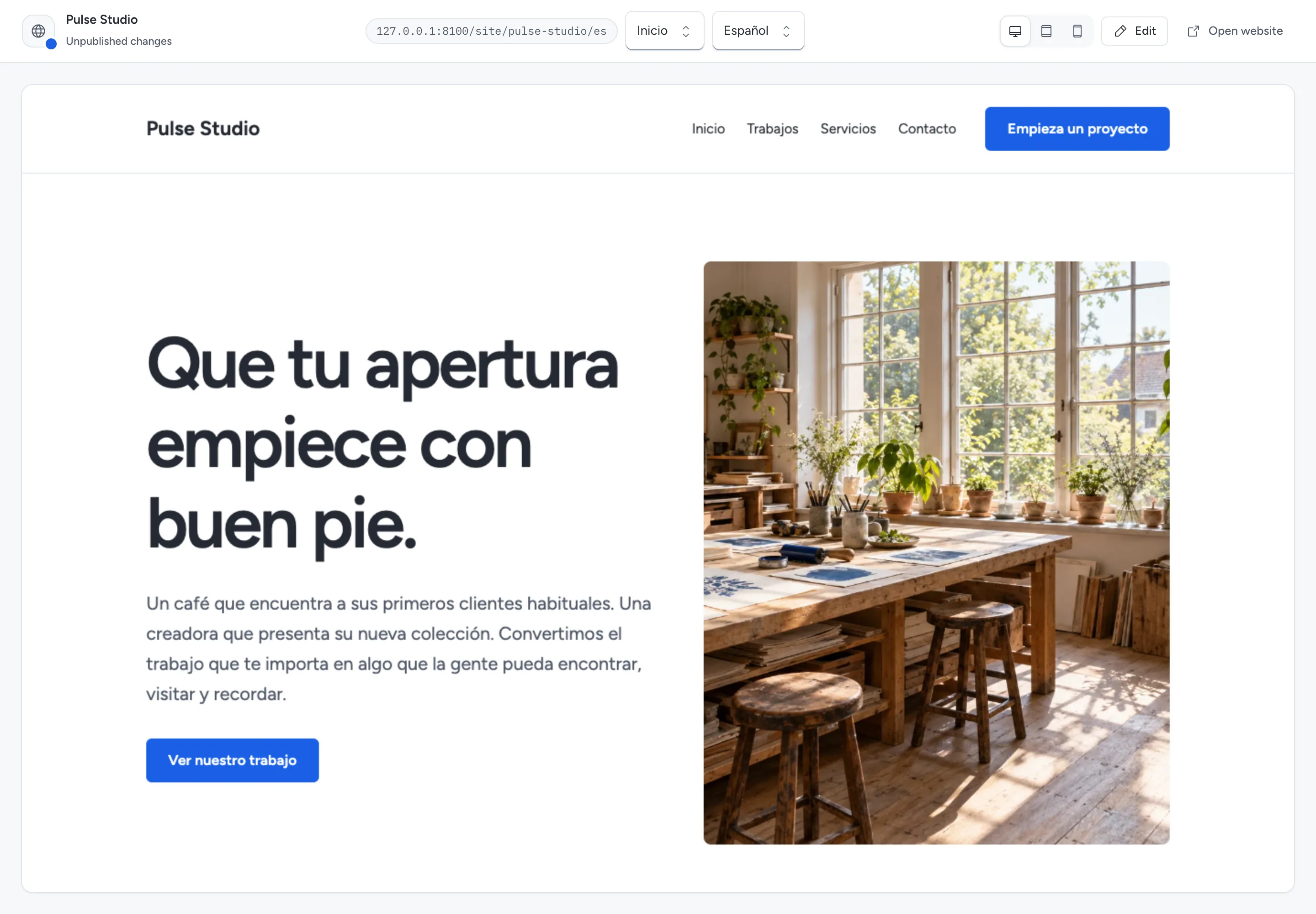
In Websites, open the website's row menu and choose Preview in new tab. The preview shows the saved draft, including private websites. The bar above the page shows the website status and the address of the page. Choose a page and a language, or follow links inside the preview. Switch between desktop, tablet and phone width. External links stay inactive. Click Edit to change the website.
Save changes in the editor before opening this preview. The preview requires website viewing permission and does not publish the draft. Shop and product sections show product cards with prices and availability. Use the published website to buy or to try other widgets.
Edit the page
- Select a page and language in the editor.
- Select a section in Page preview or under Content.
- Edit its fields below the section list.
- To write directly on the page, double-click a supported text field in the preview.
- To add content, click Add section and choose a section type.
- Use the section's move buttons to change its position.
- Check Desktop preview, Tablet preview and Phone preview.
- Click Save draft.
The new section follows the selected section. Header and footer content is shared across pages in the selected language.
Use Text for formatted text. Other sections provide fields for introductions, images, features, services, testimonials, questions, contact forms and widgets. Raw scripts and executable HTML are not supported.
Preview updates do not save your work. Widgets show placeholders there; visitors can use them on the published website.
Wait for Draft saved before leaving the editor. A failed save keeps your changes in the open editor. If a field is invalid, select it in the error summary. Correct it, then save again.
Choose images and services
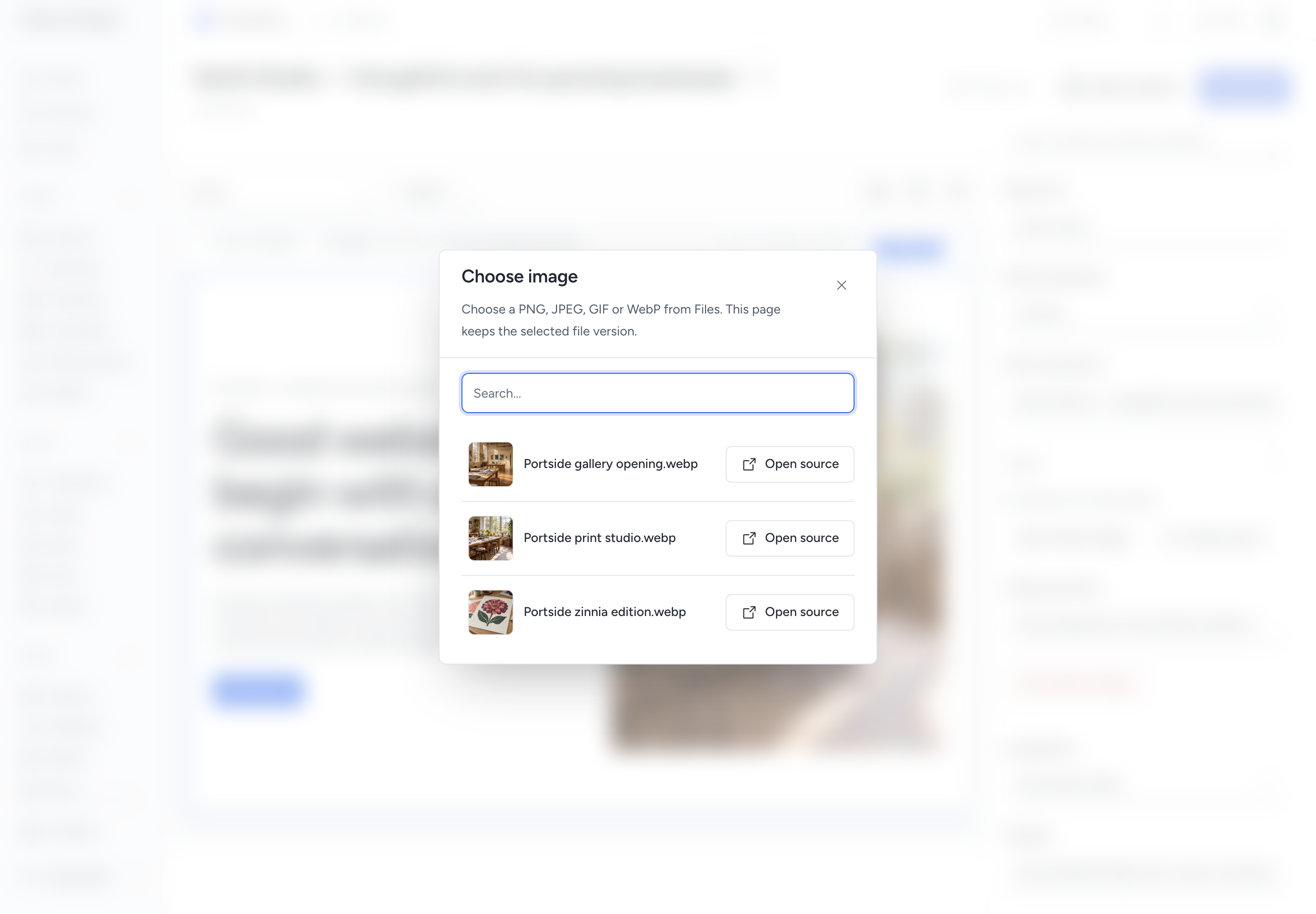
For an image, click Choose image and select a permitted file from Files. Upload a new image in Files first.
The search shows thumbnails beside the files. Use Open source to open Files in another tab without choosing that image.
If the list fails to load, your search stays in place. Click Retry.
Enter an Image description for people who cannot see the image. Leave it empty only when the image is decorative.
The website keeps the selected file version. Uploading a replacement in Files does not change that website image. Select the image again to use its current version.
PNG, JPEG, GIF and WebP are supported. Each image must fit within 8 MiB and 16 million pixels. Selected images together must fit within 24 MiB.
For Services, click Add catalogue item and choose an active item. Pepper displays its current name, description, price, currency and tax treatment.
Catalogue prices stay current. Restoring old website content does not restore an old catalogue price.
Add pages and languages
- Open Pages.
- Click Add page.
- Enter the Page title and Page address.
- Choose a Parent page, or keep Top level.
- Set Show in navigation as needed.
- To change the opening page, select it and click Use as home page. A house symbol marks the home page in the page list.
- Click Save draft.
Page addresses must be unique. Parent pages form a tree with at most 3 levels. A website can contain up to 50 pages.
Publishing a changed page address redirects its old link to the current page for 12 months. Moving a parent also covers its descendants.
Each old link opens the page's current address. Removing the page or language, or reusing the old path, ends that redirect.
Removing a page removes it from every language in the draft. Saved versions remain in History, and visitors keep seeing the published version.
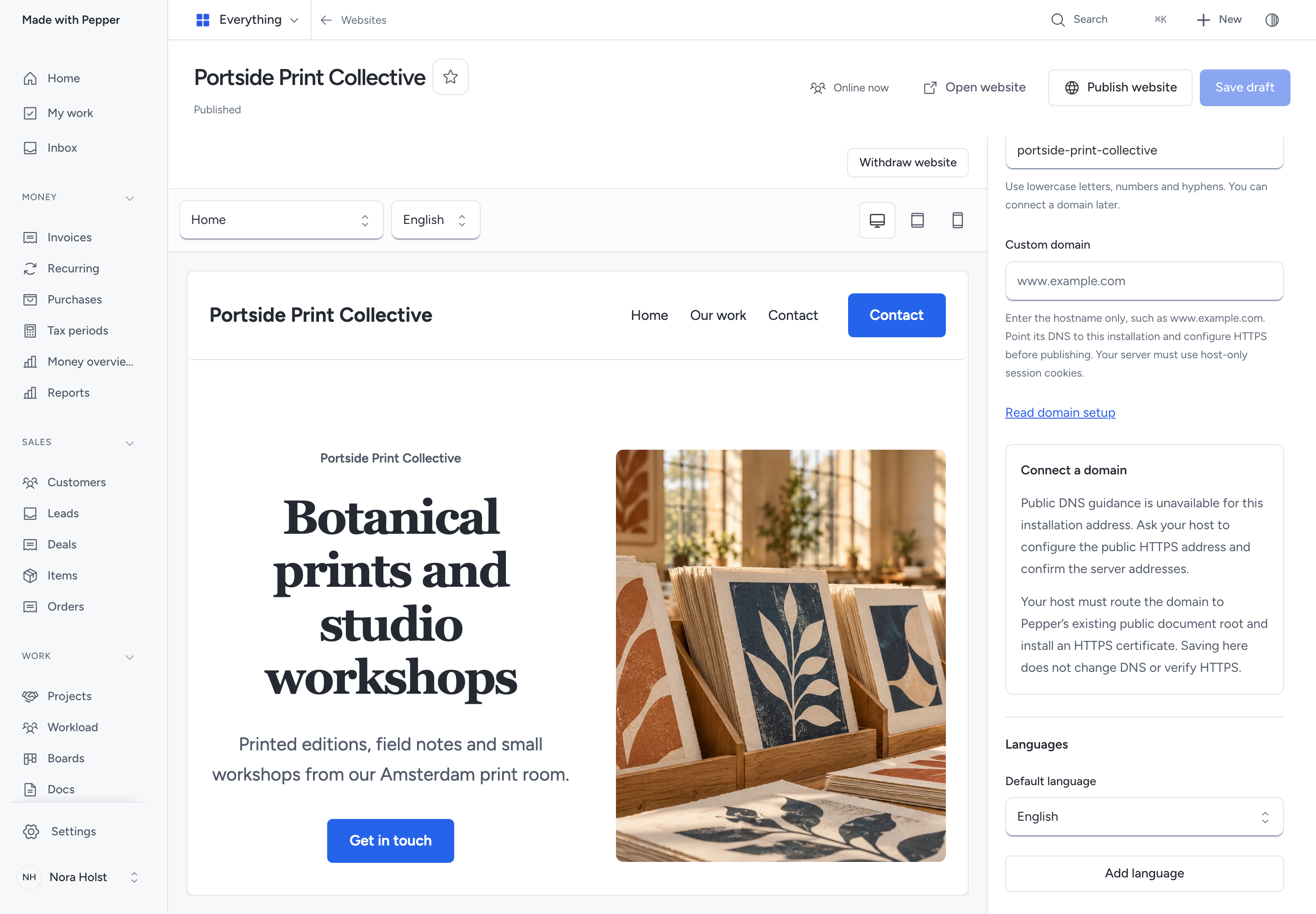
To add a language, open Settings > Languages and use Add language. Pepper copies the current language; it does not translate your text.
Translate each page's title and sections. Translate the header and footer too. Use Search and sharing for each language's search title and description.
Choose the Default language for visitors opening the website's root address.
Languages share page addresses, parents, navigation choices and design. Each language keeps its own page text and sections. Arabic pages use right-to-left layout. Preview labels follow the selected website language; your staff language stays unchanged.
Visitors choose a language from the header or Menu on a phone. The list shows each language by its own name, such as Deutsch or Español, with a check on the current one. It uses no flags. The language links keep the current page and work without JavaScript.
In the editor, the same language control changes the preview without opening the published website.
Print a QR code for a page
Make a printed code for one page, such as a menu, price list or contact page. The website owns the code, so you need no widget.
- Open Pages and select a published page.
- Under QR codes, click New code.
- Keep the name, which is the page title, or type another name.
- If the website has campaigns, choose a Campaign, or keep No campaign.
- Click Create code.
- On the code's row, click Download. Choose Code size, then SVG, PNG or Print sheet · A4 or A6.
The code opens the page in the language you selected in the editor. A new code uses the Print channel and the installation code style. To change Channel, Copies printed or Code style, choose Edit code from the code's row actions. Read Style your codes.
A page that is not published yet has no code. QR codes then says Publish this page to make a code for it.
The printed code follows the page. If you change the page title, the page address or the website address, scans still open the page. If you remove the page from the published website, scans open the home page in the same language. The home page then lists the code with Choose a page. Select a live page, and Pepper saves the code at once. Read Codes for a website page for every state.
To end a code, choose Close code from its row actions. Scans then open the home page, without the code's campaign. A person with View websites sees and downloads the codes. Making, changing and closing a code needs Edit website drafts.
Set search and sharing
- Select the page and language.
- Open Pages and expand Search and sharing.
- Check the Search preview.
- Enter a Search title only if it should differ from the page title.
- Check or edit the Search description.
- Under Share image, choose an image if the generated card does not suit the page.
- Set Show this page in search as needed.
- Open Website defaults to choose a Website icon or Default share image.
- Click Save draft, then review and publish the change.
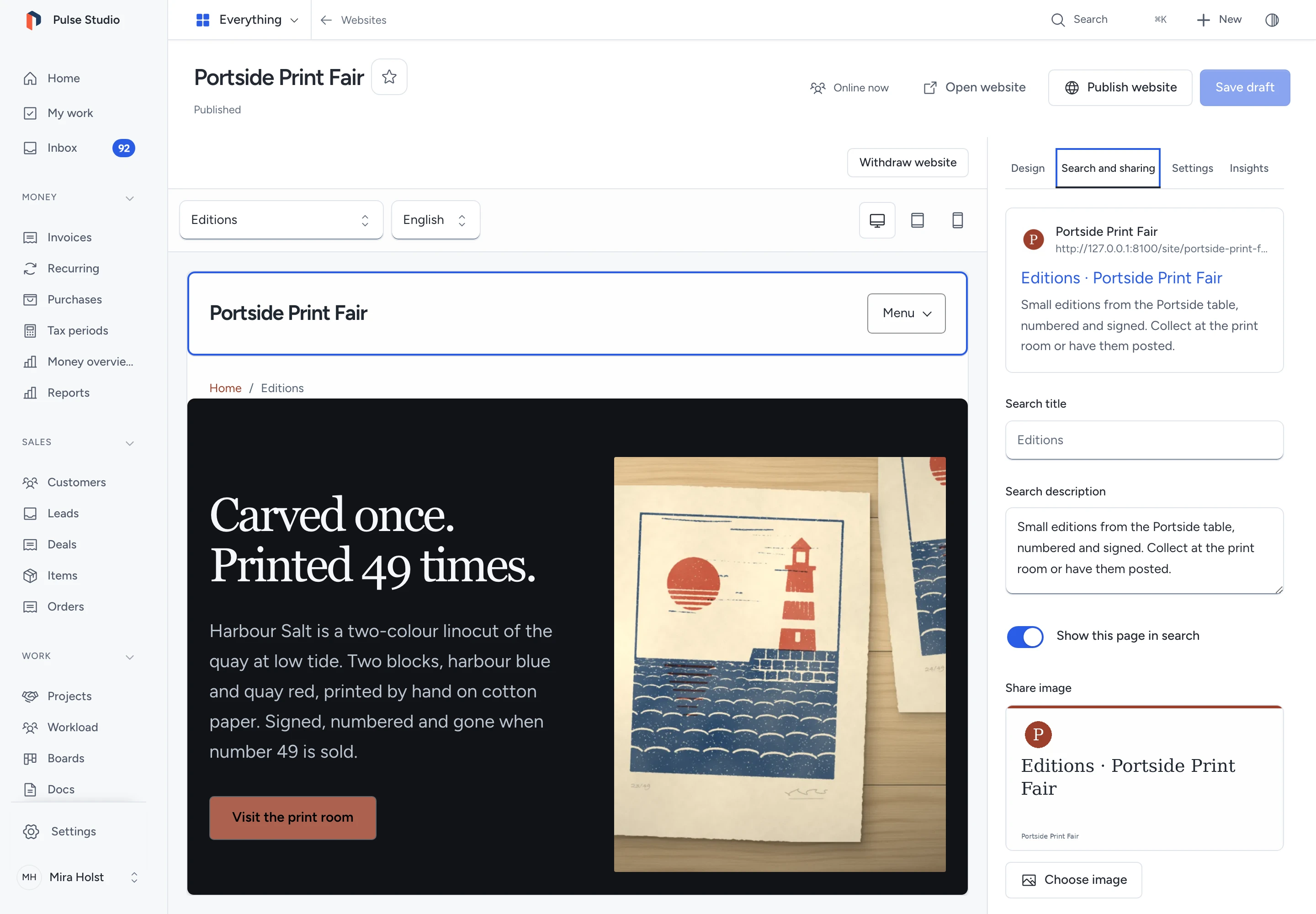
A blank search title uses the page title. Pepper adds the website name once. A blank description uses the first introduction or text section.
Search titles allow 160 characters; descriptions allow 320. Search engines can choose different text or shorten it. The preview does not promise a search position.
Choose images from Files. Remove image restores the automatic choice. Without a website icon, Pepper makes a monogram from the website name and colours.
Pepper creates light and dark icons at the required sizes. An uploaded mark fits inside the square without cropping.
Share images use the page image, then the website default. With neither selected, Pepper generates a 1200 × 630 card from the website design and title.
Use Show this website in search under Website defaults to control the whole website. Turning it off also hides each page from search.
Dedicated cart and other functional pages are automatically hidden from search. A shop page can include its cart and remain visible in search.
Hiding a page from search does not make it private. Anyone with its public address can still open it.
Pepper derives canonical addresses, language alternatives, sitemap.xml, robots.txt and llms.txt from published pages. Hidden pages leave the discovery lists.
Structured data describes visible questions, breadcrumbs, products and selected locations. Product prices, availability and opening hours come from the connected records.
Visitors' own AI clients can also read published pages. See Let visitors' AI clients use the website.
If a selected image becomes unavailable, new pages use an automatic image. The old generated image address stops serving it. Previously downloaded copies remain outside Pepper's control.
Let visitors' AI clients use the website
A visitor's own AI client can read your published pages and use the widgets on them, under the same rules as a person. Pepper calls this the visitor door. It is on by default and needs no setup.
- An agent reads a published page in any of its languages: its text, facts and the widgets on it.
llms.txtlists the widgets on your published pages that search may show. Each entry has the widget's name, page address and machine-readable address. The list ends with the door address.- A widget follows its own rules. For example, a booking needs the same details and policy acceptance as the booking form.
The door address is on the installation, such as https://office.example.com/visitor/mcp. A custom website domain does not serve it. Its llms.txt names the installation address.
A request an agent sends from a website widget does not record which website page it came from.
To turn the door off, or close one widget family, open Settings > Widgets and use Visitor agents. With the door off, llms.txt leaves out the widget list and the door address. Read Visitor agents for the limits, sign-in and results.
Pepper sends nothing to search engines, AI providers or registries. It does not promise that an agent finds or uses your website.
Choose the design and address
- Open Design.
- Set Brand colour.
- If needed, set Second colour (optional) for tinted surfaces.
- Choose Clear, Soft or Bold under Page style.
- Choose Modern or Editorial under Type pairing.
- Choose Light, Dark or Follow visitor under Appearance.
- Choose a Section and its Treatment.
- Check the page at desktop, tablet and phone widths.
- Click Save draft.
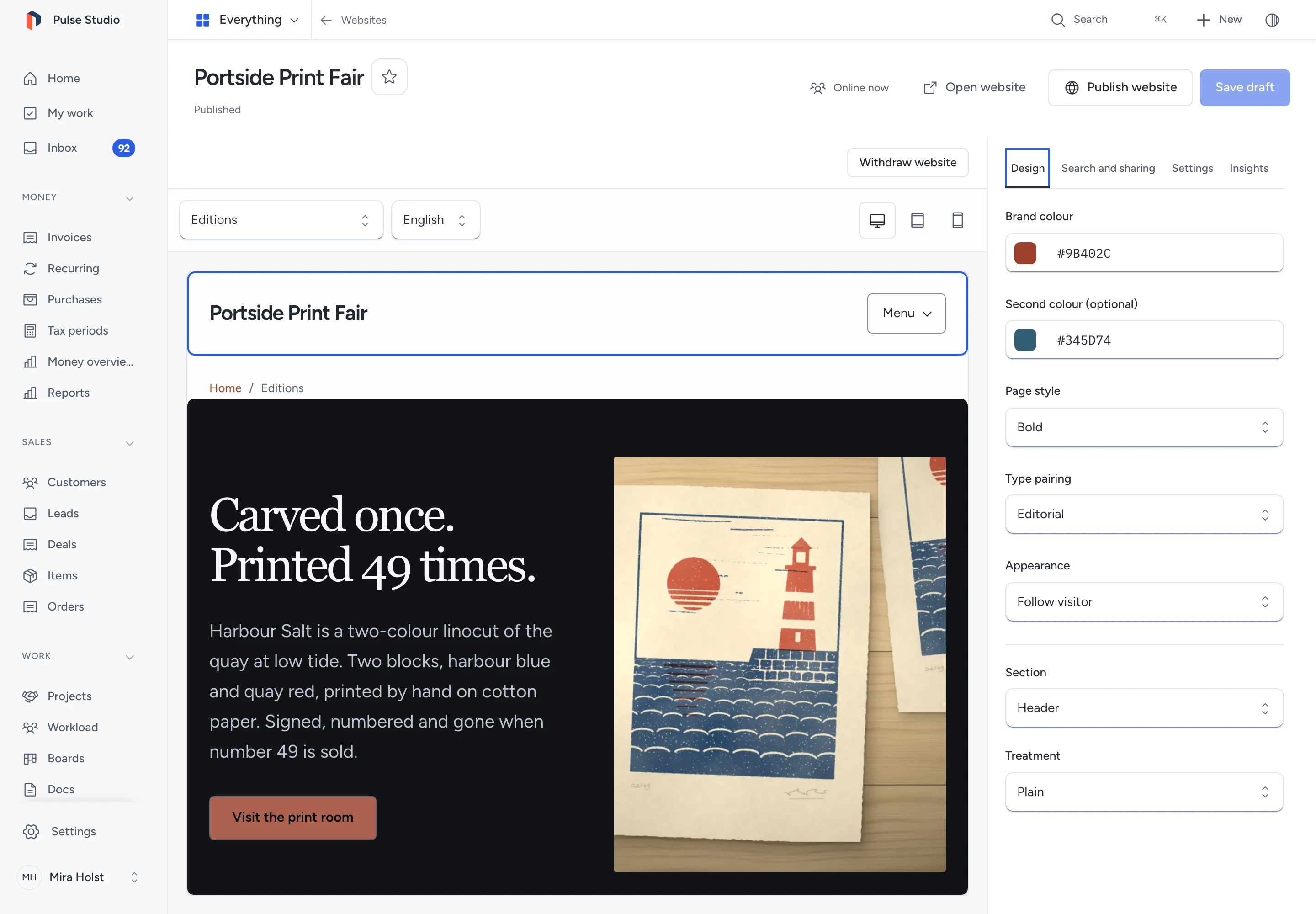
The website design applies to all pages and languages. Modern uses sans-serif headings; Editorial uses serif headings. Both use the same body type. Arabic text uses the bundled Arabic font.
Pepper derives readable text, links and controls from your colours. Button and link colours can differ from the entered colour to keep them readable.
| Treatment | Result |
|---|---|
| Plain | The page's regular surface |
| Tinted | A surface tinted with the second colour, or the brand colour when no second colour is set |
| Accent | A surface filled with the brand colour |
| Inverse | A dark section on a light page, or a light section on a dark page |
Sections use Plain unless another treatment is saved. Selecting a section brings it into view. Changing its design keeps the preview position.
Follow visitor is the default appearance. It follows the visitor's device setting, including when JavaScript is unavailable.
Visitors change the appearance with the half-circle button in the header. Its menu offers Device, Light and Dark, with a check on the current choice. Device follows the visitor's device setting. On a phone, Appearance and Language are full-width rows in Menu. This choice lasts only on the open page.
Without JavaScript, the appearance button is hidden and the page follows the website setting. The controls use the website's colours in light and dark, and keyboard users can open and move through both menus. Customer account pages use the same controls.
Reloading or opening another page restores the website setting. The choice creates no cookie, browser storage entry or analytics event.
Open Settings to change Website name, Website address, Custom domain, Default language and the enabled languages. Click Save draft to keep those changes together.
The default address uses your installation, for example https://office.example.com/site/northwind-studio/en. Visitors need no Pepper account to read published pages.
For a separate domain, follow Connect a website domain. DNS, HTTPS and server cookie settings must be ready before publication.
Address changes stay private until you publish. Changing Website address or Custom domain does not redirect the old website address.
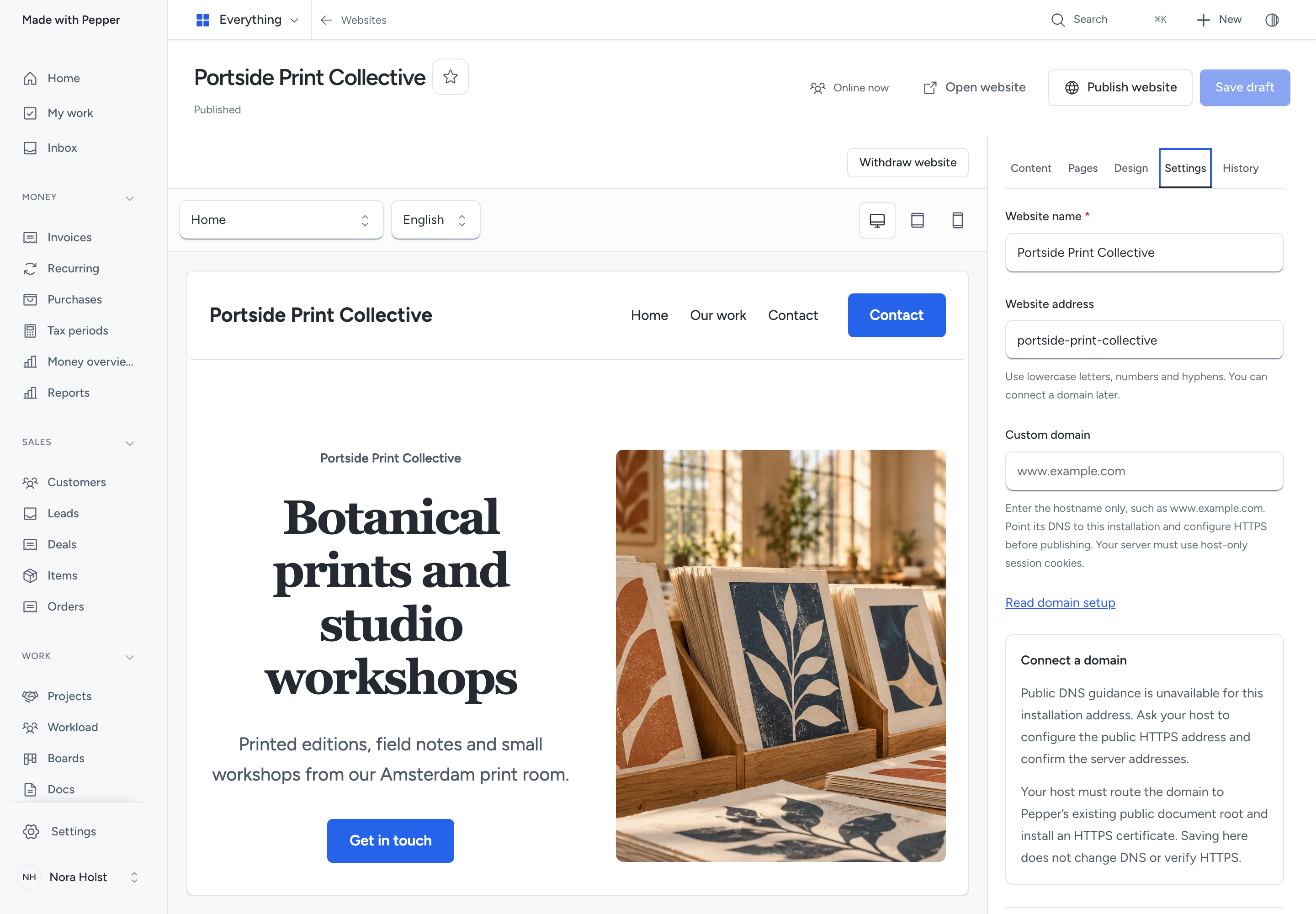
Add a widget
A Widget section accepts every widget type installed in Pepper. It uses the same service as a widget on an external website.
- Configure the source record and widget in their own screens.
- Publish the source and widget where their workflow requires it.
- Check the widget's Allowed websites against the website's public origin.
- In the website editor, add a Widget section.
- Click Choose widget and select the published widget.
- Save the website draft.
An origin contains the scheme and hostname, such as https://www.example.com. Do not include the page path. See widget website settings.
The website does not bypass widget permissions, sign-in, consent, booking availability or source publication checks. A closed or unavailable source cannot receive new actions through the website.
Widgets placed on the website follow its type pairing and section colours. Changing appearance keeps an open widget and its entered information in place.
A selected Locations widget shows its public address, phone and hours before the widget loads. Those details also remain readable without JavaScript.
The widget replaces those details when its content is ready. Keyboard focus stays in place until the visitor leaves the original details.
While the widget loads, a connection failure keeps the details visible and offers 1 retry. A closed or unavailable source removes them instead.
Use Open source when available to correct a permitted source. If the source is hidden, ask someone with access to restore it.
Add a shop, product or cart
Configure and publish a Shop and cart widget before selecting it in the website. A Buy button uses one product from that shop.
- Click Add section.
- Choose Shop, Product or Cart.
- Click Choose shop, Choose buy button or Choose cart.
- Select the matching published widget.
- Click Save draft.
- Review and publish the website.
A Cart section receives selections from product sections connected to the same shop. Different shops retain separate carts.
Preview stays inactive. The published checkout checks current products, tax, shipping, payment and availability through the same order actions.
Published shop and product sections show current product details, prices and availability before the widget loads. These details remain readable without JavaScript.
The ready widget replaces that first presentation. Buying, choosing a booking and editing a cart require the live widget and JavaScript.
Read Sell through a shop or buy button before taking orders. It covers setup, signed purchase access and failed-payment recovery.
Give customers account access
Published websites show Account in the header. Customers sign in with an email code; no password or staff invitation is needed.
Account pages use the website's design and languages. They provide profiles, addresses, privacy choices and linked purchases, including invoices, available downloads and return requests.
The account works without a shop. Keep the Customers module and email delivery available. Account forms also work without JavaScript.
Each custom domain requires its own sign-in. Moving the address or withdrawing publication ends access through the old account address.
A matching signed-in account can verify checkout on that website. Other checkouts send a code. Read Manage customer accounts.
Receive contact enquiries
A Contact form section requires a public Lead form with an always-visible, required Consent field. Other form targets belong in ordinary Widget sections.
- Open Forms and create a form with Lead as its target.
- Add the contact fields and map Name to the field that names the enquiry.
- Map the other contact fields you need.
- Set the Source tag, for example
website. - Add a Consent field and enter the statement visitors must accept.
- Make consent required, with no display condition.
- Save and publish the form.
- Create and publish its form widget for the website's origin.
- Add a Contact form section to the website.
- Click Choose contact form and select that widget.
- Save, review and publish the website.
An accepted enquiry creates a submission and follows the lead form rules. A matching open lead can receive the new message without creating another lead.
Pepper keeps the consent record and the website, published version, page, section, language and path that received the enquiry. These are submission facts. They do not require analytics consent or identify an anonymous visitor across websites.
The lead's Source comes from the form's Source tag. Keep your consent statement appropriate for the information you collect and its intended use.
Inspect where an enquiry arrived
- Open Forms > Submissions.
- Open the received submission.
- Read its Websites details.
- To inspect the website, click its name.
- Open the menu beside the website status, choose History and find the displayed version number.
The details show the website name and page title from the receiving publication. They also show its language, path and saved version number.
The name links to the staff website editor. It does not open an old public address or automatically select that historical version.
On a lead or deal, expand Where this record came from. An eligible First touch or Last touch shows the same website details.
These summaries follow the existing 30-day attribution window and current record access. The submission keeps its own originating publication regardless of that window.
Website details are hidden when you cannot currently read the website and the selected historical content's sources. This does not delete the submission or grant extra source access.
Publish the saved draft
Publishing makes the reviewed pages and selected sources public at the displayed address. Check every language and remove unfinished sample sections first.
- Click Save draft and wait for confirmation.
- Click Publish website.
- Check the address, page count, content and Connected sources in Review publication.
- Confirm Publish website.
- Click Open website.
- Check the public pages and connected services on a phone and a larger screen.
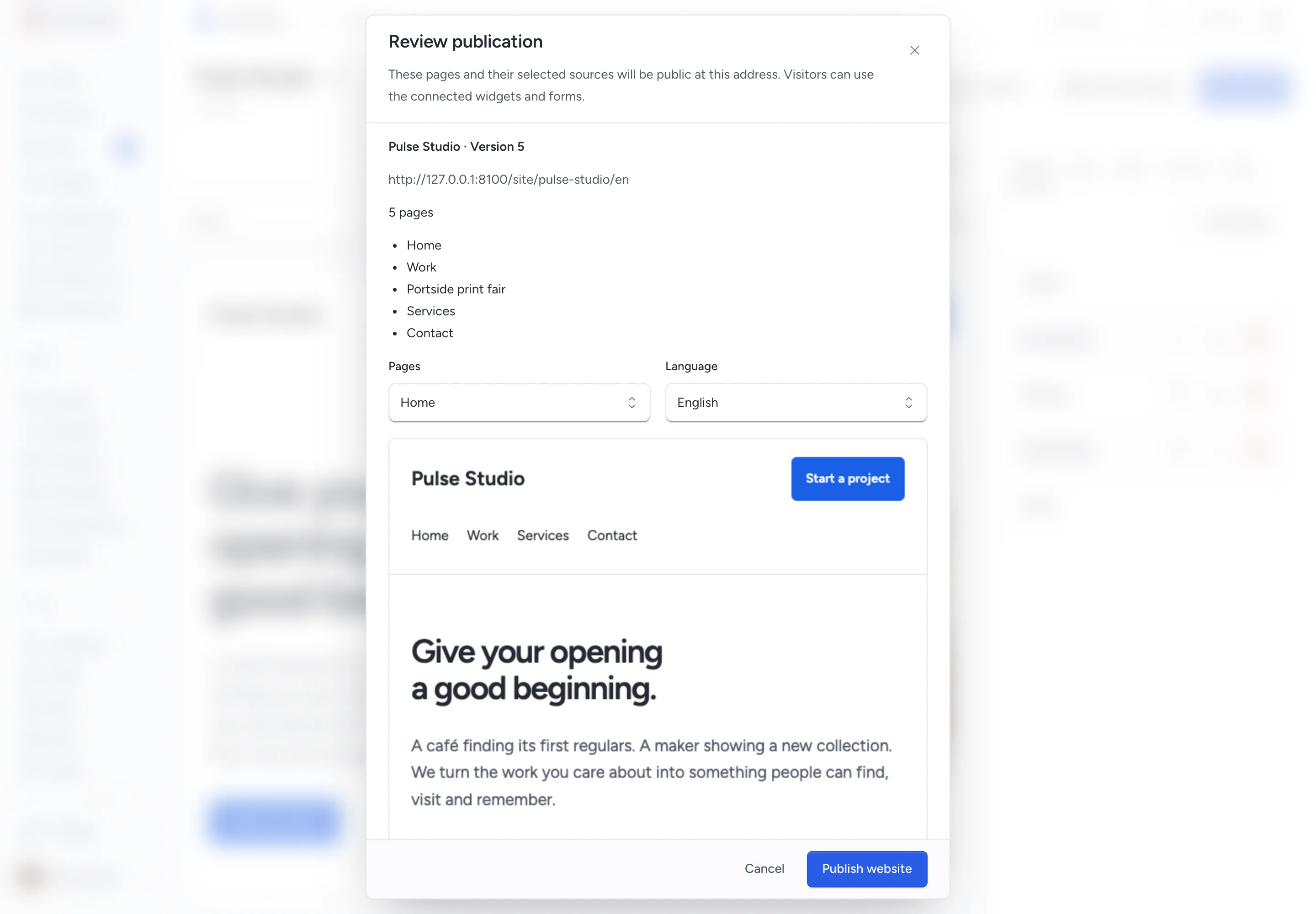
Visitors see the last published version. Later draft edits remain private until you publish again.
If the website or a source changes during review, close the review and open it again. Publication checks the current sources and their allowed origins.
Check the published search title, icon and share image after changing Search and sharing. Search engines and sharing services can take time to refresh their copies.
These outputs describe published content. They do not guarantee search placement or inclusion in an AI service.
Restore content or withdraw publication
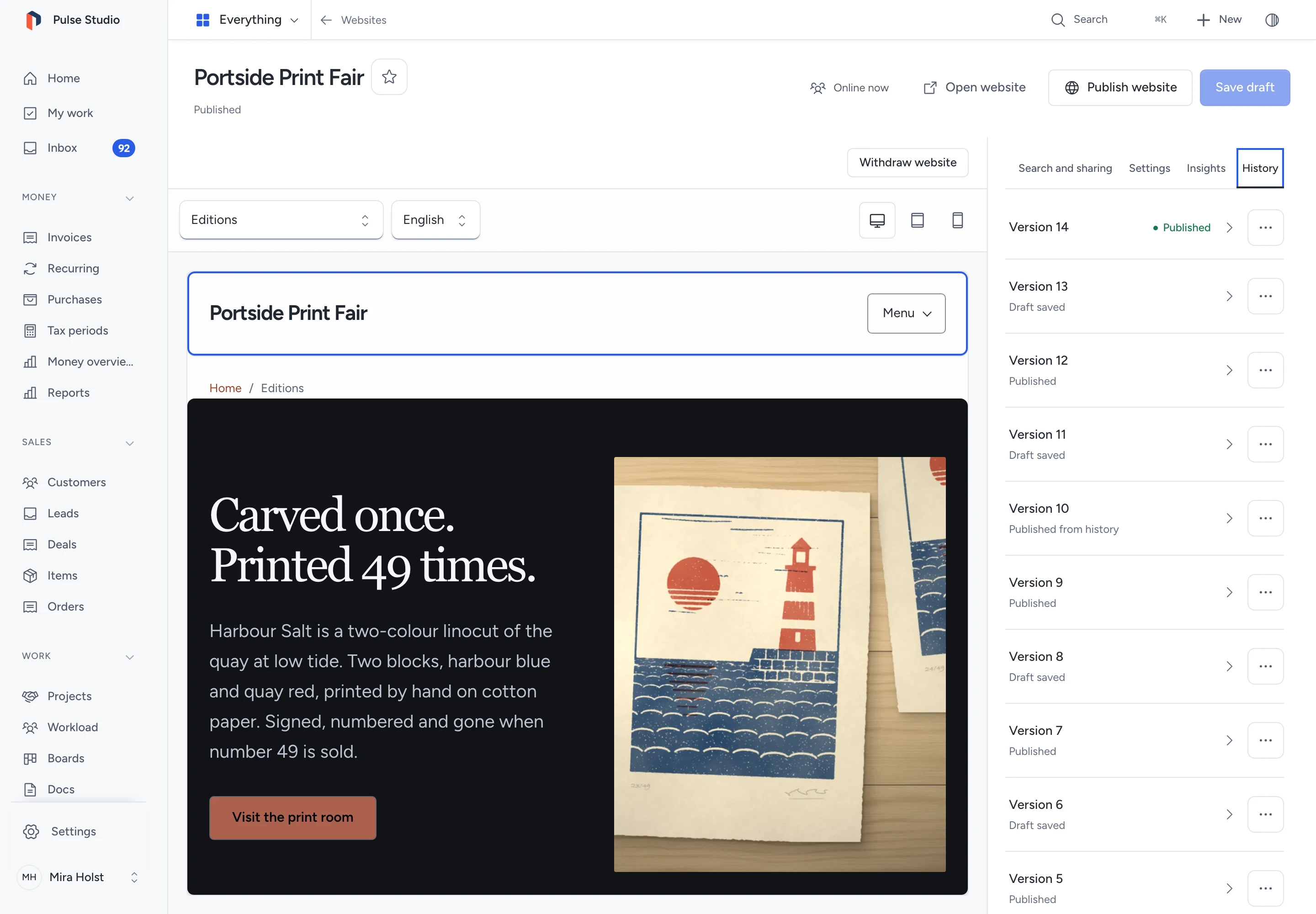
Open the menu beside the website status and choose History. Select a version to view its saved pages. Use Load more for older versions.
Open the version’s More menu to choose Restore to draft or Publish this version.
| Action | Result |
|---|---|
| Save draft | Keeps changed content as a new private version; visitors keep the published version |
| Restore to draft | Copies the selected saved content into a new private version; publication stays unchanged |
| Publish this version | Copies and publishes the selected saved content as a new version after review |
| Withdraw website | Stops public access and new website actions; keeps the draft, saved history and received records |
Restore to draft and Publish this version keep the website's current address. Neither action deletes later history.
Restoration checks current access to selected sources. Publishing from history also checks current publication, catalogue values and widget rules.
A saved version cannot reopen a deleted file, closed widget or unavailable source. Restore the source through its own controls when possible.
Fix a blocked change
| What you see | What to do |
|---|---|
| A field needs correction | Select its link in the error summary. The editor opens the relevant page, language and field; your changes stay intact |
| Save failed | Keep the editor open, check the connection and retry |
| Preview could not update | Check fields and selected sources, then retry the preview |
| Website changed elsewhere | Copy unsaved text before using Load current draft; that action replaces your local changes |
| Your access changed | Keep a copy of unsaved text and ask an administrator to restore the required permission |
| Source access needs recovery | Ask someone with access to restore the source; load the draft again after access returns |
| Some sources need attention | Check missing selections, active items, image versions, widget publication, allowed origins and page links |
| Custom domain cannot publish | Ask the operator to check domain setup, including host-only session cookies |
| Website or source changed during review | Close the review, inspect the latest content and review again |
The editor allows up to 200 sections per page and 1 MiB of complete website content. Images are stored separately.
If source access is lost, the editor withholds the editable draft. Someone with publication permission can still withdraw the website.
Keep a recoverable copy
A full backup includes the website draft, published version, saved history and retained image versions. Received form records and consent travel with the backup.
Website history helps recover an edit. A separate backup protects against losing the installation or its storage.
Need help with the product?
Contact support